KE2010.Instruction Manual.Ver.2.01,Rev.08.pdf - 第86页
3 − 13 3.4 Starting up or Terminating the Sy stem W indow s NT star ts up af ter power-on, t hen the application m anager included as t he soft ware for t he main unit is executed: t he initialize window appears on the s…
3 − 12
(2) Keyboard operations
① Page up, Page down
When the information covers two or more screen pages, the Page Down key
accesses the following page and the Pageu Up key does the preceding
page.
There is a scroll bar appearing on the right side of the window when
information covers two or more screen pages. It indicates that there is more
information up or down the screen than the one currently shown on the
display. The scroll box inside the scroll bar tells you the approximate location
you are currently viewing in the entire body of information.
② Home, End
When the information covers two or more screen pages, the Home key
moves the cursor to the beginning of the line and End key does to the end of
the line.
③ Scroll
− If the ↑ key is pressed when you are on the top line of a screen page
and if there is more information vertically before it, the key scrolls the
information down one line.
− If the ↓ key is pressed when you are on the bottom line of a screen
page and if there is more information vertically after it, the key scrolls the
information up one line.
− If the ← key is pressed when you are at the beginning of the line and if
there is more information to the left, the key scrolls the information one
field to the left.
− If the → key is pressed when you are at the end of the line and if there
is more information to the right, the key scrolls the information one field to
the right.
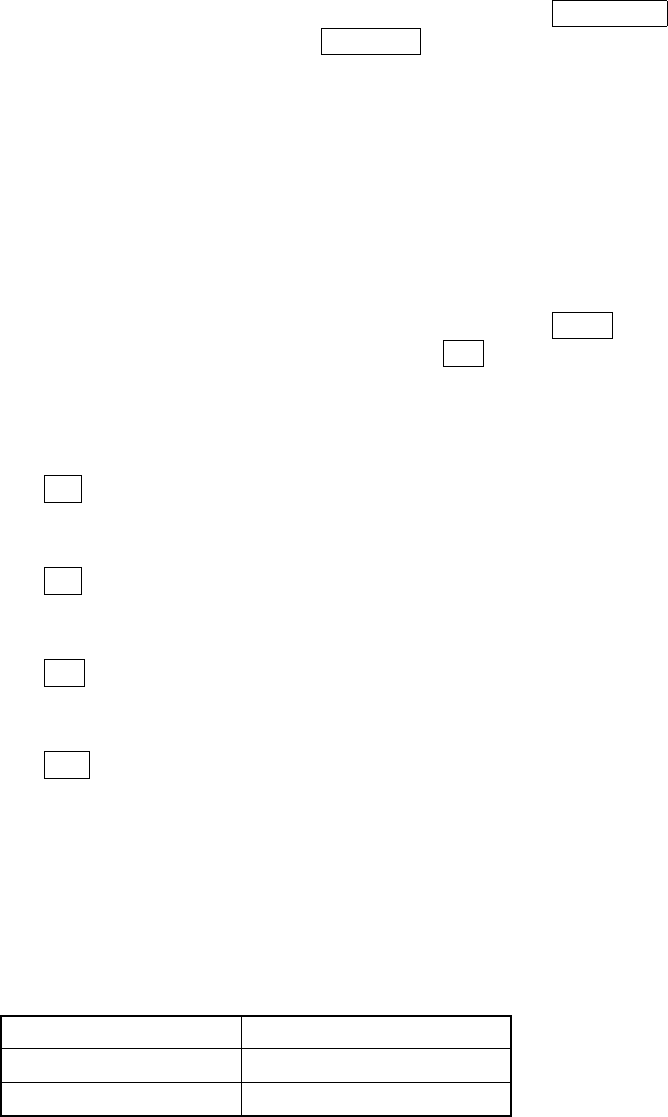
④ Insert
The Insert key toggles data entry mode between the Insert mode and
Overtype mode.
Data entry mode Cursor shape
Insert
❙ Blinking
Overtype
− Blinking
3 − 13
3.4 Starting up or Terminating the System
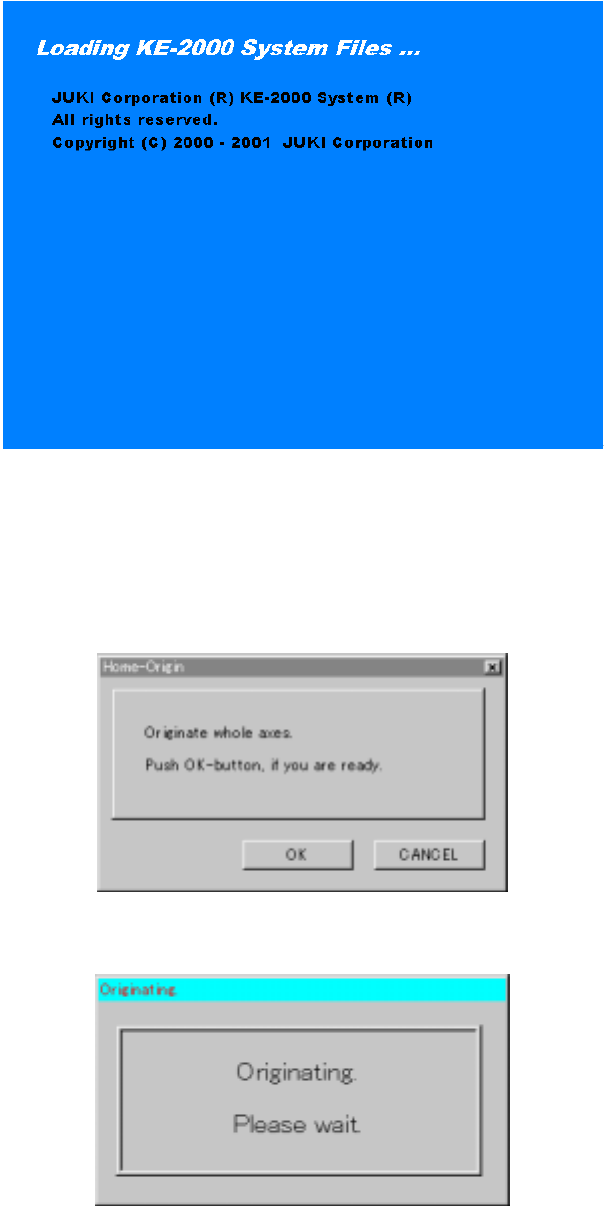
Windows NT starts up after power-on, then the application manager included as the
software for the main unit is executed: the initialize window appears on the screen.
Figure 3.4.1 Start-up screen
When the system is initialized for a while, the <Returning to ORIGIN> screen appears.
If you do not perform the return-to-origin function, press the <CANCEL> key. When
the system completes the return-to-origin function successfully, the application
manager window appears on the screen.
Figure 3.4.2 <Home-Origin> dialog box
Figure 3.4.3 Zeroing waiting dialog box
3 − 14
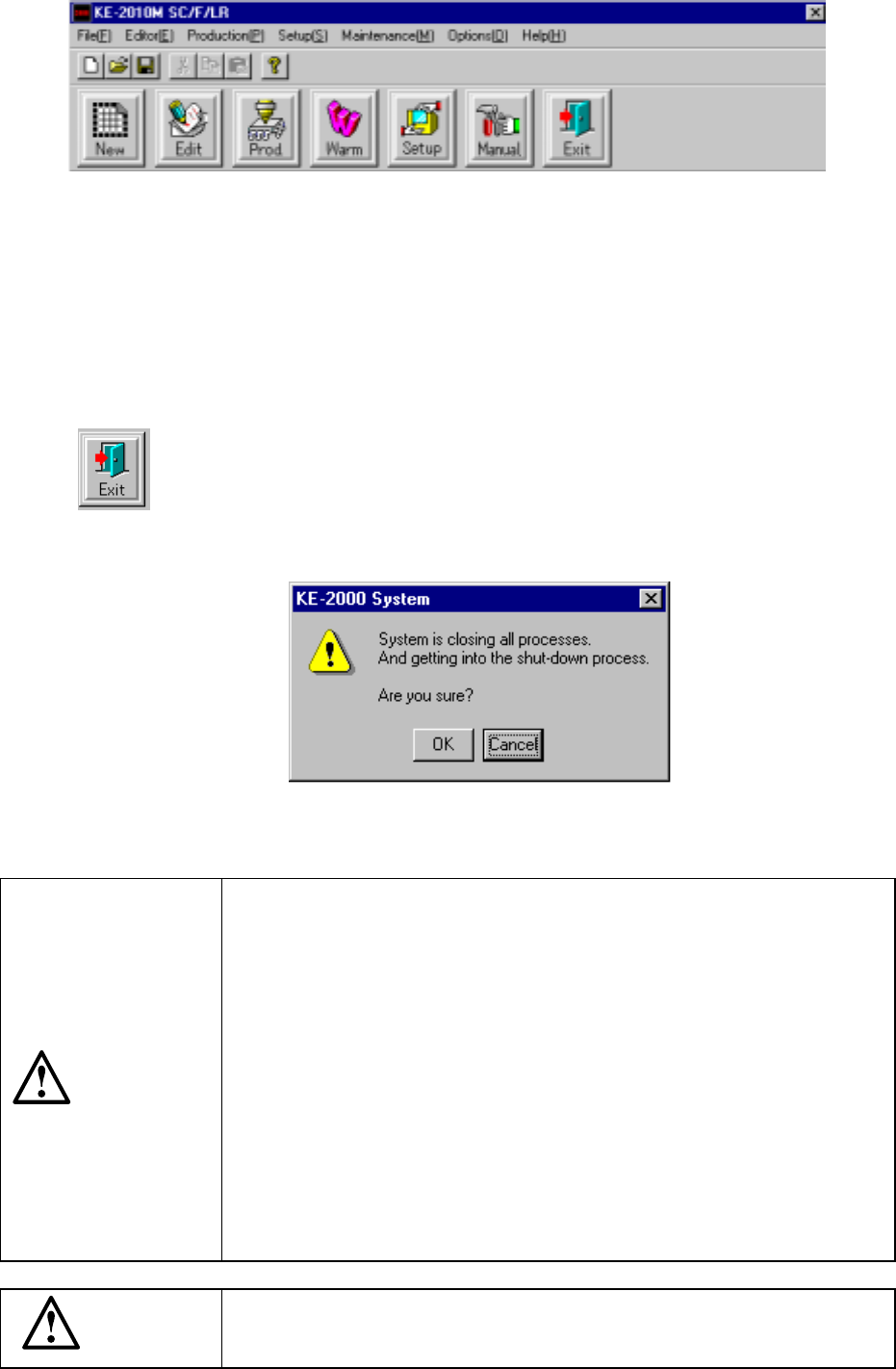
Figure 3.4.4 Main window
To terminate the system, click the <Exit> command button. When you click the <Exit>
button, the confirmation dialog box appears on the screen. When you click the <OK>
button displayed on this dialog box, the shut down process starts, then the system
terminates. If you click the <Cancel> button on this dialog box, the main menu
reappears.
When you click the <Exit> button, the shut-down process confirmation
dialog box opens.
Figure 3.4.5 Shut-down process confirmation dialog box
To turn off the main unit, be sure to click the <Exit> button on the
Main window to shut down the system. Then, turn off the main unit
only after the message “You can turn off the power” appears on the
screen. If you turn off the main unit without shutting down the system
on the Main window, it may damage the system file or hard disk and
you may not be able to start up the system again.
If you cannot click the <Exit> button on the Main window by any
chance, press the <CTL>, <ALT> and <DELETE> keys at the same
time to select the shutdown function. Then, turn off the power after
shutting down the system.
If the combination of the <CTL>, <ALT> and <DELETE> keys cannot
function, press the Emergency Stop button and wait for ten minutes
without performing any operation. Then, turn off the power. In this
case, the shutdown function is not executed, so it cannot prevent the
system from being damaged completely, but it can minimize the
damage of the system.
When you start up the main unit, two consol screens (under DOS) are
started up at the same time. These consol screens are necessary to
control the system. Never close them.
CAUTION
CAUTION