KE2010.Instruction Manual.Ver.2.01,Rev.08.pdf - 第92页
3 − 19 3.6 File Operation This section descr ibes how to operate a production prog ram f ile. 3.6.1 Create New Operation 1: Select t he [File] com mand on the menu bar , then [ Create New] command on the File m enu. Oper…
3 − 18
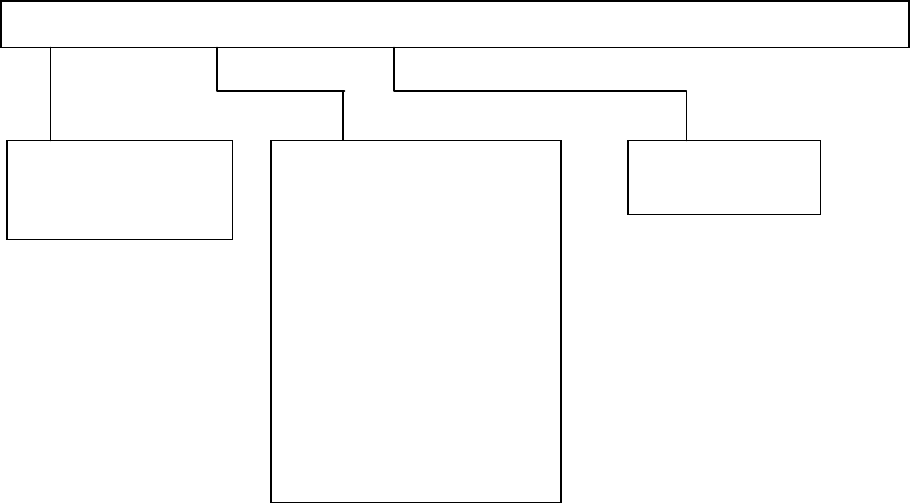
3.5.4 Machine setup local menu
File [F] Setting Group [G] Disp [V] Help [H]
Registered nzl. no table [L]
Read Nzl. data [R]
Exiting [X]
Tool bar [T]
Status bar [S]
ATC nozzle setup [A]
Vacuum value without position [U]
Reference pin position [R]
Shape clamp position [F]
MTC shuttle pick position [P]
MTS position offset [O]
Component scrap position [T]
IC conveyor belt position [I]
Head Wait Position [W]
Device enable [D]
Multi-station line [L]
PWB conveyor [C]
Signal light [S]
Bad mark sensor teaching B]
3 − 19
3.6 File Operation
This section describes how to operate a production program file.
3.6.1 Create New
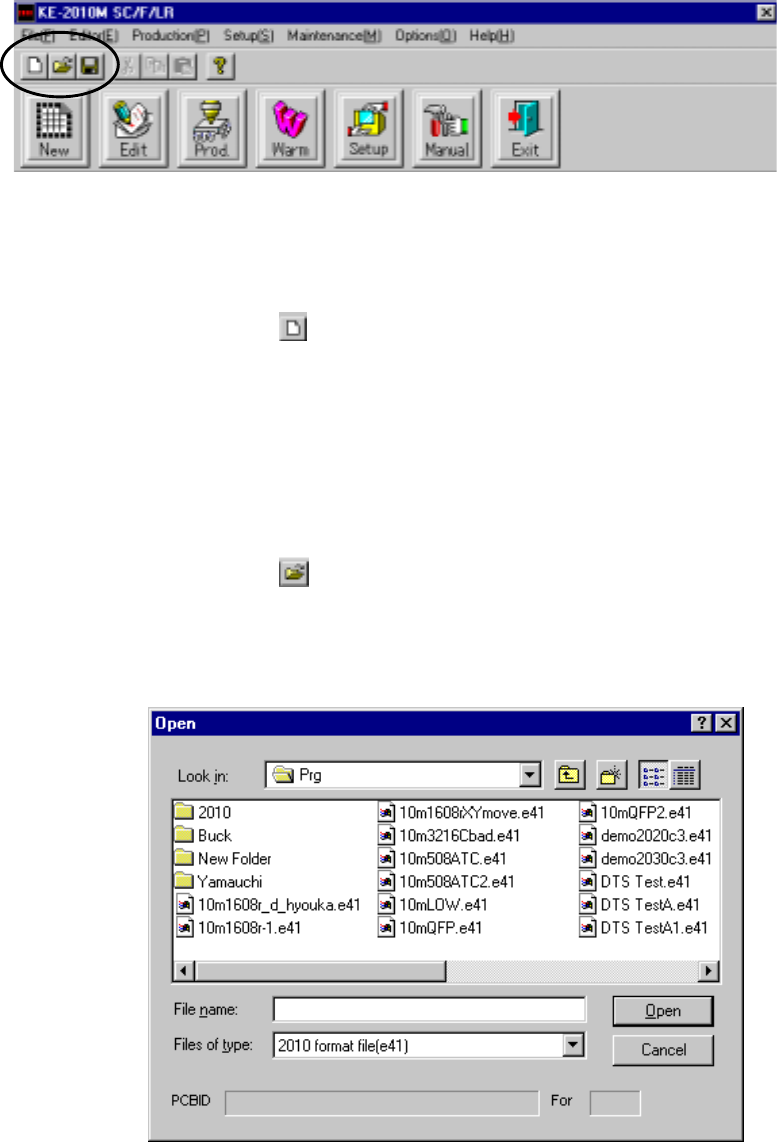
Operation 1: Select the [File] command on the menu bar, then [Create New]
command on the File menu.
Operation 2: Select the
button on the tool bar.
This operation clears production program data.
3.6.2 Open
Operation 1: Select the [File] command on the menu bar, then [Open] command on
the File menu.
Operation 2: Select the
button on the tool bar.
This operation selects a production program, then loads it to the system.
Figure 3.6.2 File load dialog box
)
3 − 20
3.6.3 Overwrite & Save
Operation 1: Select the [File] command on the menu bar, then [Overwrite & Save]
command on the File menu.
Operation 2: Select the
button on the tool bar.
This operation saves a production program with the current name.
Note: Only if you change data on the Basic setting screen of PWB data, move to
another screen, then save the data.
Even though you perform the save operation for the changed data on the Basic
setting screen, the machine does not save it.
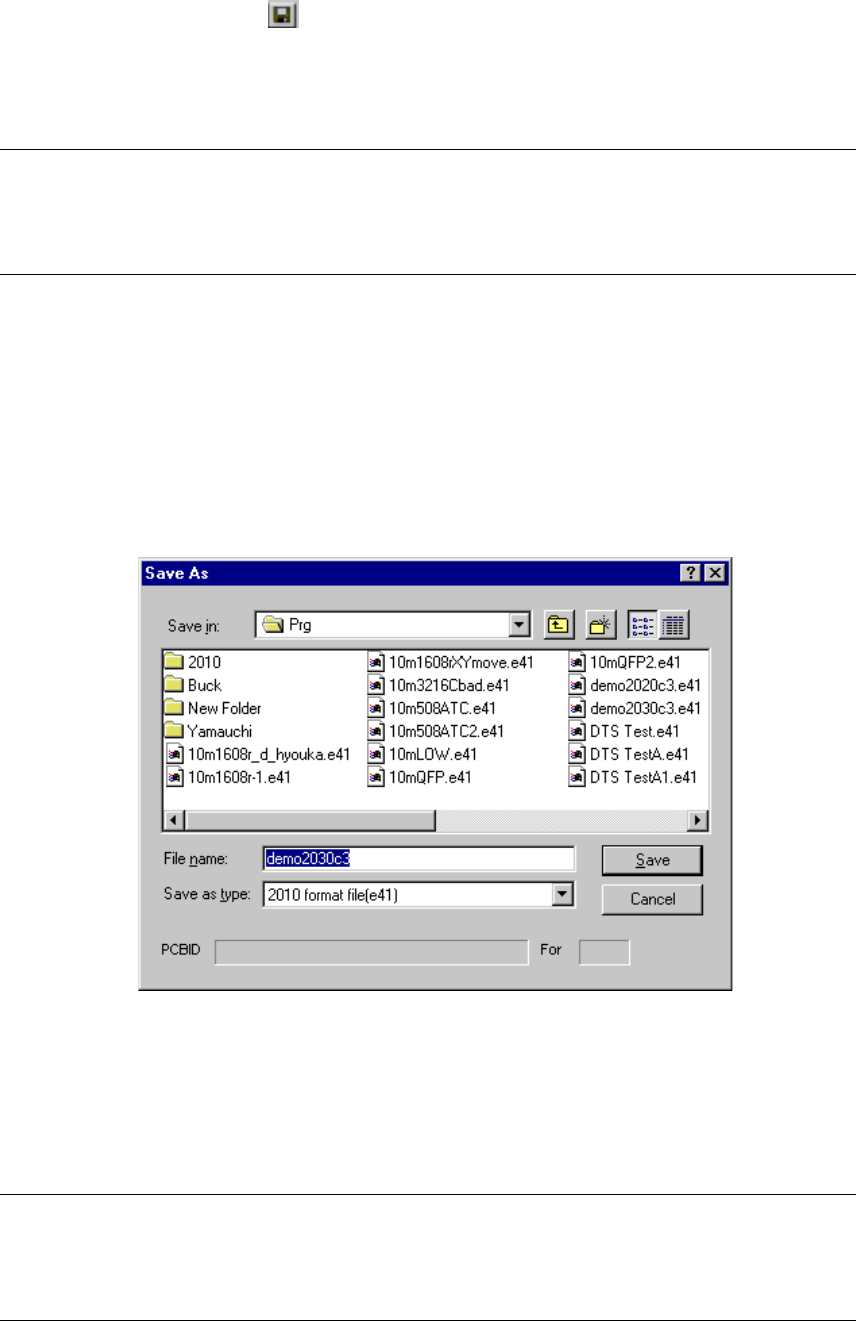
3.6.4 Save As
Operation: Select the [File] command on the menu bar, then [Save As] command
on the File menu.
This operation renames the current production program, then saves it.
Figure 3.6.4 <Save As> dialog box
As long as you follow the Windows file name conventions, you can assign a long file
name or Japanese file name to a program. However, to maintain the compatibility
with the KE-700 series of products, we recommend that you assign to a production
program an English file name whose length is eight characters or less.
Note: Only if you change data on the Basic setting screen of PWB data, move to
another screen, then save the data.
Even though you perform the save operation for the changed data on the Basic
setting screen, the machine does not save it.