KE2010.Instruction Manual.Ver.2.01,Rev.08.pdf - 第99页
3 − 26 3.6.7.6 O perational Set ting Data This comm and prints the oper ation options inf orm ation. W hen y ou select select t he [File] com mand on the menu bar , select t he [Print] command on the displayed menu, then…
3 − 25
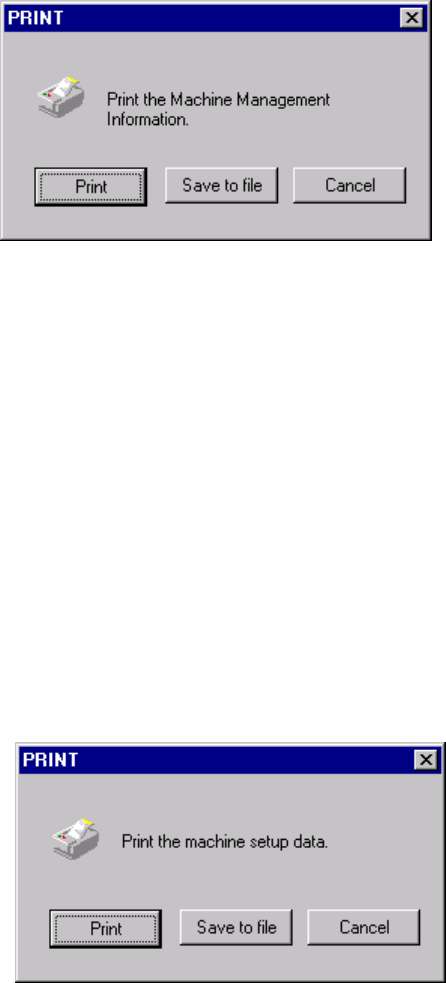
3.6.7.4 Machine Management Information
This command prints the machine operation information.
When you select the [File] command on the menu bar, the [Print] command on the
displayed menu, then the [Machine Management Information] command, the dialog
box appears on the screen as shown in the figure below.
When you click the <Print> button, the system starts printing the machine operation
information.
When you select the output type, or data to be output, and click the <Save to file>
button, the dialog box for saving a file appears on the screen. Specify the path and
file name, then click the <Save> button. The specified file is output as a text file.
When you click the <Cancel> button, the system returns to the condition before you
clicked the [Print] command.
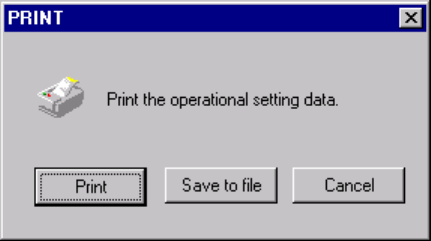
3.6.7.5 Machine Setup Data
This command prints the machine setup information.
When you select the [File] command on the menu bar, the [Print] command on the
displayed menu, then the [Machine Setup Data] command, the dialog box appears
on the screen as shown in the figure below.
When you click the <Print> button, the system starts printing the machine setup
information.
When you select the output type, or data to be output, and click the <Save to file>
button, the dialog box for saving a file appears on the screen. Specify the path and
file name, then click the <Save> button. The specified file is output as a text file.
When you click the <Cancel> button, the system returns to the condition before you
clicked the [Print] command.
3 − 26
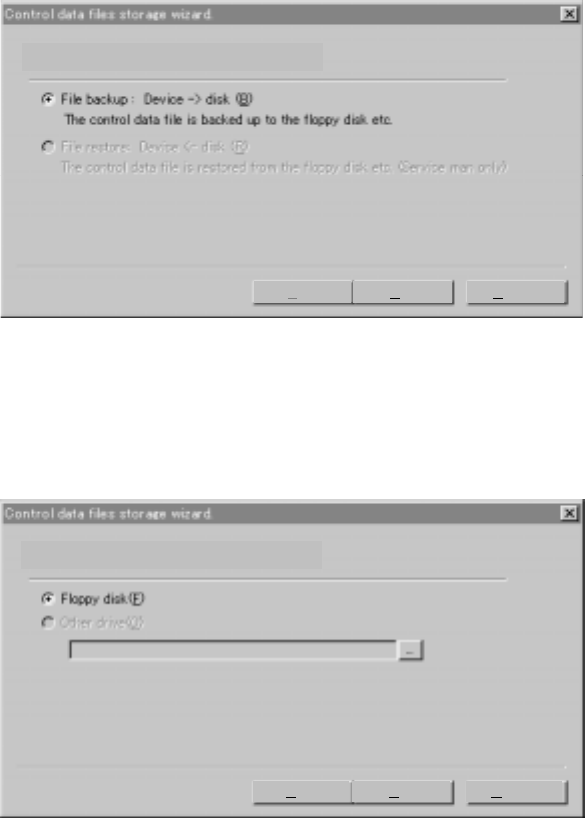
3.6.7.6 Operational Setting Data
This command prints the operation options information.
When you select select the [File] command on the menu bar, select the [Print]
command on the displayed menu, then the [Operational Setting Data] command, the
dialog box appears on the screen as shown in the figure below.
When you click the <Print> button, the system starts printing the operation options
information.
When you select the output type, or data to be output, and click the <Save to file>
button, the dialog box for saving a file appears on the screen. Specify the path and
file name, then click the <Save> button. The specified file is output as a text file.
When you click the <Cancel> button, the system returns to the condition before you
clicked the [Print] command.
3 − 27
3.6.8 Saving a control data file
This command saves the basic control data, which is used to control the machine,
onto a floppy disk. The data to be saved here is very important to:
operate the EPU (External Program Editing Unit) according to the specifications of the
main unit, and
find out the conditions unique to the machine when a trouble occurs.
To save a control data file, use the Wizard as shown below. Follow the
instructions displayed on the screen.
3.6.8.1 Selecting a task
Normally, you can select the task “File backup” only.
To save the control data, click the <Next> button.
When you click the <Cancel> button, the system cancels the control data save
operation.
3.6.8.2 Selecting where to save the control data
Select the radio button “Floppy disk”.
)
Please select work.
Back Next Cancel
Please select the place of the backup.
Back Next Cancel