1OM-1603-006_w.pdf - 第109页
1OM-1603 2-6 2. Operation Screen : Chap.2 [2] Status Indicator Current Operation Mode, Product Name (Pattern Program Name), Operation Window Hierarchical Position (Host Window) and Name are displayed. [3] [Login User] Bu…
1OM-1603
2-5
2. Operation Screen : Chap.2
1108-005
2. Operation Windows
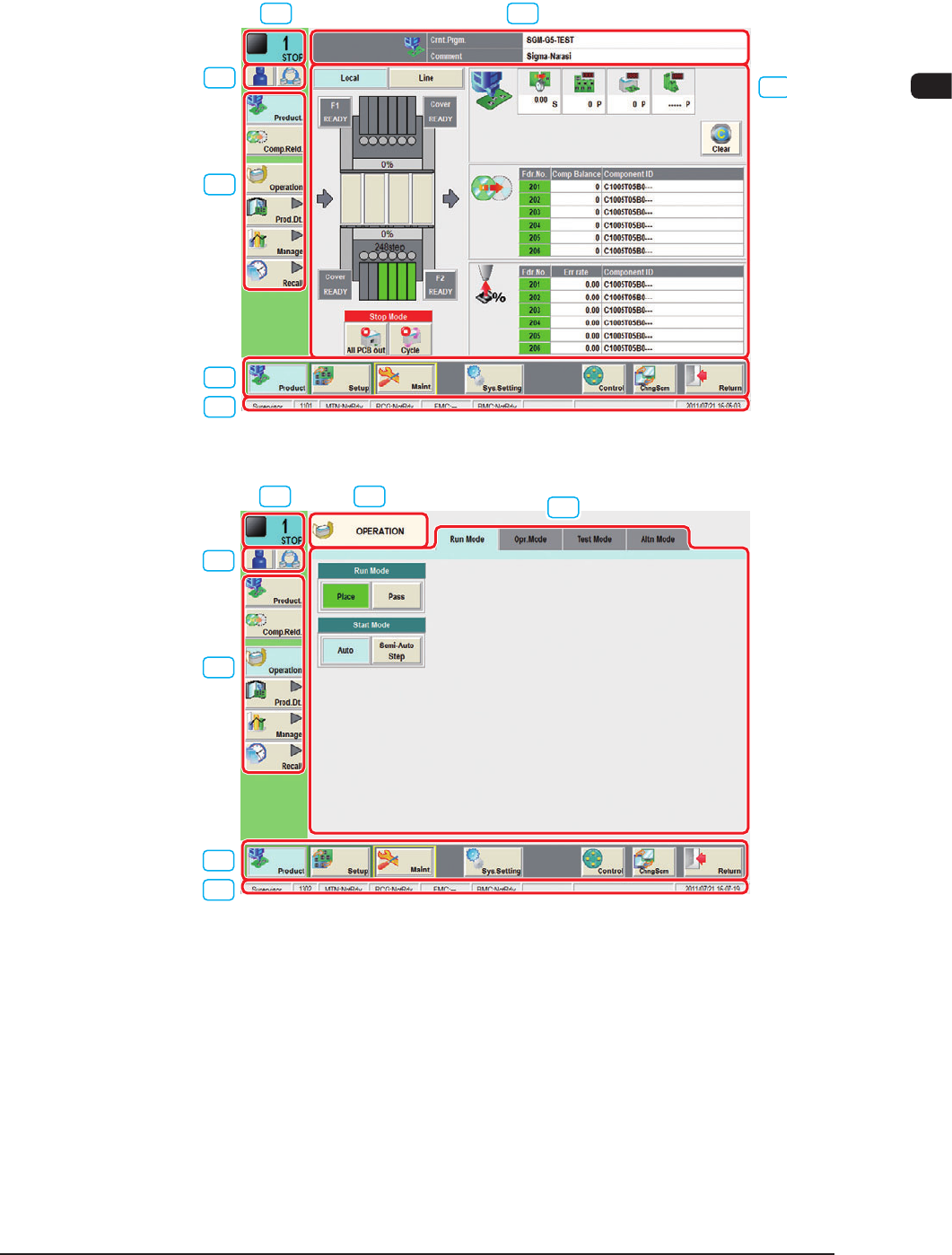
The basic layout of the operation window is as follows.
[1] [2]
[3]
[4]
[5]
[6]
[8]
F1B5
[1] [2]
[3]
[4]
[5]
[7]
[8]
F1B6
[1] Current Machine Mode
The Nos. of the machines that make up the production line and their current
machine mode are displayed in real time.
RUN
: Indicates that the machine is running.
MOVE
: The machine operation, such as zeroing operation, is being
performed.
STOP
: Indicates that the machine is stopped.
WAIT
: Indicates that the machine is set in the stand by mode.
PAUSE
: It shows that the machine is in the pause mode.
1OM-1603
2-6
2. Operation Screen : Chap.2
[2] Status Indicator
Current Operation Mode, Product Name (Pattern Program Name), Operation
Window Hierarchical Position (Host Window) and Name are displayed.
[3] [Login User] Button
The current login user is indicated using an icon.
When the [Login User] button is pressed, the "Login User Selection" window
appears and the login user change is available.
Reference
Refer to "1.2 Login User Selection" in Chapter 2 for the login user change.
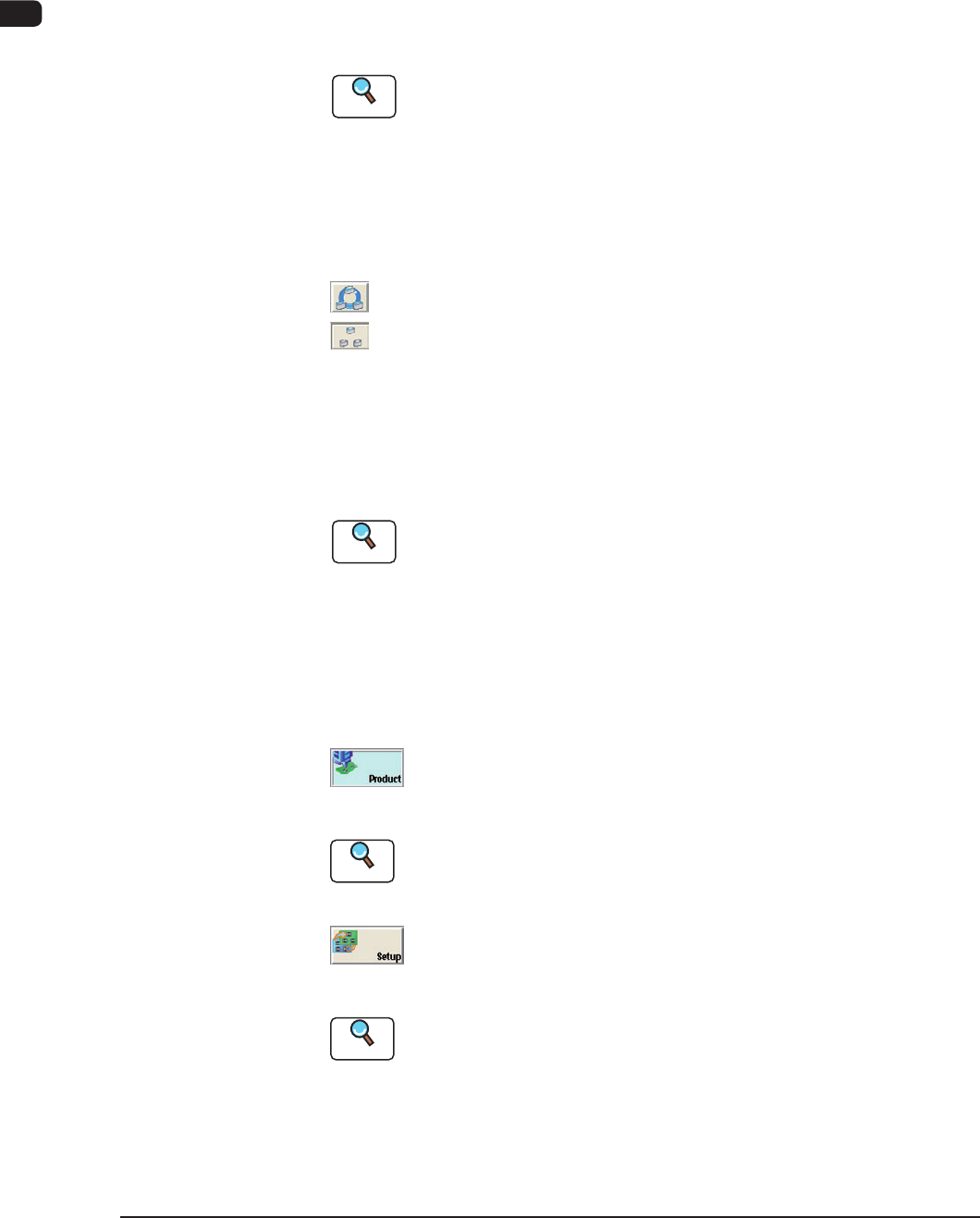
[Line] Button
Using this button, the connection to the machine in the line is executed.
Each pressing the [Line] button connects or disconnects the machine in the
line alternatively.
:
This shows that the machine in the line is connected.
:
This shows that the machine in the line is disconnected.
[4] Main Menu Bar
The main menu buttons are arranged on the menu bar.
When any of the buttons is pressed, the corresponding menu operation
window appears.
Reference
Refer to "2. Product Window" in Chapter 1, Volume 2, for the details of
the main menu bar.
[5] Common Menu Bar
The common menu buttons are arranged on the bottom of the touch screen.
When each of the common menu buttons is pressed, the corresponding
operation window appears.
[Product] Button
When this button is pressed, the "Product" window is displayed.
Reference
Refer to "Menus for Automatic Operation" in "Chapter1 (Volume 2)" for
the detailed information on the "Product" window.
[Setup] Button
When this button is pressed, the "Set-up" window is displayed.
Reference
Refer to "Menus for Setup Operation" in "Chapter 6 (Volume 2)" for the
detailed information on the "Set-up" window.
1108-005
1OM-1603
2-7
2. Operation Screen : Chap.2
1108-004
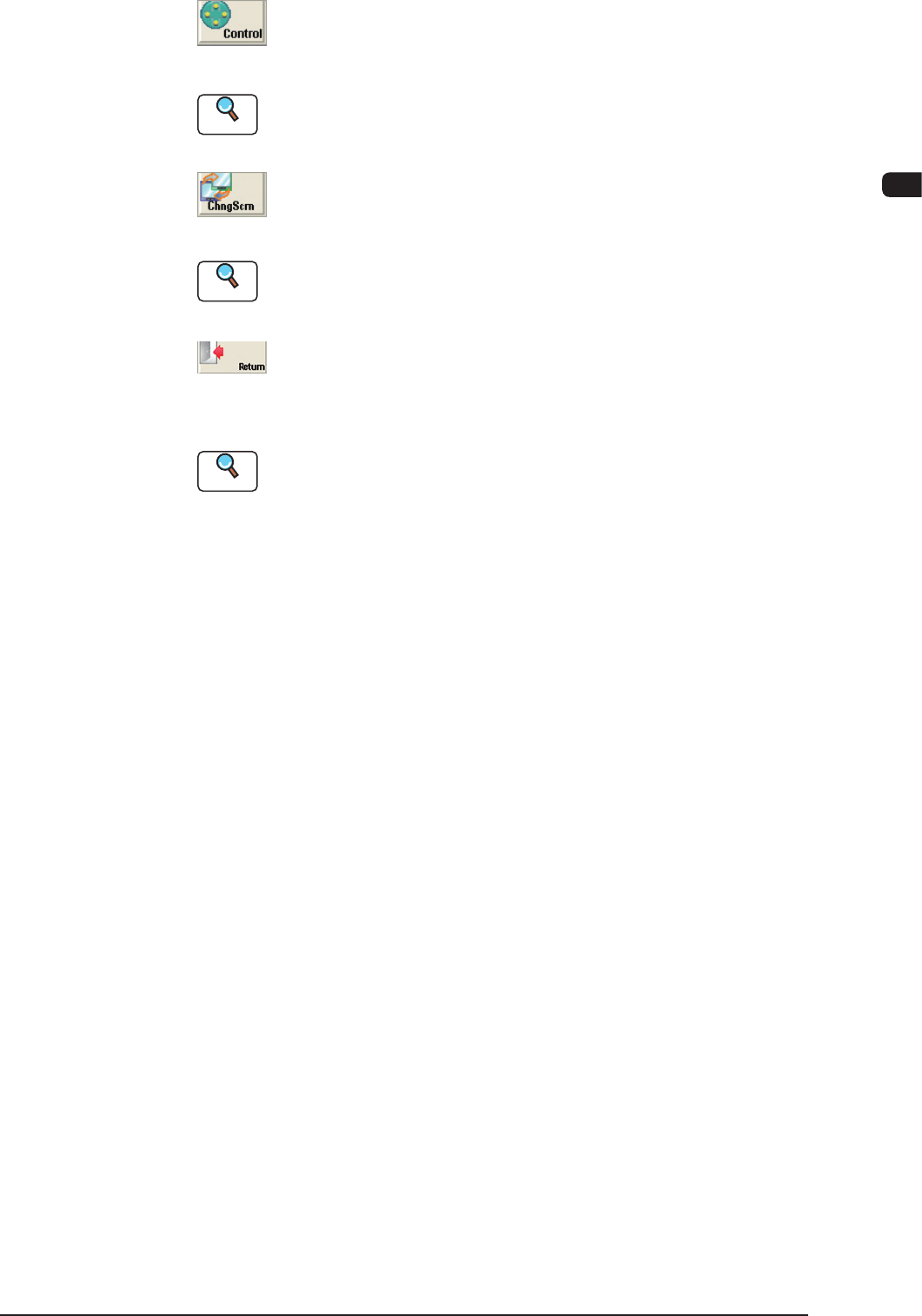
[Control] Button
When pressed, this button opens the "Control" window.
Reference
Refer to "2.1 Control Menu" in Chapter 2 for the detailed information on
the "Control" window.
[ChngScrn] Button
When this button is pressed, the "Recognition Image" window is displayed.
Reference
Refer to "2.2 Recognition Window" in Chapter 2 for the detailed
information on the "Recognition Image" window.
[Return] Button
When this button is pressed, the operation window is closed and the TOP
window is returned.
Reference
Refer to "4.1 LOGOUT" in Chapter 2 for the detailed information on the
"LOGOUT " window.
[6] Operation / Display Section
Device Image, Operation Buttons and Related Data are displayed. The
displayed data is different in each the operation window.
[7] Tabs and Tab Sheets
When the window consists of two or more tab sheets, there are tabs or
buttons on the upper sections of the window. On the tab, the name of the
sheet is indicated. When the tab is pressed, the sheet (tab sheet) appears.
[8] Status Bar
The Login Type, Window No. Current Date and Time are displayed on the
status bar.