00193790-01.pdf - 第102页
2 English Installat ion and Getting Started with CACCIA 2.8 CACCIA - Program Overview Issue 07/2004 36 2.8 CACCIA - Program Over view Fig. 2 - 32 Overview of CACCIA Functions Main Vi ew Overview of the grafical I nterfac…
Installation and Getting Started with CACCIA 2 English
Issue 07/2004 2.7 Connecting CACCIA with SIPLACE
35
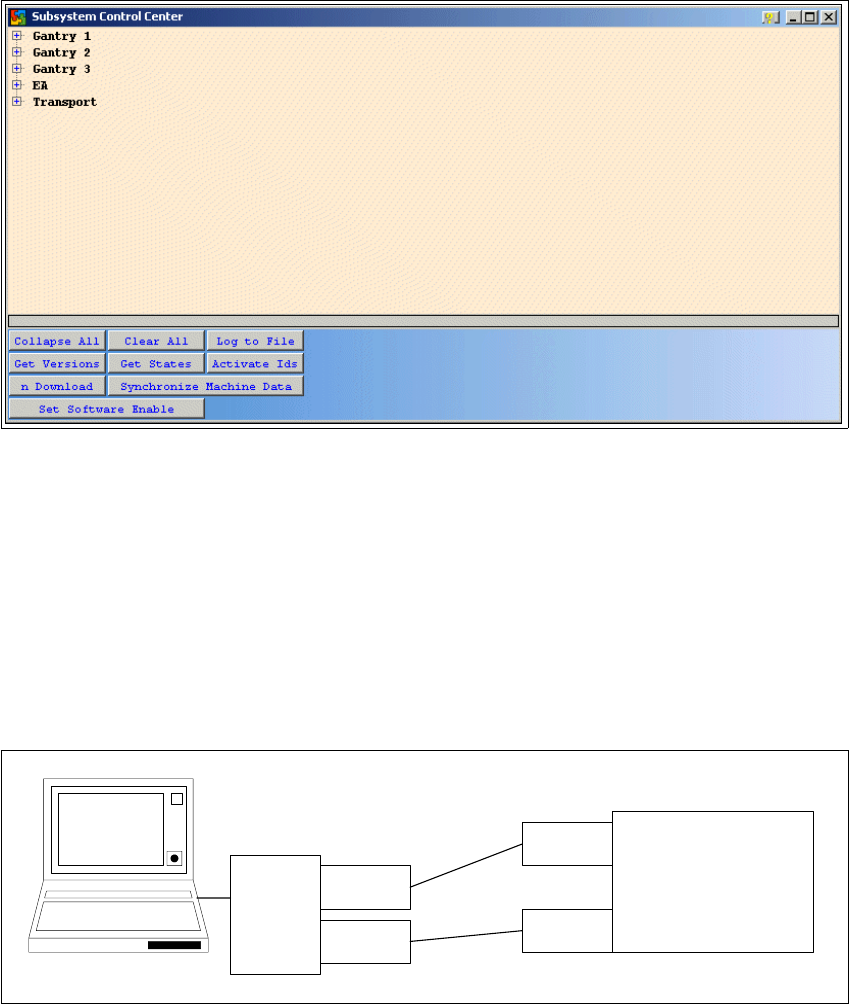
→ The Subsystem Control Center dialog box will open.
Fig. 2 - 30 CACCIA - Subsystem Control Center
→ This dialog box shows the subsystems as configured.
→ Now connect CACCIA to the SIPLACE machine.
→ The CAN service plugs for nets 1 and 2 can be found in the control unit.
→ Connect the CAN bus cable to the COM card of the SIPLACE machine, in line with the CAN
bus structure. For a detailed description of the CAN bus structure see “Overview of the CAN
Bus Structure in SIPLACE Machines” on page 4.
→ You can now work with the CACCIA service and monitoring software.
Fig. 2 - 31 Example: CACCIA with SIPLACE
SIPLACE
network 1
network 2
CAN card for
the laptop
PCMCIA
network 1
network 2
CACCIA
2 English Installation and Getting StartedwithCACCIA
2.8 CACCIA - Program Overview Issue 07/2004
36
2.8 CACCIA - Program Overview
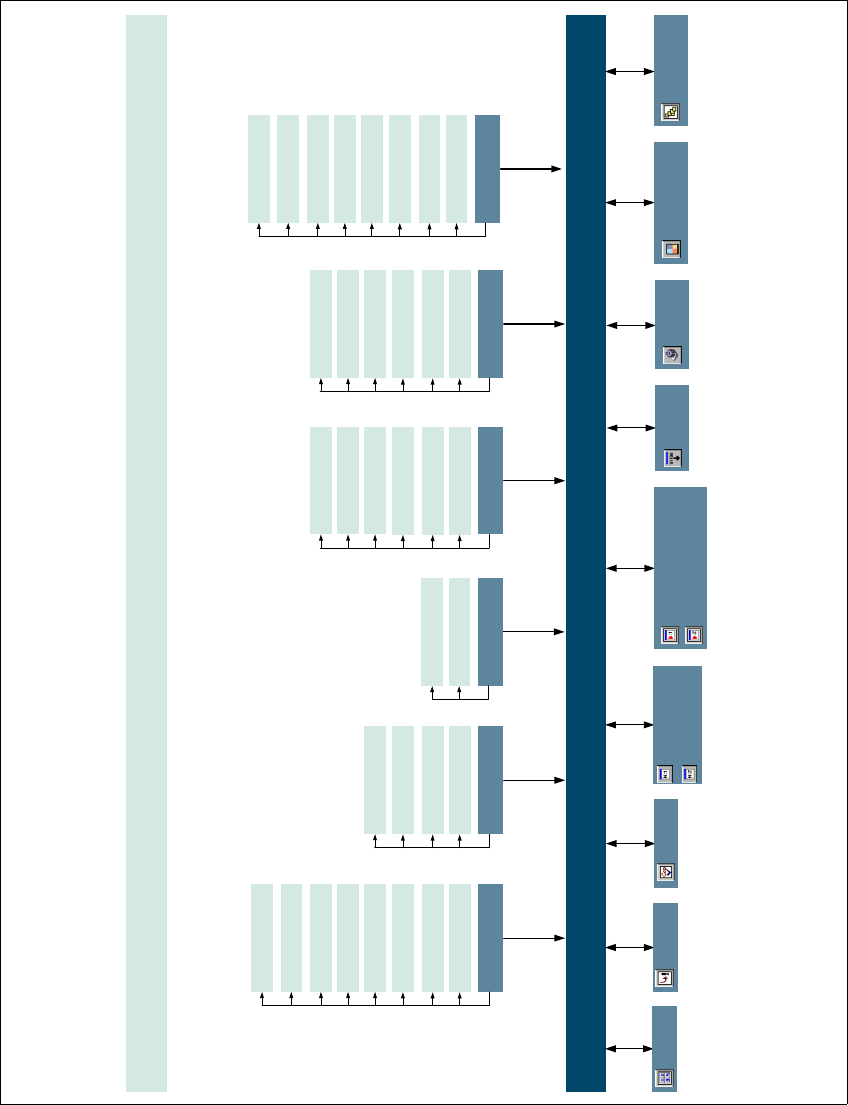
Fig. 2 - 32 Overview of CACCIA Functions
Main View
Overview of the grafical Interface of CACCIA Version 1.0
Issue 07/2004
Menu File
Command Window Net 1
Command Window Net 2
Firmware
Download
Calculator
Can Scope Net 1
Can Scope Net 2
Base
Converter
Clear Recent List
Recent Workspaces
File Info
Send To
Print
Execute Ctrl+F5
Close All
Exit
Menu View
Full Screen Ctrl+F11
Status Bar
Main Menu
Document Bar
Menu Debug
Reload Script Ctrl+R
Script Info Ctrl+I
Menu Tools
Caccia Update
Macro
Options
Device Manager
File
Plug-Ins
Menu Window
Open File withBrowse
Arrange Icons
Tile
Cascade
Close All Ctrl+A
Windows ...
Menu Help
Copyright
Caccia on the Web
Technical Support
Development Links
Index
Search
Content F1
About Caccia
Change
Properties
Change Machine
Configuration
Subsystem
Control Center
Selftest

Installation and Getting Started with CACCIA 2 English
Issue 07/2004 2.8 CACCIA - Program Overview
37
2.8.1 CACCIA Functions
The following functions can be performed with CACCIA. To access detailed instructions and
information while working with CACCIA, please use the Online Help. The Help function also
containsa numberof practical examples.Pleasereferto Chapter"Online Help"on page 39of this
manual for details about using the Online Help function.
2.8.1.1 Calculator
:TheCalculator dialog box will open. Use this tool like a pocket calculator.
2.8.1.2 Base Converter
:TheBase Converter dialog box will open. Use this dialog box to convert numerical
values e.g. from decimal to binary.
2.8.1.3 CAN Selftest
:TheCAN Selftest dialog box will open. You can start a self test here, to check the
CACCIA functionality.
2.8.1.4 CAN Scope for Nets 1, 2
The CAN Scope dialog box will open. Choose one of the three view options:
– Common
This is the command window. CAN messages can be sent from here or filtered. The CAN mes-
sages can be filtered with the help of 2 CAN identifier masks, so that only certain CAN mes-
sages are shown.
– Error
The error frames are shown here.
– Trigger
If you would like a signal (e.g. a wave file) to be emitted when an error occurs, this can be set
here.
2.8.1.5 Command Window for Nets 1, 2
The Command Test Center dialog box will open. Select a command group for which
notification messages are expected. Enter a waiting period to specify when a timeout
should occur.