00193790-01.pdf - 第82页
2 English Installat ion and Getting Started with CACCIA 2.5 License Conditions Issue 07/2004 16 2.5.2 Acce ssing the Lic ense Information for Y our System → S t art CACC IA. Open the W indow s S tart menu and se lect Pro…
Installation and Getting Started with CACCIA 2 English
Issue 07/2004 2.5 License Conditions
15
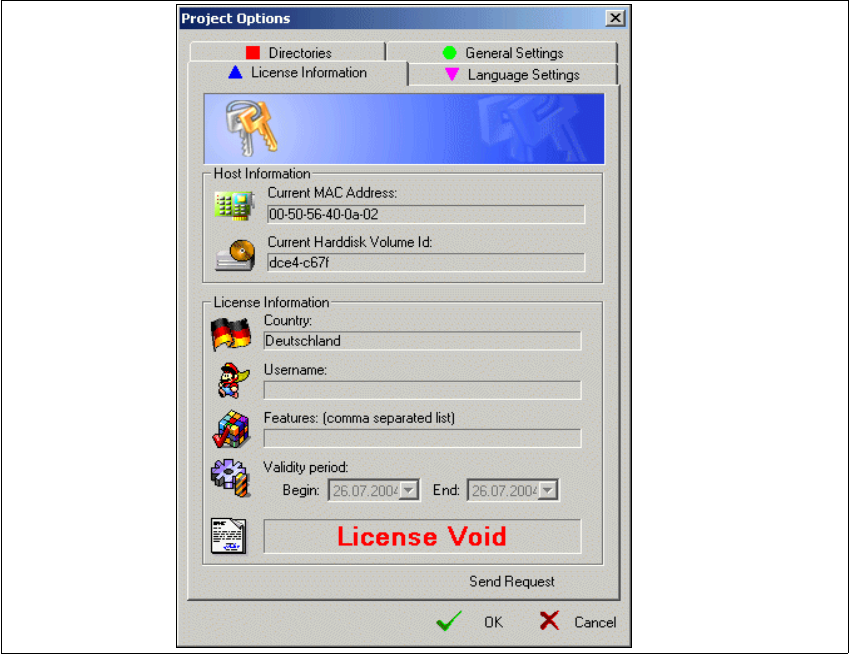
→ The Project Options dialog box will open: Select the License Information tab.
Fig. 2 - 8 Project Options - License Information
→ Click on the Send Request button. An e-mail will automatically open with the following recipi-
ent specified: siplace.hotline@siemens.com. This e-mail contains the following information:
– MAC address
– Hardware ID
This information can also be found in the Host Information field.
→ Send this mail. The SIPLACE hotline will process your request and send you a license per e-
mail. You will receive a license file.
→ This file needs to be imported into CACCIA. To do this, proceed to the Project Options →
License Information dialog box and click on the Import License File button.
→ Confirm your entry with OK.
→ You now need to close and restart CACCIA to activate the license and enable the full program
function spectrum.
2 English Installation and Getting StartedwithCACCIA
2.5 License Conditions Issue 07/2004
16
2.5.2 Accessing the License Information for Your System
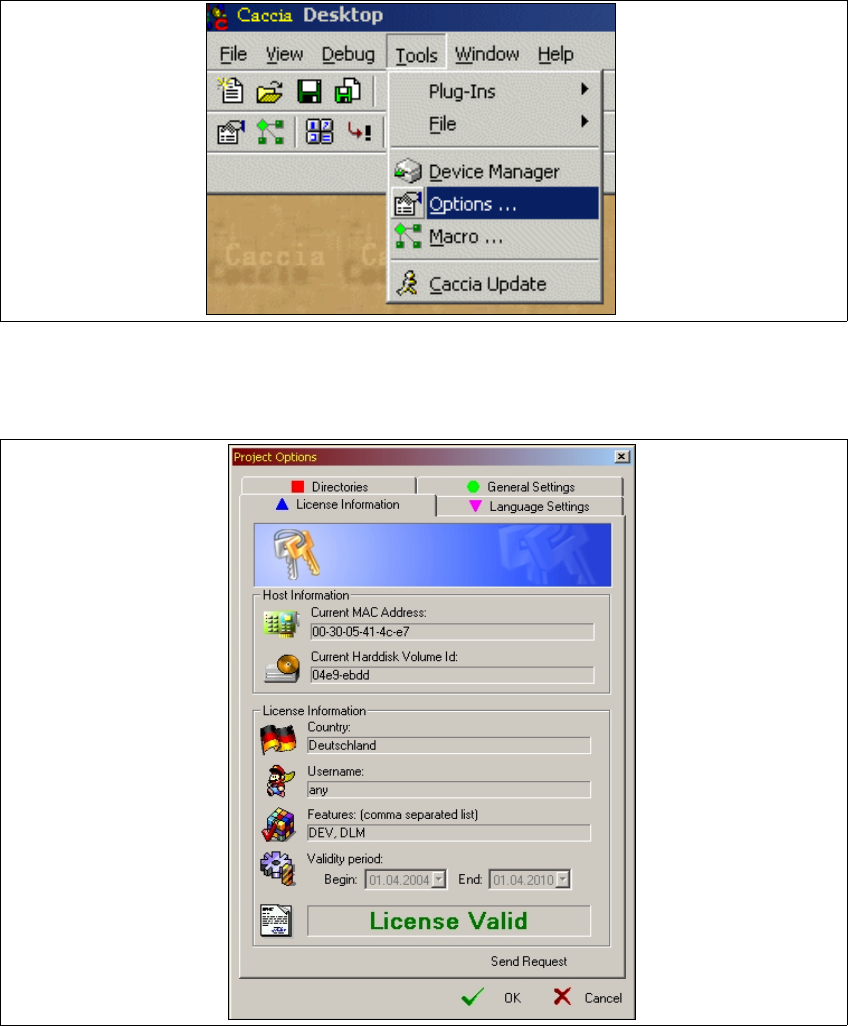
→ Start CACCIA. Open the Windows Start menu and select Program Files → CACCIA →
CACCIA or use the icon on your desktop.
→ Select the menu Tools → Options.
Fig. 2 - 9 License file
→ The Project Options dialog box will open: Select the License Information tab.
Fig. 2 - 10 Project Options - License Information
Installation and Getting Started with CACCIA 2 English
Issue 07/2004 2.5 License Conditions
17
→ The License Information fields contain all relevant license information.
→ If the Username field shows the entry any, all users with access to this computer can use
CACCIA without restrictions.