00193790-01.pdf - 第86页
2 English Installat ion and Getting Started with CACCIA 2.6 CACCIA Installat ion Issue 07/2004 20 Fig. 2 - 12 Inst alling CACCIA - License Agreem ent → Read the li cense cond itions th rough c arefully . If yo u agree, a…
Installation and Getting Started with CACCIA 2 English
Issue 07/2004 2.6 CACCIA Installation
19
2.6.2 Installation and Configuration of CACCIA
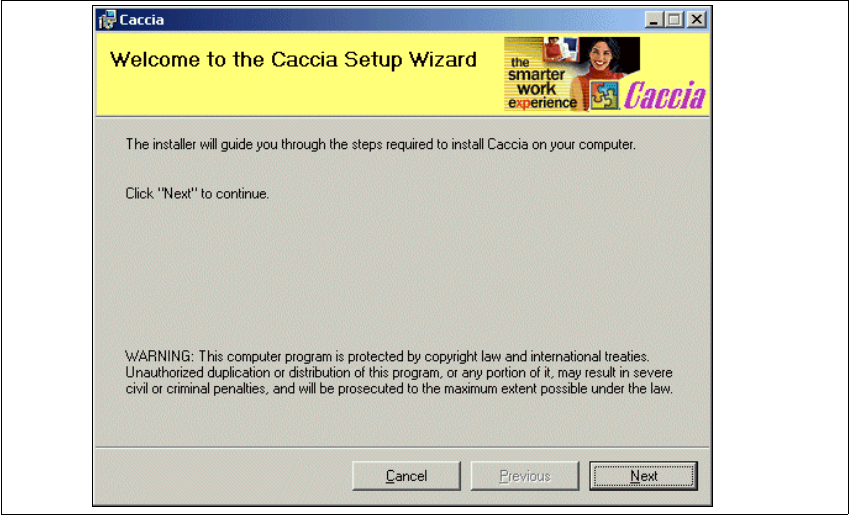
→ Select the "Caccia.msi" file from the CACCIA directory on the installation CD and doubleclick
to open. The installation process will be set up and the CACCIA Setup Wizard will open.
Fig. 2 - 11 Installing CACCIA - CACCIA Setup Wizard
→ Close all other programs and click on Next to continue. A dialog box with the license agree-
ment will open.
2 English Installation and Getting StartedwithCACCIA
2.6 CACCIA Installation Issue 07/2004
20
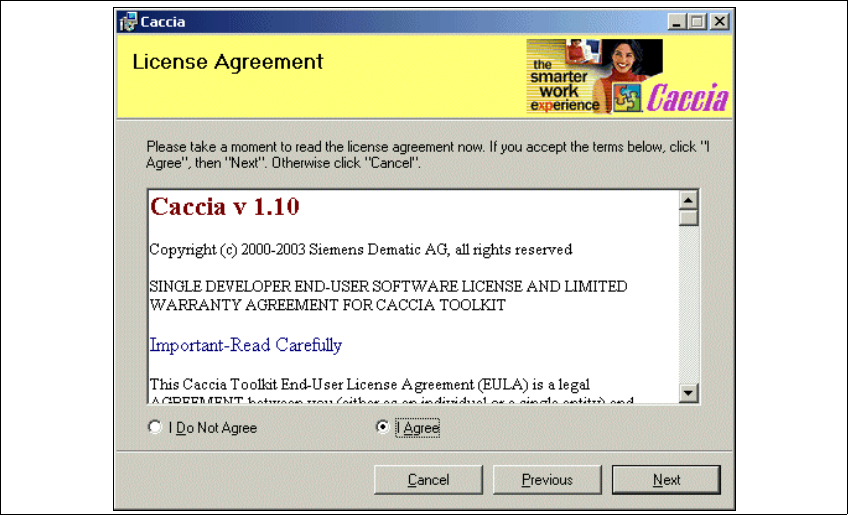
Fig. 2 - 12 Installing CACCIA - License Agreement
→ Read the license conditions through carefully. If you agree, activate the option IAgreeand
click on Next to continue. A dialog box for selection of the program folder will open.
Installation and Getting Started with CACCIA 2 English
Issue 07/2004 2.6 CACCIA Installation
21
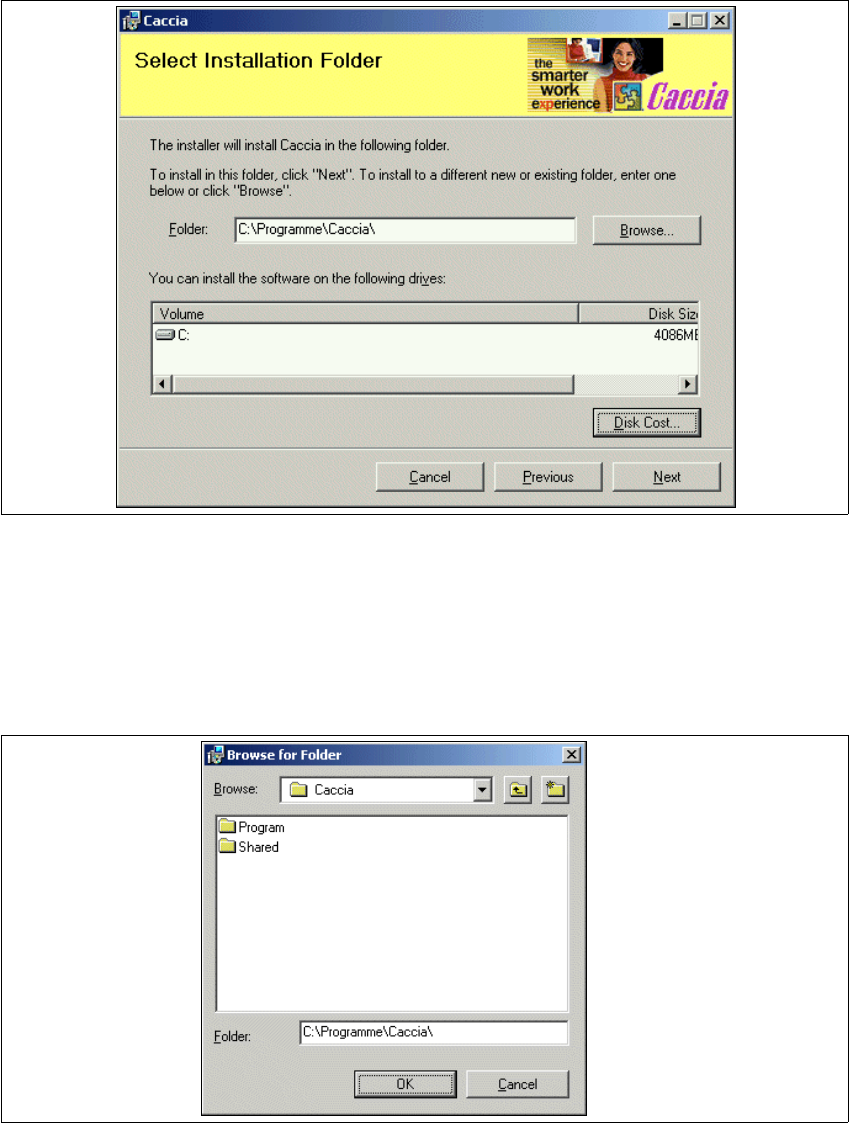
→ Specify the folder in which you want to install CACCIA. The default folder is
C:\Programme\CACCIA.
Fig. 2 - 13 Installing CACCIA - Select Installation Folder
→ Where necessary, overwrite the default setting with your target folder or click on Browse to
select a specific folder.
→ The Browse for Folder dialog window will open. Select the required folder.
→ Specify the required folder and click on OK to confirm your choice.
Fig. 2 - 14 Installing CACCIA - Browse for Folder