00193790-01.pdf - 第87页
Installation and Getting Started with CACCIA 2 English Issue 07/2004 2.6 CACCIA Installation 21 → S pecify th e folde r in w hich yo u want to ins tall CACC IA. The d efault f older is C: \ Program me \ CACCIA. Fig. 2 - …
2 English Installation and Getting StartedwithCACCIA
2.6 CACCIA Installation Issue 07/2004
20
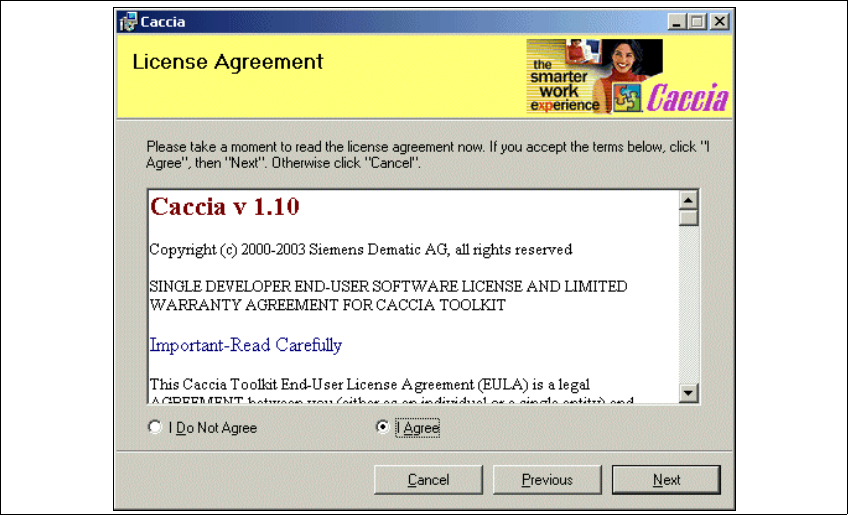
Fig. 2 - 12 Installing CACCIA - License Agreement
→ Read the license conditions through carefully. If you agree, activate the option IAgreeand
click on Next to continue. A dialog box for selection of the program folder will open.
Installation and Getting Started with CACCIA 2 English
Issue 07/2004 2.6 CACCIA Installation
21
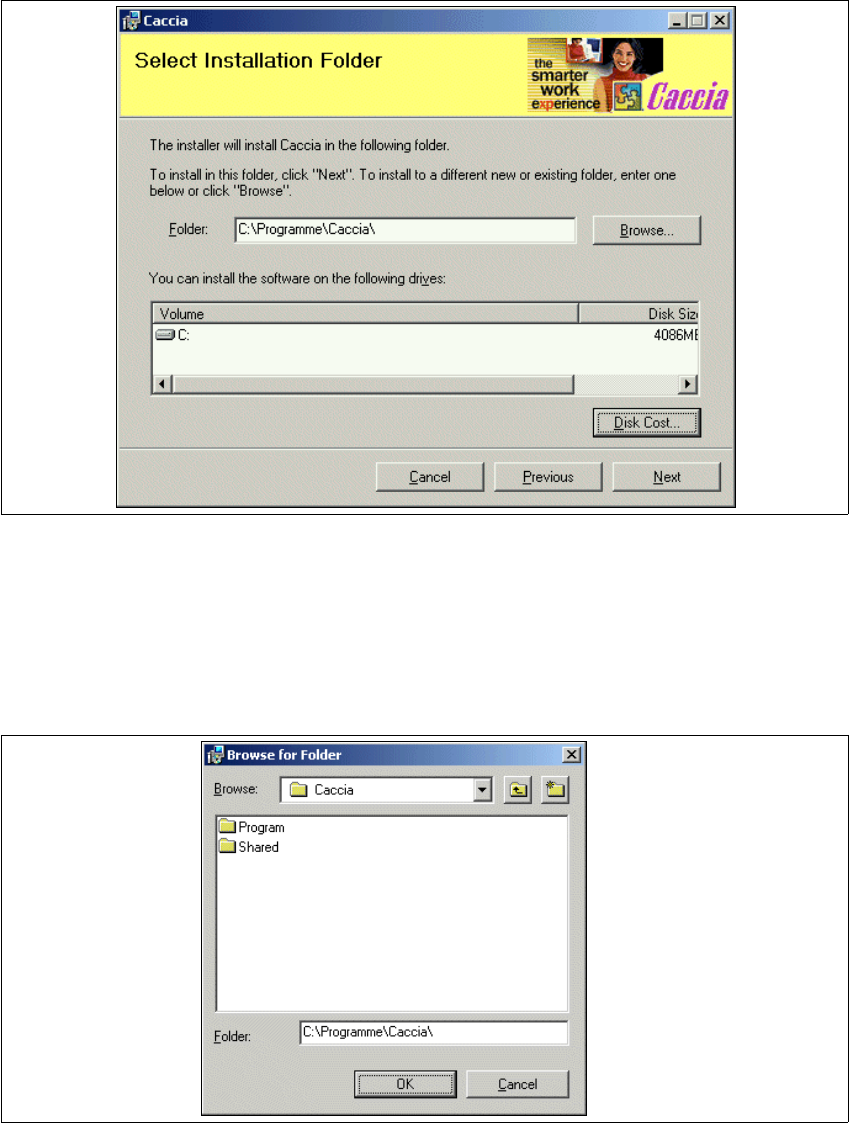
→ Specify the folder in which you want to install CACCIA. The default folder is
C:\Programme\CACCIA.
Fig. 2 - 13 Installing CACCIA - Select Installation Folder
→ Where necessary, overwrite the default setting with your target folder or click on Browse to
select a specific folder.
→ The Browse for Folder dialog window will open. Select the required folder.
→ Specify the required folder and click on OK to confirm your choice.
Fig. 2 - 14 Installing CACCIA - Browse for Folder
2 English Installation and Getting StartedwithCACCIA
2.6 CACCIA Installation Issue 07/2004
22
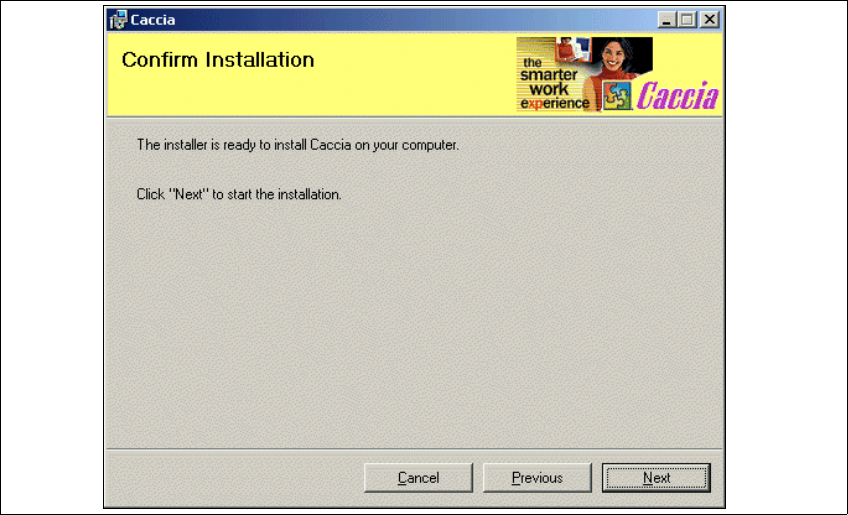
→ To confirm the chosen target folder, click on Next in the Select Installation Folder dialog win-
dow. Your chosen target folder will be confirmed.
Fig. 2 - 15 Installing CACCIA - Confirm Installation