00193790-01.pdf - 第95页
Installation and Getting Started with CACCIA 2 English Issue 07/2004 2.6 CACCIA Installation 29 2.6.4 Installation T roubleshooting 2.6.4.1 Script s are not available Y ou w ill see the fol lowing er ror mess age: ERR _ …
2 English Installation and Getting StartedwithCACCIA
2.6 CACCIA Installation Issue 07/2004
28
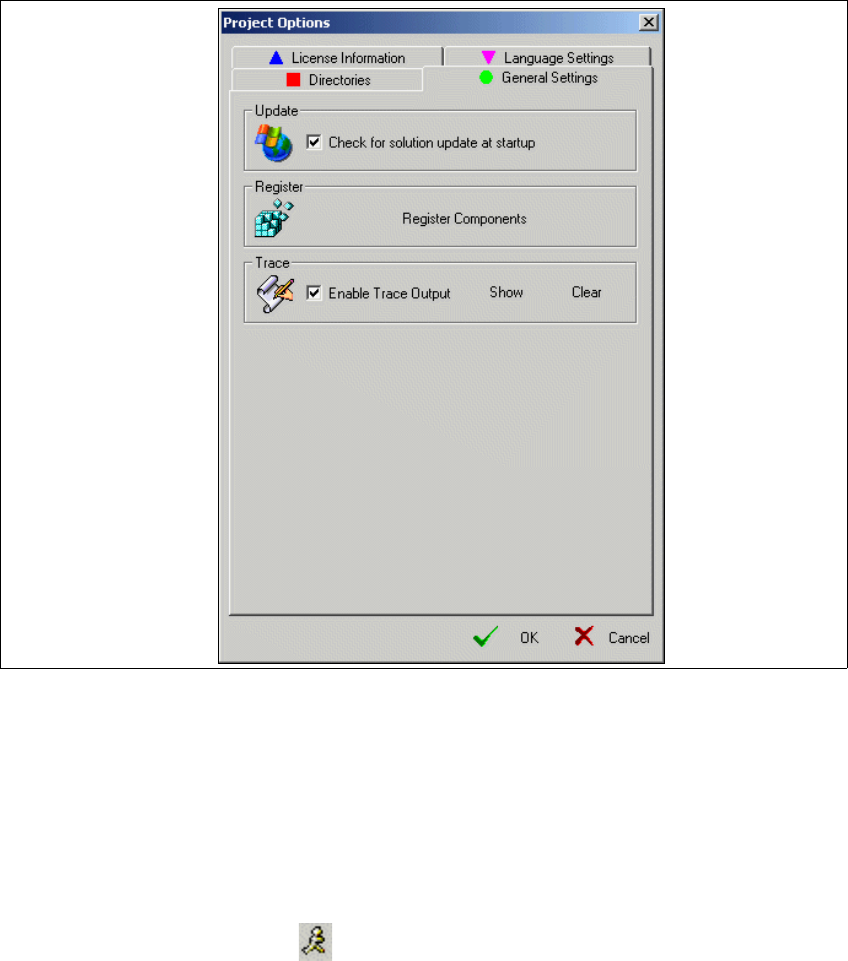
→ The Project Options dialog box will open:
Fig. 2 - 24 Project Options - General Settings
→ Select the General Settings tab.
→ Enable the "Check for solution update at startup" option with a tick.
→ Confirm your entries with OK.
→ If there is an update version of CACCIA available at the next program start, the system will
issue an update notification message.
→ Click on the Update button in the symbol bar. The CACCIA update installation will be-
gin.
→ The steps listed at Section 2.6.3 Update Installation will be performed.
Installation and Getting Started with CACCIA 2 English
Issue 07/2004 2.6 CACCIA Installation
29
2.6.4 Installation Troubleshooting
2.6.4.1 Scripts are not available
You will see the following error message:
ERR_SCRIPT_ECOLL_NOT_FOUND
Possible causes and solutions:
1. Check whether the script folders are correct. To do this, proceed as specified at: “Linking In-
stalled Scripts” on page 29
2. If you receive this error message with a supplied and tested script, this means that Microsoft
Script Debugger has not been installed on your computer. Install Microsoft Script Debugger
and try again. Read the section “Preconditions and Preparation for Installation” on page 18.
Linking Installed Scripts
→ Start CACCIA. Open the Windows Start menu and select Program Files → CACCIA →
CACCIA or use the icon on your desktop.
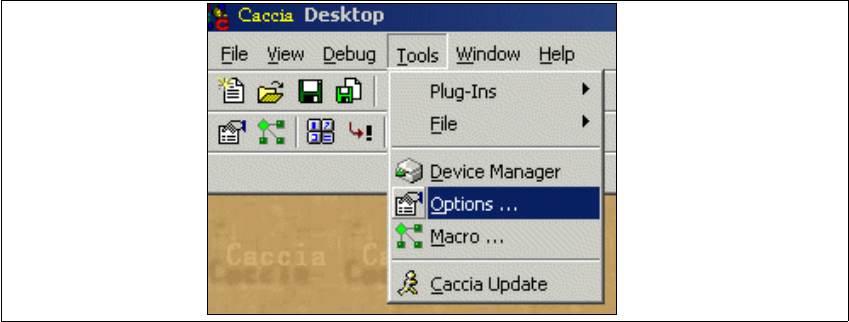
→ Select the menu Tools → Options.
Fig. 2 - 25 Adding Toolbox Scripts
2 English Installation and Getting StartedwithCACCIA
2.6 CACCIA Installation Issue 07/2004
30
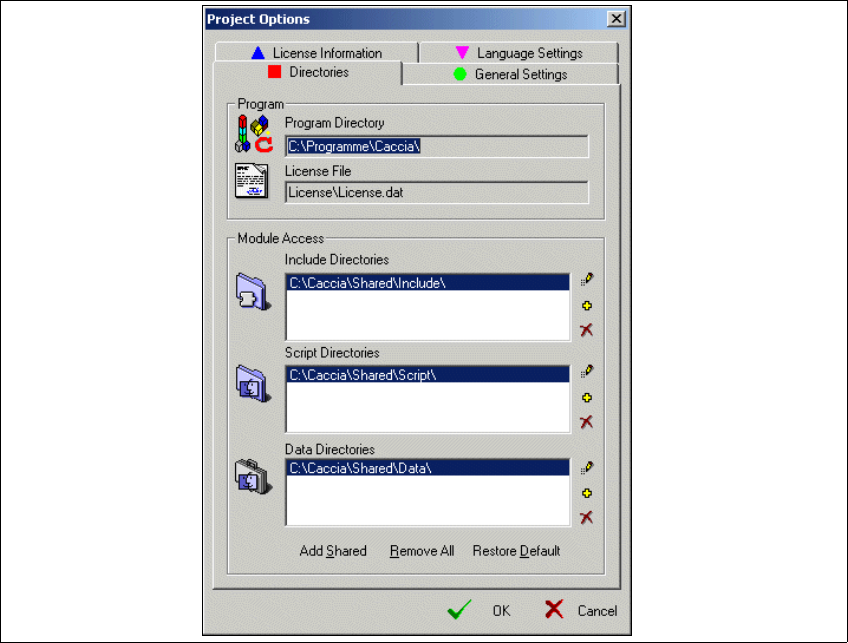
→ The Project Options dialog box will open:
Fig. 2 - 26 Project Options
→ Select the Directories tab. This shows which scripts will be loaded.
→ With the help of the example shown, link the scripts as follows - depending on your installation
target directory (e.g. C:\CACCIA\Shared):
– Include directory with the script path .. \Include\
– Script directory with the script path .. \Script\
– Data directory with the script path .. \Data\
→ Click on the Add Shared button and confirm your entries with OK.