00197044-02_IM_706_1_DE_EN.pdf - 第28页
Station S oftware 706. 1 / Install ation Man ual Ausgabe 11/2012 E dit ion 28 5.4.1 A d ditional dial ogs under Wi ndows Embedded Standard 7 If W indows Em bedded Sta ndard 7 is insta lled as oper ating s ystem and U ser…
Station Software 706.1 / Installation Manual Ausgabe 11/2012 Edition
27
5.4 Installing the SIPLACE Software (Station Software 706.1)
NOTICE
The installation requires approx. 80 minutes.
► Switch on the SIPLACE placement machine.
► Change to the service desktop.
► Open Windows Task Manager.
► Select Logoff in the Users tab.
► Log in as Administrator (under Windows XP) or as ASM_Admin (under Windows 7).
► Insert the installation DVD in the drive.
► Open the Explorer and start setup.exe under drive E: by double clicking it.
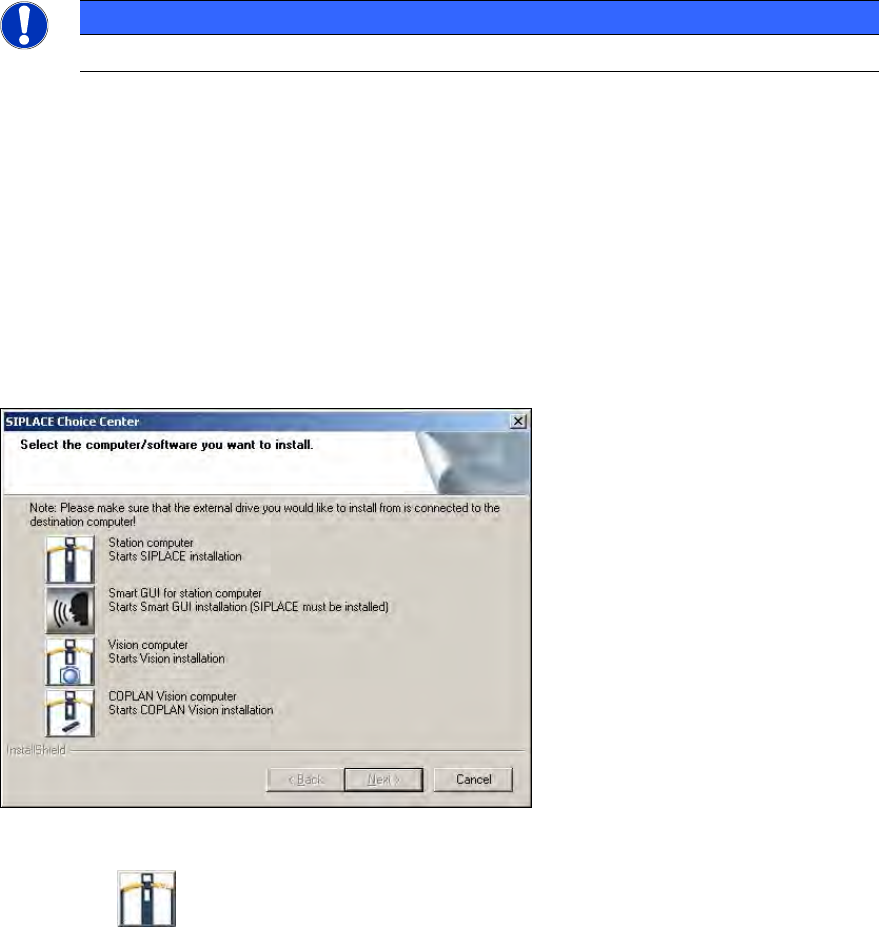
The SIPLACE Choice Center dialog box is opened.
Figure 5-5: "SIPLACE Choice Center" dialog box
► Click the Station computer button.
Station Software 706.1 / Installation Manual Ausgabe 11/2012 Edition
28
5.4.1 Additional dialogs under Windows Embedded Standard 7
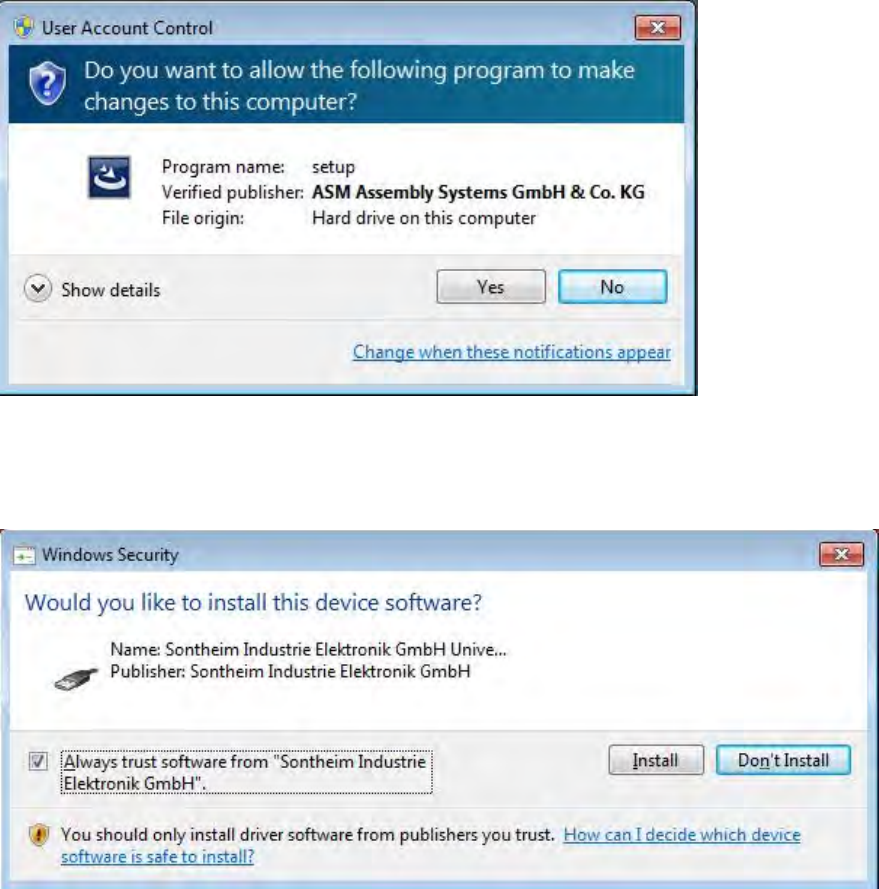
If Windows Embedded Standard 7 is installed as operating system and User Account Control is
enabled, the following dialog windows are additionally displayed.
Figure 5-6: User Account Control
► Click the Yes button to allow the SIPLACE Software installation.
If a Sontheim device is connected, the following dialog is displayed.
Figure 5-7: Installing driver software for Sontheim device, part 1
► Activate the Always trust software from "Sonheim Industrie Elektronik GmbH" field.
► Click the Install button to install the corresponding driver software.
Station Software 706.1 / Installation Manual Ausgabe 11/2012 Edition
29
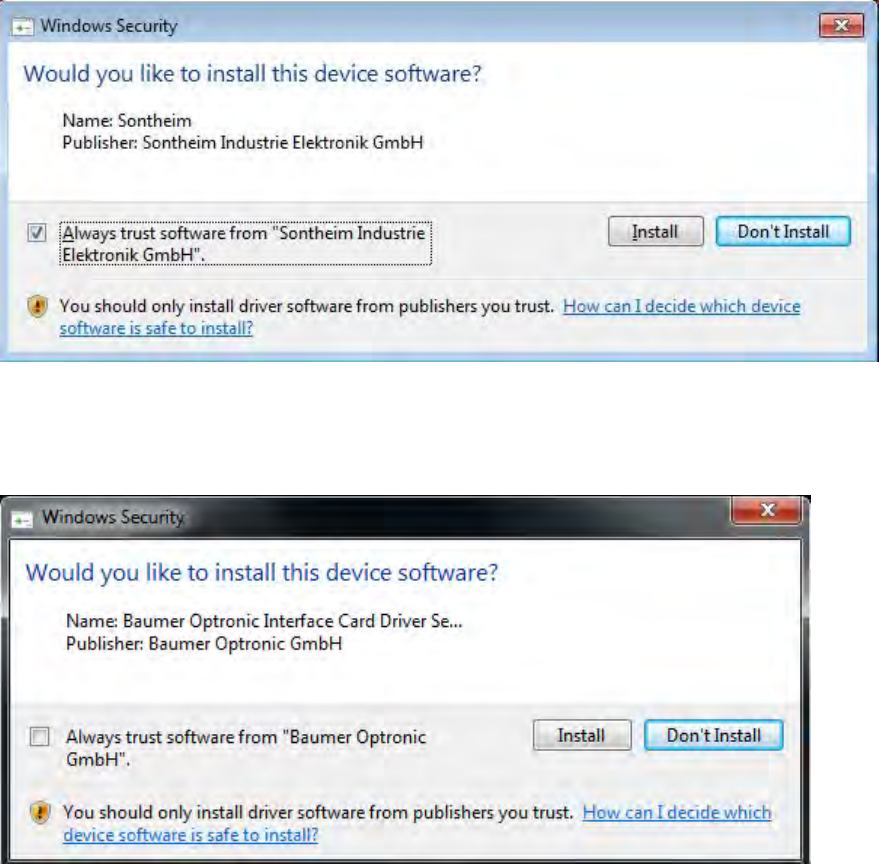
Thereafter, the following dialog is displayed.
Figure 5-8: Installing driver software for Sontheim device, part 2
► Perform the same steps as in the previous dialog.
If a Baumer card is installed, the following dialog is displayed.
Figure 5-9: Installing driver software for Baumer card
► Activate the Always trust software from "Baumer Optronic GmbH" field.
► Click the Install, button to install the corresponding driver software.