00197044-02_IM_706_1_DE_EN.pdf - 第33页
Station S oftware 706. 1 / Install ation Man ual Ausgabe 11/2012 E dit ion 33 NOTICE The f ollowing sc reen on ly appear s if ap plicat ions ar e open w hich use f iles which m ust be updated duri ng install ation of SIP…
Station Software 706.1 / Installation Manual Ausgabe 11/2012 Edition
32
► Click the
One-computer-configuration button or the Two-computer-
configuration button for X-series placement machines with two computers.
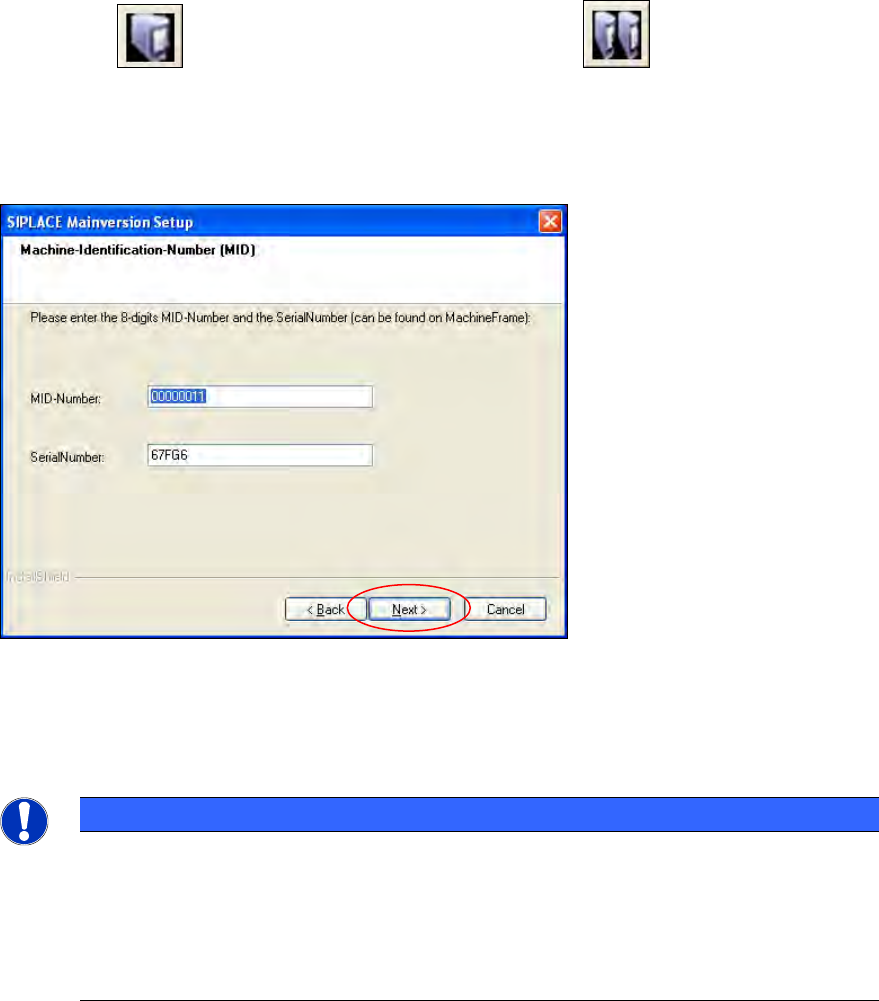
5.4.7 Entering the Machine Identification Number (MID) and serial number
Figure 5-15: Entering the Machine Identification Number (MID) and serial number
► In the text box beside MID-Number, enter the 8-digit machine identification number.
► In the text box beside SerialNumber, enter the serial number
NOTICE
You will find the MID and the serial number on an adhesive label on the side of the
protective covers directly below the label for the number of the relevant location. The
number following the dash after the MID specifies the location and is not entered here
(e.g. 00000001-2 stands for location 2).
After upgrading (from 60x and 70x) the correct MID and serial number are already
inserted.
► Click the Next button.
Station Software 706.1 / Installation Manual Ausgabe 11/2012 Edition
33
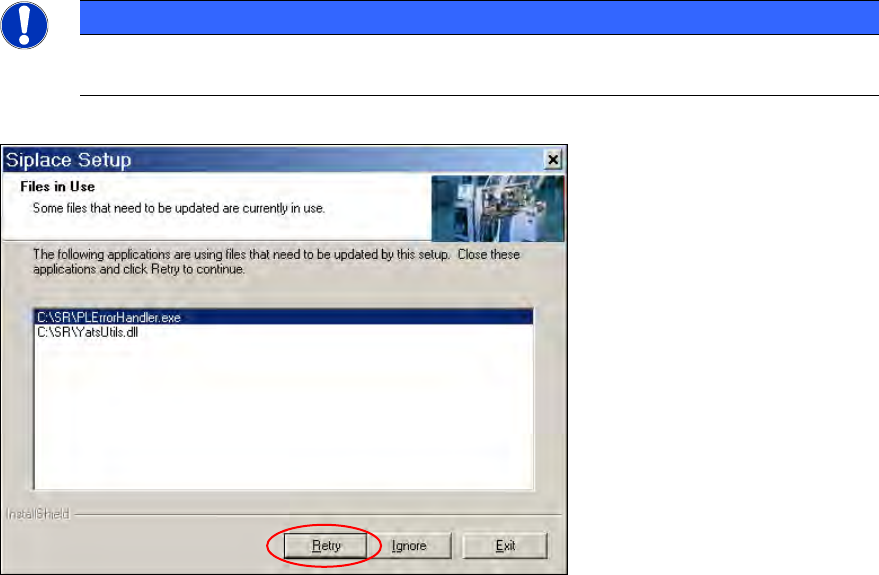
NOTICE
The following screen only appears if applications are open which use files which must be
updated during installation of SIPLACE.
Figure 5-16: Open applications
► Close the applications or processes listed here by using Windows Task Manager and then click
the Retry button.
The installation program now installs additional programs on the machine computer.
Station Software 706.1 / Installation Manual Ausgabe 11/2012 Edition
34
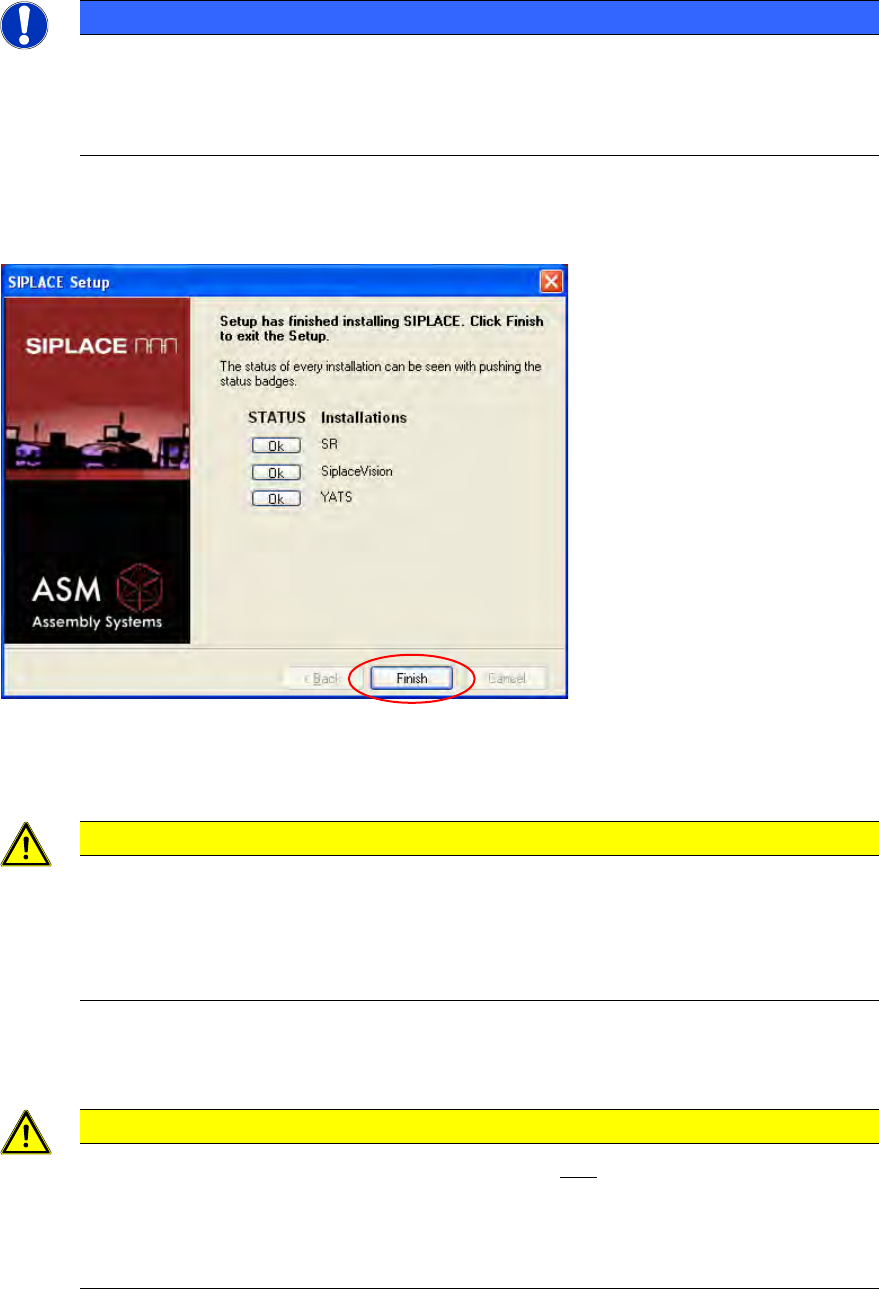
5.4.8 Finalizing the Installation
NOTICE
The status only lists the programs that have just been installed. If, for instance, the
current version of SIPLACE Vision was already installed, it is not listed here.
If errors occurred during installation, the status is indicated by the Error button being
displayed next to the program name instead of the Ok button.
► If you wish to read the log of the installation of any program, click the Ok (or Error) button next
to the name of the program. The Notepad is started and displays the appropriate file.
Figure 5-17: Finalizing the installation
► Click the Finish button.
CAUTION
► Wait a few seconds after you have clicked the Finish button, before you shut down
and switch off the computer / the machine!
As some installation steps are not performed until the end of the installation by the
InstallShield, the installation might otherwise be incomplete, what may cause
problems during further installations.
► Optionally, you can now install the SIPLACE Smart GUI.
CAUTION
In two-computer operation the Vision computer must also be installed (see chapter 6)
before you shut down the machine computer, as the station will otherwise not boot
correctly due to version conflicts.
In one-computer operation the Vision computer software is automatically installed during
the station software installation.