00194440-10_SM_X-Series_Customer_en.pdf - 第332页
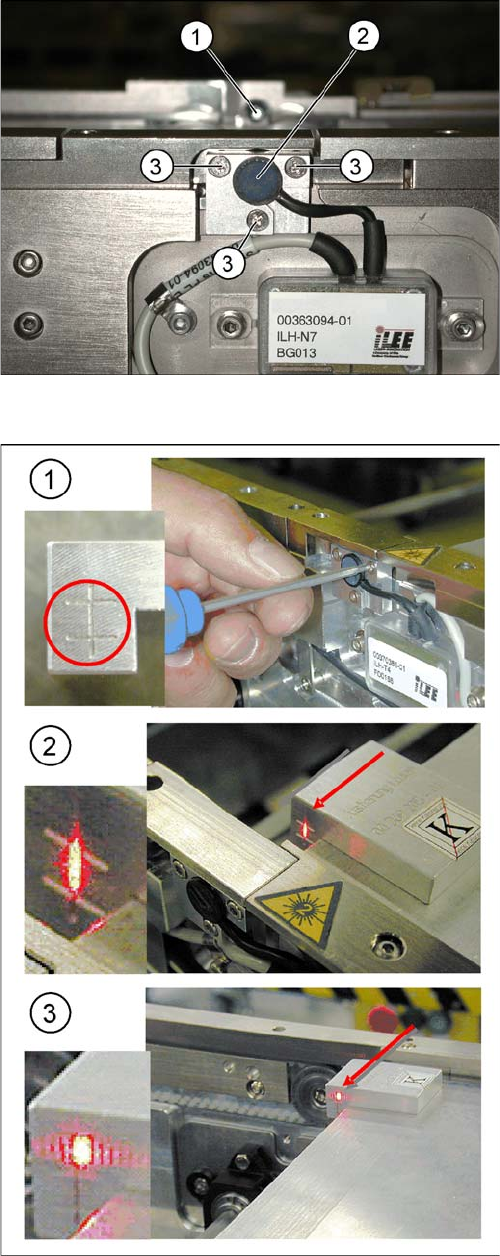
Settings Conveyor Settings 5.4.5 Setting the Laser Light Barrier for the Stopper Position 332 Service Manua l SIPLACE X Series Overview Laser light barrier 1. Laser rec eiver 2. Laser diode 3. Setting screws (3x) Focussi…
Settings
5.4.5 Setting the Laser Light Barrier for the Stopper Position Conveyor Settings
Service Manual SIPLACE X Series 331
5.4.4.1
5.4.4.1 Adjusting the Limit Switch for Initializing the Adjustment Unit
Adjusting the Limit Switch for Initializing the Adjustment Unit
5.4.5
5.4.5 Setting the Laser Light Barrier for the Stopper Position
Setting the Laser Light Barrier for the Stopper Position
Tools
▪ [00369205-xx] Setting gauge for laser light barrier
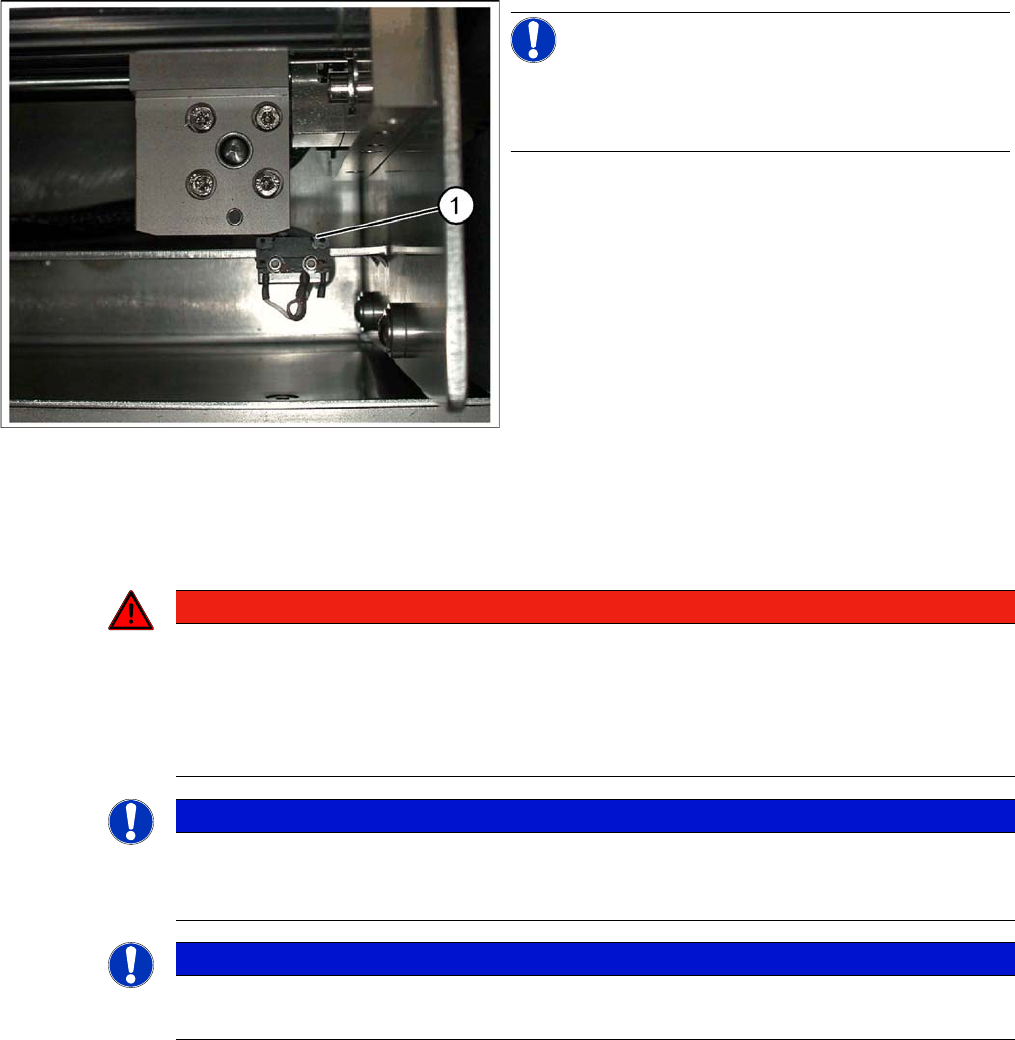
Limit /initialize switch
NOTICE!
This setting is only required after replacing the switch or
other error functions in the width adjustment reference
run.
► Move the adjustment unit for the width adjustment by
hand (via the toothed belt) to the conveyor edge.
► Loosen the two screws on the limit switch (1).
► Move the limit switch in the slot towards the adjust-
ment unit and make sure, that the limit switch is safely
switched on.
► Check the switching state of the corresponding LED
(H11 for TSP 201) (H41 for TSP 301) in the conveyor
control software.
► Fit the limit switch in this position.
► Calibrate the conveyor width via the SITEST pro-
gram.
DANGER
Laser class 2
The laser light barrier transmitter emits class 2 laser beams. You do not need to take additional
protective measures!
► However, you should never look into the laser beam.
► Adjust the LASER diode beam only from the rear side of the LASER (left machine side).
NOTICE
Setting the maximum conveyor width
The laser beam deflection has greatest effect at the maximum conveyor width, it should always
be calibrated at the maximum conveyor width.
NOTICE
PCB Reference Corner
After setting the laser light barrier you must check or re-teach the PCB reference corner!
Settings
Conveyor Settings 5.4.5 Setting the Laser Light Barrier for the Stopper Position
332 Service Manual SIPLACE X Series
Overview
Laser light barrier
1. Laser receiver
2. Laser diode
3. Setting screws (3x)
Focussing the laser beam
1. Setting the laser light barrier
2. Minimum width
3. Maximum width
Procedure
► Set the maximum conveyor width.
► Select Enable safety mode.
► Activate the relevant laser diode using the input/out-
put functions in the station software.
► Check the path of the laser beam with the help of the
gauge.
► With the help of the three setting screws, adjust the
laser beam to the center of the gauge cross (1).
► Now position the conveyor to minimum width (2) and
check the setting.
► Check the PCB reference corner and reteach, if nec-
essary.
Settings
5.4.6 Board Clamping Functions Conveyor Settings
Service Manual SIPLACE X Series 333
5.4.6
5.4.6 Board Clamping Functions
Board Clamping Functions
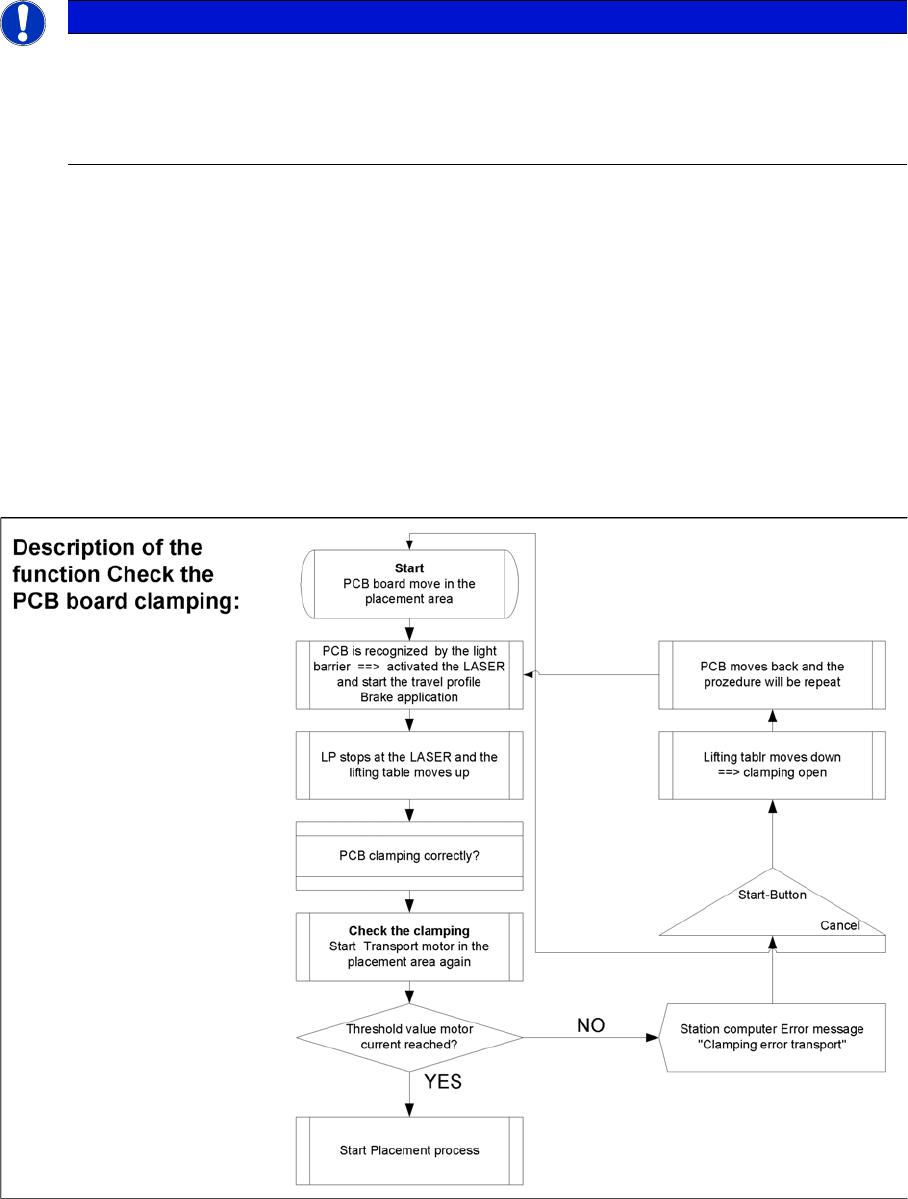
Function description:
▪ The PCB moves into the placement area, it is recognized by the light barrier, stops at the laser and
the lifting table moves up.
▪ Check PCB clamping: The transport motor in the placement area start again. If the PCB is clamped
correctly the motor current will rise up and reach a defined threshold value. Once the board has been
correctly clamped into place, the placement process will begin.
▪ If this threshold is not reached, the system assumes that the board is on its way to the intermediate
or output conveyor and has therefore not been correctly clamped into place.
▪ The station computer will issue the message "PCB not correctly clamped PA1 (PA2)". The process
can be repeated by pressing the "start button".
▪ The lifting table will move downwards, the board will be transported back and the stopper position
will be approached again.
NOTICE
The check whether a PCB is clamping correctly, is controlled with a motor current check of the
transport motor if the PCB board is clamped (Lifting table up). To check the function you could
put a distance plate under the conveyor side edge, so that the lifting table can not move to the
upper position.
The check is not performed if the option "Vacuum Tooling" is installed.