00194440-10_SM_X-Series_Customer_en.pdf - 第350页
Settings Other Settings 5.6.1 Firmware Download Note 350 Service Manua l SIPLACE X Series 5.6 5 . 6 O t h e r S e t t in g s Other Settings 5.6.1 5 . 6 . 1 F ir m w a r e D o w n lo a d N o t e Firmware Do wnload Note Fr…
Settings
5.5.2 Component Trolley - Setting the Basic Height Settings on the Component Trolley
Service Manual SIPLACE X Series 349
5.5.2.3
5.5.2.3 Adjusting the Component Trolley Height
Adjusting the Component Trolley Height
Overview
Setting
► Remove all the feeder modules from the component trolley.
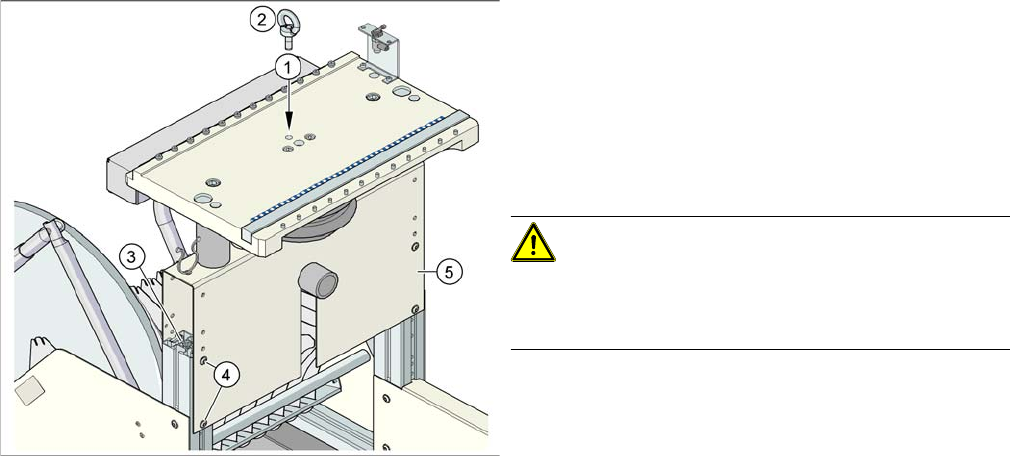
► Screw the eyebolt into the M12 hole provided (1) on the component trolley table.
► Hook the leverage device into the eyebolt (2).
► Tighten the rope of the leverage device.
► Loosen the 8 hexagon socket-head screws, M6x12 (4).
► Lift or lower the component trolley table to the required height. Make sure that the hole for the re-
quired height in the bridge (5) is level with the top hole in the vertical profile bar (3).
► Fasten the bridge (5) to the vertical profile bar (3) with the eight hexagon socket-head screws M6x12
(4).
► Unscrew the eyebolt from the component trolley table.
Position of eyebolt on component trolley
1. M12 hole drilled for eyebolt
2. Eyebolt DIN 580 M12-St
3. Vertical profile bar
4. Eight pieces hexagon socket-head screw SN 62355,
M6x12
5. Bridge
CAUTION!
Always use the fit-up aid (screwed eyelet) to fix the table
plate, irrespective of whether you want to raise or lower
the component trolley.
Settings
Other Settings 5.6.1 Firmware Download Note
350 Service Manual SIPLACE X Series
5.6
5.6 Other Settings
Other Settings
5.6.1
5.6.1 Firmware Download Note
Firmware Download Note
From the following station software versions, the firmware download can be performed to all CAN bus
nodes, via the standard SITEST interface.
▪ 505.04 SP2
▪ 603.01 SP1
▪ 604.01 SP1
5.6.2
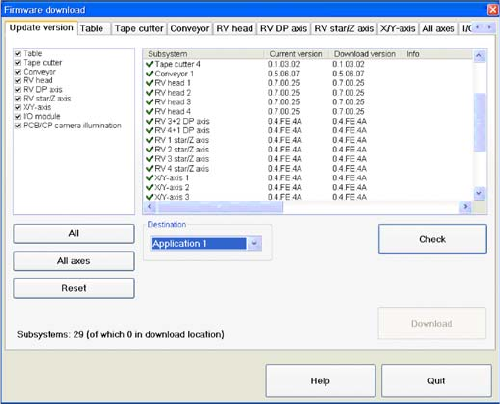
5.6.2 Checking the Firmware Function
Checking the Firmware Function
► Select a Target (BIOS/application 1/application 2)
and click on the Check.
Settings
5.6.3 Firmware Download (SW 70x) Other Settings
Service Manual SIPLACE X Series 351
5.6.3
5.6.3 Firmware Download (SW 70x)
Firmware Download (SW 70x)
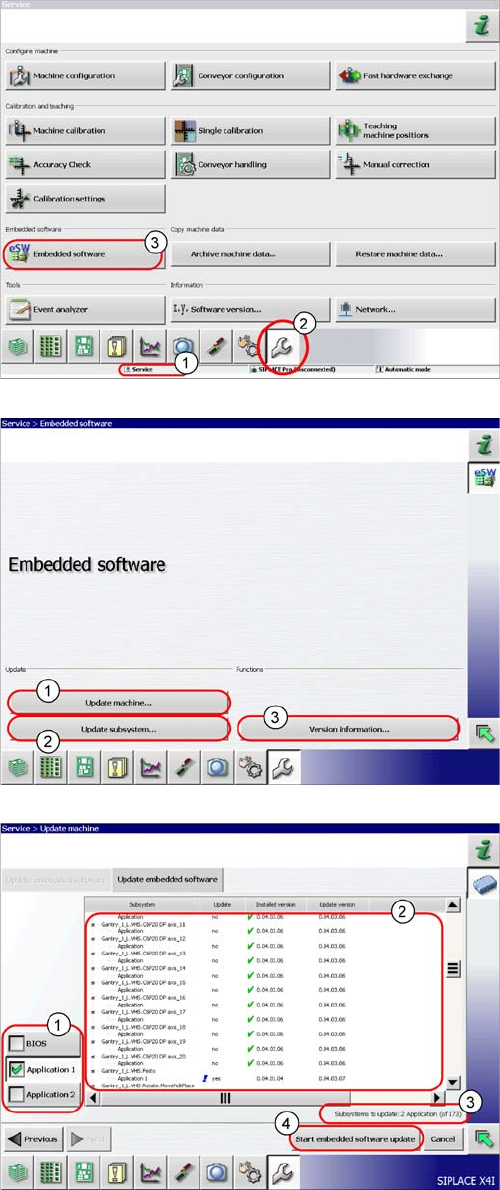
► The function Firmware Download can be performed
with the operator levels (1) Machine-Service or
SIPLACE-Service.
► Switch over to the service menu (2).
► Select the button Embedded Software (3).
► (1) Select this button to check the entire machine and
to perform an eSW download for multiple subsys-
tems.
► (2) Select this button to select and check one subsys-
tem, to perform an eSW download.
► (3) Select this button to view all versions of the sub-
systems, BIOS application 1/2.
1. Selection button, BIOS application 1/2
2. Shows the status of the individual subsystems.
3. Update information about the number of subsystems
which still have to be downloaded.
4. Starts the download.