Formflex Manual.pdf - 第30页
MACHINE PROGRA MMING RESETTIN G FORMFLEX Chapter Issue 4 Jun 04 FormFlex Tooling M anual 2.7 RESETTING FORMFLEX 1. Select Change Screen . 2. When prompted, open t he front printhead cover/shutter . 3. Remove the s tencil…
2.6 FormFlex Tooling Manual Chapter Issue 4 Jun 04
MACHINE PROGRAMMING
FORMFLEX SETUP
34.Select Auto Board (F1).
35.Remove the board from the rails and select Change Screen (F5).
36.Raise the front printhead cover/shutter.
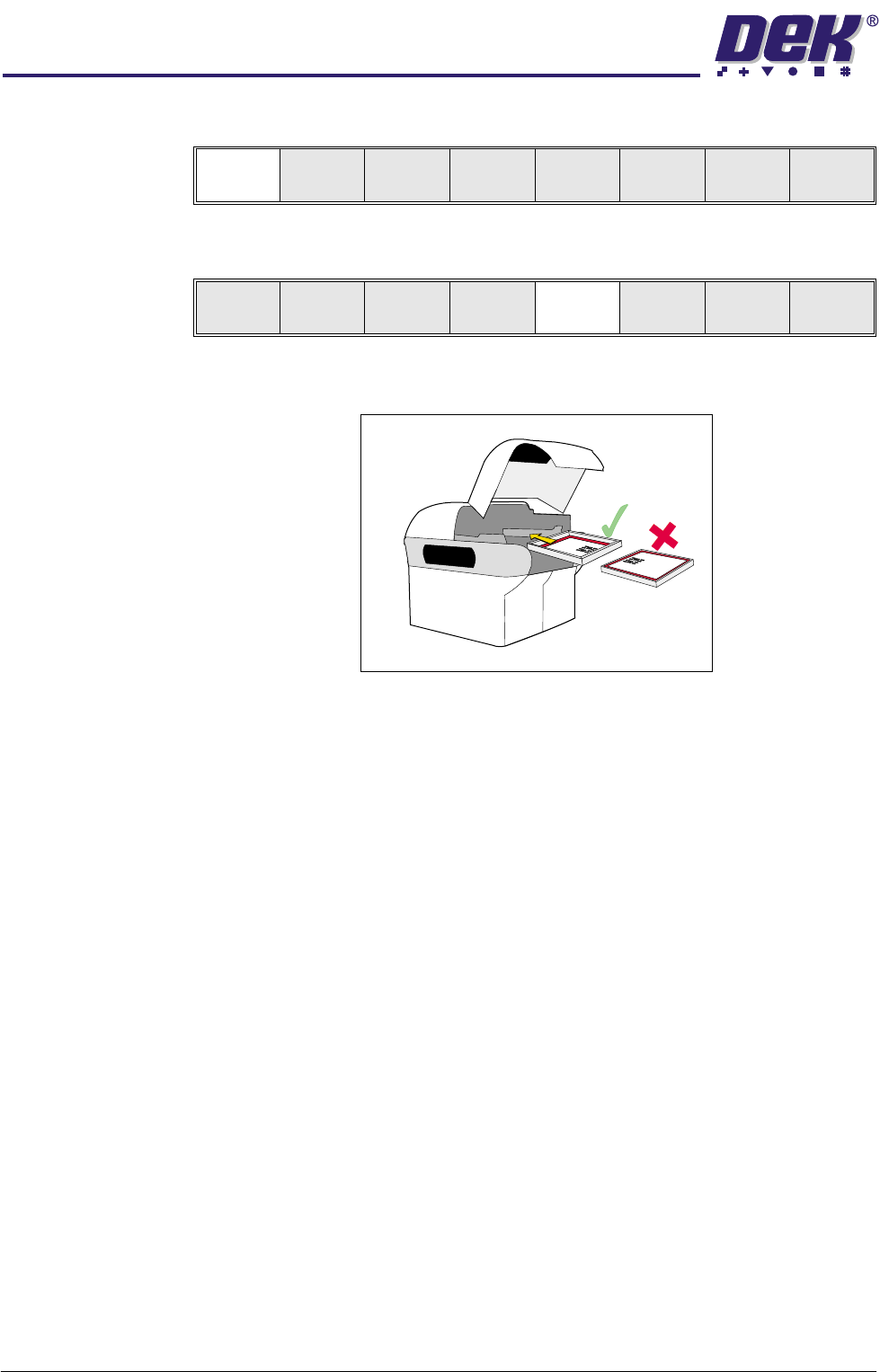
37.Ensuring correct orientation, fit the correct screen for the product loaded.
NOTE
If squeegees were removed in Step 9, these are to be refitted at this point.
38.Lower the front printhead cover/shutter.
39.Press the System button.
40.The FormFlex setup is now complete.
Auto
Board
Manual
Board
Mode
Load
Data
Edit
Data
Setup
Squeegee
Change
Screen
Change
Too lin g
Change
Language
Exit
MACHINE PROGRAMMING
RESETTING FORMFLEX
Chapter Issue 4 Jun 04 FormFlex Tooling Manual 2.7
RESETTING FORMFLEX
1. Select Change Screen.
2. When prompted, open the front printhead cover/shutter.
3. Remove the stencil.
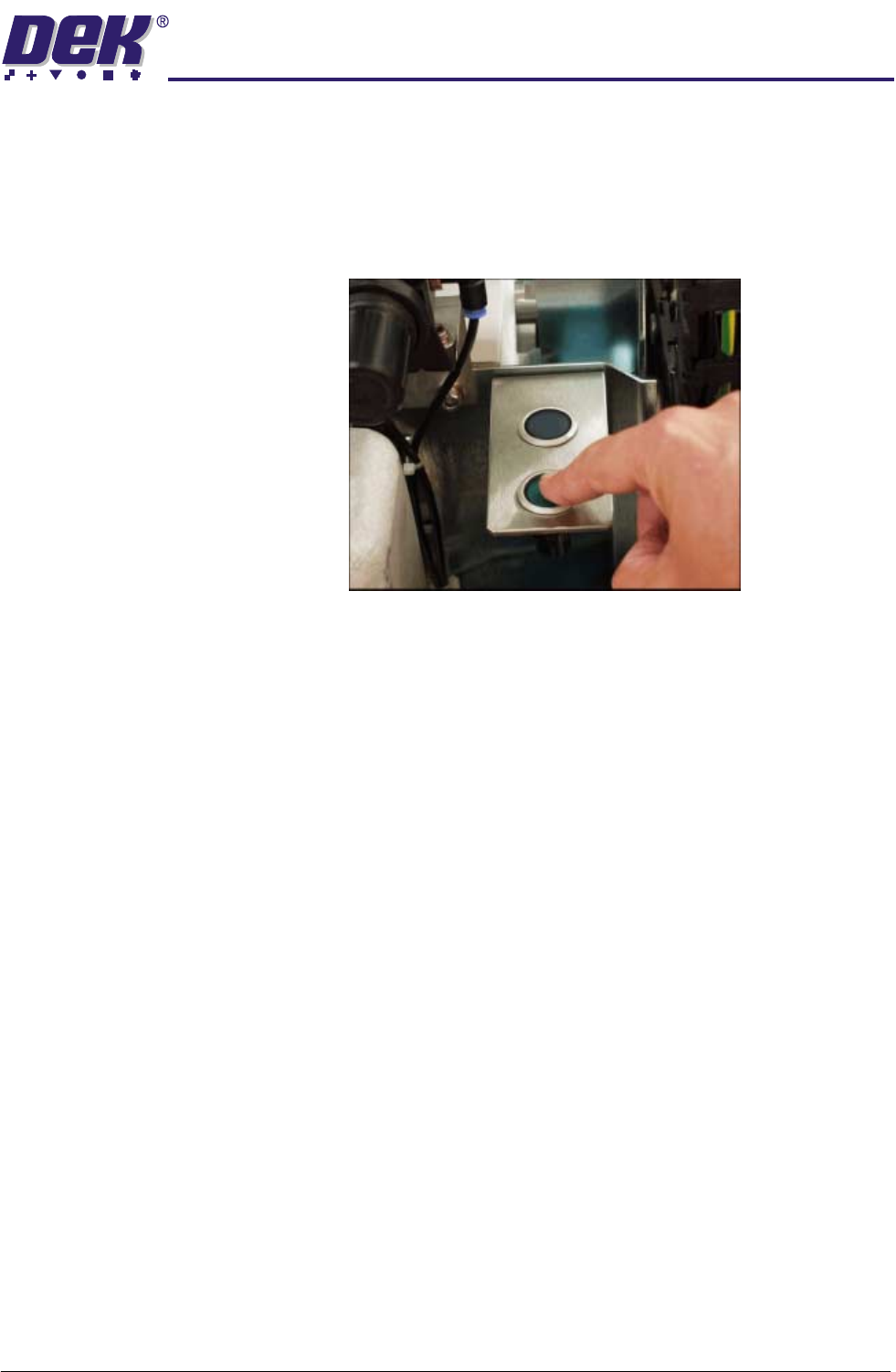
4. Press the green reset button to lower the pins on the tooling modules.
2.8 FormFlex Tooling Manual Chapter Issue 4 Jun 04
MACHINE PROGRAMMING
EXERCISING FORMFLEX
EXERCISING FORMFLEX
In the event of FormFlex pins sticking on the tooling modules, carry out the
following procedure:
1. Select Change Screen.
2. When prompted, open the front printhead cover/shutter.
3. Remove the stencil.
4. Press the green reset button.
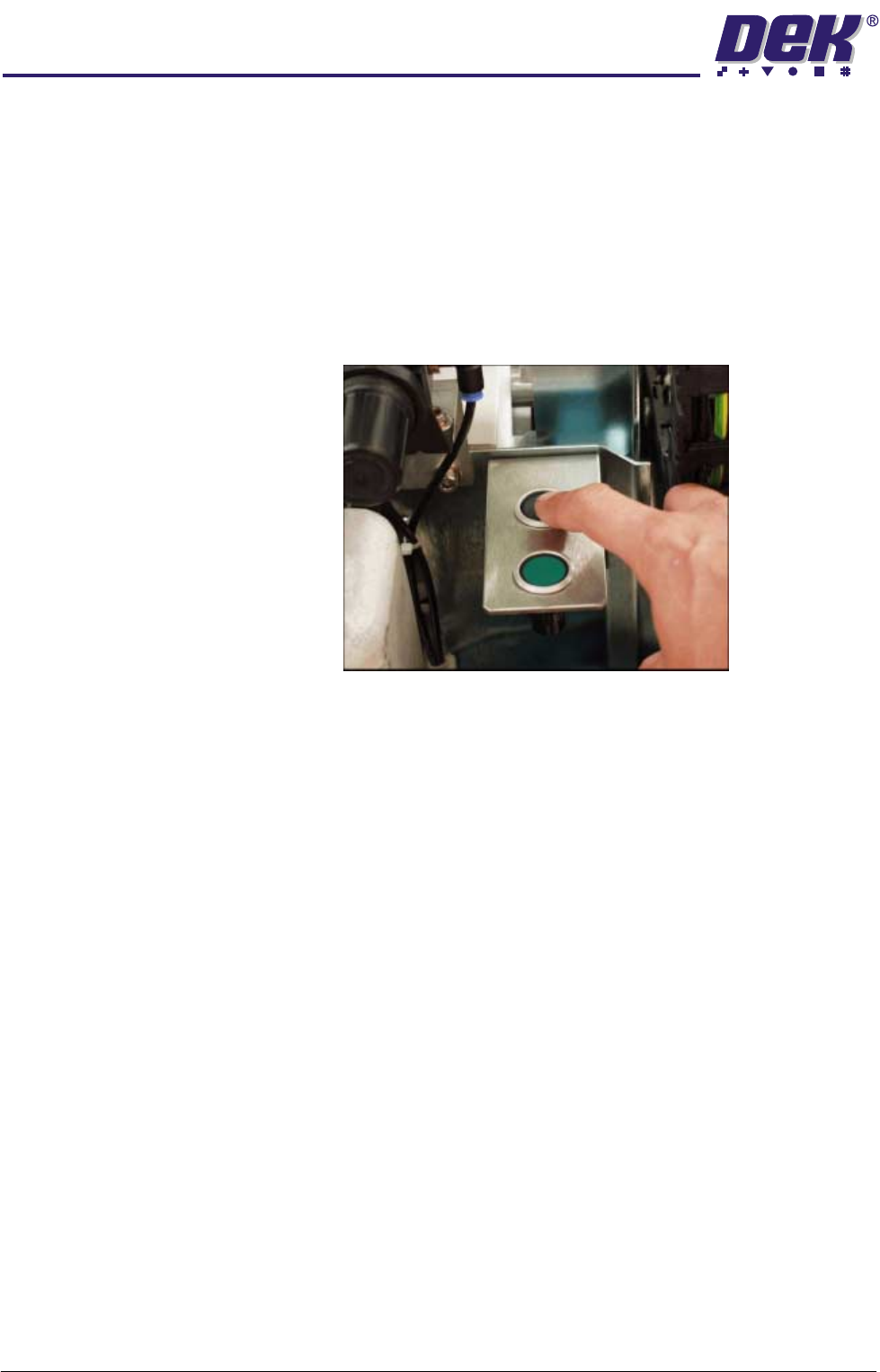
5. Press the black exercise button.
The exercise routine cycles the tooling modules five times, raising and
lowering the pins. If the exercise routine does not free the sticking pins, refer
to the Technical Reference - Fault Finding - Exercise Procedure section of
this manual.