YS24X_Ope_E.pdf - 第100页
2-25 2 asic operation 3.4 Adjusting the conveyor unit setup When the board type to be produced is changed, the con veyor unit setup must be adjusted, and the feeders prepared to match that board type. This section desc…
2-24
2
asic operation
4
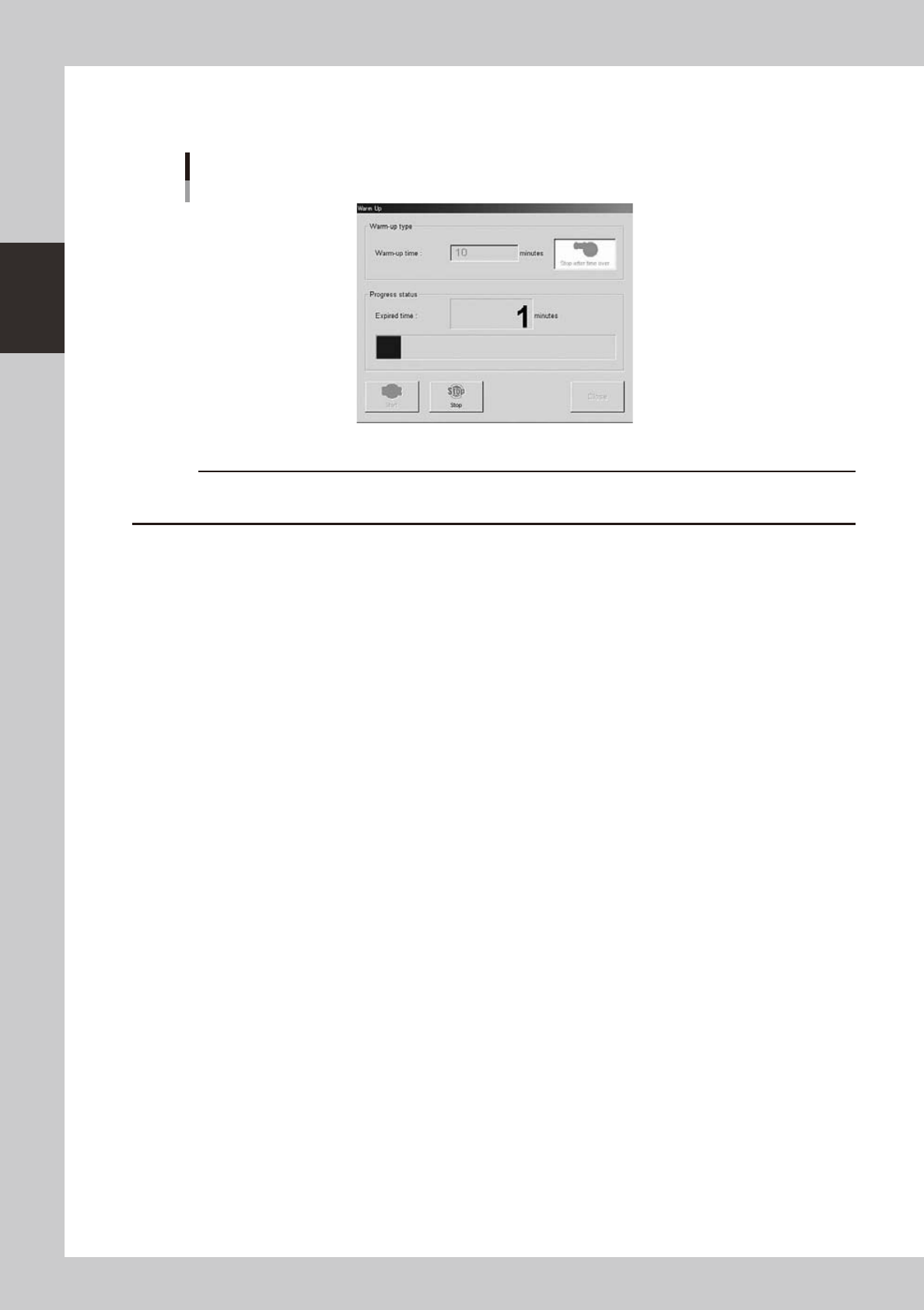
Press the [Start] button to start warm-up.
The warm-up progress time and status will appear under the "Progress status".
Warm-up screen
24217-L4-00
c
the problem and eliminate it.
5
Finish the warm-up.
Warm-up will automatically stop when the warm-up time you set is reached. Press the [Close] button,
and return to the previous screen.
2-25
2
asic operation
3.4 Adjusting the conveyor unit setup
When the board type to be produced is changed, the conveyor unit setup must be adjusted, and the feeders
prepared to match that board type. This section describes how to change the conveyor unit setup.
n
NOTE
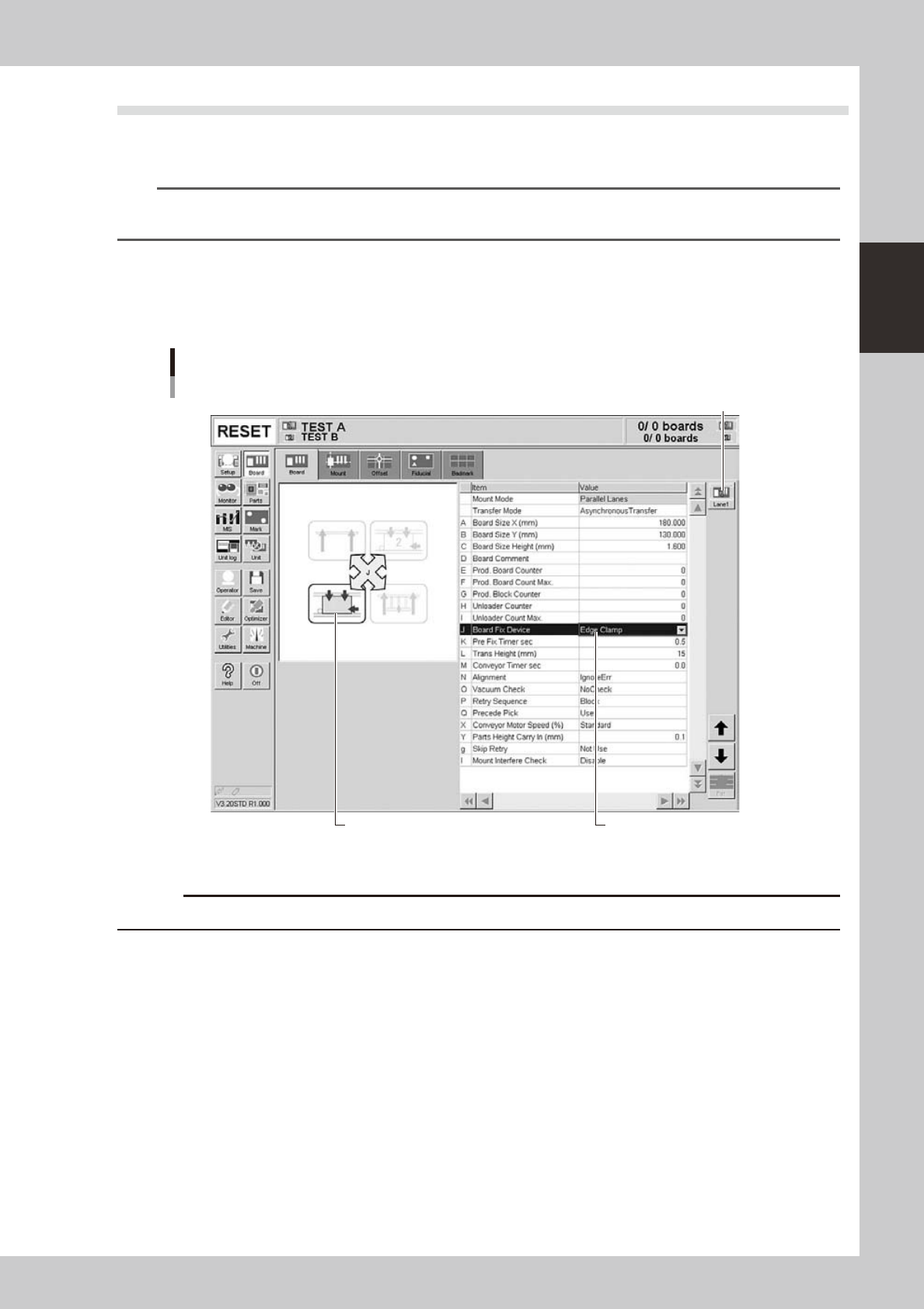
When producing boards using both lanes of dual-lane machines, use the lane select button to select the lane to be
operated and then adjust or check the conveyor unit setup.
Board clamping method
Select "Edge Clamp" for the board clamping method. This method clamps a board by pushing up its edges against the
board hold plates. Push-up pins are also used to support the board at points other than its edges.
Board clamping method
Checking board clamp method
Illustration shows how board
is clamped on the conveyor.
Lane select button
24218-L4-10
c
Conveyor's board sensors may fail to detect a production board if it has a slit or cutout.
2-26
2
asic operation
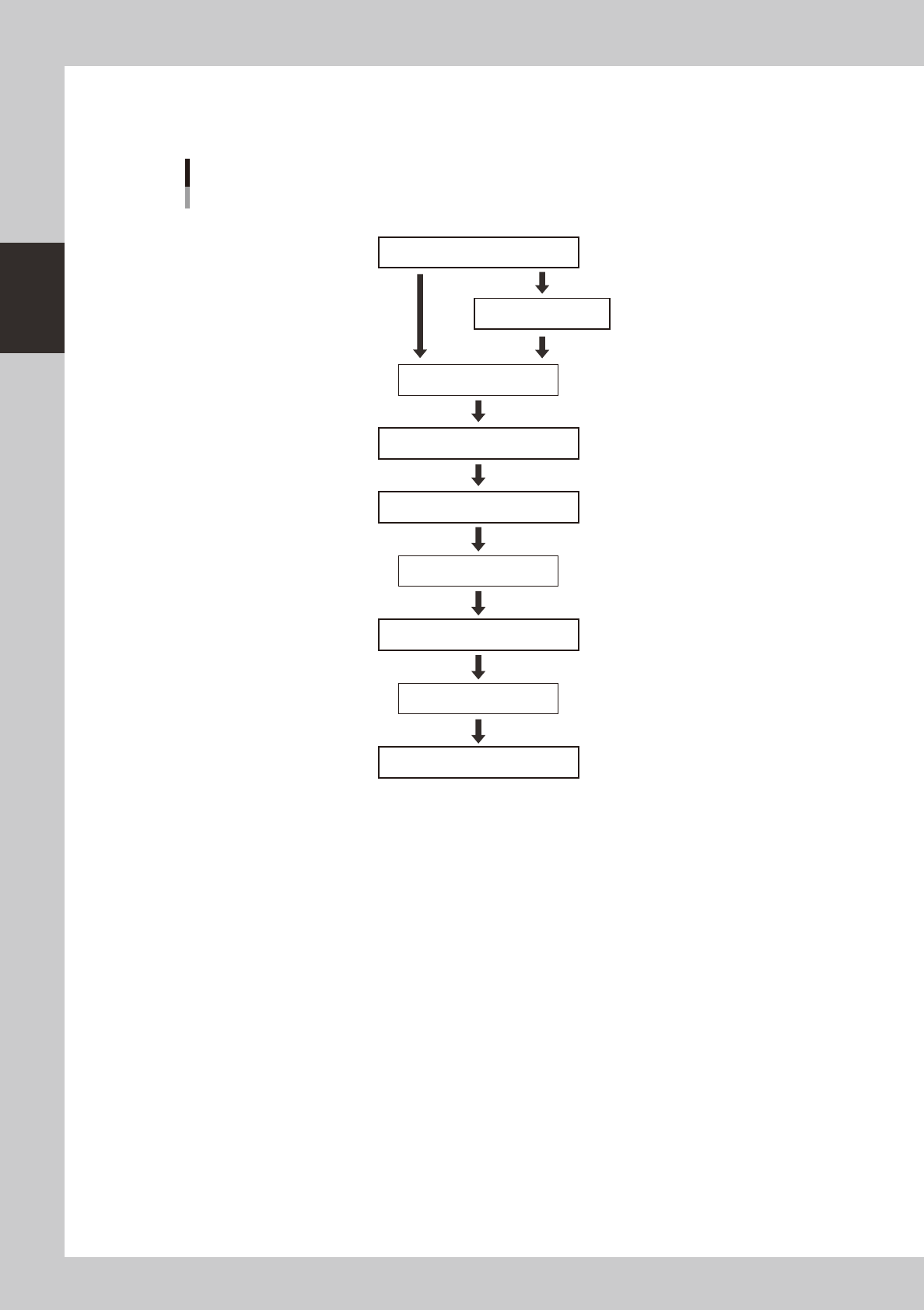
3.4.1 Conveyor unit setup flow
Set up the convey units as shown in the flowchart below.
Adjust conveyor width
Set board on conveyor
[Conveyor] ON
[Mount Position] ON
Dual - stage
Arrange push-up pins
[Push Up] ON
[Push Up] OFF
Press emergency stop button
Remove board
Press emergency stop button
Press emergency stop button
Cancel emergency stop
Move to setup position
Conveyor unit setup flow
Conveyor
Single - lane
Dual - lane
23203-L4-10
1
Adjust the conveyor width.
After selecting the board data, open the [Unit]-[Conveyor] tab and press the [Width] button. Check the
conveyor width shown in the "Conveyor Width" dialog box that appears, and press the [OK] button. The
conveyor width changes to the specified width.
2
Move the conveyor to the setup position. (when Dual - stage is used)
Press the [Mount Position] button to move the conveyor to the setup position. The conveyor of stage 2
will move to the rear.
e
3
Press the emergency stop button and open the safety cover.
4
Set a board on the conveyor.