YS24X_Ope_E.pdf - 第131页
2-56 2 asic operation n Checking the tray changer operation 1 Open the tr a y changer screen. Press the [Unit] button and then select t he [Auto TC] tab to open the tray changer screen. 2 Extr act a pallet from the tra…
2-55
2
asic operation
n
Wide multi-stick feeder
Check if operation is correct after setting the wide multi-stick feeder on the mounter.
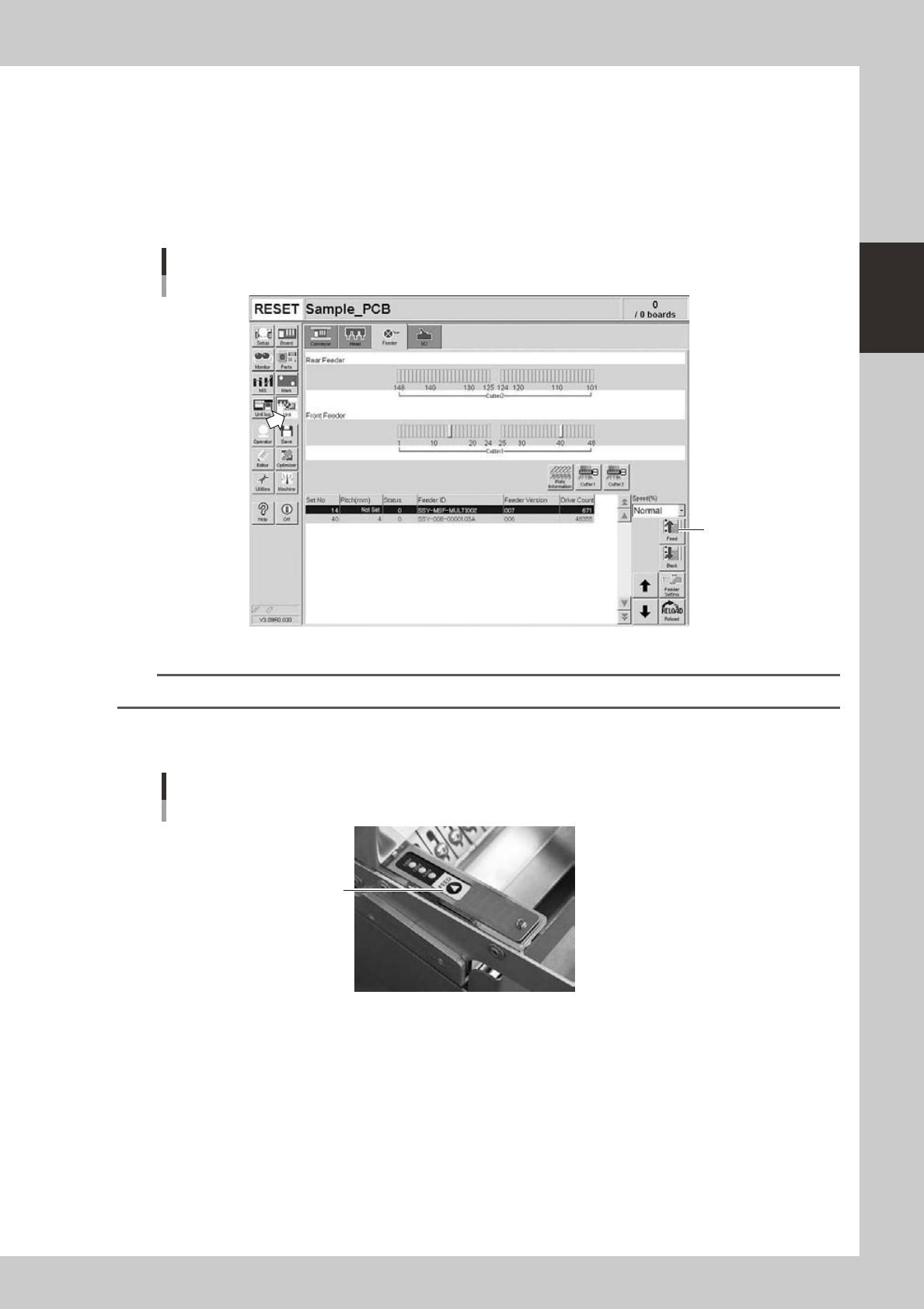
There are two types of checking: one is by clicking a software button (on the device screen) and the other is by
pressing a button on the feeder.
1. Using a software button
Click the [Unit] button and select a feeder in the [Feeder] tab. Click the [Feed] button in the right side of the screen and
the feeder will vibrate for two seconds to feed components.
Operation check
Unit screen
Click here
24231-L4-00
n
NOTE
When using the multi-stick feeder, you cannot use the (Back) button. (This button is disabled.)
2. Using a feeder button
Press the [Feed] button of the feeder and the feeder will vibrate for two seconds to feed components.
Operation check
Feeder unit
[FEED] button
23219-L4-00
2-56
2
asic operation
n
Checking the tray changer operation
1
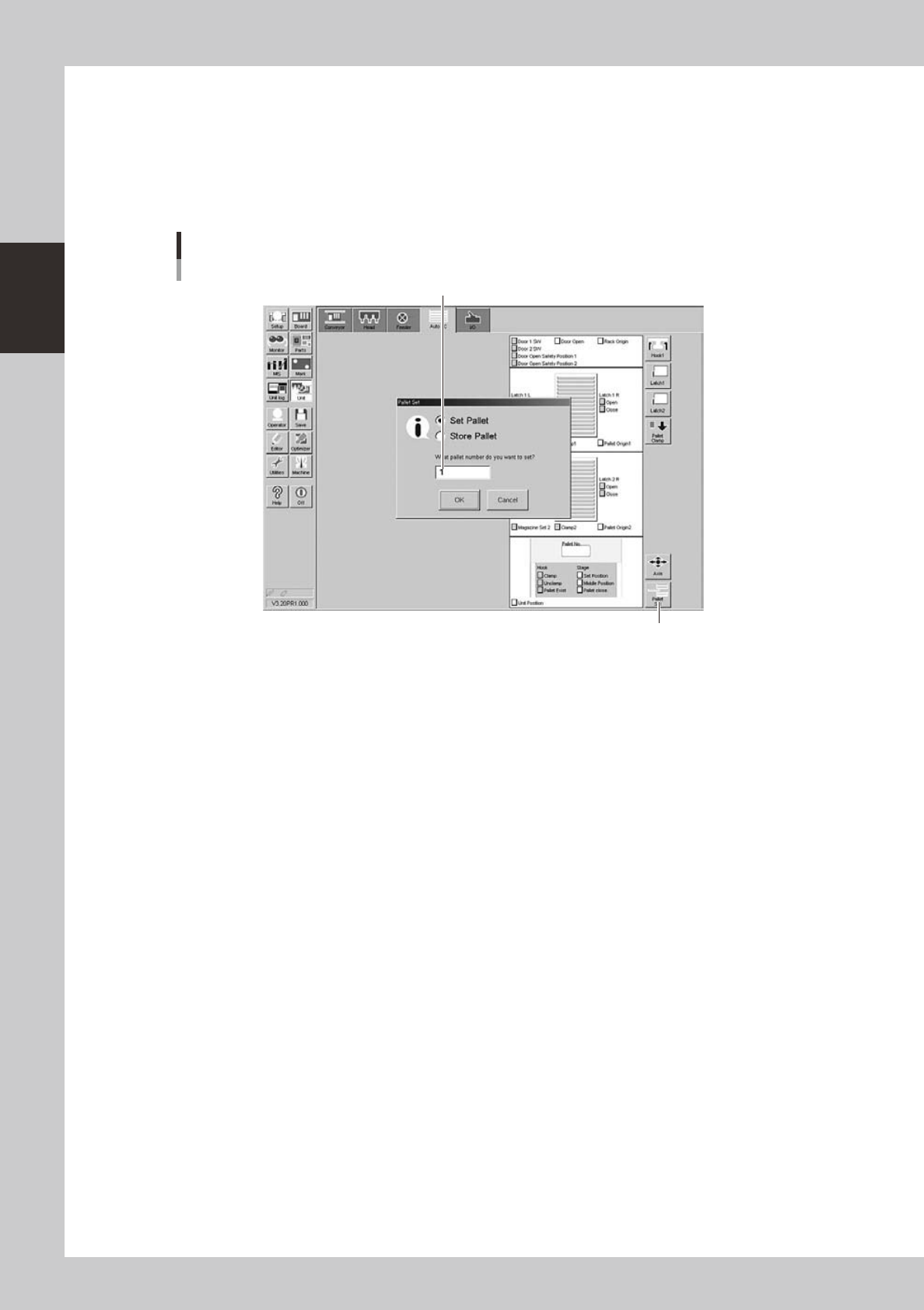
Open the tray changer screen.
Press the [Unit] button and then select the [Auto TC] tab to open the tray changer screen.
2
Extract a pallet from the tray changer.
Press the [Pallet Set] button to check whether a pallet is correctly extracted from the tray changer.
Tray changer screen
Selecting a pallet (sATSII)
[Pallet Set] button
Enter a pallet number
24233-L4-00

Chapter 3 Starting and ending production
Contents
1. Starting production 3-1
1.1 Resuming operation from the stopped point 3-6
1.1.1 Loading the saved data 3-7
1.1.2 Editing mount flags 3-7
1.2 Using the "block skip function" 3-8
1.2.1 Selecting the blocks 3-9
1.2.2 Starting operation 3-10
2.
Ending production and turning power off
3-11
3
3.1 Production 3-13
5
7
9
3.5 Alignment 3-21
3.6 Retry 3-22
3
4
5
3.10 Pick Rate Warning 3-27