YS24X_Ope_E.pdf - 第132页
Chapter 3 Star ting and ending production Contents 1. Starting production 3- 1 1.1 Resuming operation from the stopped point 3- 6 1.1.1 Loading the saved data 3- 7 1.1.2 Editing mount flags 3- 7 1.2 Using the "block…
2-56
2
asic operation
n
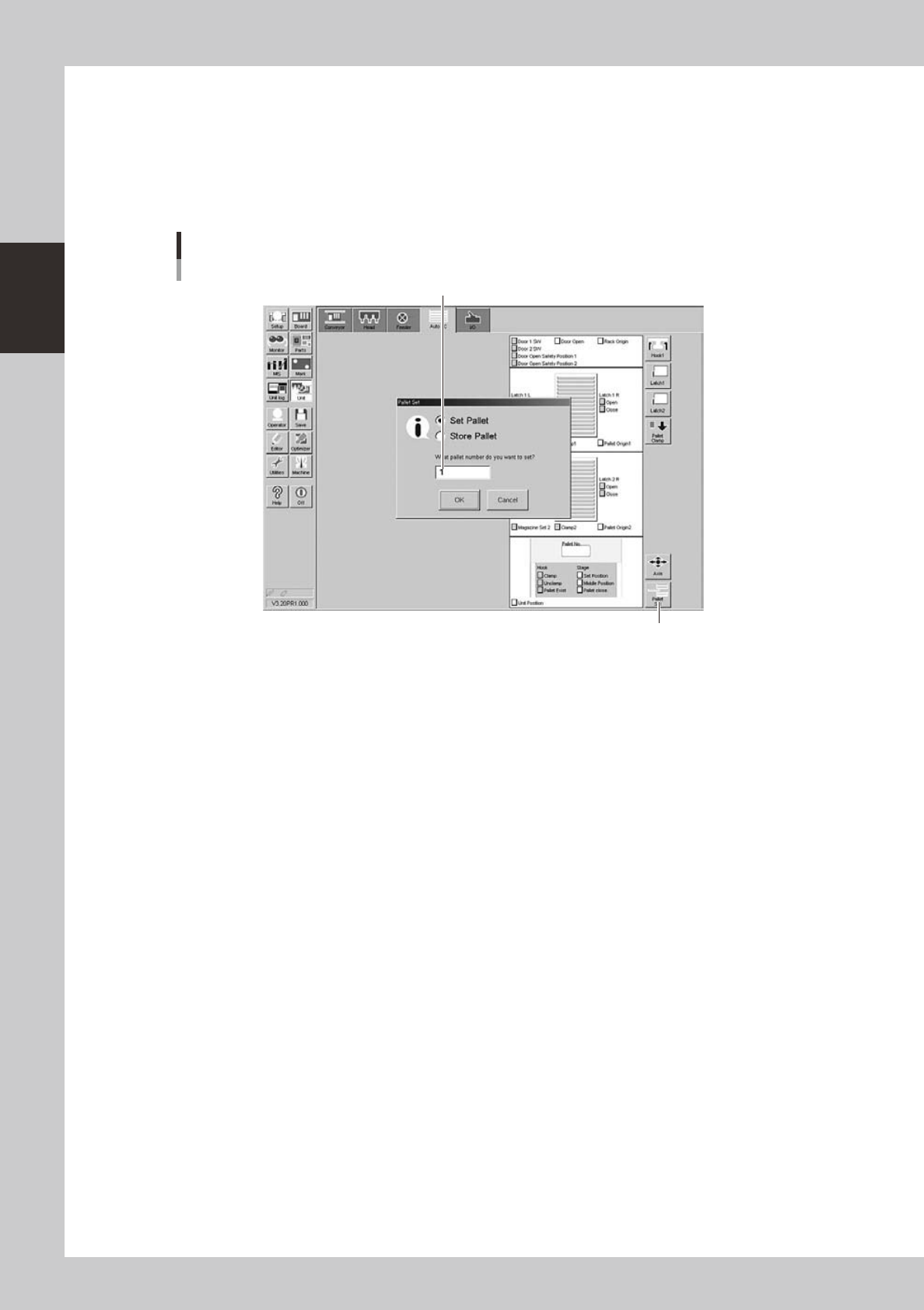
Checking the tray changer operation
1
Open the tray changer screen.
Press the [Unit] button and then select the [Auto TC] tab to open the tray changer screen.
2
Extract a pallet from the tray changer.
Press the [Pallet Set] button to check whether a pallet is correctly extracted from the tray changer.
Tray changer screen
Selecting a pallet (sATSII)
[Pallet Set] button
Enter a pallet number
24233-L4-00

Chapter 3 Starting and ending production
Contents
1. Starting production 3-1
1.1 Resuming operation from the stopped point 3-6
1.1.1 Loading the saved data 3-7
1.1.2 Editing mount flags 3-7
1.2 Using the "block skip function" 3-8
1.2.1 Selecting the blocks 3-9
1.2.2 Starting operation 3-10
2.
Ending production and turning power off
3-11
3
3.1 Production 3-13
5
7
9
3.5 Alignment 3-21
3.6 Retry 3-22
3
4
5
3.10 Pick Rate Warning 3-27
3-1
3
Starting and ending production
1. Starting production
This section describes how to select the board data which is already registered and perform component
mounting.
1
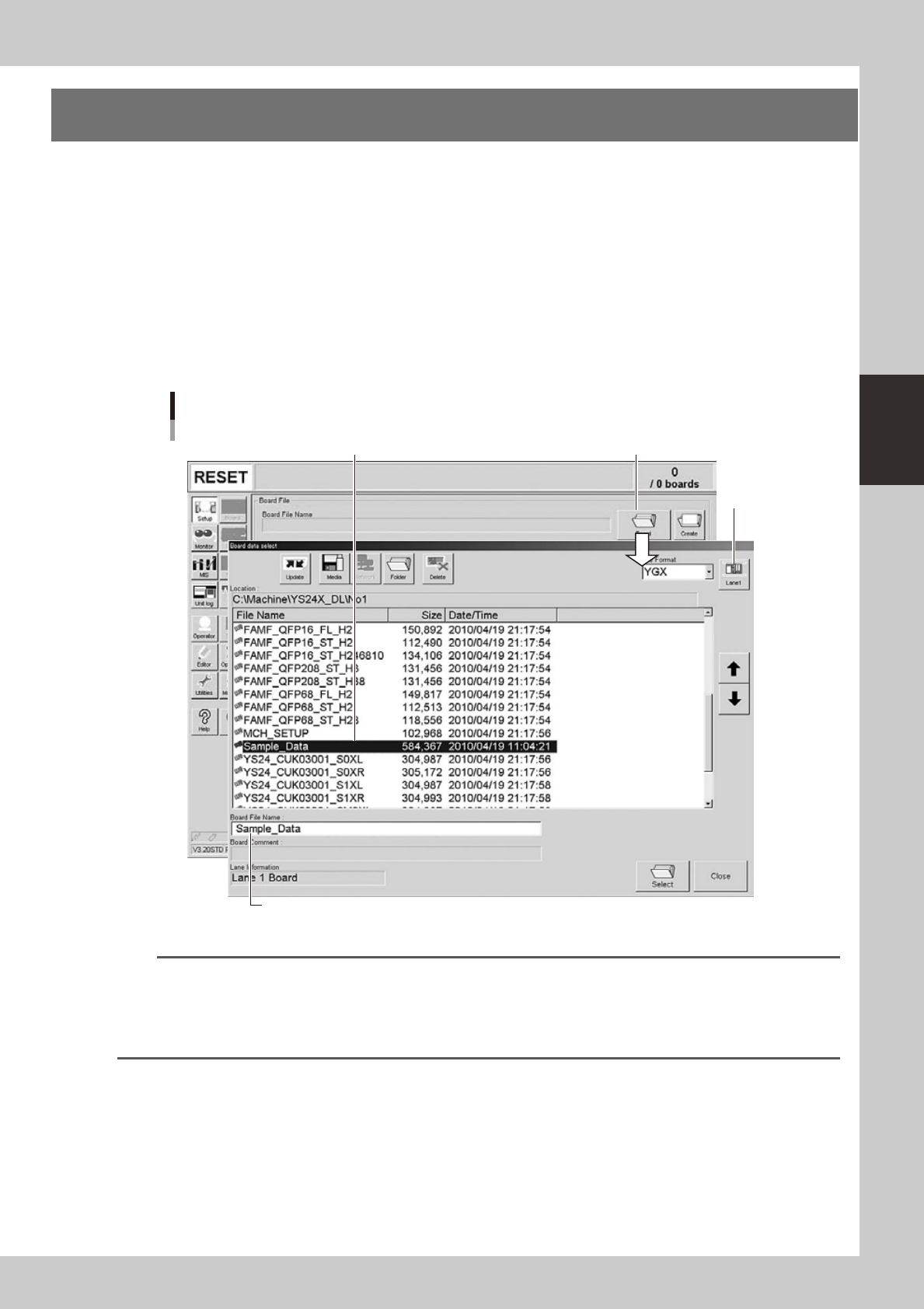
Select the board data.
1. When the board data is not yet selected, press the [Board] button on the Setup screen.
A list of registered board data appears.
In dual-lane machines, the lane select button is displayed on the "Board data select" screen, so press
that button to display the lane to be used for production. (When producing boards using both lanes,
select "Lane combination".)
2. Line up the cursor with the board data to use for production and press the [Select] button.
The machine loads the seleted board data.
Selecting the board data
Select board data from list.
Press [Board] button.
Lane select
button.
Selected board name is displayed.
24300-L4-10
TIP
• Combined board data will be displayed when "Lane combination" is selected with the lane select button.
Combined board data includes two board data which are stored in one board file. Combined board data is
displayed along with an orange icon.
• When combined board data is selected, the board le name and board data name used for production on the
selected lane are displayed on the Setup screen.