YS24X_Ope_E.pdf - 第137页
3-5 3 Starting and ending pr oduction 2 Cut off the used top tape. Cut the top tape with the edge cutter inside th e tail cover . Cutting the used top tape Top tape to be cut Edge cutter 23305-L4-00 3 Close the tail co v…
3-4
3
Starting and ending production
n
Disposing of used top tape
We recommend disposing of used top tape periodically as routine maintenance.
n
NOTE
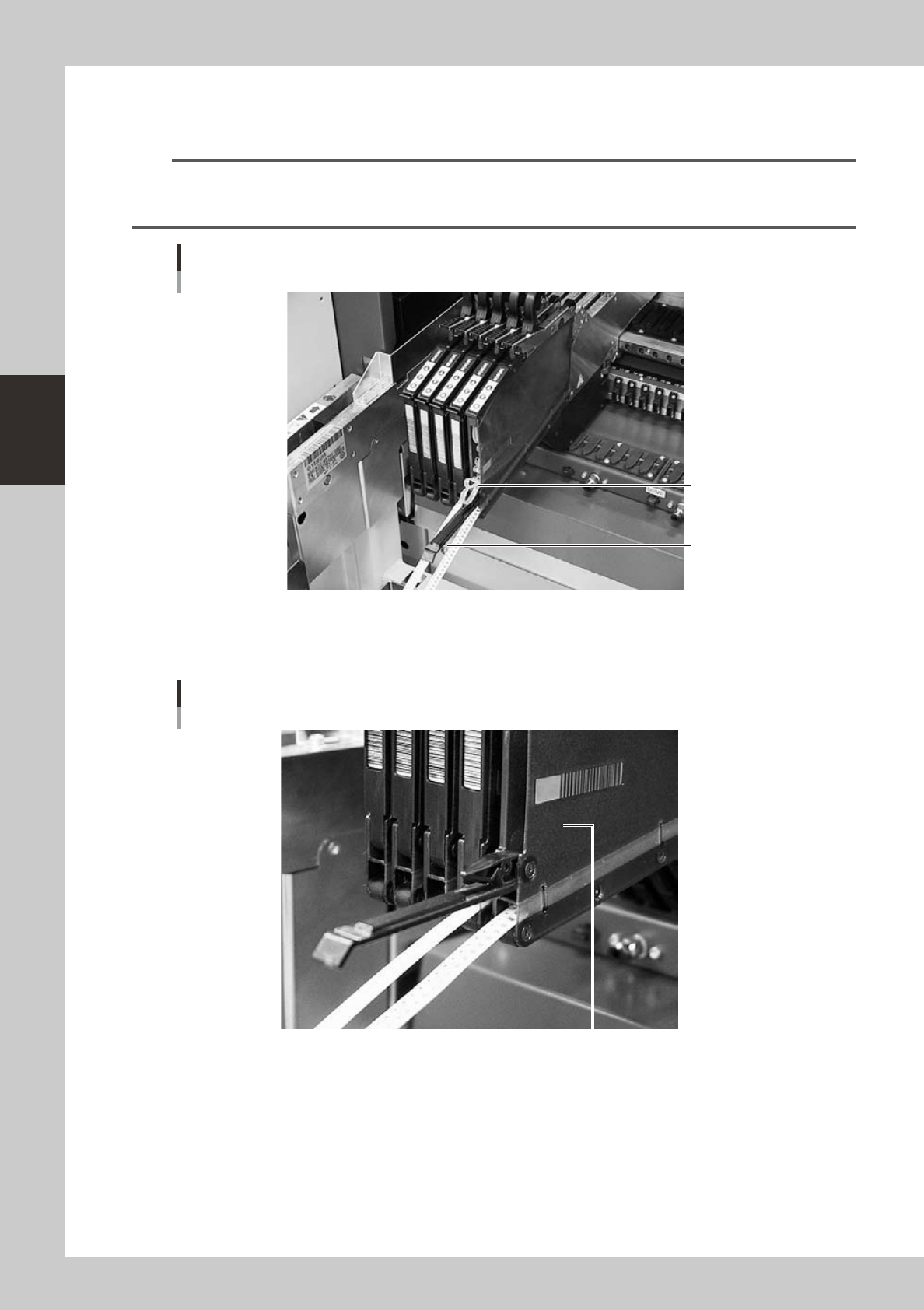
When continuously supplying components using the splicing function, too much used top tape (about 2 reels of 8mm
tape) accumulates and pushes the tail cover so it is automatically opened as shown below. If this happens, cut off
the used top tape with the edge cutter inside the tail cover using the same procedure as described below.
Tape feeder with its tail cover automatically opened
Pushed out top taped
Tail cover
23302-L4-00
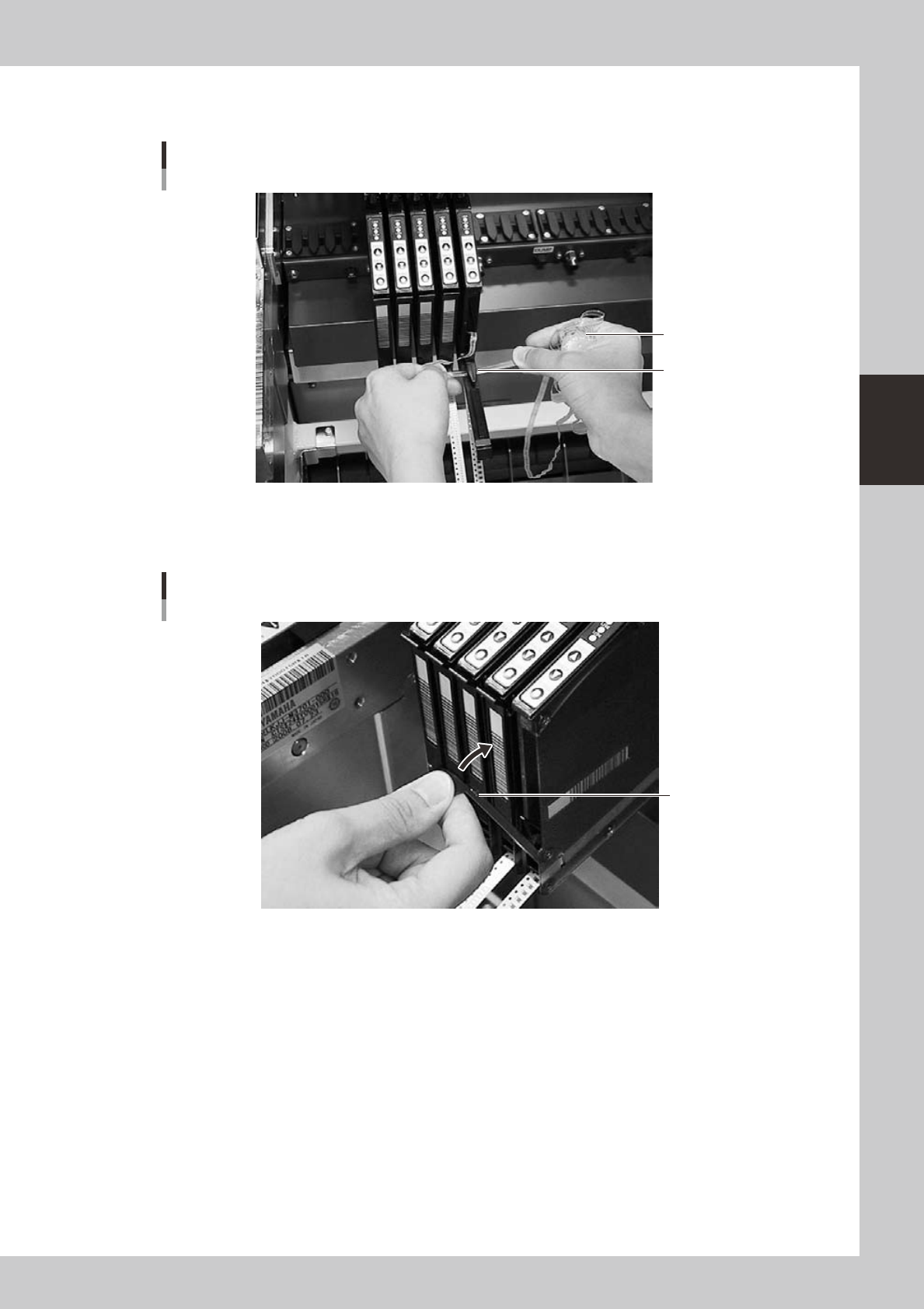
1
Check the used top tape.
Open the tail cover and check if there is much used top tape inside.
Checking the used top tape
Used top tape accumulates inside.
23304-L4-00
3-5
3
Starting and ending production
2
Cut off the used top tape.
Cut the top tape with the edge cutter inside the tail cover.
Cutting the used top tape
Top tape to be cut
Edge cutter
23305-L4-00
3
Close the tail cover.
The tail cover has a magnet to hold it closed, so it can be easily returned to the original position.
Closing the tail cover
Tail cover
23306-L4-00
3-6
3
Starting and ending production
1.1 Resuming operation from the stopped point
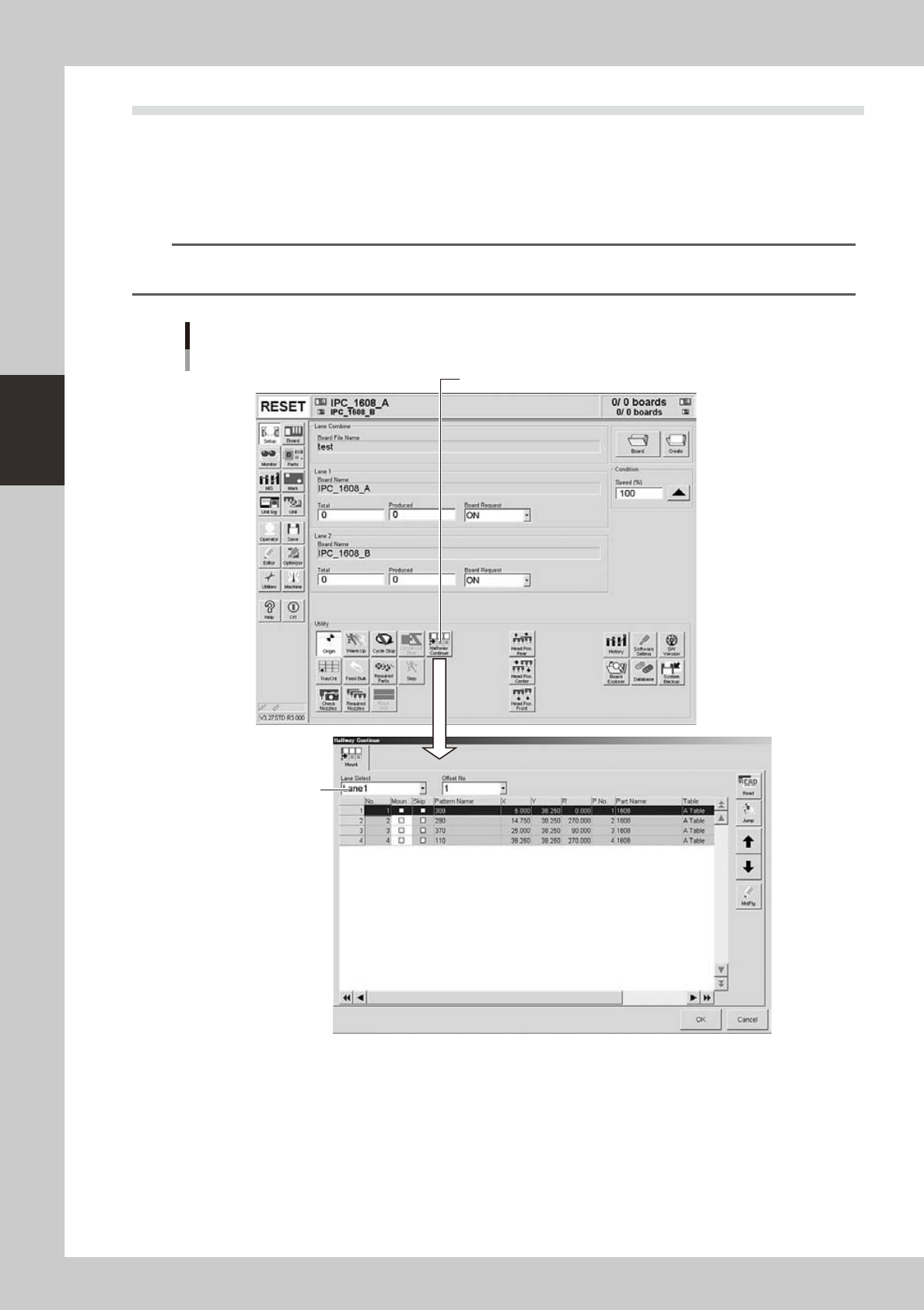
Pressing the [Halfway Continue] button on the "Setup" screen opens the "Halfway Continue" dialog box as
shown below. Even after you have reset operation data while component mounting on a board was in progress,
this dialog box allows you to reload that operation data to continue the component mounting or to mount
components at a specific block or mounting points. Note that this function can be used just for the first board
after the operation is resumed, with routine mounting operation beginning from the next board.
n
NOTE
When boards are being produced using both lanes of dual-lane machines, select the lane from the "Lane Select"
drop-down list in the "Halfway Continue" dialog box, and then resume operation.
[Halfway Continue] button
"Halfway Continue" dialog box
Example of Dual-lane
“ Lane Select ” box
24304-L4-20