YS24X_Ope_E.pdf - 第145页
3-13 3 Starting and ending pr oduction 3. Displaying the production monitors Press the [Monitor] button to confirm the operation status during production. The mounting information can be confirmed by selecting the [Main]…
3-12
3
Starting and ending production
4
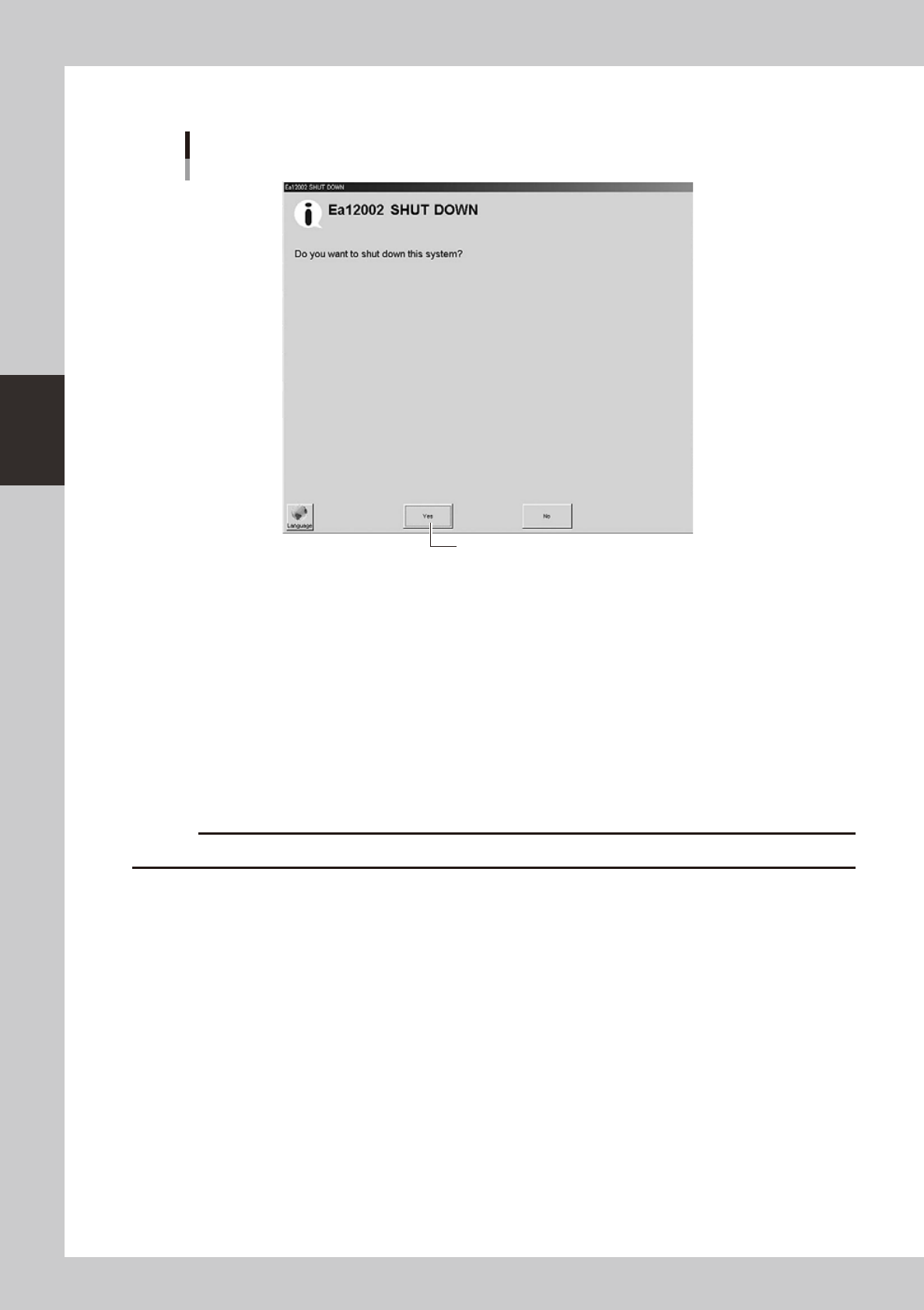
Press [Yes] when a conirmation dialog box appears.
Shutdown confirmation dialog box
Press [Yes].
24307-L4-00
5
Move the machine to the origin position.
When the move-to-origin dialog box appears, press [OK].
6
Press the [OK] button when the shutdown confirmation dialog box appears.
e
7
Press the emergency stop button.
When the emergency stop dialog box appears, press the emergency stop button and then press the
[OK] button.
8
Turn off the power switch on the machine.
When the message "Ready to shut down" appears, press the [OK] button and then turn off the power
switch on the lower right of the machine.
c
3-13
3
Starting and ending production
3. Displaying the production monitors
Press the [Monitor] button to confirm the operation status during production.
The mounting information can be confirmed by selecting the [Main], [Detail], [Vision], [Alignment] and [Retry]
tabs.
TIP
When boards are being produced using both lanes of dual-lane machines, the lane select button is displayed on the
[Main], [Detail], [Fiducial] and [Badmark] tabs.
3.1 Production
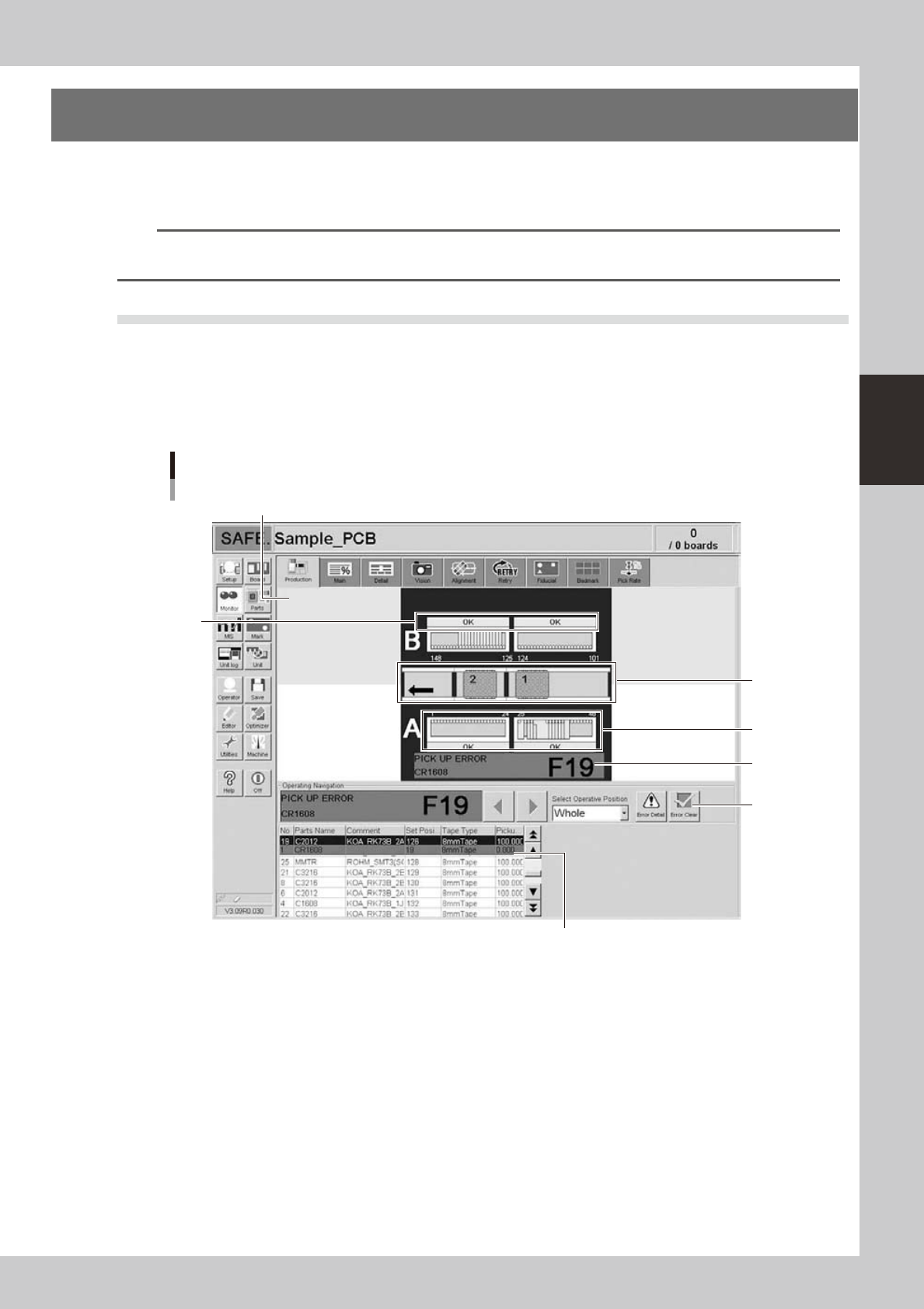
This screen shows the status of machines currently producing boards. Real-time information is displayed on the
machine layout view as shown below. When an error occurs on the machine, open this screen to check status
information such as what type of error occurred, operating instructions, and warnings, etc. Error locations are
grouped into placement tables, feeders and conveyor units. Locations with errors are shown on the machine
layout view in different colors to make the error location easy to find.
Monitor: Production
1
2
4
3
5
6
Shows the machine rear as a colored background.
24309-L4-00
1. Transfer status area
Displays the conveyor status where an error, operating instruction, or warning involving board transfer was issued.
When a hazard sensor is activated, the board where the error has occurred appears in semi-transparent red on the screen.
When the sensor in the board clamp position or board standby position is activated, the board in the board clamp
position or board standby position appears in semi-transparent green on the screen.
2. Feeder status area
Displays the feeder at the feeder set position where parts are registered, by referencing "Parts" - "Feeder Set No." of the
board data currently used for board production. Nothing is displayed at feeder set positions where no parts are registered.
3. Feeder plate status area
Displays "OK" when there are no errors, operating instructions or warnings for the feeders currently in use.
Displays "n Parts" ("n" is the number of feeders) when errors, operating instructions or warnings were issued for the
feeders currently in use.
3-14
3
Starting and ending production
4. Placement table status area
This area displays the status on each placement table. If an error, operating instruction or warning has occurred on a
placement table, the status of that table is displayed in this area.
If multiple errors, operating instructions or warnings have occurred on the same placement table, then the highest
priority item is displayed.
Nothing appears unless operating instructions or warnings were issued.
5. Operating Navigation area (operating instruction message area)
• Select Operating Position drop-down list
When an error, operating instruction or warning occurs, select the position showing an error from this drop-down list.
Only positions requiring an operator task are displayed in the drop-down list.
TIP
You can select the operating position by clicking the error area on the layout view. However the operating position
cannot be selected if you click on an area where there are no errors, operating instructions or warnings.
• Operating Navigation instructions
This displays messages with countermeasures for handling errors, operating instructions or warnings at operating position
selected with the "Select Operating Position" drop-down list. When multiple errors occur, those items with the highest
priority for countermeasures are displayed in sequence. To switch to other instruction messages, press the left/right arrow
buttons.
[Error Detail] button
Pressing this button displays an error message dialog that contains detailed information and countermeasures for the
error and operating instruction, or warning displayed in the "Operating Navigation" area.
[Error Clear] button
Press this button after recovering from the error or after handling the operating instruction or warning displayed in the
"Operating Navigation" area. Pressing this button shows that recovery is complete by following the message in the
"Operating Navigation" area, and that automatic operation can restart. However, automatic operation will not restart if a
recovery task is still incomplete (other than warnings).
6. Component information display area
Displays basic information on components currently being used in the program (board data) for production. Data that is
causing an error appears in a different color.
TIP
If an error has occurred on the entire machine then the entire area background is displayed in blue.