Printer 600 Machine Programming.pdf - 第69页
0$&+,1 (352*5$0 0,1* 67$*( ()250 )/(;722/,1* Software Version 07SP04 User Manual 1.69 47. Select Change Screen (F5) . 48. Either: a. Open the front prin thead cover . or b. Raise the printhead shutter and lowe…
0$&+,1(352*5$00,1*
67$*(()250)/(;722/,1*
1.68 User Manual Software Version 07SP04
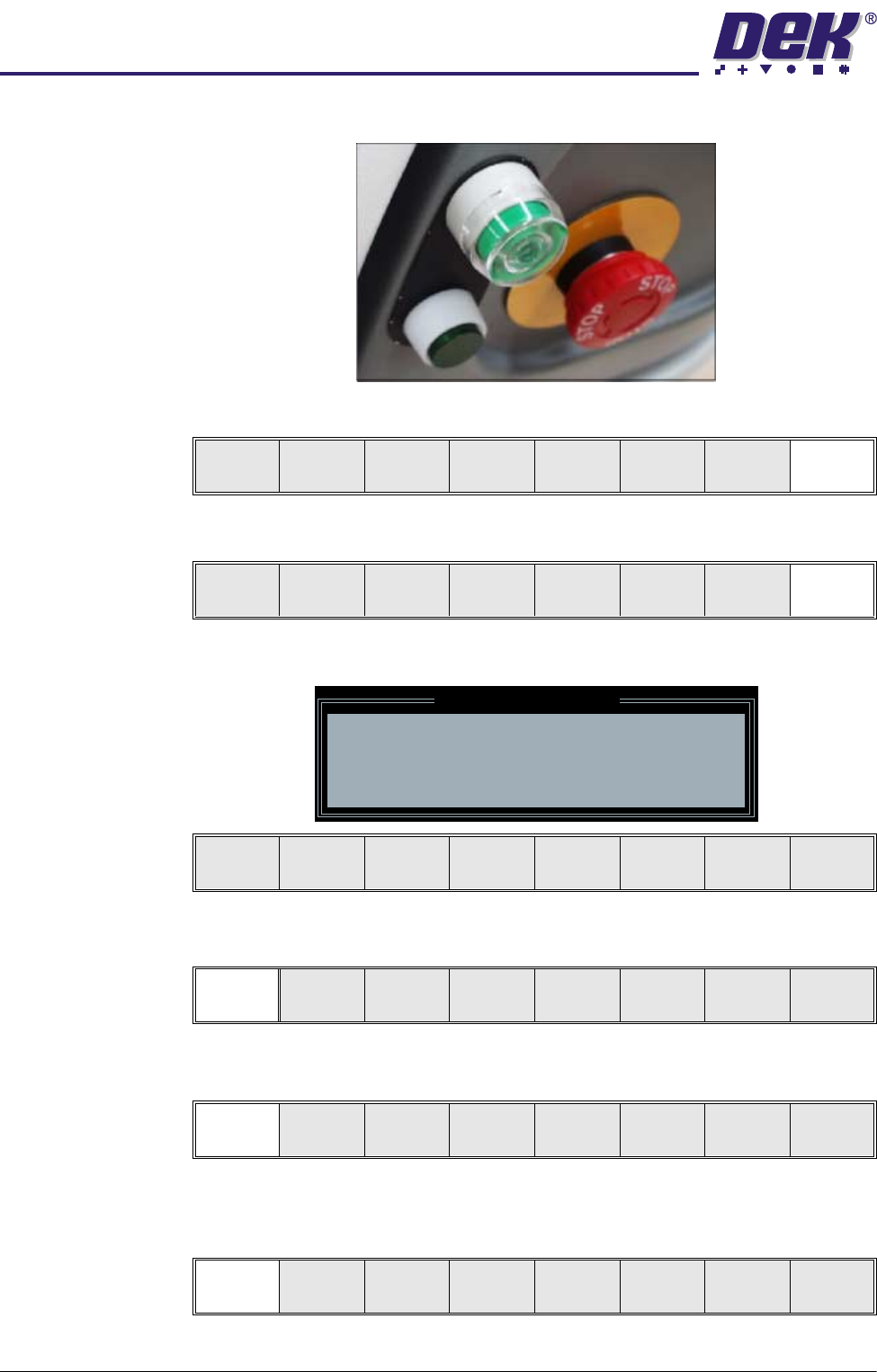
40.Wait until the pneumatic indicator on the front cover displays green
41.Select Exit (F8).
42.Select Exit (F8).
The following window and menu bar is displayed:
43.Select Continue (F1).
44.Select Auto Board (F1). The message ‘Board on rails, remove and
continue’ is displayed.
45.Remove the board from the rails.
46.Select Continue (F1).
Exit
Vision
Height
Open
Cover
Exit
Leaving Generic Tooling
WARNING You are about to return
to the Setup Page
Clear all tooling setup
equipment before proceeding
Continue Cancel
Continue Cancel
Auto
Board
Manual
Board
Continue
Open
Cover
0$&+,1(352*5$00,1*
67$*(()250)/(;722/,1*
Software Version 07SP04 User Manual 1.69
47.Select Change Screen (F5).
48.Either:
a. Open the front printhead cover.
or
b. Raise the printhead shutter and lower the drop down panel.
49.If fitted, toggle screen clamp switch to up position (off).
50.Remove the screen from the printer and release the universal set plate from
the screen.
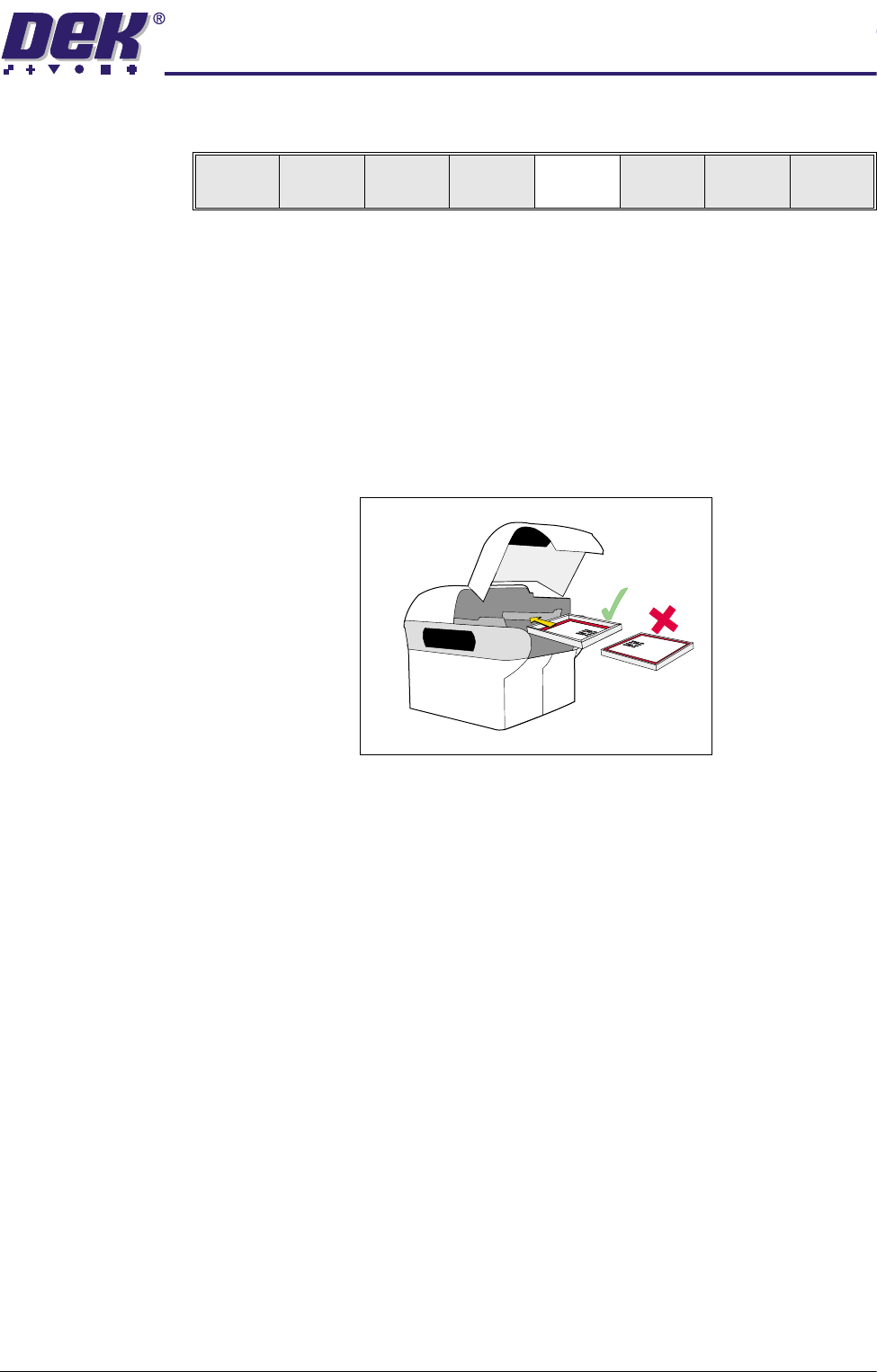
51.Ensuring correct orientation, refit the screen
52.If fitted, toggle screen clamp switch to down position (on).
53.Either:
a. Close the front printhead cover.
or
b. Raise the drop down panel and lower the printhead shutter.
54.Press the System button.
55.Go to Stage 6.
Mode
Load
Data
Edit
Data
Setup
Squeegee
Change
Screen
Change
Tool ing
Change
Language
Exit
0$&+,1(352*5$00,1*
67$*(9,6,216<67(06(783
1.70 User Manual Software Version 07SP04
STAGE 6 - VISION SYSTEM SETUP
Introduction The machine utilizes a vision system to carry out the following:
• Stencil/Board Alignment
• 2D Inspection (optional)
• Board Identification - Selective Print/Pass Through (optional)
Once a board is fed into the machine to the board stop position, the camera
moves into position to view the relative board and stencil features. The camera
image information is used by the vision system to calculate if stencil correction
is needed and if selective print/pass through is enabled, to identify the board.
The camera and vision system is also used for 2D Inspection (2Di), if enabled.
For further information on 2Di, refer to the 2Di chapter of this manual.
Fiducials Fiducials are alignment marks produced as a part of the artwork of the board
and the stencil. Normally, several fiducials can be found on each board, some
of which are used for board alignment and some for alignment when placing
components on the board. These fiducials, should therefore be in the same
relative position on both board and stencil.
The vision system has a library of synthetic fiducials of the most commonly
found shapes. The dimensions of these fiducials can be tailored by the operator
to fit the fiducials on the board and stencil. After the vision system has been
taught these fiducial parameters, it is able to search the field of view of the
camera and recognize any features which resemble these fiducials. The centre
of the fiducial is calculated and used as the point of location.
After finding a shape it is assigned a score comparing its shape and size to the
shape and size of the fiducial in the vision system memory. This score is set
between 1 and 999, the better the fit the higher the score.
NOTE
This however, does not mean that a fiducial score of 999 for example, aligns
more accurately than a fiducial score of 700.
This score is used, in conjunction with acceptance parameters set by the
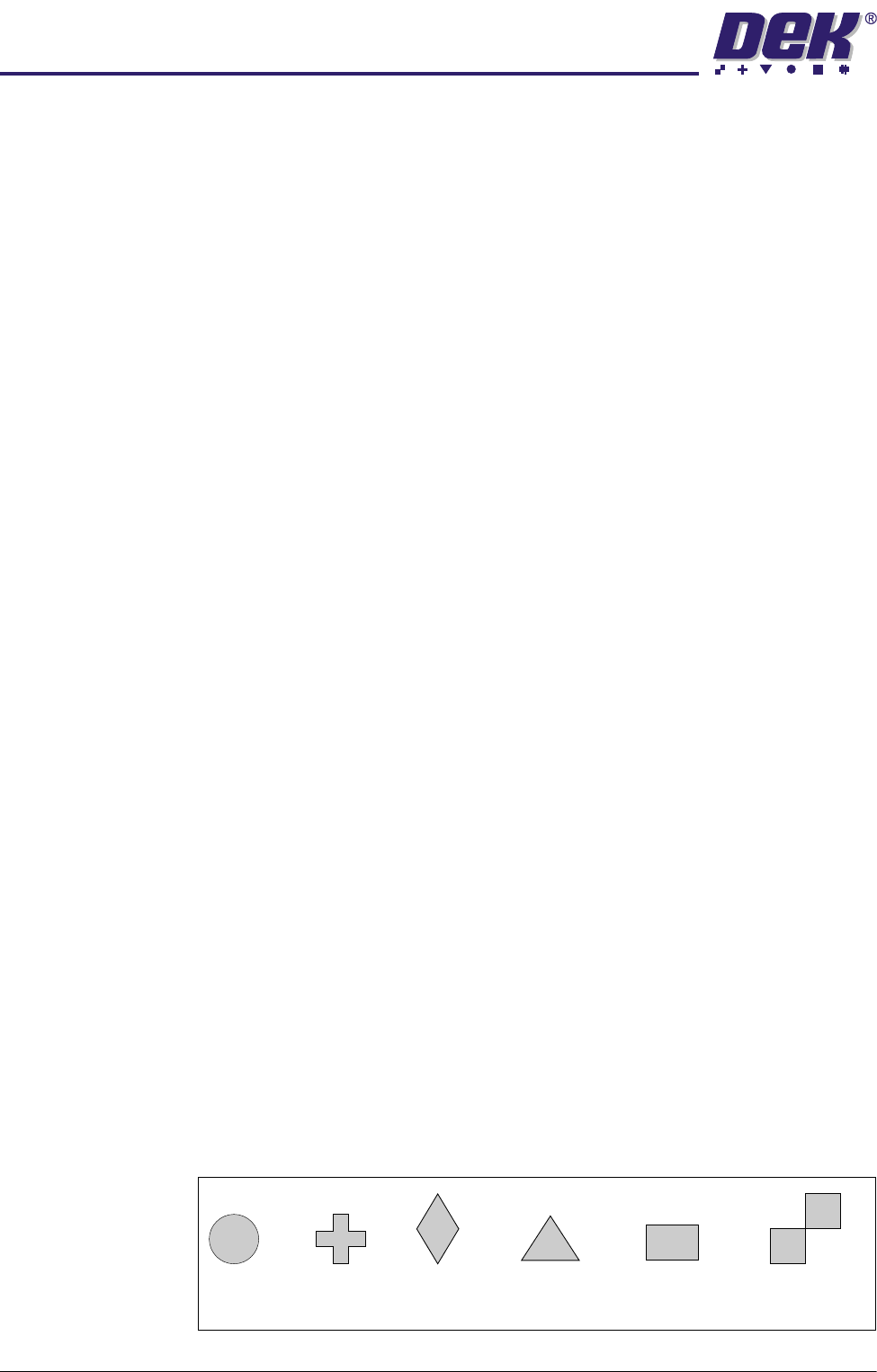
operator, to recognize the fiducial. The available fiducial shapes are:
• Circle
• Cross
• Diamond
• Triangle
• Rectangle
• Double Square
Circle
Cross
Diamond
Triangle Rectangle Double square