Printer 600 Machine Programming.pdf - 第7页
0$&+,1 (352*5$0 0,1* 67$*($ /2$' $352'8&7 ),/( Software Version 07SP04 User Manual 1.7 ST AGE 2A - LOAD A PRODUCT FILE 1. For an existing product, t he product f ile h as already been written. …
0$&+,1(352*5$00,1*
67$*(32:(583$1'/2*21
1.6 User Manual Software Version 07SP04
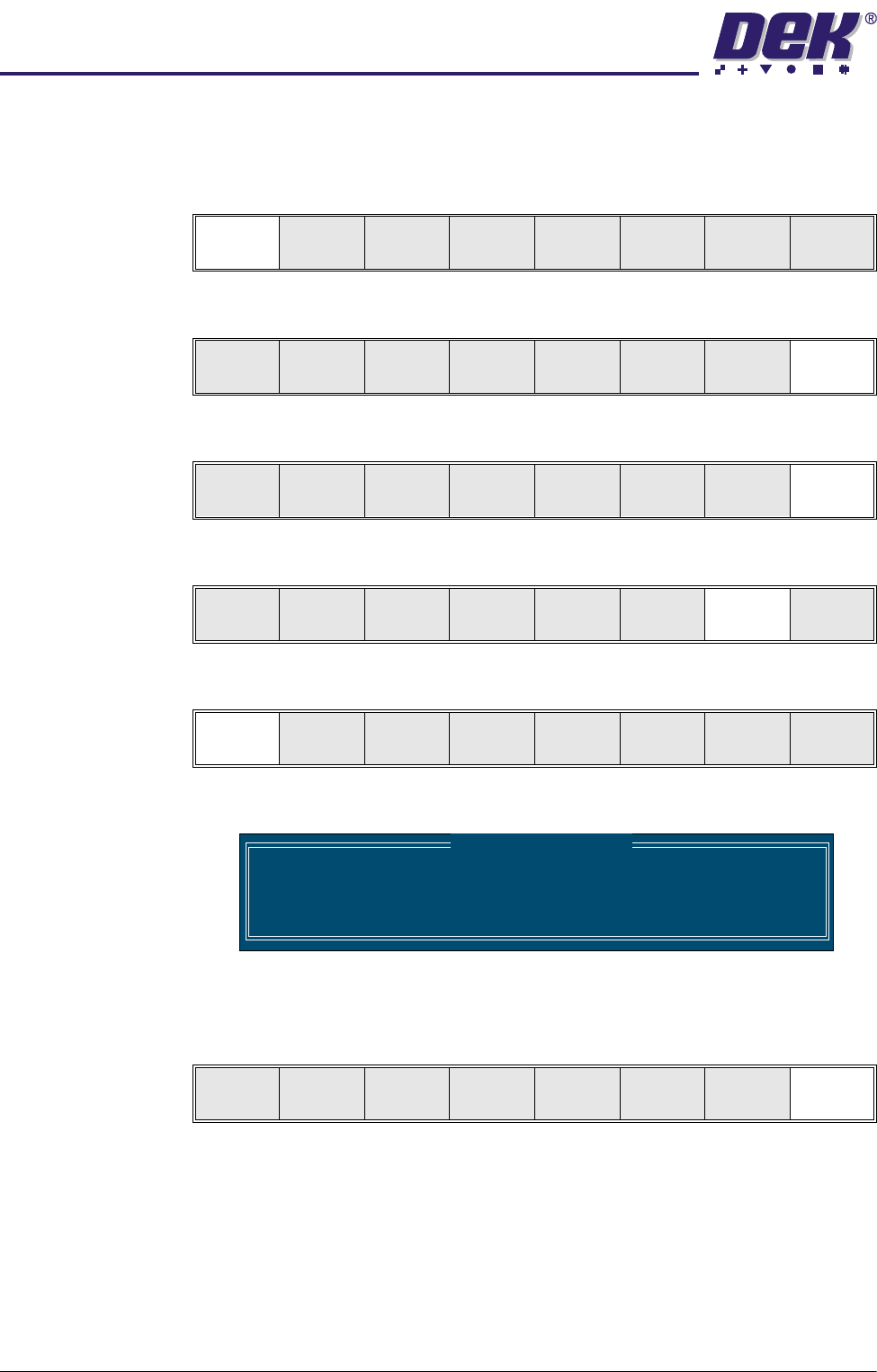
10.Select Load (F1). The message ‘Loading Language...’ is displayed. A
delay of approximately 20 seconds takes place and all displayed text is
changed to the selected language. The message ‘Language Loaded...’ is
displayed.
11. Select Exit (F8).
12.Select Exit (F8)
13.Select Monitor (F7)
14.Select Log On (F1).
The Operator Log On window is displayed:
Using the keyboard, enter the operator’s name/ID and press Enter on the
keyboard, the operator’s name/ID appear on the status page.
15.Select Exit (F8).
If this is the correct file for the product proceed to Stage 4. If the file has to
be edited proceed to Stage 3.
Load Up Down Exit
Load Up Down Exit
Mode
Load
Data
Edit
Data
Setup
Squeegee
Change
Screen
Change
Tool ing
Change
Language
Exit
Run
Open
Cover
Paste
Load
Clean
Screen
Adjust Setup Monitor Maint.
Log
On
Host
Comms
Clear
Batch
Batch
Limit
Perform
Display
Event
Display
System
Disable
Exit
Operator Log On
Enter Operator ID :
Log
Off
Host
Comms
Clear
Batch
Batch
Limit
Perform
Display
Event
Display
System
Disable
Exit
0$&+,1(352*5$00,1*
67$*($/2$'$352'8&7),/(
Software Version 07SP04 User Manual 1.7
STAGE 2A - LOAD A PRODUCT FILE
1. For an existing product, the product file has already been written. If the
product is new, either edit an existing or a default file.
NOTE
The product file displayed after the machine has been initialized is the same
one that was resident in the printer when it was powered down. If this file is
correct for the product, continue to Stage 9 - Print in Run Mode. If the
product file is incorrect for the current product, continue with this procedure
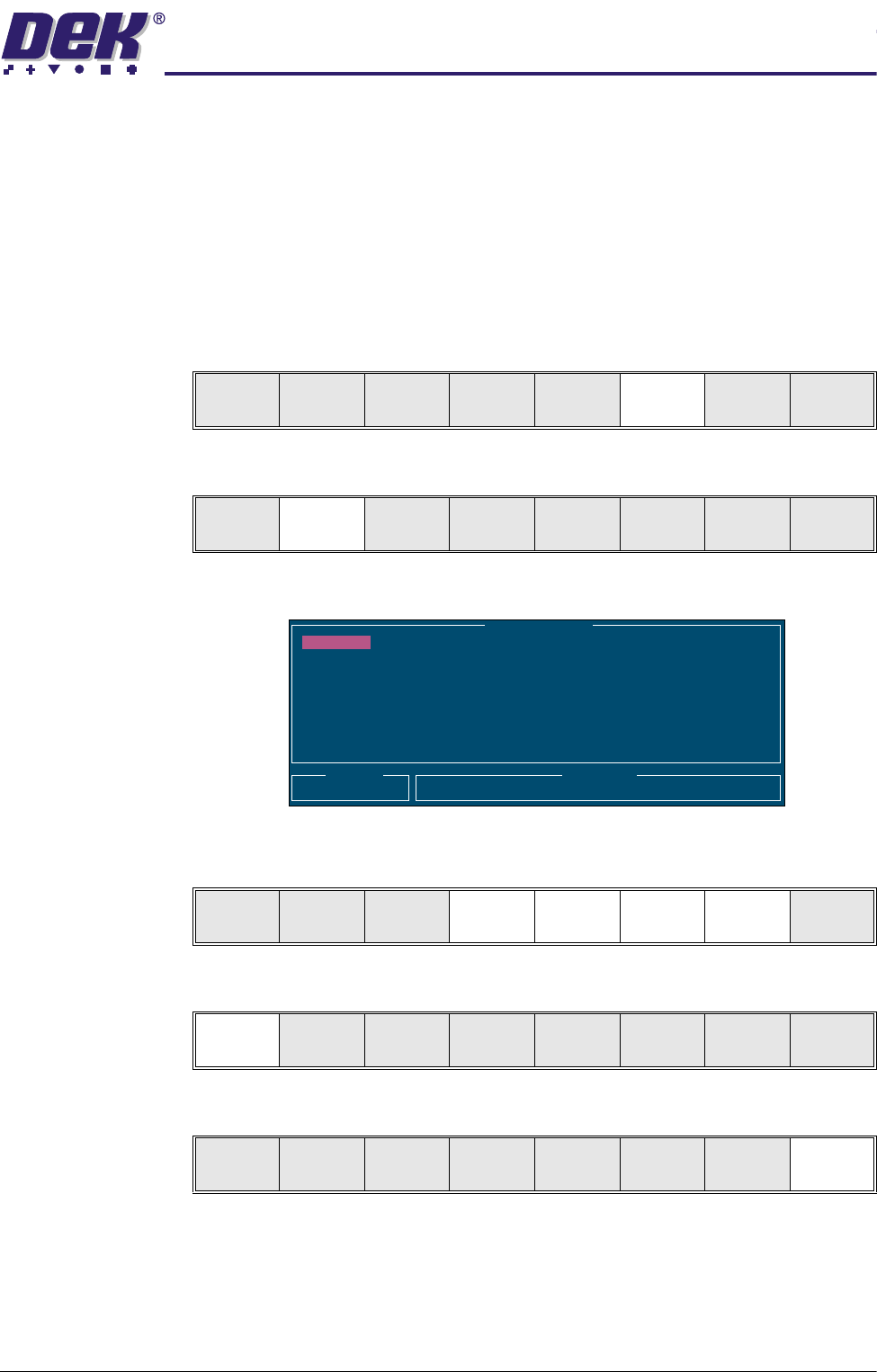
2. Press Setup (F6).
3. Press Load Data (F2).
The following Load Data File Window is displayed:
4. Use Left, Right, Up or Down function keys (F4-F7) to highlight the required
file.
5. Press Load (F1). The selected file is now displayed on the monitor.
6. Press Exit (F8).
NOTE
If Auto Rail Width in Set Prefs is set to disabled, this needs to be set to
enabled to allow the rear rail to move to the new board width.
If this is the correct file for the product proceed to Stage 4. If the file has to
be edited proceed to Stage 3.
Run
Open
Cover
Paste
Load
Clean
Screen
Adjust Setup Monitor Maint.
Mode
Load
Data
Edit
Data
Setup
Squeegee
Change
Screen
Change
Tool ing
Change
Language
Exit
Load Data File
Product ID
Search
Training
265TEST1
265TEST1
ANDY H
CALIBRA
DEFAULT
DEK04
DEK06
Load
Rebuild
List
Left Right Up Down Exit
Load
Rebuild
List
Left Right Up Down Exit
Para
Rebuild
List
Left Right Up Down Exit
0$&+,1(352*5$00,1*
67$*(%/2$'$352'8&7),/(
1.8 User Manual Software Version 07SP04
STAGE 2B - LOAD A PRODUCT FILE
Using Bar Code A product with a barcode can be loaded by using either the product light pen or
by using the keyboard. From the status page:
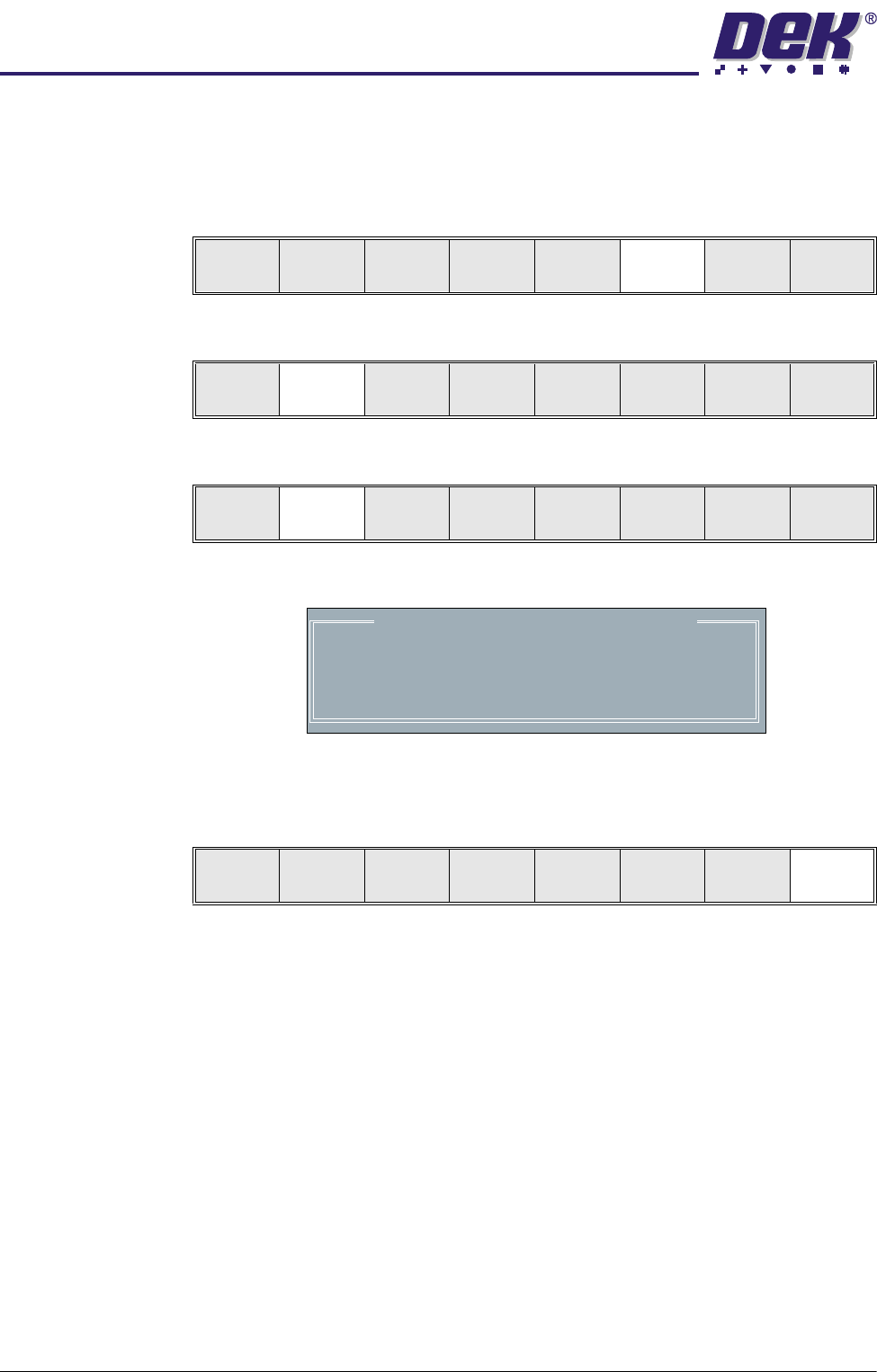
1. Press Setup (F6).
2. Press Load Data (F2).
3. Select Bar Code (F2).
The Bar Code Product Data Selection window is displayed:
4. Swipe the barcode at a steady speed, left to right, or right to left, or enter the
code using the keyboard.
5. Select Exit (F8).
NOTE
If Auto Rail Width in Set Prefs is set to disabled, this needs to be set to
enabled to allow the rear rail to move to the new board width.
6. Go to Stage 4.
Run
Open
Cover
Paste
Load
Clean
Screen
Adjust Setup Monitor Maint.
Mode
Load
Data
Edit
Data
Setup
Squeegee
Change
Screen
Change
Tool ing
Change
Language
Exit
Load
Bar
Code
Rebuild
List
Left Right Up Down Exit
Entered Code:
Use light pen to swipe the bar code strip, or enter
the code number using the keyboard.
BAR CODE PRODUCT DATA SELECTION
Load
Bar
Code
Rebuild
List
Left Right Up Down Exit