Printer 600 Machine Programming.pdf - 第78页
0$&+,1( 352*5$00 ,1* 67$*( 9,6,216 <67(06 (783 1.78 User Manual Software Ve rsion 07SP04 17. Use the Next , Previous , Incr . and Decr . keys (F4 - F7), to hi ghlight and adjus t each circle p arameter in …
0$&+,1(352*5$00,1*
67$*(9,6,216<67(06(783
Software Version 07SP04 User Manual 1.77
ters window is displayed on the status page.
14.Use the Next, Previous, Incr. and Decr. keys (F4 - F7), to highlight and
adjust the lighting parameters to a level whereby the fiducials just ‘white out’,
without blooming. Default level 8 is usually adequate for the majority of
setups.
15.Select Exit (F8).
16.Select Learn Fiducial (F1).
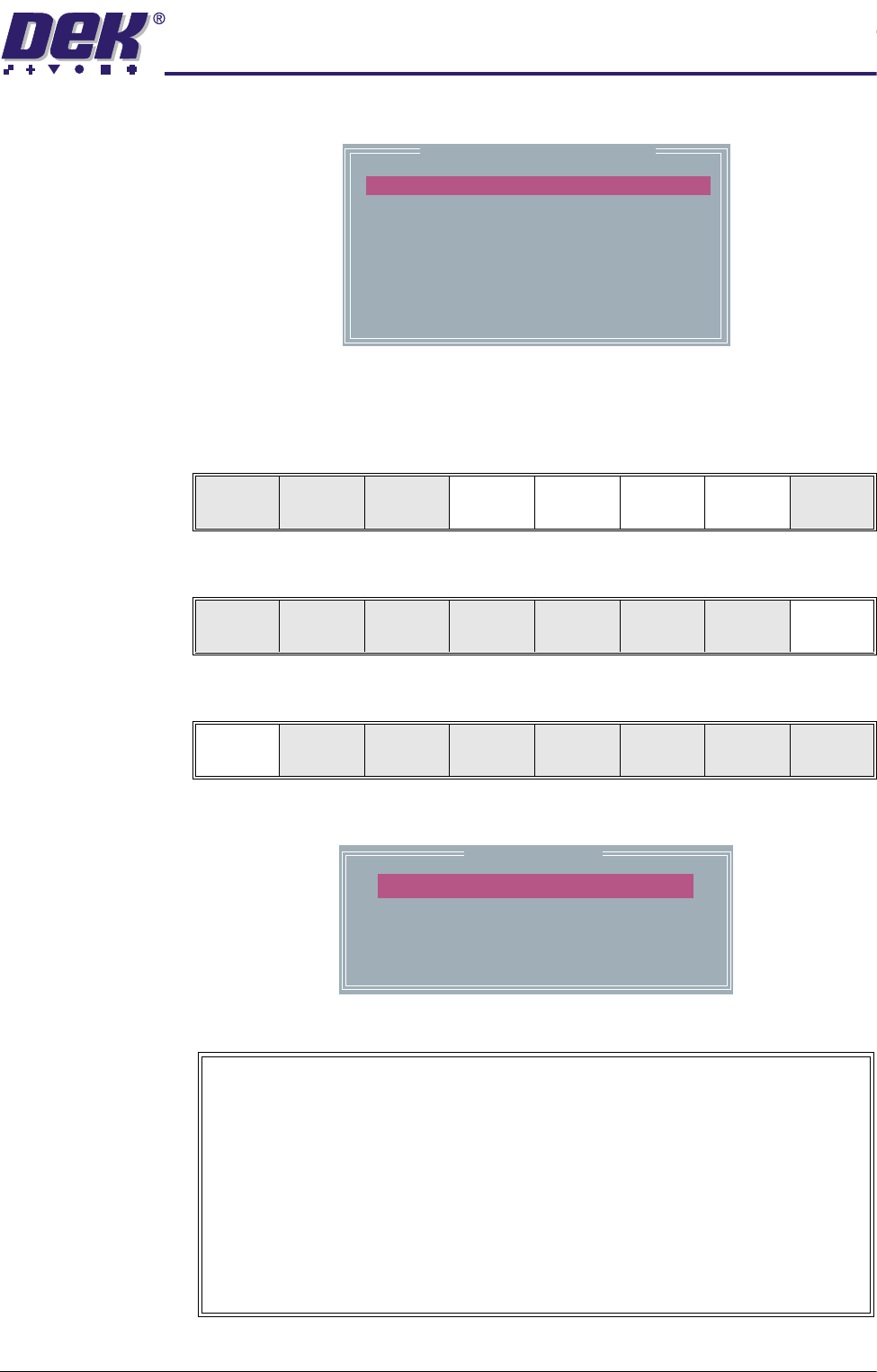
Setup the fiducials appearing in the right hand box on the monitor.
Fiducial Lighting Parameters
SCREEN VERTICAL
SCREEN OBLIQUE
BOARD VERTICAL
BOARD OBLIQUE
WINDOW LEFT
WINDOW TOP
WINDOW WIDTH
WINDOW HEIGHT
8
8
8
8
-1.0
-1.5
2.0
2.0
Next Previous Incr. Decr. Exit
Next Previous Incr. Decr. Exit
Learn
Fiducial
Locate
Fiducial
Set
Light
Next Previous Incr. Decr. Exit
Circle Parameters
mm
mm
mm
mm
mm
xxx
xxx
xxx
xxx
xxx
Position X
Position Y
Diameter
Inner Contour
Outer Contour
Video Model
When using video model the Video Model Parameters are as follows:
Position X, Position Y, Height, Width and Video Model Type.
Video Model Type has three options as follows:
Uses a video model type best suited to the type of fiducial being learnt.
Auto
Type 1
Type 2
Uses a DEK standard video model making a synthetic model of the
feature to be learnt. Best suited to features that are not replicated in
the camera field of view. A unique pattern is ideal for this model.
Normalised Correlation, makes a note of all features and board
background in the bounding rectangle. This is ideally suited to regular
arrays such as a corner of a BGA device or a QFP pad.
0$&+,1(352*5$00,1*
67$*(9,6,216<67(06(783
1.78 User Manual Software Version 07SP04
17.Use the Next, Previous, Incr. and Decr. keys (F4 - F7), to highlight and
adjust each circle parameter in turn to obtain the best fit over the fiducial.
NOTE
Once aligned it may be necessary to change the line fiducial dimension to
achieve a better fit.
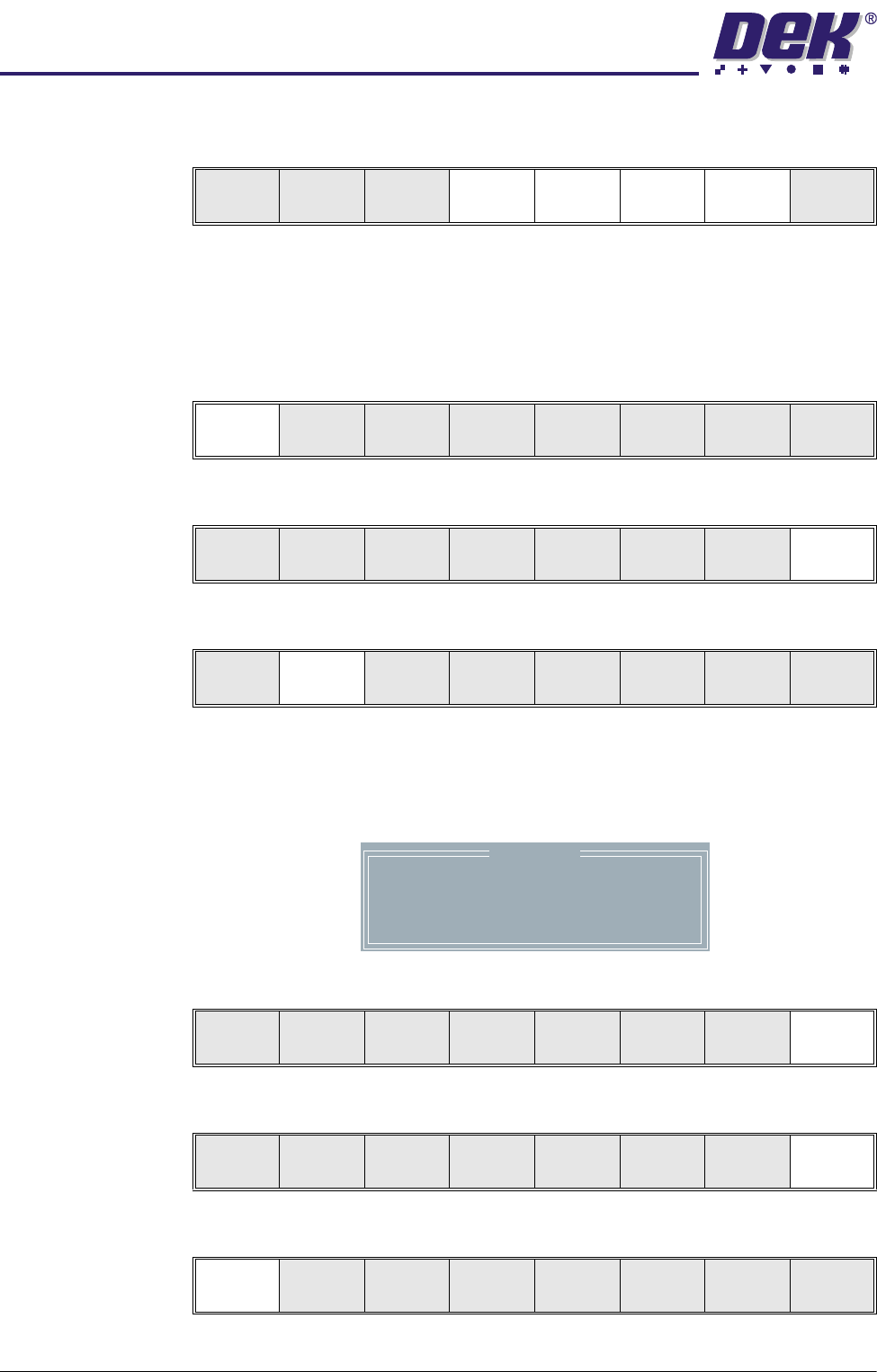
18.Select Learn Fiducial (F1). The message ‘Learning Fiducial - Please
Wait’ is displayed in the message prompt bar.
19.Select Exit (F8).
20.Select Locate Fiducial (F2).
A figure appears on the monitor indicating the score of the fit between the
synthetic fiducial and the actual fiducial. The synthetic fiducial parameters
may need resetting and re-learning to obtain a better figure if there are other
features in the camera window.
21.Select Exit (F8).
22.Select Exit (F8).
23.Select Step (F1).
Learn
Fiducial
Next Previous Incr. Decr. Exit
Learn
Fiducial
Next Previous Incr. Decr. Exit
Learn
Fiducial
Next Previous Incr. Decr. Exit
Learn
Fiducial
Locate
Fiducial
Set
Light
Next Previous Incr. Decr. Exit
Location
Fiducial
1
X
0.038
Y
-0.017
Score
984
Locate
Fiducial
Exit
Learn
Fiducial
Locate
Fiducial
Set
Light
Next Previous Incr. Decr. Exit
Step
Open
Cover
Fiducial
Setup
Adjust
Search
Step
Search
Reset
Single Exit
0$&+,1(352*5$00,1*
67$*(9,6,216<67(06(783
Software Version 07SP04 User Manual 1.79
NOTE
If selective print/pass through is enabled, the first board fiducial should now
be displayed on the monitor. In this case repeat Steps 11 - 23 for this fiducial.
The first stencil fiducial should now be displayed on the monitor.
24.Repeat Steps 11 - 22 for this fiducial.
25.Continue for other selected fiducials by selecting Step at the end of each
fiducial setup.
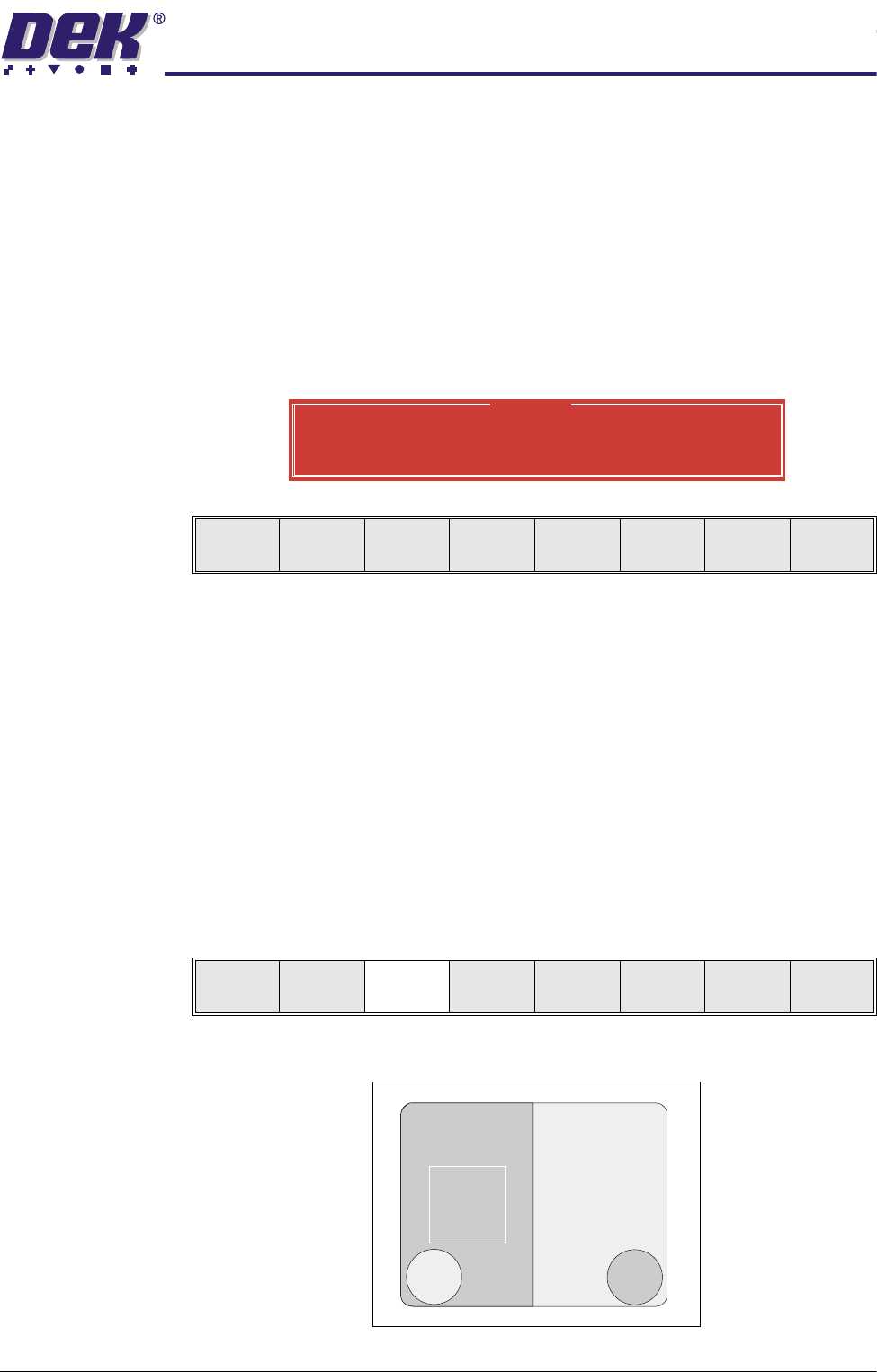
If the current product includes at least one inspection site, changing the
value of the parameter causes the following warning and menu bar to be
displayed:
On selecting Apply the alterations to the fiducial positions become effective
and are applied to all inspection sites.
On selecting Abandon Changes the alterations to the fiducial positions are
discarded, the positions of the inspection sites remain unaltered and control
is returned to the initiating sequence.
On selecting Don’t Apply the alterations to the fiducial positions become
effective, but are not applied to the inspection sites.
26.After Step 25 for the second stencil fiducial the message ‘Saving Fiducial
Data - Please Wait Board data file saved’ is displayed. After aligning
stencil to board the camera checks all four fiducial positions. Go to Step 37.
27.Select Fiducial Setup (F3). The message ‘Adjust the X and Y values to
bring it into view. Enclose it within the ROI and then select Auto Learn.’
is displayed.
With auto fiducial setup enabled the monitor displays the following:
Warning
From the changes made to fiducial positions
do you want a correction to be applied to
all inspection sites?
Apply
Abandon
Changes
Don’t
Apply
Step Head
Fiducial
Setup
Adjust
Search
Step
Search
Reset
Single Exit