ISM-2000_OPE - 第23页
Software 3.1 rev_0 1 Edition 06/20 16 - Reproduction forbidden a Page 23 Storage Solut ions Soft ware Operating Manual Use (CT R L+ S ) to select the f ile, selec t the type of separator, set the column where the ite m c…
Software 3.1 rev_01 Edition 06/2016 - Reproduction forbidden
a
Page 22
Storage Solutions Software Operating Manual
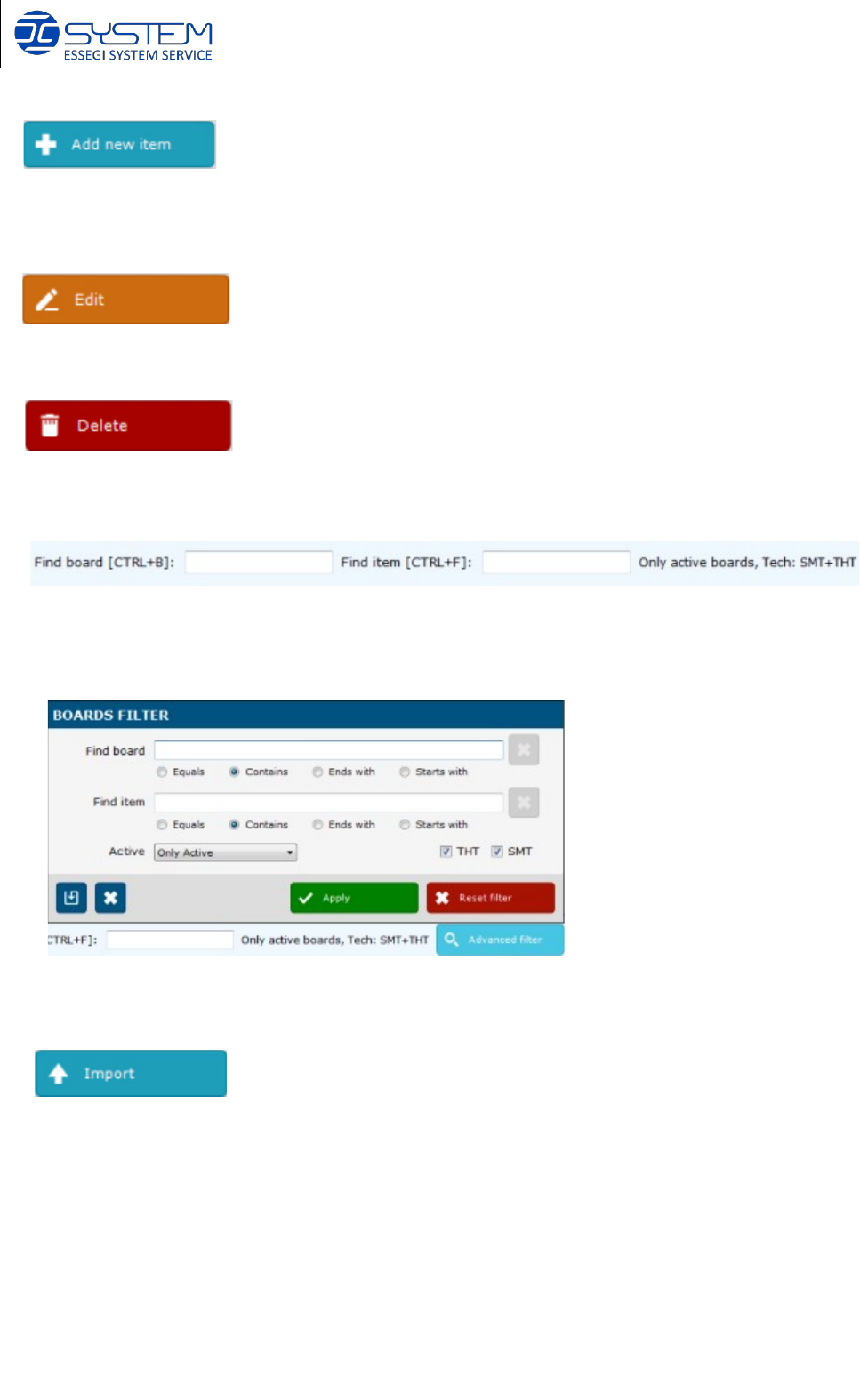
It allows adding a new item, even from this window. Once compiled all fields, click SAVE or F8
to save the board in the database. Then select CANCEL or ESC to close the procedure.
It allows modifying parameters of an existing board.
It allows deleting an existing board.
It allows a quick search of an existing board. By using the “Find item” field, you can see which
boards contain the item you are looking for.
“Advanced filter”: it allows to make a specific search inside the database.
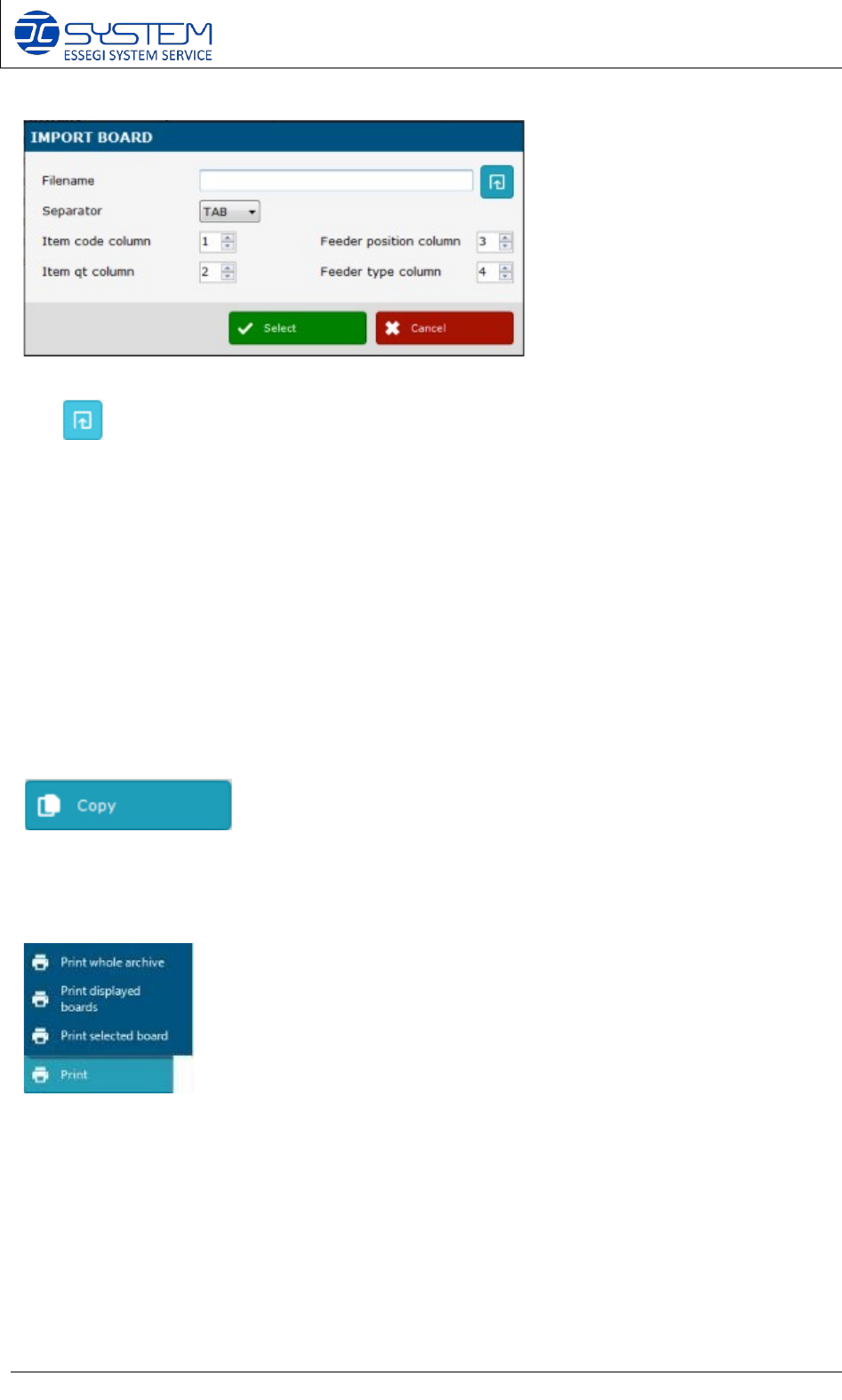
It allows to import a .txt file specifying the item and respective quantity to be used on a board:
Software 3.1 rev_01 Edition 06/2016 - Reproduction forbidden
a
Page 23
Storage Solutions Software Operating Manual
Use (CTRL+S) to select the file, select the type of separator, set the column where the item
code is in the file, set the column where the item quantity is in the file, set the column for the
feeder position and type (only available if the feeder management option is activated) and then
press “Select” to import the file.
Example:
• .txt file with “TAB” separator
10NF 1
10R 3
15K 8
etc..
• .txt file with “;” separator
10NF;1
10R;3
15K;8
etc..
It creates a copy of an existing board to be modified and saved as a new one with a different
code.
It allows printing the required board
Software 3.1 rev_01 Edition 06/2016 - Reproduction forbidden
a
Page 24
Storage Solutions Software Operating Manual
7. Work Orders management: Sessions (F5)
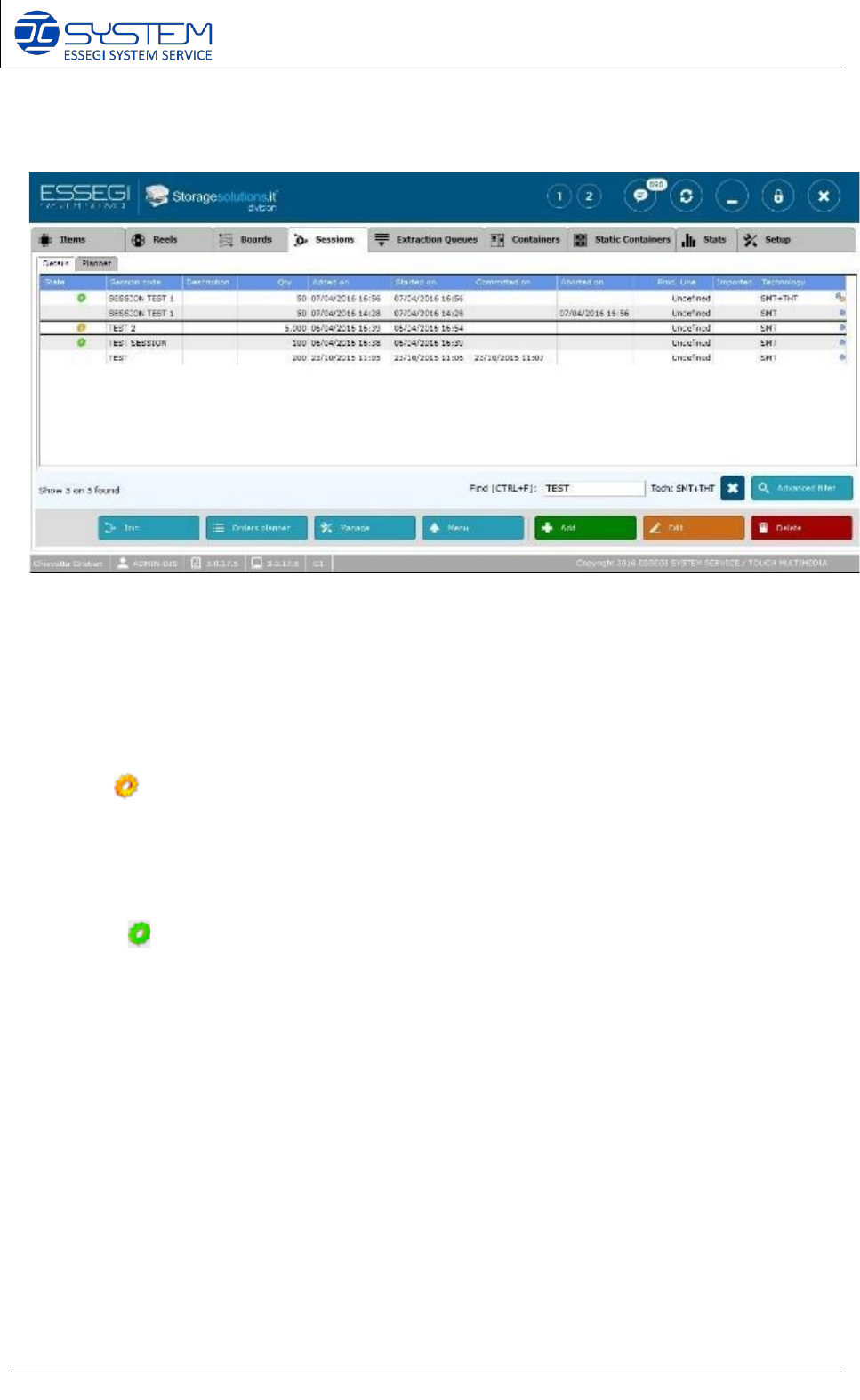
From this window you can visualize:
1) Details: list of the sessions
2) Planner
1) Details:
For each session is shown:
• State: indicate a “Pre-Started” session
PRE-STARTED session: a pre-started session is a session analysed on an existing
session. This means that some of the reels needed for this session, are already in use on
the mother session. For this reason, before to make the final analysis and convert the pre-
started session in a started session, you have to close the mother session.
indicate a “Started” session
• Session code
• Description
• Qty: quantity of boards to be produced
• Added on: creation date and time of the session
• Started on: date and time of starting of the session
• Committed on: date and time of closure of the session
• Aborted on: date and time of abort of the session
• Prod. Line: production line where the session will run
• Aborted: symbol of abort of the session (if it was aborted)
• Imported: symbol of an imported session (if it was imported from external software)
• Technology: SMT or THT or SMT+THT
Follows a description of the buttons (and related functions) available for this window: