ISM-2000_OPE - 第33页
Software 3.1 rev_0 1 Edition 06/20 16 - Reproduction forbidden a Page 33 Storage Solut ions Soft ware Operating Manual 2. This will allow y ou to analyze the session on another one. Basically it will open the Produc tion…
Software 3.1 rev_01 Edition 06/2016 - Reproduction forbidden
a
Page 32
Storage Solutions Software Operating Manual
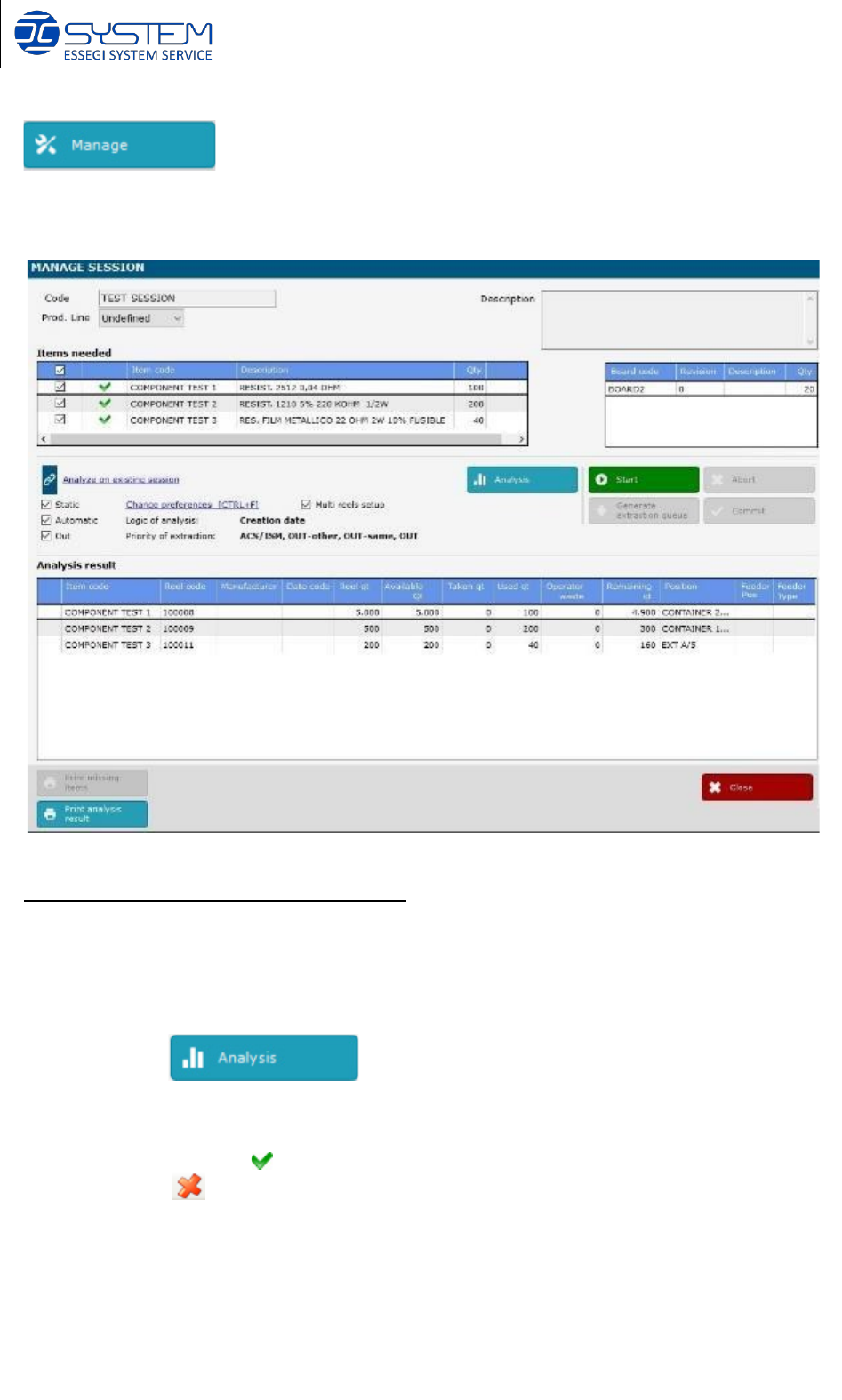
It allows to go inside the management of a session. You can also enter into the manage session
by making double click directly on the desired session.
When pressed, the following windows is opened:
Session analysis and starting procedure:
1. Inside the “Items needed” field you can see all items (components P/Ns) needed to
make this session (Work Order)
After clicking , the software will analyze if all components are available,
and which reels will be used for production.
If checked, the symbol , it means that the item is available for production, if the item is not
available, the is displayed. At this point it is possible to select or deselect the items
intended to use in the session.
Software 3.1 rev_01 Edition 06/2016 - Reproduction forbidden
a
Page 33
Storage Solutions Software Operating Manual
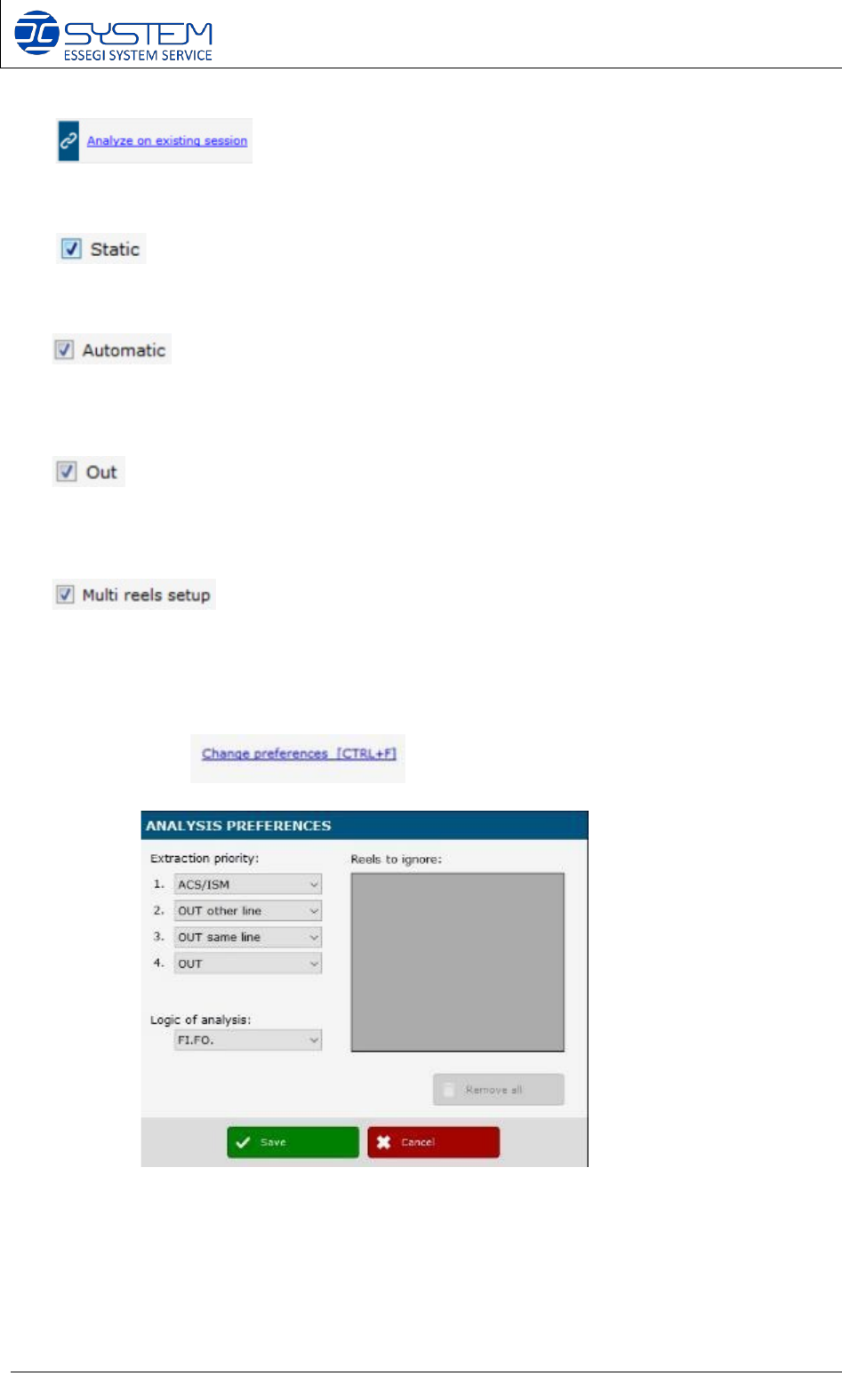
2. This will allow you to analyze the session on another
one. Basically it will open the Production Planner (see below).
3- If marked, the software will consider the material inside the Static containers. If
unmarked, software will consider only the material outside the Static containers.
If marked, software will consider the material inside the automatic containers.
If unmarked, software will consider the material outside the automatic containers (e.g. in
OUT position, External storage, Static containers)
If marked, software will consider the material with position OUT. If unmarked,
software will consider only the material inside the automatic container or in static containers
or in external position.
If marked, software will analyze the feasibility of the P&P setup taking in
account the “multi reels setup”, if indicated in the board. A multi reels setup is a setup that
require two or more reels of the same components. If unmarked, software will not consider
the multi reels setup indicated in the board.
4. By opening the , you can visualize the following window:
Here you can select your “Extraction priority” preferences and your “Logic of analysis”
preference:
a. Extraction priority: here you can select from where the software has to analyze
the Unique IDs to make your production:
i. ACS/ISM: software will give priority to the reels inside the ACS/ISM
systems
Software 3.1 rev_01 Edition 06/2016 - Reproduction forbidden
a
Page 34
Storage Solutions Software Operating Manual
ii. OUT other line: software will give priority to the reels related to another line
(reels NOT in use)
iii. OUT same line: software will give priority to the reels related to the same line
(reels NOT in use)
iv. OUT: software will give priority to the reels OUT (with no position)
b. Logic of analysis:
i. Creation date (FI.FO): software will use the FI.FO logic. This means the first
reels arrived in the factory will be selected first
ii. Date Code: software will check the Date Code to select the reels needed for
production. Oldest reels will be selected first.
iii. Quantity: software will select the reels with the quantity closer to the number of
pcbs to produce. This logic is useful to reduce all reels change over and speed
up the P&P line.
NOTE: Extraction priority and logic of analysis that need to be used as default, can be set in
the userconfig.xml file.
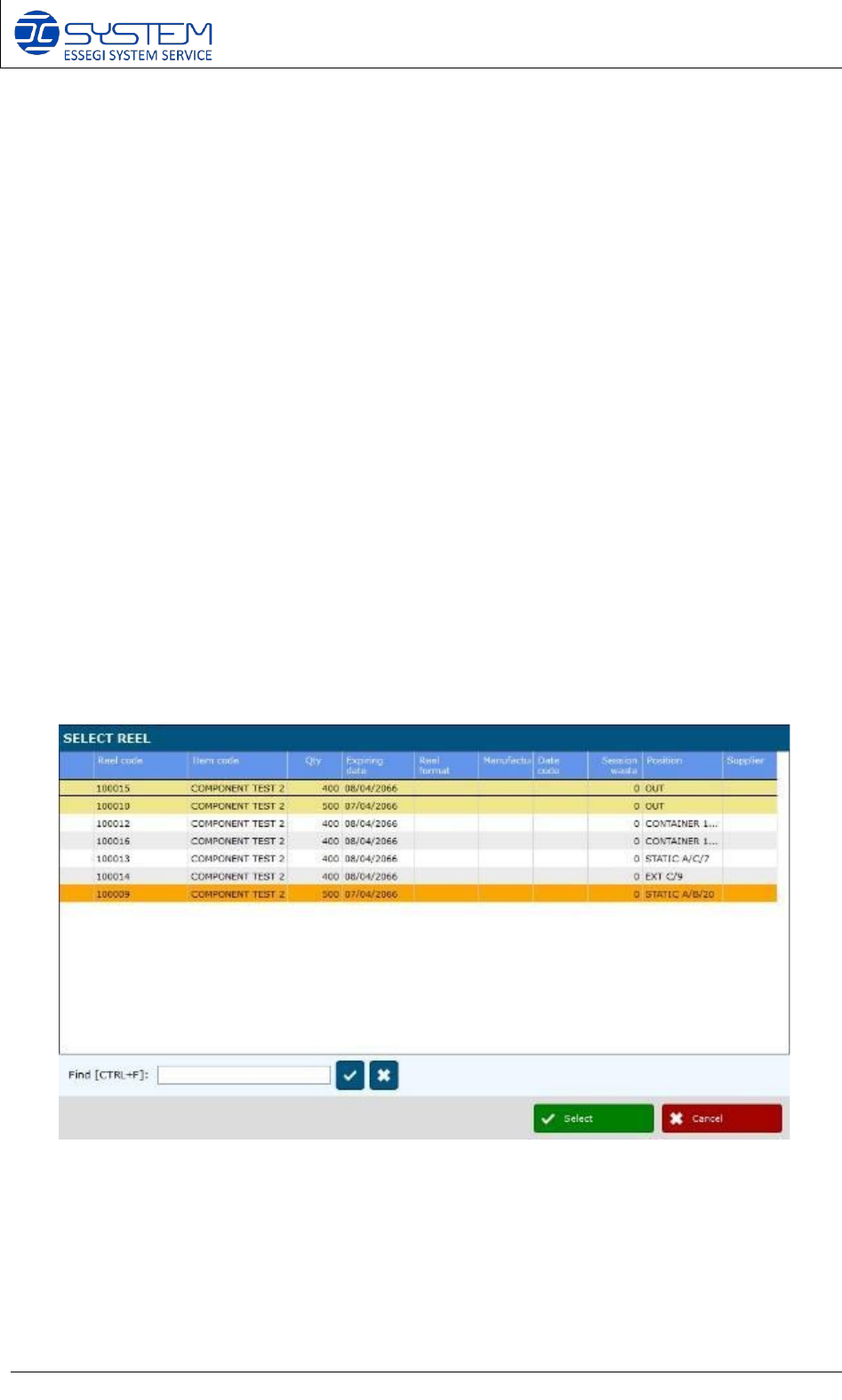
5. Selected reels (unique IDs) for production, are displayed in the area “Analysis result”.
It is possible to change the reels selected by the software by making double click on the
reel to be changed. The following window opens up:
6. It is possible to change the reel selected by the system by making double click on
the reel to be changed. The following window opens up:
In this window you will visualize all reels with the same P/N. Line underlined in orange is that
reel already selected by the software.