ISM-2000_OPE - 第36页
Software 3.1 rev_0 1 Edition 06/20 16 - Reproduction forbidden a Page 36 Storage Solut ions Soft ware Operating Manual Clicking the black checkbox, this new drop - menu will appear: First extraction: • reels needed to s …
Software 3.1 rev_01 Edition 06/2016 - Reproduction forbidden
a
Page 35
Storage Solutions Software Operating Manual
After you have selected the desired unique ID, a lock symbol will be displayed to indicated that
that unique ID have been forced by the user:
7. Press (CTRL+A) to perform new analysis that includes these
changes.
8. When everything is set, start the session by pressing the button.
By starting the session, you will see that all reels related to this session, will have the lock
symbol and the name of the session where they are in use.
NOTE: starting a session does not mean that the reels will be extracted. It just means that all
reels will be reserved.
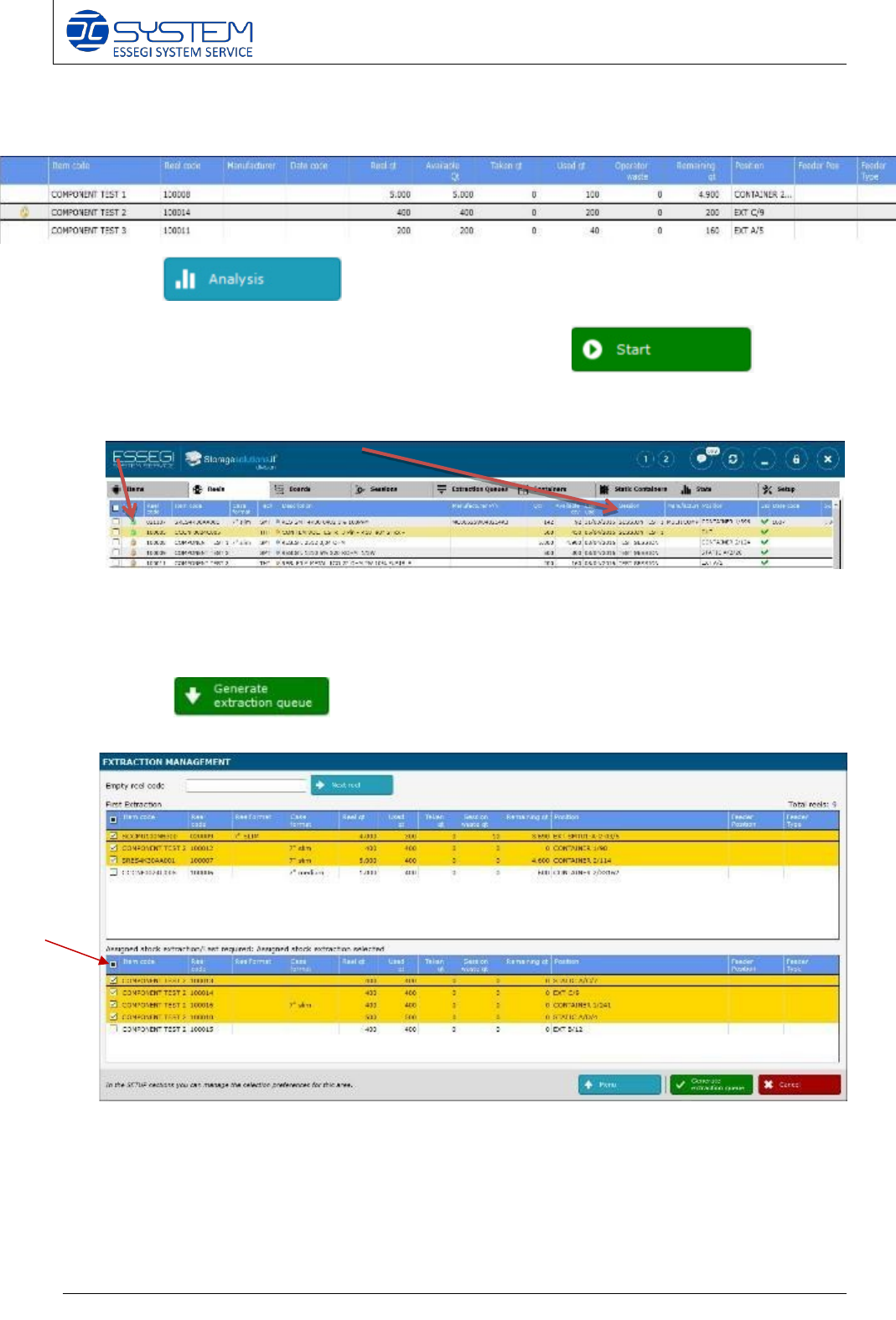
9. Clicking to proceed with the extraction management of the reels. The
following window it will :
Software 3.1 rev_01 Edition 06/2016 - Reproduction forbidden
a
Page 36
Storage Solutions Software Operating Manual
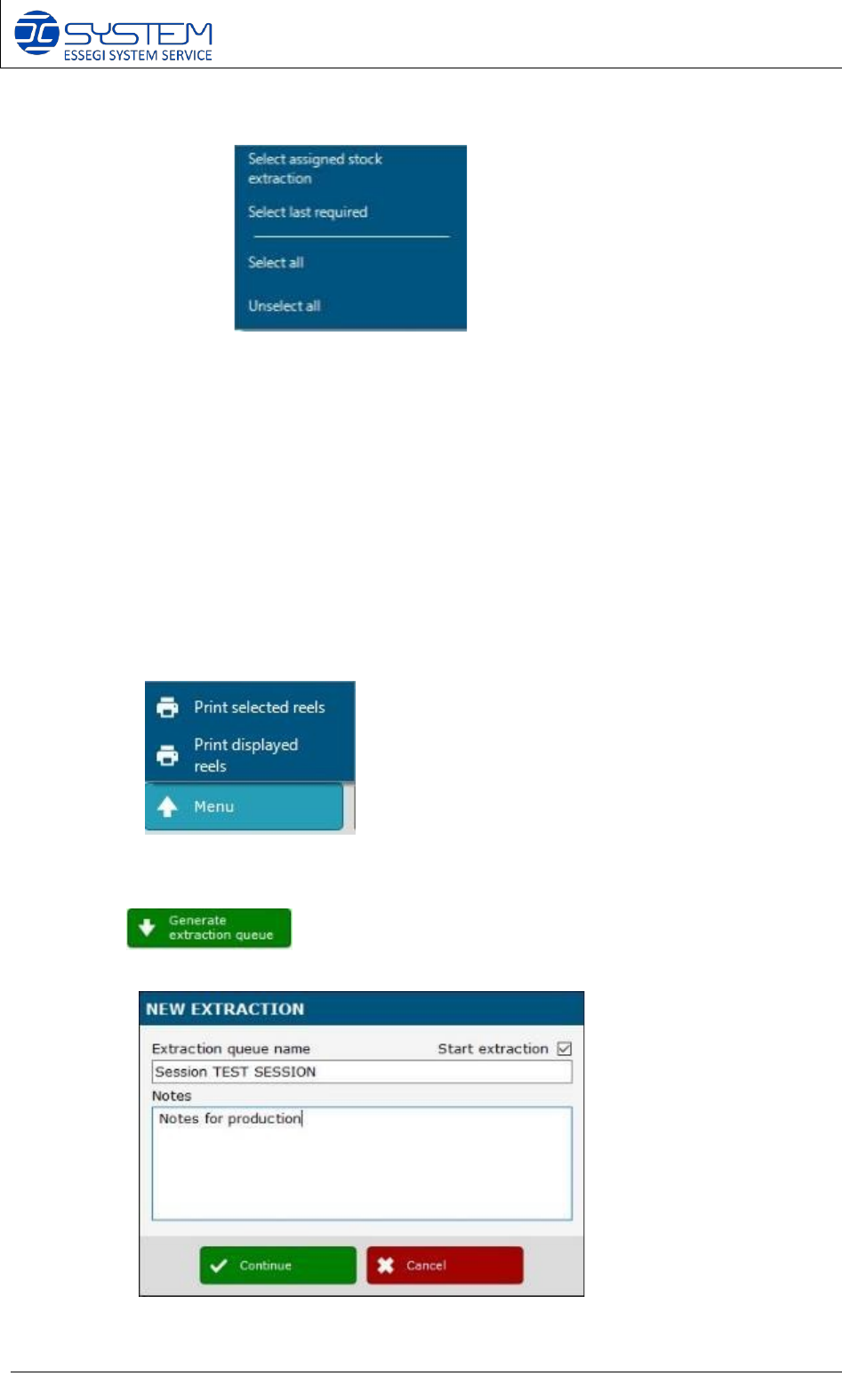
Clicking the black checkbox, this new drop-menu will appear:
First extraction:
• reels needed to start the production (setup machine)
Select assigned stock extraction:
• reels needed to continue the production. These reels will have quantity 0
Select last required:
• reels needed to finish the production.
If you need to check some details about the reels to extract, you can click on Menu and
select the desired option:
Click on to proceed with the generation of the extraction queue. The
following window will display:
Software 3.1 rev_01 Edition 06/2016 - Reproduction forbidden
a
Page 37
Storage Solutions Software Operating Manual
Here you can name your extraction queue and write any needed notes.
You can also decide, by marking the “Start extraction” check box, if automatically start the
queue
or not.
NOTE: In the “EXTRACTION MANAGEMENT” window, you can insert into the “Empty reel
code”, the code of the empty unique ID (you can also read the code by using the manual
barcode reader).
Pressing on “next reel”, the software will automatically select the correct “stock” reel to
extract.
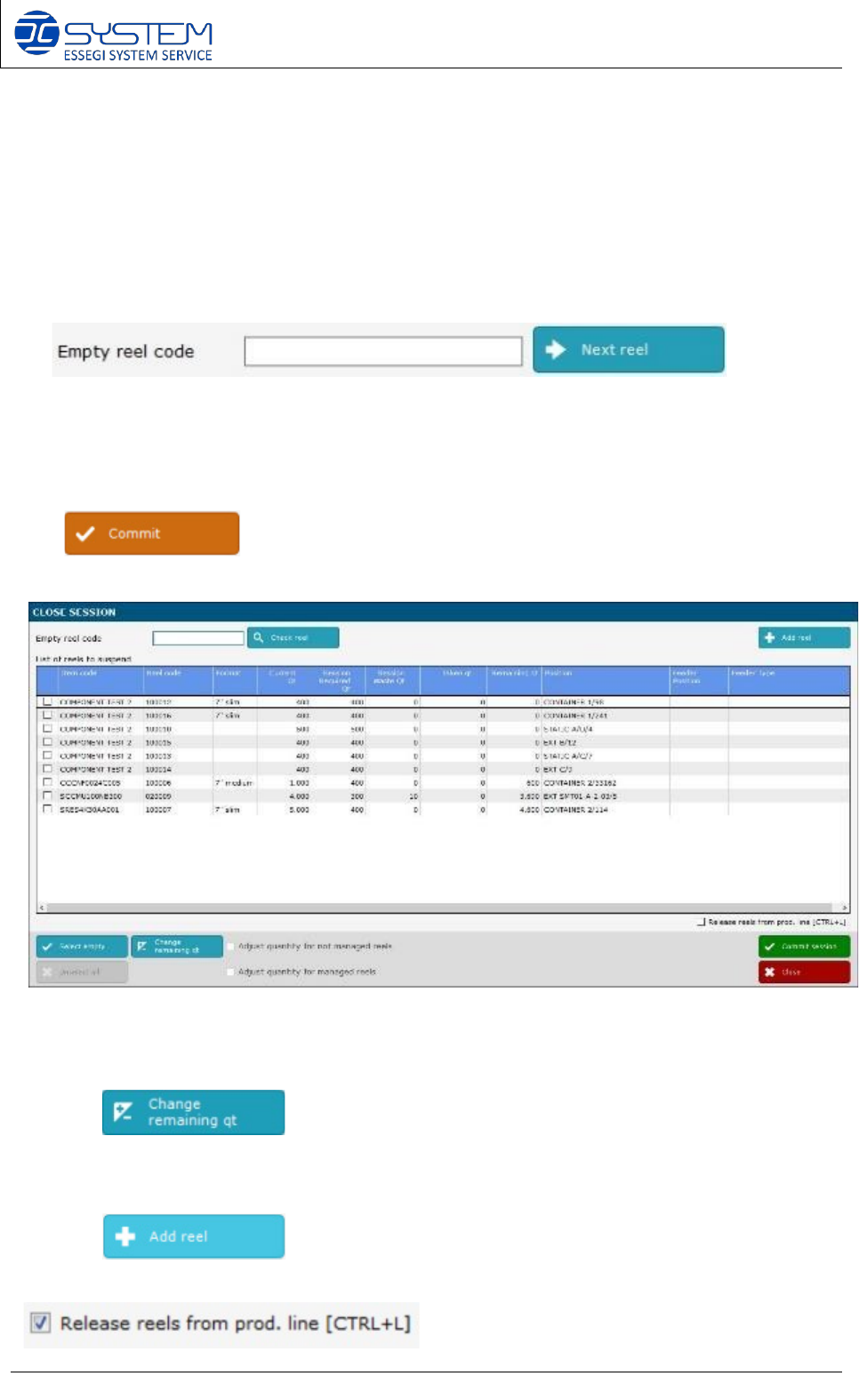
10. Once the session is finished, you can close the session by pressing the button
The following window will be displayed:
The software will display the list of the reels have been used during this production. There will
be the possibility to check the empty reels by reading the barcode, or easily pressing the button
“Select empty” will be select all reels with quantity “0” that will be deactivated.
It allows to change the quantity of items into the reel if there are some differences from the
calculated remaining quantity and the real one.
It allows to add a missing reel even if the session is already started.