ISM-2000_OPE - 第41页
Software 3.1 rev_0 1 Edition 06/20 16 - Reproduction forbidden a Page 41 Storage Solut ions Soft ware Operating Manual 5. T he pre - started session will be in orange colour. This because a pre - st arted session, to bec…
Software 3.1 rev_01 Edition 06/2016 - Reproduction forbidden
a
Page 40
Storage Solutions Software Operating Manual
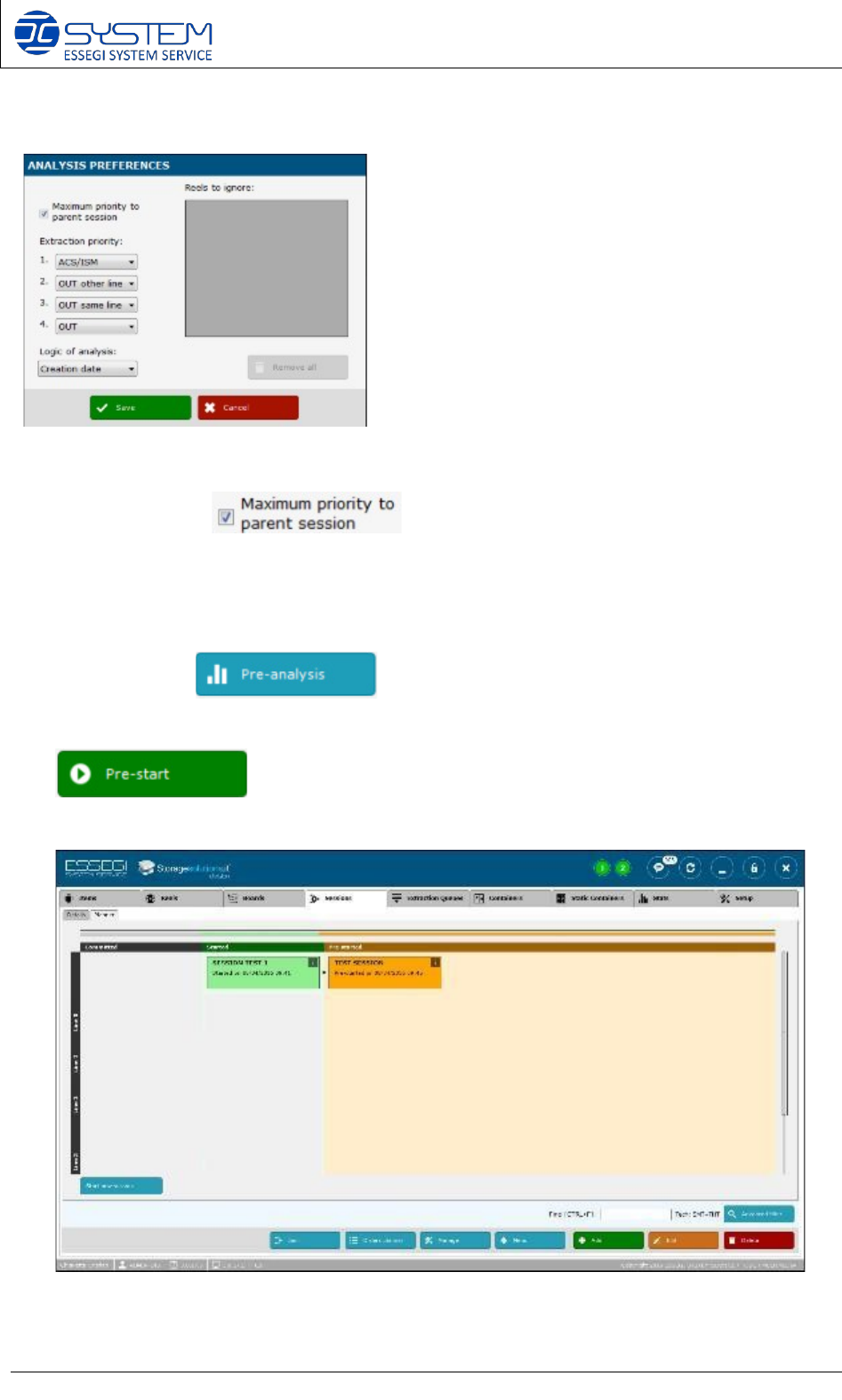
NOTE: By opening the “Change preferences” (CRTL+F), you will visualize this window:
This window is exactly like the ANALYSIS PREFERENCES you have for the session, but you
have also this option: .
When it is marked, software will give maximum priority to the reels already in use in the “parent”
(mother) session. If it is not marked, software will give priority to the reels as per indicated in the
“extraction priority”, and only if not reels are available will consider the reels already in use in the
“mother” session.
2. By pressing the button you will make the analysis of all unique ID
will be used for this setup.
3. When the pre-analysis will satisfy your needed, you can confirm it by pressing the
button.
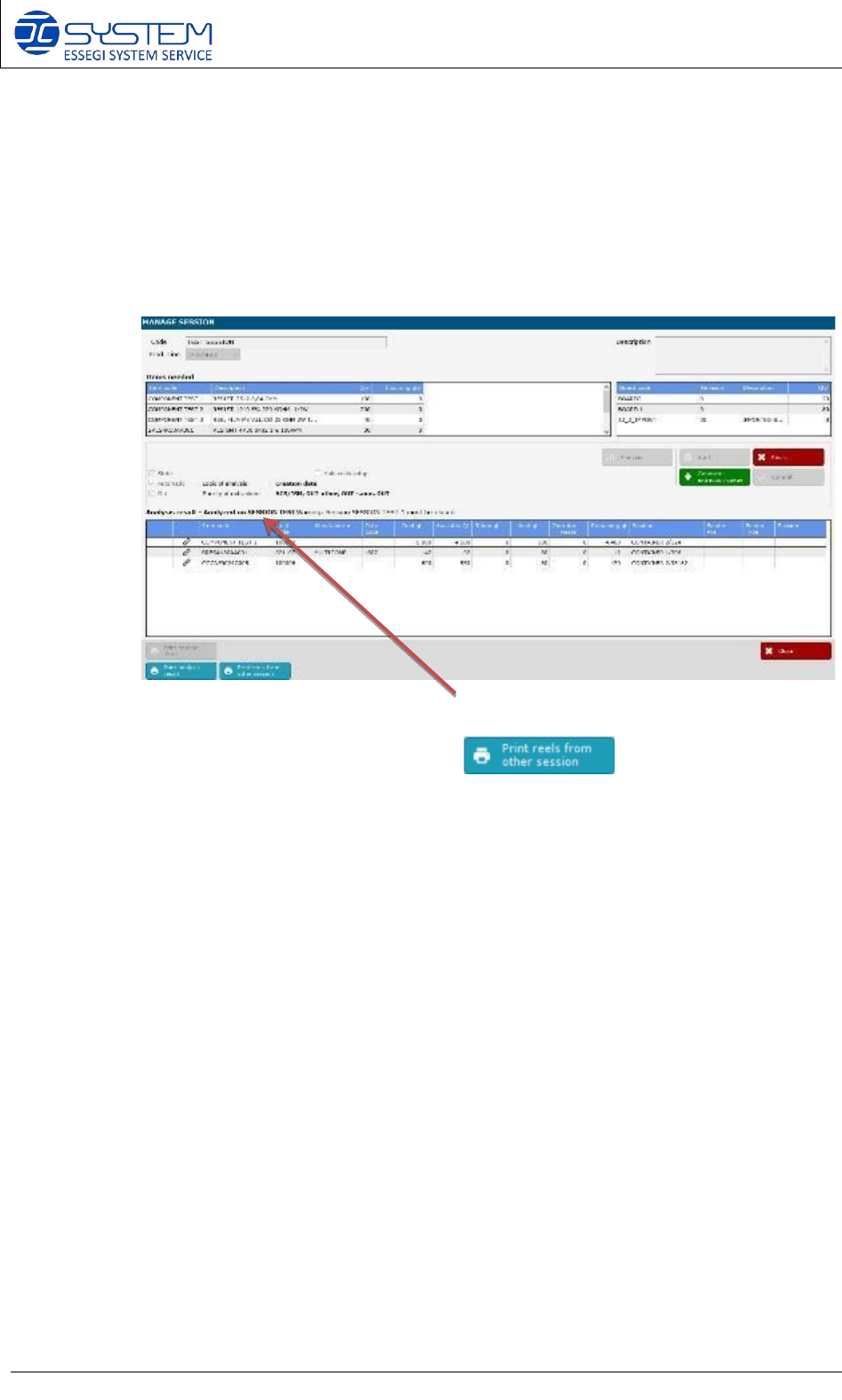
4. At this point you will visualize the “pre-started” session into the planner as follow:
Software 3.1 rev_01 Edition 06/2016 - Reproduction forbidden
a
Page 41
Storage Solutions Software Operating Manual
5. The pre-started session will be in orange colour. This because a pre-started session, to
become a “real” session, need to be analyse again as soon the “mother” session will be
closed. This procedure is needed to be 100% sure that the material prepared for the setup,
is enough to complete the production, even if you had some unexpected wasted
components during the production of the “mother session”. After the final analysis, the
pre-started session can be started as a “real” session.
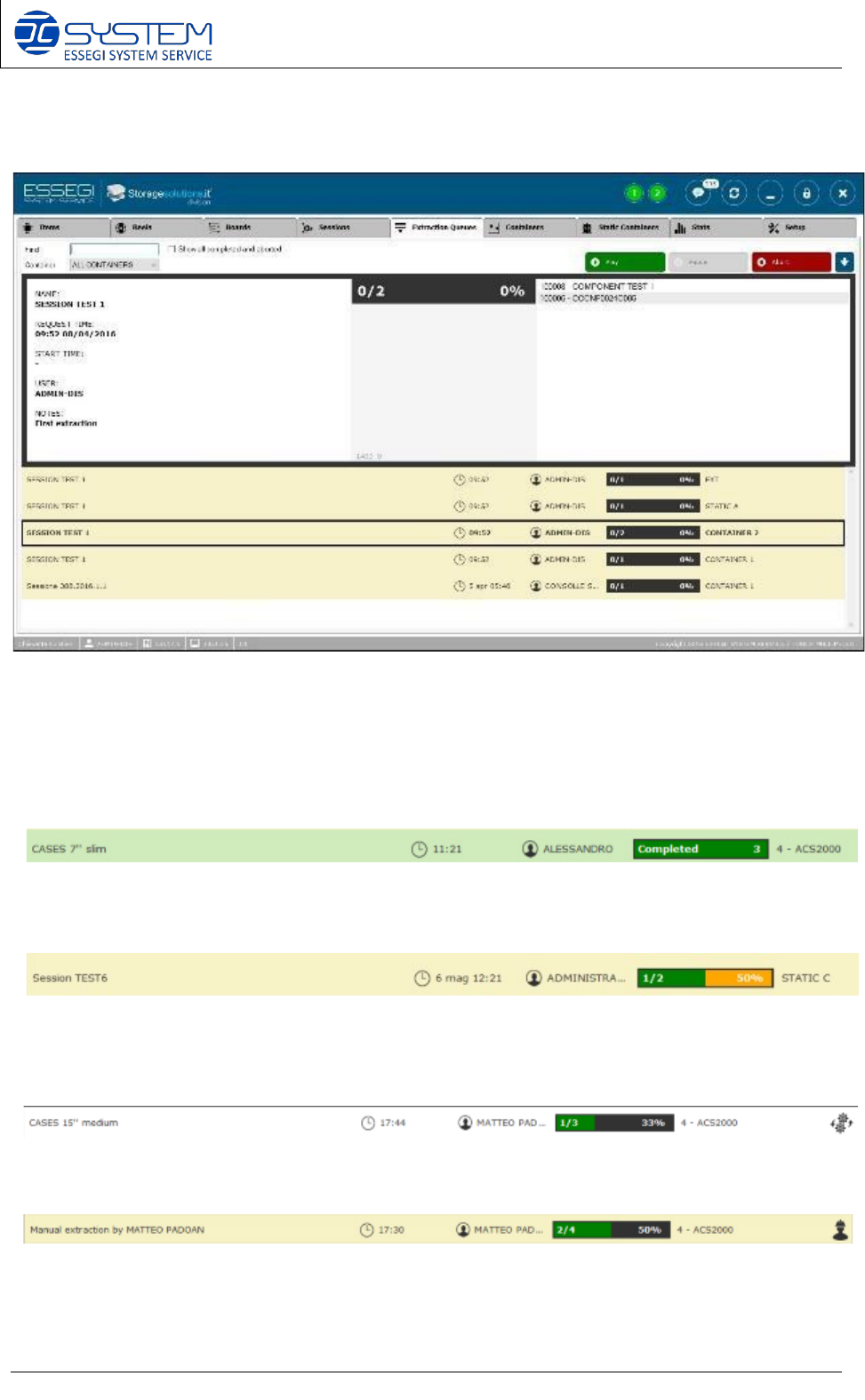
6. Inside the MANAGE SESSION of a pre-started session (see picture below)
You can see which is the “mother” session, and you can make the print out of the
linked reels from the other sessions (this print out is really
useful to know which reels you have to take when the “mother” session stops”.
Software 3.1 rev_01 Edition 06/2016 - Reproduction forbidden
a
Page 42
Storage Solutions Software Operating Manual
8. Extraction Queues (F6)
From this window, you can “Play”, “Pause”, “Abort” all extraction queues created.
You can see and manage all queues, for each container, static container, external storage.
By selecting an extraction queue you can visualize all details.
Extraction queue correctly completed.
Extraction queue partially completed. Partially completed means that some components, of
some “partial use” reels, have not been taken yet.
Extraction queue running.