00193687-06_Installation SIPLACE Explorer2.1_DE.pdf - 第40页
3 Installation des SIPLACE Explorer Installati ons- und Konfigurationsanleitung SIPLACE Explor er 3.1 Erstinstallation von SIPLACE Explorer 2.1 Ausgabe 11/2006 DE 40 → Das Dialogfenster Ready to In st all the Program wir…
Installations- und Konfigurationsanleitung SIPLACE Explorer 3 Installation des SIPLACE Explorer
Ausgabe 11/2006 DE 3.1 Erstinstallation von SIPLACE Explorer 2.1
39
→ Um die Auswahl des Zielordners zu bestätigen, klicken Sie im Dialogfenster Choose
Destination Location (Zielinstallationsordner auswählen) die Schaltfläche Next (Weiter) an.
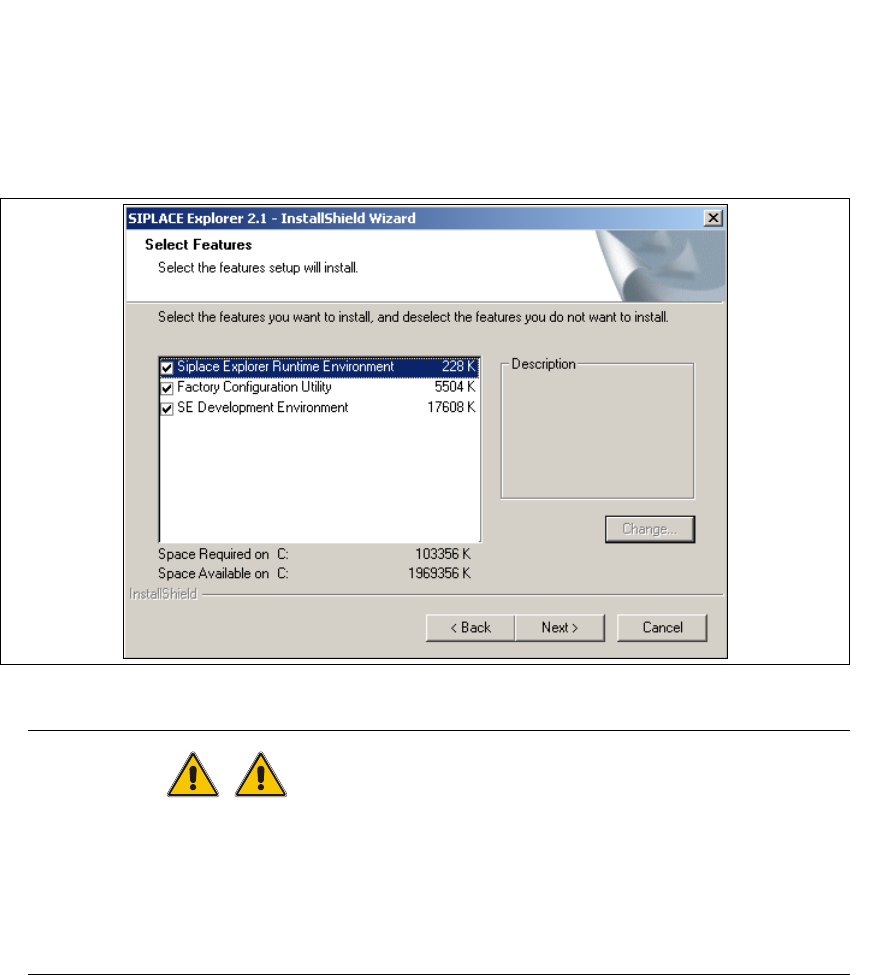
→ Das Dialogfenster Select Features (Installationsoptionen auswählen) öffnet sich. Wählen Sie
aus den folgenden drei Komponenten aus: SIPLACE Explorer Runtime Environment,
Factor Configuration Utility (Werks-Konfigurations-Utility) und SIPLACE Explorer
Development Environment.
3
Abb. 3 - 18 SIPLACE Explorer Setup - Dialogfenster 'Select Features' (Installationsoptionen auswählen)
WARNUNG
Installieren Sie "SIPLACE Explorer V.2.1 Runtime Environment" und "SIPLACE Explorer
V.2.1 Development Environment" nicht auf dem gleichen Computer. Beide Optionen können
nicht gleichzeitig parallel laufen. Um nacheinander mit den Optionen zu arbeiten, müssen die
Schritte zum Starten und Beenden der jeweiligen Option genau bekannt und eingehalten
werden. 3
→ Haben Sie die entsprechenden Installationsoptionen ausgewählt, klicken Sie die Schaltfläche
Next (Weiter) an.
3 Installation des SIPLACE Explorer Installations- und Konfigurationsanleitung SIPLACE Explorer
3.1 Erstinstallation von SIPLACE Explorer 2.1 Ausgabe 11/2006 DE
40
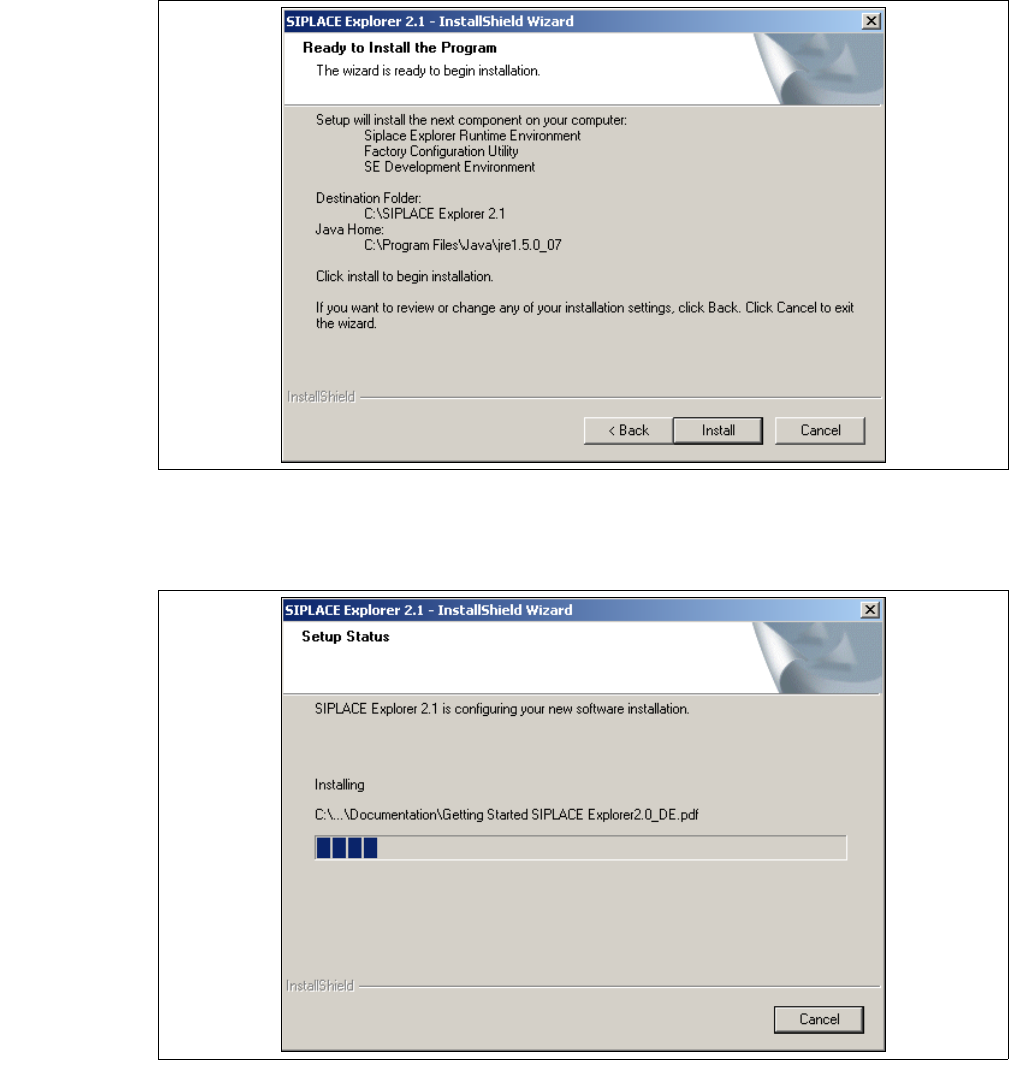
→ Das Dialogfenster Ready to Install the Program wird geöffnet.
3
Abb. 3 - 19 SIPLACE Explorer Setup - Dialogfenster 'Ready to Install' (Bereit für die Installation)
→ Betätigen Sie die Sie die Schaltfläche Install, die eigentliche Installation von SIPLACE
Explorer V2.1 beginnt.
3
Abb. 3 - 20 SIPLACE Explorer Setup - Dialogfenster 'Setup Status' (Status der Installation)
Installations- und Konfigurationsanleitung SIPLACE Explorer 3 Installation des SIPLACE Explorer
Ausgabe 11/2006 DE 3.1 Erstinstallation von SIPLACE Explorer 2.1
41
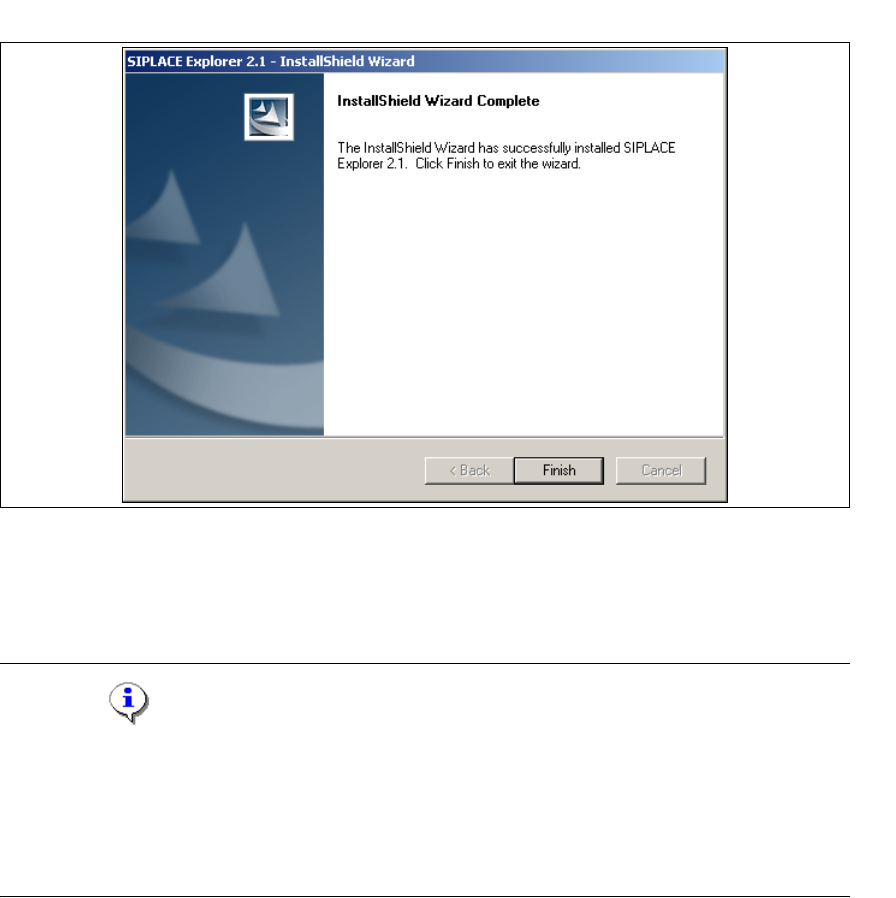
→ Wenn die Installation beendet ist, erscheint nachfolgendes Dialogfenster.
3
Abb. 3 - 21 SIPLACE Explorer Setup - Installation beendet
→ Klicken Sie auf Finish. Nach dem nächsten Start Ihres Computers können Sie SIPLACE
Explorer starten. Gehen Sie dazu vor, wie unter “SIPLACE Explorer starten” auf Seite 61
beschrieben.
HINWEIS
Nach der Installation von SIPLACE Explorer muss das System neu gebootet werden. Dies ist
notwendig, um sicherzustellen, dass der Port 1099 für die Java Runtime Environment verfügbar
ist. In seltenen Fällen wird der Port 1099 von einer anderen Applikation verwendet. Wird SIPLACE
Explorer ohne Neustart des Systems nach der Installation gestartet, so wird in solchen Fällen der
Fehler "SIPLACE Explorer 2.1 runtime not found" angezeigt. 3