00193687-06_Installation SIPLACE Explorer2.1_DE.pdf - 第52页
3 Installation des SIPLACE Explorer Installati ons- und Konfigurationsanleitung SIPLACE Explor er 3.1 Erstinstallation von SIPLACE Explorer 2.1 Ausgabe 11/2006 DE 52 → Klicke n Sie auf Next (Weiter). Der eigentliche Inst…
Installations- und Konfigurationsanleitung SIPLACE Explorer 3 Installation des SIPLACE Explorer
Ausgabe 11/2006 DE 3.1 Erstinstallation von SIPLACE Explorer 2.1
51
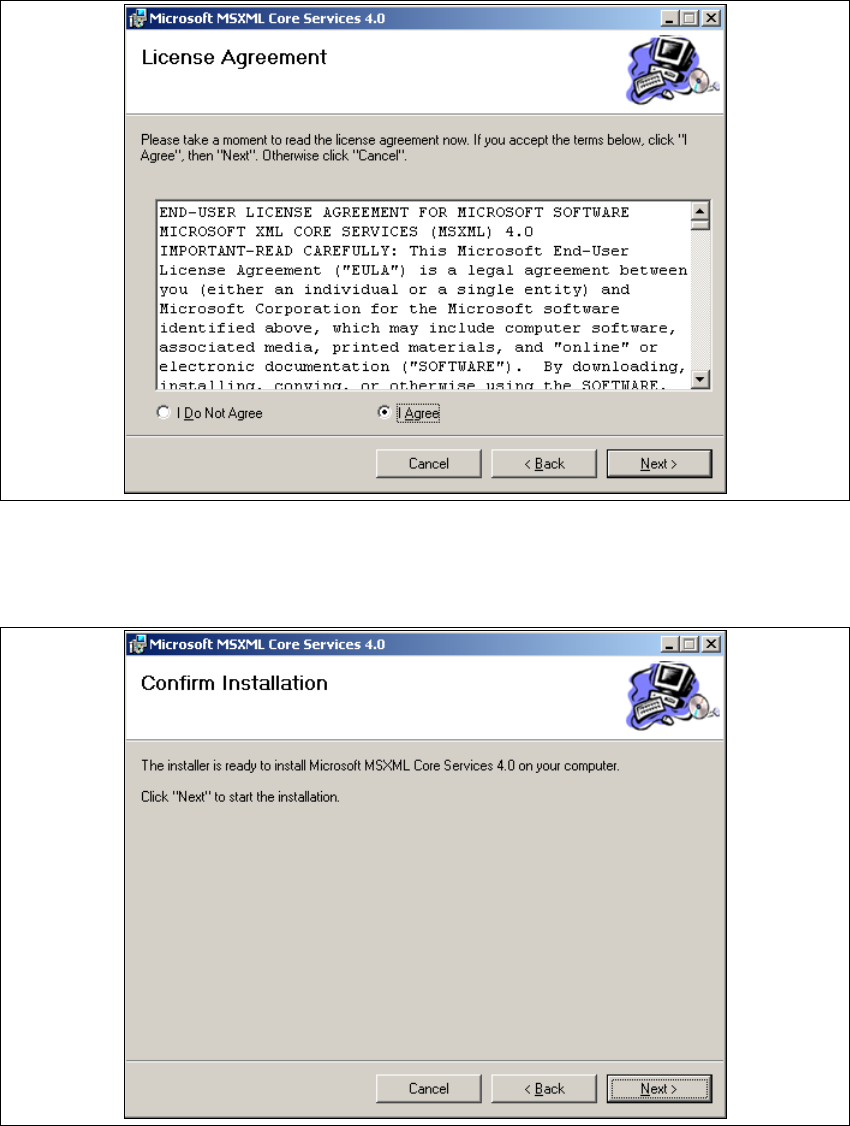
→ Lesen Sie die Lizenzbestimmungen. Wenn Sie zustimmen, I Agree anklicken, ansonsten I Do
Not Agree. Wenn Sie I Do Not Agree anklicken, wird die Installation beendet.
3
Abb. 3 - 35 MSXML 4.0 Setup - Lizenzvereinbarungen
→ Klicken Sie auf Next (Weiter), die Installation wird fortgeführt.
→ Das Dialogfenster Confirm Installation wird geöffnet.
3
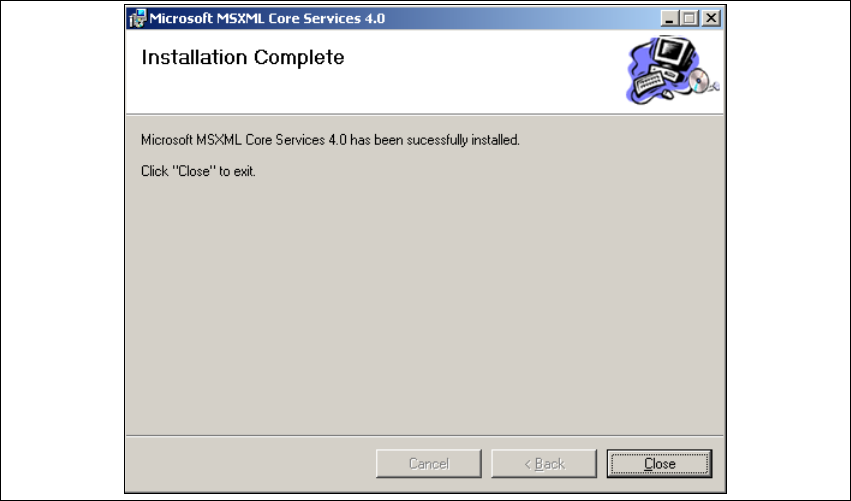
Abb. 3 - 36 MSXML 4.0 Setup - Benutzerinformationen
3 Installation des SIPLACE Explorer Installations- und Konfigurationsanleitung SIPLACE Explorer
3.1 Erstinstallation von SIPLACE Explorer 2.1 Ausgabe 11/2006 DE
52
→ Klicken Sie auf Next (Weiter). Der eigentliche Installationsvorgang von MS XML 4.0 wird ge-
startet.
→ Wenn die Installation beendet ist, wird das Dialogfenster Installation Complete geöffnet.
3
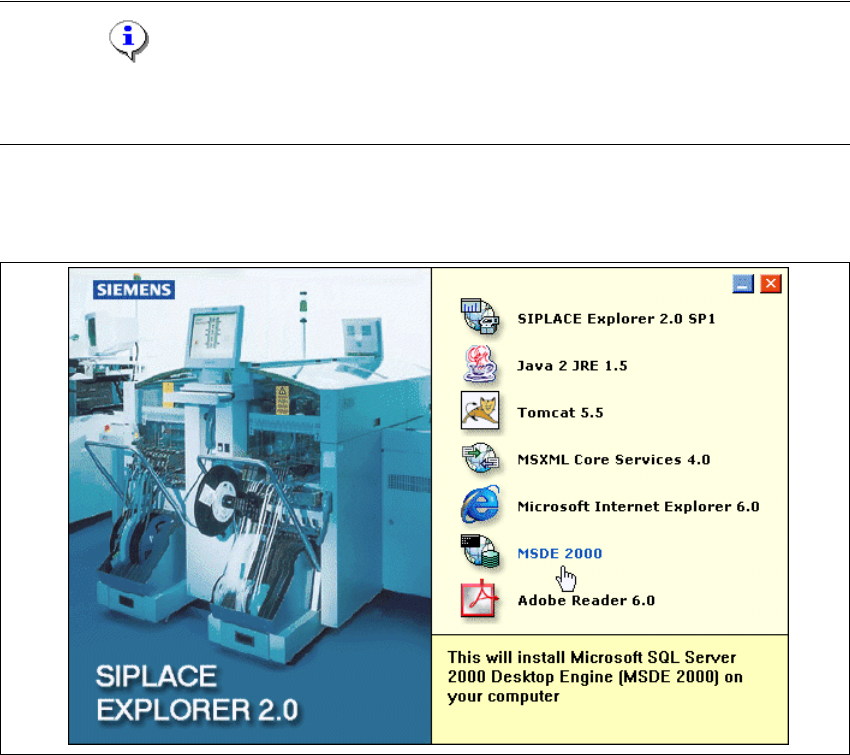
Abb. 3 - 37 MSXML 4.0 Setup - Installation beendet
→ Klicken Sie auf Close.
3.1.3.3 Bundled Web Server Installation - J2SE Runtime Environment 5.0.07
Eine detaillierte Beschreibung zu dieser installation entnehmen Sie dem Abshcnitt
“Installationsvorgang Java J2SE Runtime Environment 5.0” auf Seite 28. 3
Installations- und Konfigurationsanleitung SIPLACE Explorer 3 Installation des SIPLACE Explorer
Ausgabe 11/2006 DE 3.1 Erstinstallation von SIPLACE Explorer 2.1
53
3.1.4 Installationsvorgang MSDE 2000
HINWEIS
Sie müssen über Windows Administrator-Rechte verfügen, um die Installation ausführen zu
können. 3
→ Legen Sie die SIPLACE Explorer CD in Ihr CD-Rom-Laufwerk ein.
→ Es erscheint der Start Screen.
3
Abb. 3 - 38 SIPLACE Explorer setup - Start Screen
→ Wählen Sie MSDE 2000 aus. Die Installation von MSDE 2000 läuft automatisch ab.