00193687-06_Installation SIPLACE Explorer2.1_DE.pdf - 第59页
Installations- und Konfigurationsanleitung SIPLAC E Explorer 3 Installation des SIPLACE Explorer Ausgabe 11/2006 DE 3.2 Update-Installation von SIPLACE Explorer 2.1 59 → An dieser S telle können Sie entweder den J2SE Run…
3 Installation des SIPLACE Explorer Installations- und Konfigurationsanleitung SIPLACE Explorer
3.2 Update-Installation von SIPLACE Explorer 2.1 Ausgabe 11/2006 DE
58
→ Beenden Sie alle anderen Programme und klicken Sie dann auf Next (Weiter).
→ Damit SIPLACE Explorer lauffähig ist, muss J2SE Runtime Environment 5.0. Update 7 auf
Ihrem PC installiert sein. Wenn es bereits installiert ist beginnt die Installation des SIPLACE
Explorer automatisch.
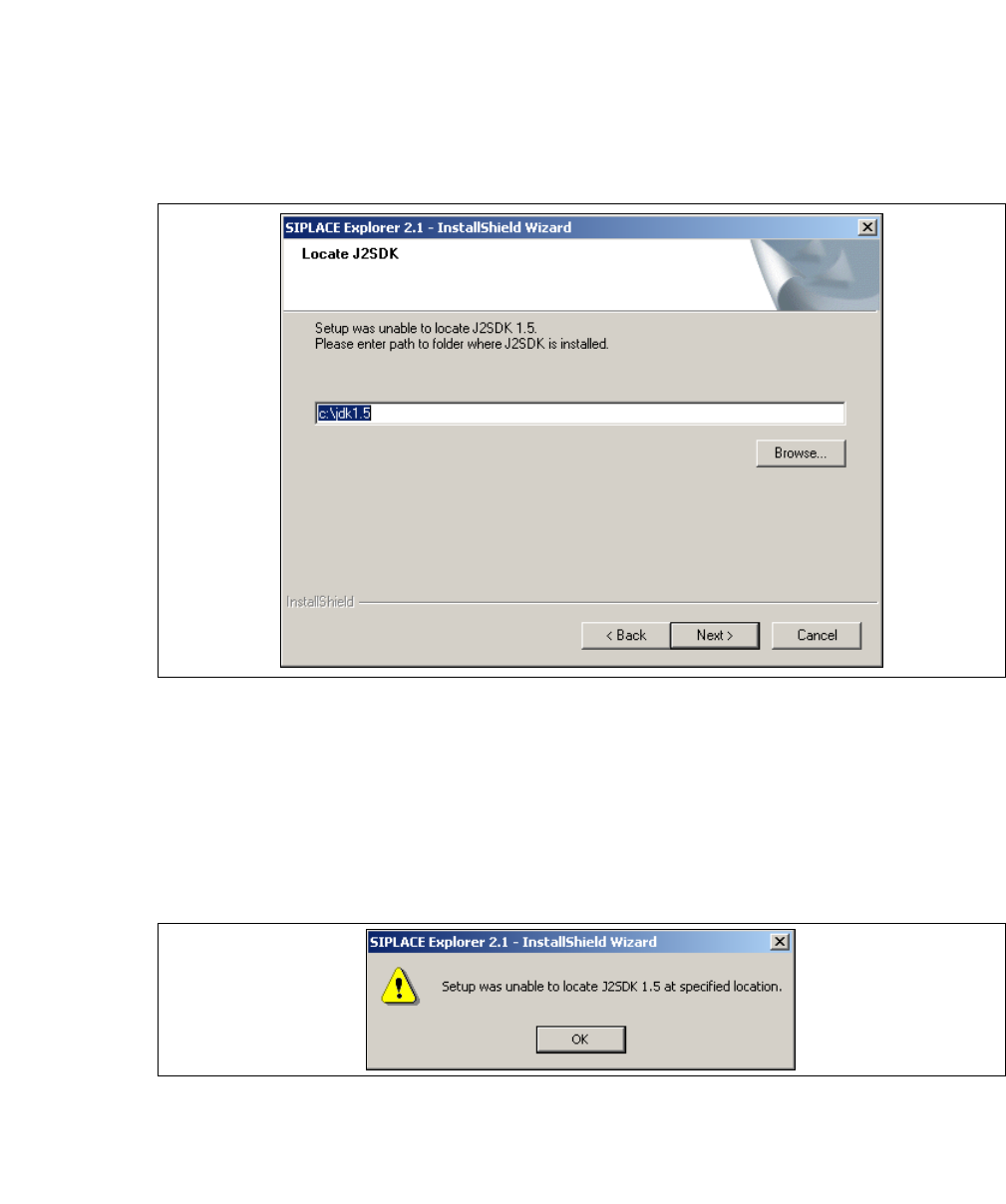
→ Wenn beim Installationsversuch J2SE RTE 5.0.07 nicht gefunden wird, erscheint auf Ihrem
Bildschirm das Fenster Locate J2SDK (Finden).
3
Abb. 3 - 43 SIPLACE Explorer Setup - JAVA 2SDK finden
→ In diesem Fall können Sie entweder den Pfad des Ordners J2SE Runtime Environment 5.0
direkt im Textfeld eingeben oder die Schaltfläche Browse (Durchsuchen) anklicken und mit
Hilfe des Dialogfensters Open File (Datei öffnen) den Ordner J2SE Runtime Environment 5.0
suchen.
→ Wenn Sie den Ordner nicht korrekt angegeben haben, in dem J2SE Runtime Environment 5.0
installiert ist, erhalten Sie nachfolgende Meldung.
3
Abb. 3 - 44 SIPLACE Explorer Setup - J2SE kann nicht gefunden werden
→ Klicken Sie OK, um zum vorangegangenen Dialogfenster zurückzukehren. SIPLACE Explorer
erfordert vor der Installation von SIPLACE Explorer, dass J2SE Runtime Environment 5.0
installiert wurde.
Installations- und Konfigurationsanleitung SIPLACE Explorer 3 Installation des SIPLACE Explorer
Ausgabe 11/2006 DE 3.2 Update-Installation von SIPLACE Explorer 2.1
59
→ An dieser Stelle können Sie entweder den J2SE Runtime Environment 5.0 Ordner nochmals
eingeben oder Cancel (Abbrechen) anklicken, um die Installation des SIPLACE Explorer
abzubrechen.
→ Haben Sie Cancel (Abbrechen) gewählt, installieren Sie die auf der Installations-CD
enthaltene Version von J2SE Runtime Environment 5.0 (siehe Seite 28). Beginnen Sie
anschließend die Installation des SIPLACE Explorer erneut.
HINWEIS
Wenn auf Ihrem System die von Sun Microsystems unter http://java.sun.com/j2se erhältliche
J2 Runtime Umgebung (und nicht J2SE Runtime Environment 5.0) installiert ist, funktioniert
die von SIPLACE Explorer Website Builder erstellte Website nicht einwandfrei, da diese auf
JSP basiert, was wiederum J2SE Runtime Environment 5.0 voraussetzt. 3
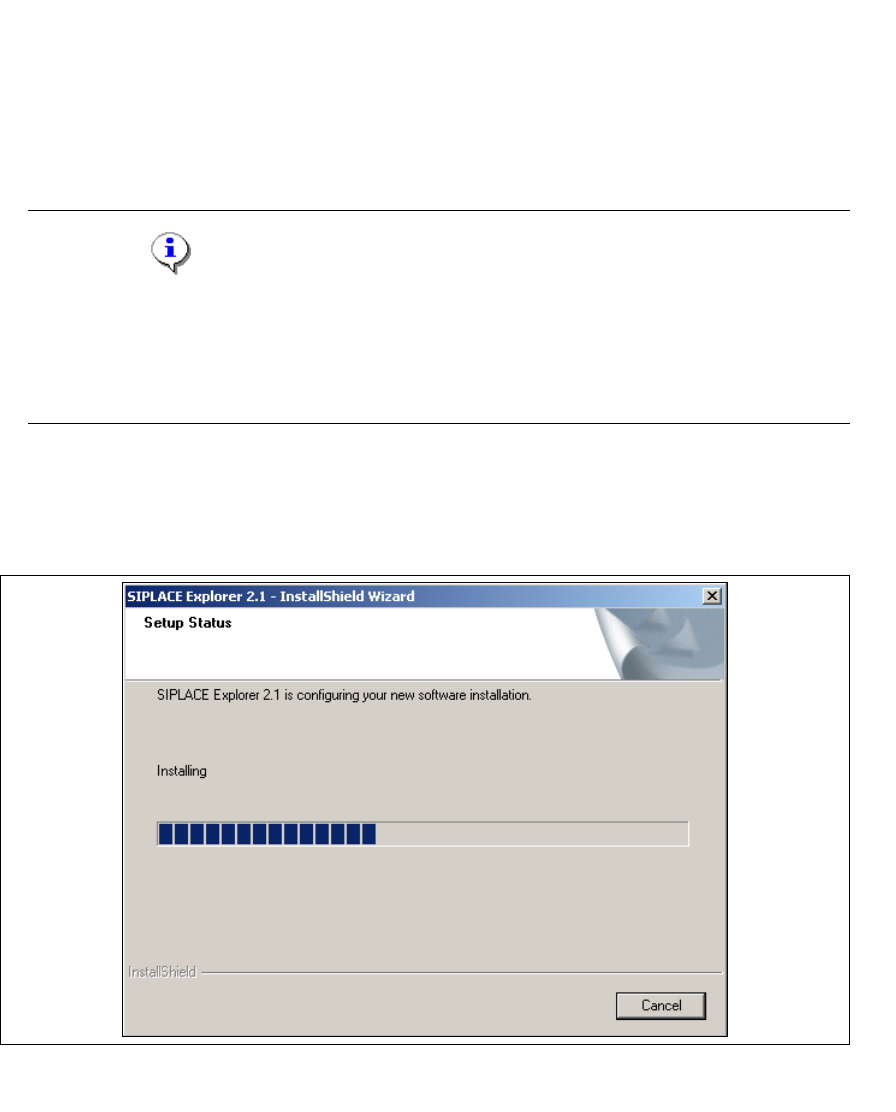
→ Die Installation von SIPLACE Explorer 2.1 wird nach Lokalisierung von J2SE Runtime
Environment 5.0 fortgesetzt. Das Dialogfenster Setup Status wird geöffnet.
→ Die eigentliche Update-Installation von SIPLACE Explorer V2.1 beginnt.
3
Abb. 3 - 45 SIPLACE Explorer Setup - Dialogfenster 'Setup Status' (Status der Installation)
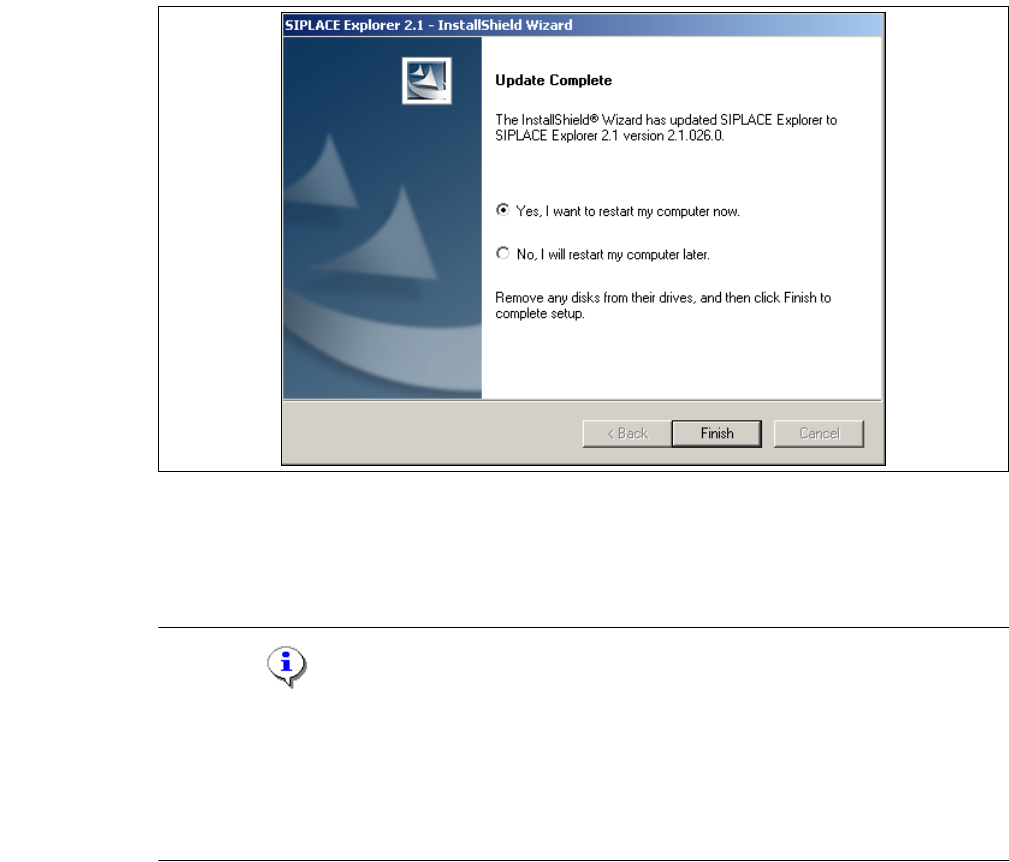
→ Wenn die Installation beendet ist, erscheint nachfolgendes Dialogfenster.
3 Installation des SIPLACE Explorer Installations- und Konfigurationsanleitung SIPLACE Explorer
3.2 Update-Installation von SIPLACE Explorer 2.1 Ausgabe 11/2006 DE
60
3
Abb. 3 - 46 SIPLACE Explorer Setup - Installation beendet
→ Klicken Sie auf Finish. Nach dem nächsten Start Ihres Computers steht Ihnen die Update-
Version SIPLACE Explorer V2.1 zur Verfügung. Zum Starten von SIPLACE Explorer gehen Sie
vor, wie unter “SIPLACE Explorer starten” auf Seite 61 beschrieben.
HINWEIS
Nach der Installation von SIPLACE Explorer muss das System neu gebootet werden. Dies ist
notwendig, um sicherzustellen, dass der Port 1099 für die Java Runtime Environment verfügbar
ist. In seltenen Fällen wird der Port 1099 von einer anderen Applikation verwendet. Wird SIPLACE
Explorer ohne Neustart des Systems nach der Installation gestartet, so wird in solchen Fällen der
Fehler "SIPLACE Explorer 2.1 runtime not found" angezeigt. 3