00193687-06_Installation SIPLACE Explorer2.1_DE.pdf - 第63页
Installations- und Konfigurationsanleitung SIPLAC E Explorer 3 Installation des SIPLACE Explorer Ausgabe 11/2006 DE 3.3 SIPLACE Explorer start en 63 → SIP LACE Explorer V .2.1 Fa ctory Configuration Utility S tarten Sie …
3 Installation des SIPLACE Explorer Installations- und Konfigurationsanleitung SIPLACE Explorer
3.3 SIPLACE Explorer starten Ausgabe 11/2006 DE
62
– Factory Configuration Utility
– Line Configuration
– Modify-Uninstall
– Performance Analyser
– SE Manager
– SE Security Manager
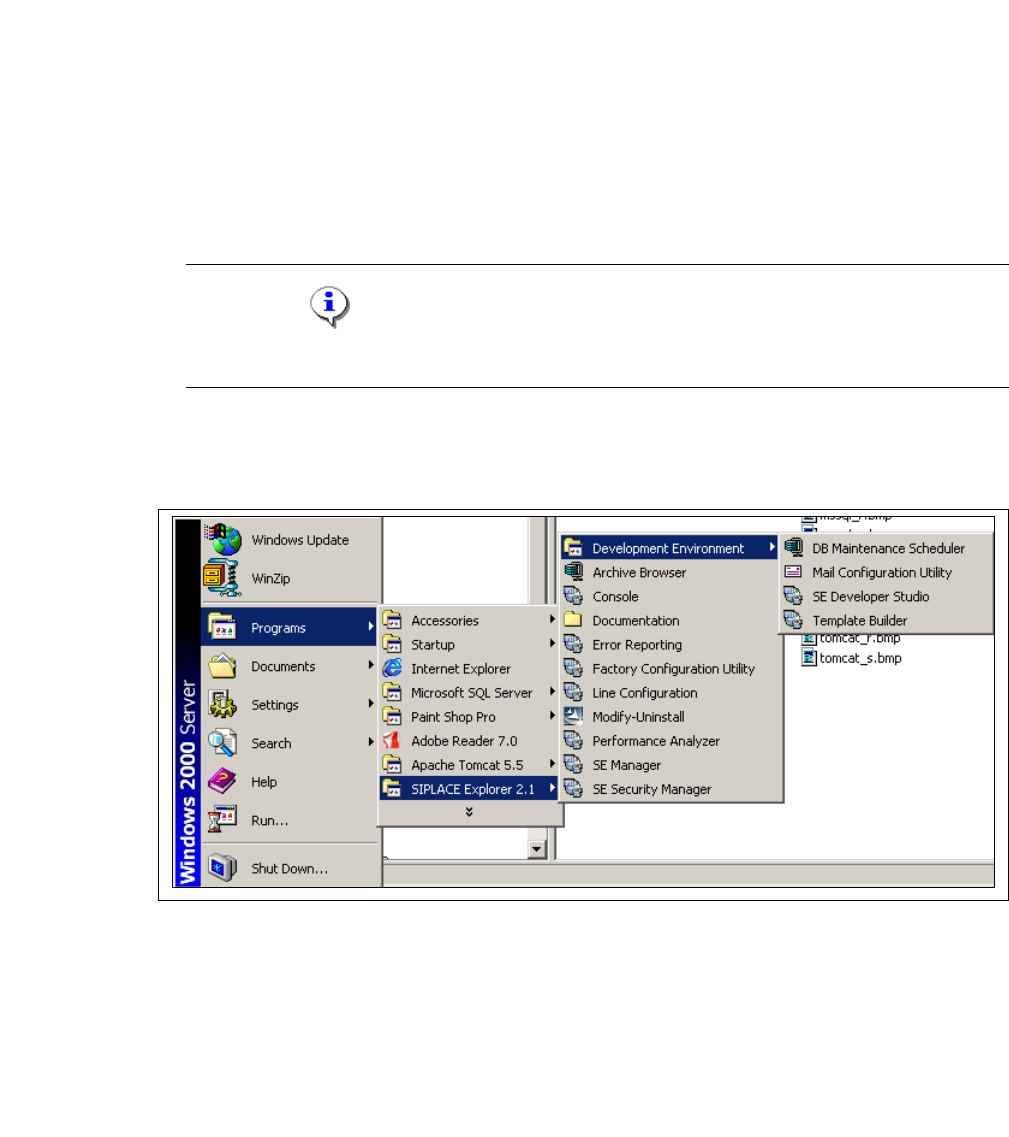
→ SIPLACE Explorer V.2.1 Development Environment
HINWEIS
Sie können Development Environment nur starten, wenn Runtime Environment gestoppt ist.3
Starten Sie Development Environment über das Windows-Menü Programme → SIPLACE
Explorer 2.1 → Development Environment. 3
3
Abb. 3 - 48 DE Windows Start Menü
Sie haben folgende weitere Applikationen und Tools zur Auswahl: 3
– DB Maintenance Scheduler
– Mail Configuration Utility
– SE Developer Studio
– Template Builder
Installations- und Konfigurationsanleitung SIPLACE Explorer 3 Installation des SIPLACE Explorer
Ausgabe 11/2006 DE 3.3 SIPLACE Explorer starten
63
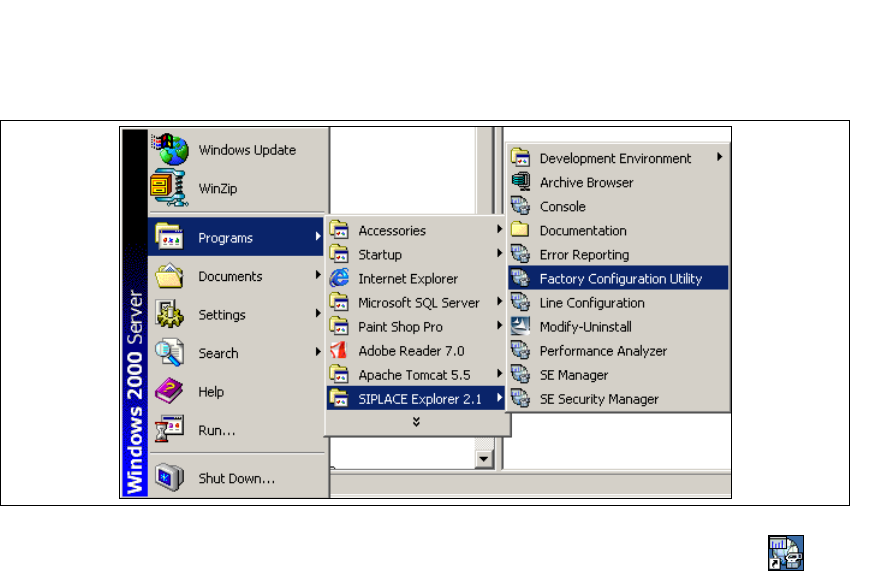
→ SIPLACE Explorer V.2.1 Factory Configuration Utility
Starten Sie Factory Configuration Utility über das Windows-Menü Programme → SIPLACE
Explorer 2.1 → Factory Configuration Utility. 3
3
Abb. 3 - 49 Factory Configuration Utility Windows Start Menü
→ Oder klicken Sie auf Ihrem Desktop auf das Symbol Factory Configuration Utility .
3 Installation des SIPLACE Explorer Installations- und Konfigurationsanleitung SIPLACE Explorer
3.4 Konfiguration von Tomcat Ausgabe 11/2006 DE
64
3.4 Konfiguration von Tomcat
3.4.1 Verwendung von Windows XP Professional mit SP2
Haben Sie als Betriebssystem Windows XP Professional mit SP2 installiert, müssen Sie für die
Verwendung von SIPLACE Explorer V2.1 die XP-Firewalls nachkonfigurieren. Sie müssen die
Ports für Tomcat 5.5 und für SIPLACE Explorer V2.1 freigeben. 3
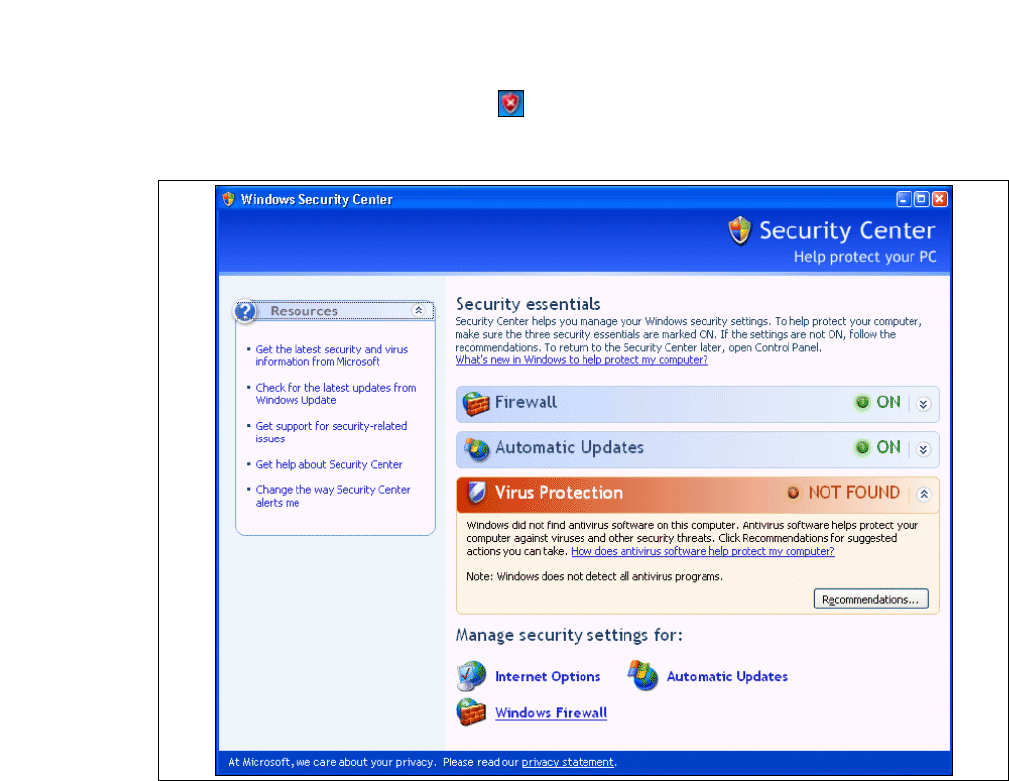
→ Starten Sie den Windows Security Center. Dazu klicken Sie mit einem Doppelklick auf das
Symbol Windows Security Alerts in der Konsole.
→ Das Dialogfenster öffnet Windows Security Center sich:
3
Abb. 3 - 50 Windows Security Center
→ Wählen Sie unter Manage security settings for die Option Windows Firewall aus.