00193687-06_Installation SIPLACE Explorer2.1_DE.pdf - 第69页
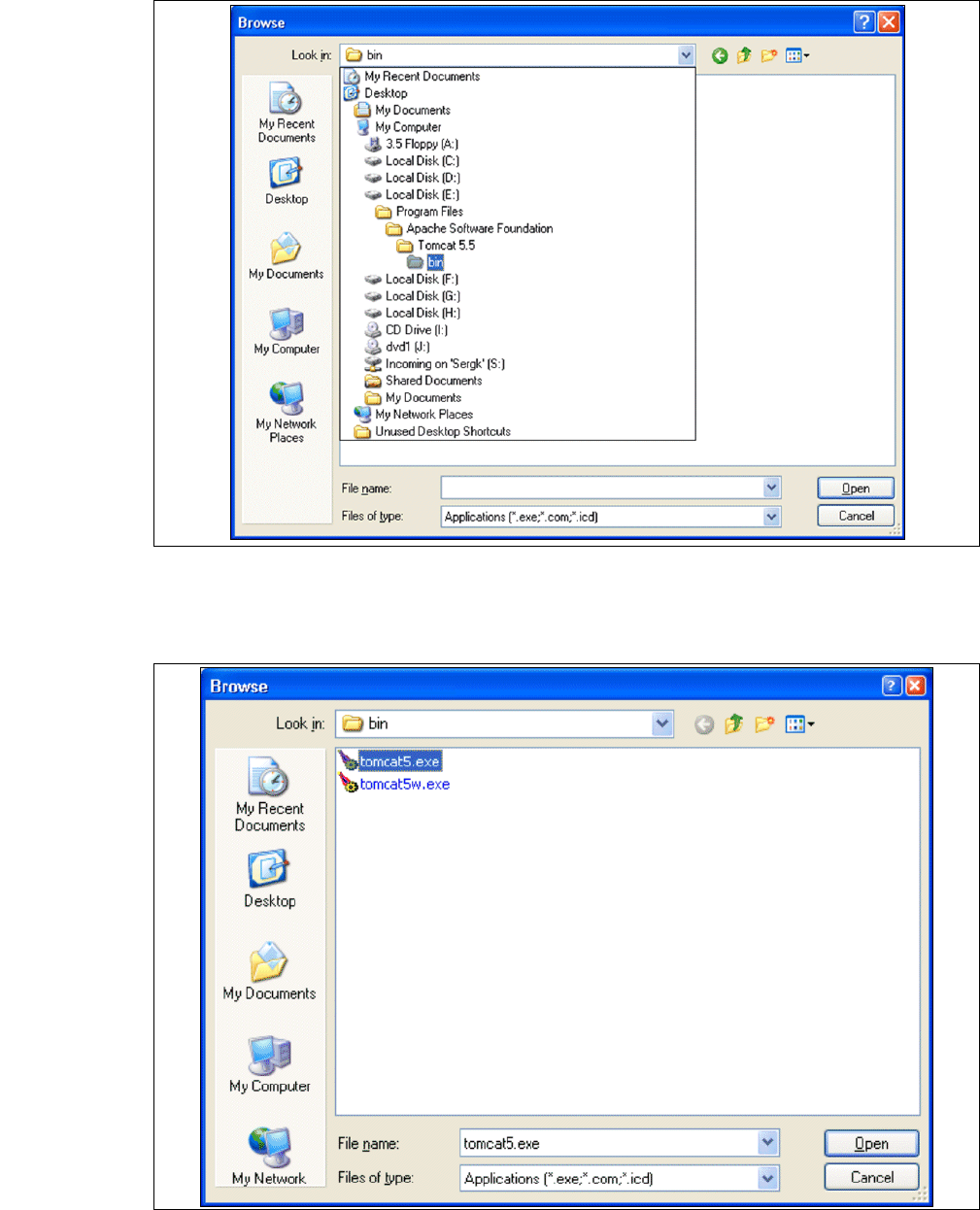
Installations- und Konfigurationsanleitung SIPLAC E Explorer 3 Installation des SIPLACE Explorer Ausgabe 11/2006 DE 3.4 Konfiguration von Tomcat 69 → Wählen Sie die Datei tomcat5.ex e aus und betätigen Sie die Schaltf lä…
3 Installation des SIPLACE Explorer Installations- und Konfigurationsanleitung SIPLACE Explorer
3.4 Konfiguration von Tomcat Ausgabe 11/2006 DE
68
3
Abb. 3 - 54 Windows Firewall - Exeptions
→ Klicken Sie im Tomcat-Installationspfad den Pfad ..\Tomcat 5.5\bin an und betätigen Sie die
Schaltfläche Open.
3
Abb. 3 - 55 Windows Firewall - Exeptions
Installations- und Konfigurationsanleitung SIPLACE Explorer 3 Installation des SIPLACE Explorer
Ausgabe 11/2006 DE 3.4 Konfiguration von Tomcat
69
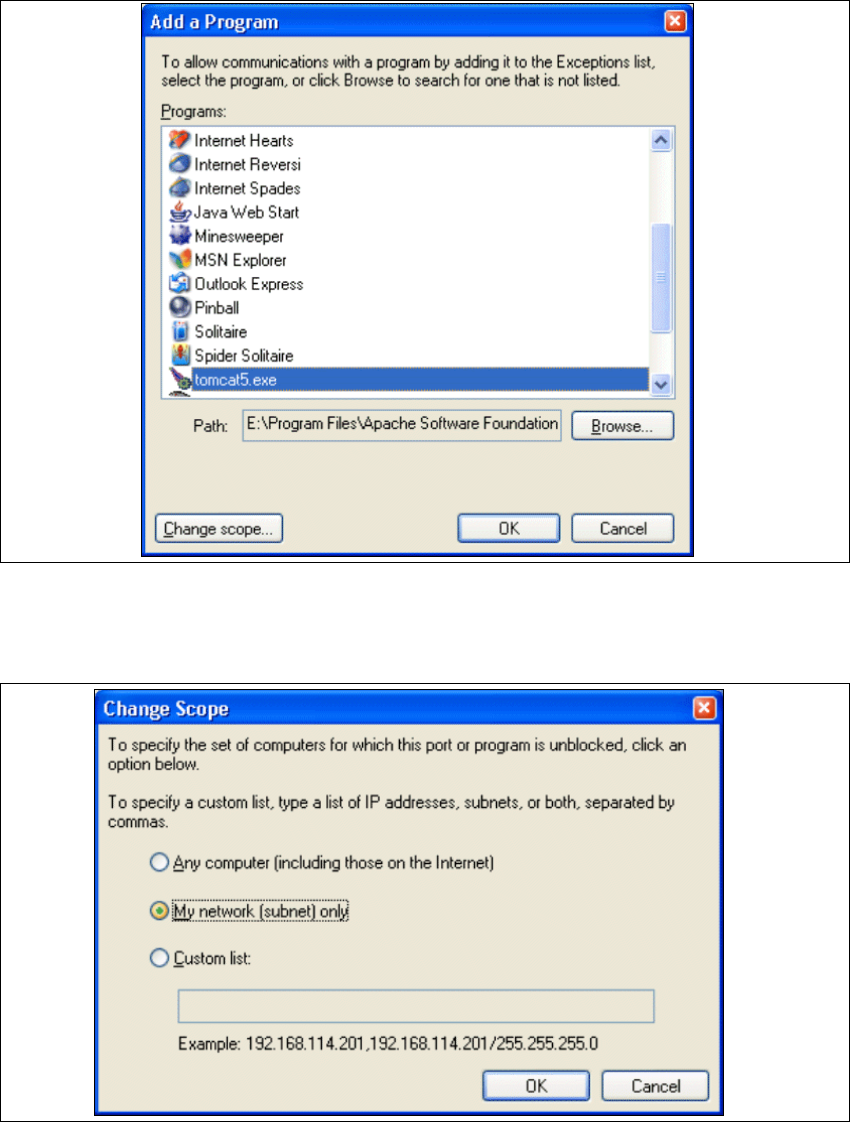
→ Wählen Sie die Datei tomcat5.exe aus und betätigen Sie die Schaltfläche Open.
→ Das Dialogfenster Add a Program öffnet sich wieder:
3
Abb. 3 - 56 Add a Programm
→ Selektieren Sie unter Programs den Eintrag tomcat5.exe und betätigen Sie die Schaltfläche
Change Scope.
3
Abb. 3 - 57 Change Scope
3 Installation des SIPLACE Explorer Installations- und Konfigurationsanleitung SIPLACE Explorer
3.4 Konfiguration von Tomcat Ausgabe 11/2006 DE
70
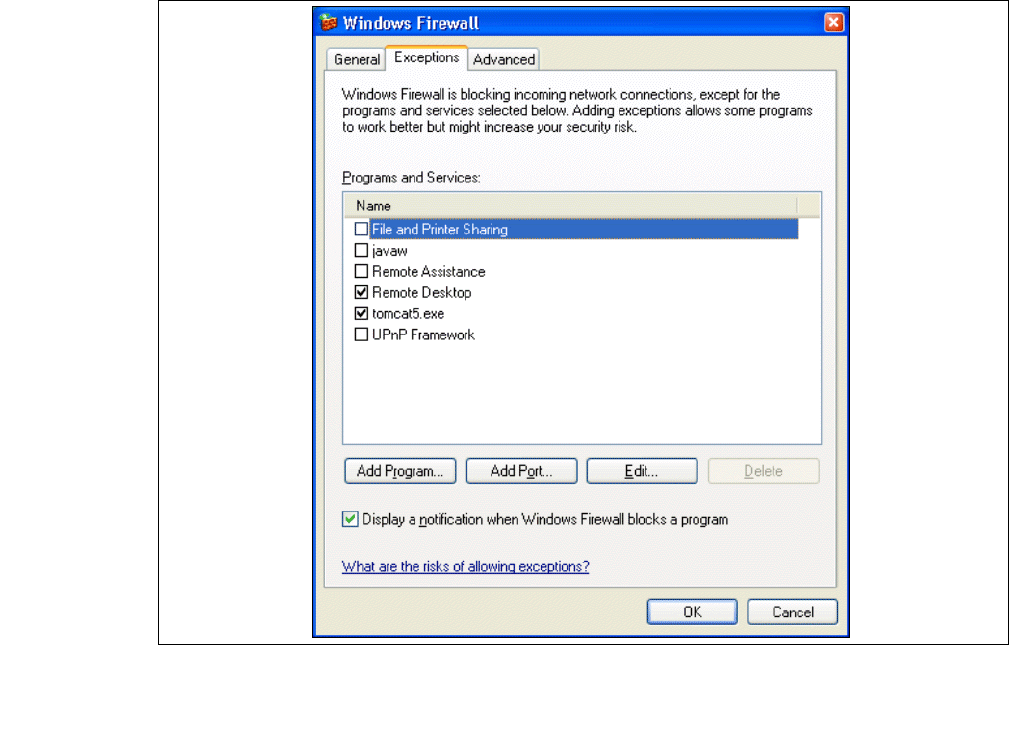
→ Aktivieren Sie die Option My network und bestätigen Sie mit OK. Sie haben jetzt den Port für
Tomcat freigegeben. Sie können das in dem Dialogfenster Windows Firewall - Exeptions
überprüfen.
3
Abb. 3 - 58 Windows Fairway - Exeptions
→ Geben Sie jetzt den Port für SIPLACE Explorer V2.1 frei. Gehen Sie dabei genauso vor, wie
für Tomcat 5.5 beschrieben.