00198505-01_SM_SIPLACE_SmartFeeder_EN.pdf - 第17页
2 General 2.5 Creating new labels for feeder modules Service Manual SIPLACE SmartFeeder 4 - 104 mm X 11/2017 17 2.5 Creating new labels for feeder modules If you need replacement labels for your feeder modules, you can c…
2 General
2.3 Equipment Required
16 Service Manual SIPLACE SmartFeeder 4 - 104 mm X 11/2017
2.3 Equipment Required
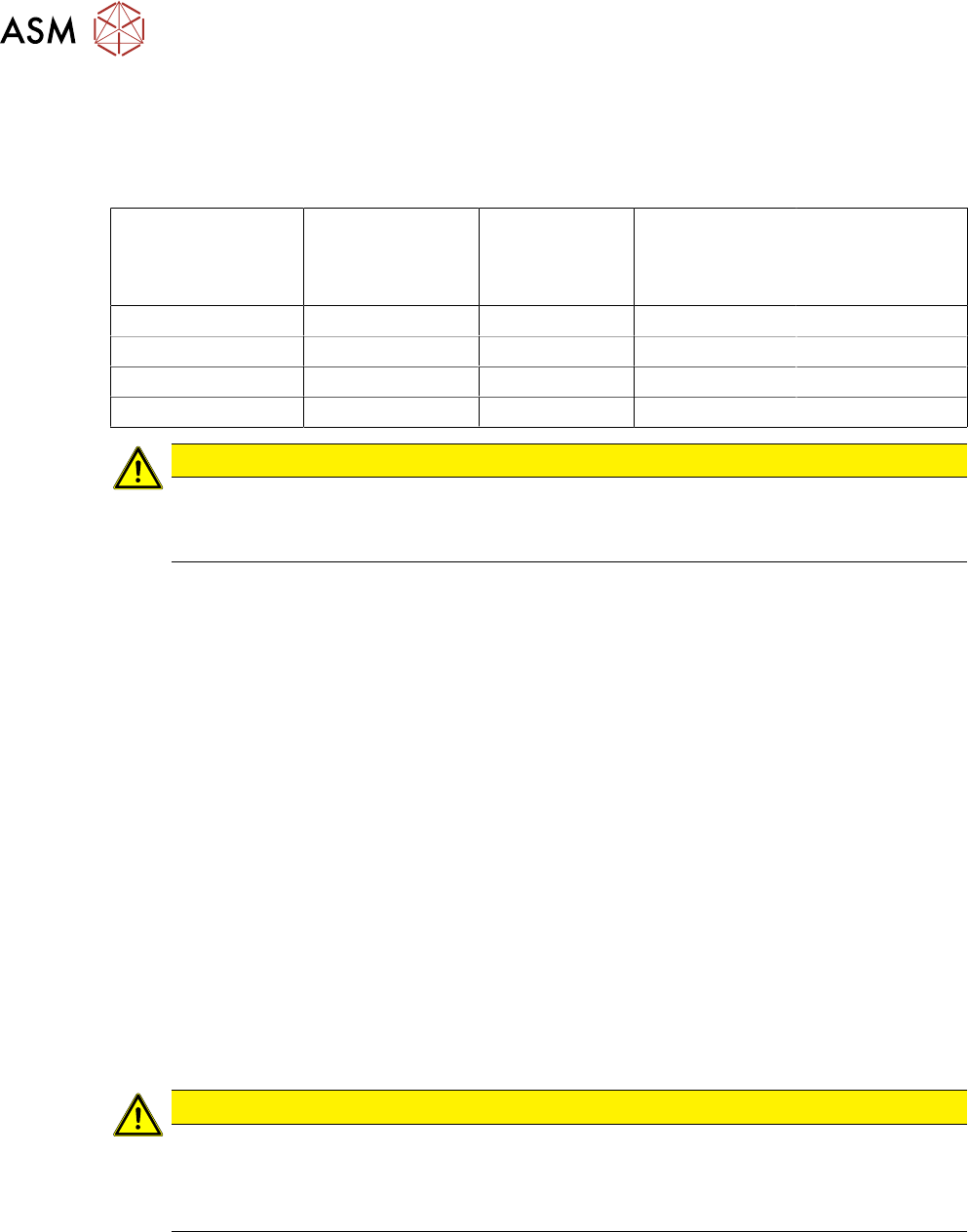
Tools
You need the following tools to remove and fasten the spare parts described in this manual:
Torque screwdriver Phillips inter-
changeable bit
Interchangeable
bit for slotted-
head screws
Interchangeable
bit for hexagon
screws
size 2
TORX
interchangeable
bit
size T8
0.2 Nm X
0.35 Nm X
0.6 Nm X X X
0.9 Nm X
CAUTION
Observe the torque
The torque screwdriver and interchangeable bits are delivered separately.
Make sure that the bits are assigned correctly during assembly work.
●
Flat-bladed (slotted) screwdriver size 1
●
Phillips screwdriver
●
Allen key size 3
●
Tweezers
●
Split pin punch size 1.4
●
Circlip pliers for outer rings 3-10 mm
●
Long clamping wrench item no. 03076659-xx
●
Sliding foil remover item no. 03075421-xx
●
Gauge for tape drive motor /X12-16 V2, item no. 03085120-xx
●
Gauge for foil disposal motor /X12-16 V2, item no. 03085119-xx
Consumables
●
Polylub GLY 801 (grease)
●
Ethanol
●
Double-sided adhesive tape
2.4 Safety Instructions
CAUTION
Observe the ESD regulations!
When working on the feeder module, pay attention to ESD safety.
Before you open the side cover, make sure you are wearing the ESD protection wristband,
to prevent damage to the highly sensitive boards inside the feeder.
2 General
2.5 Creating new labels for feeder modules
Service Manual SIPLACE SmartFeeder 4 - 104 mm X 11/2017 17
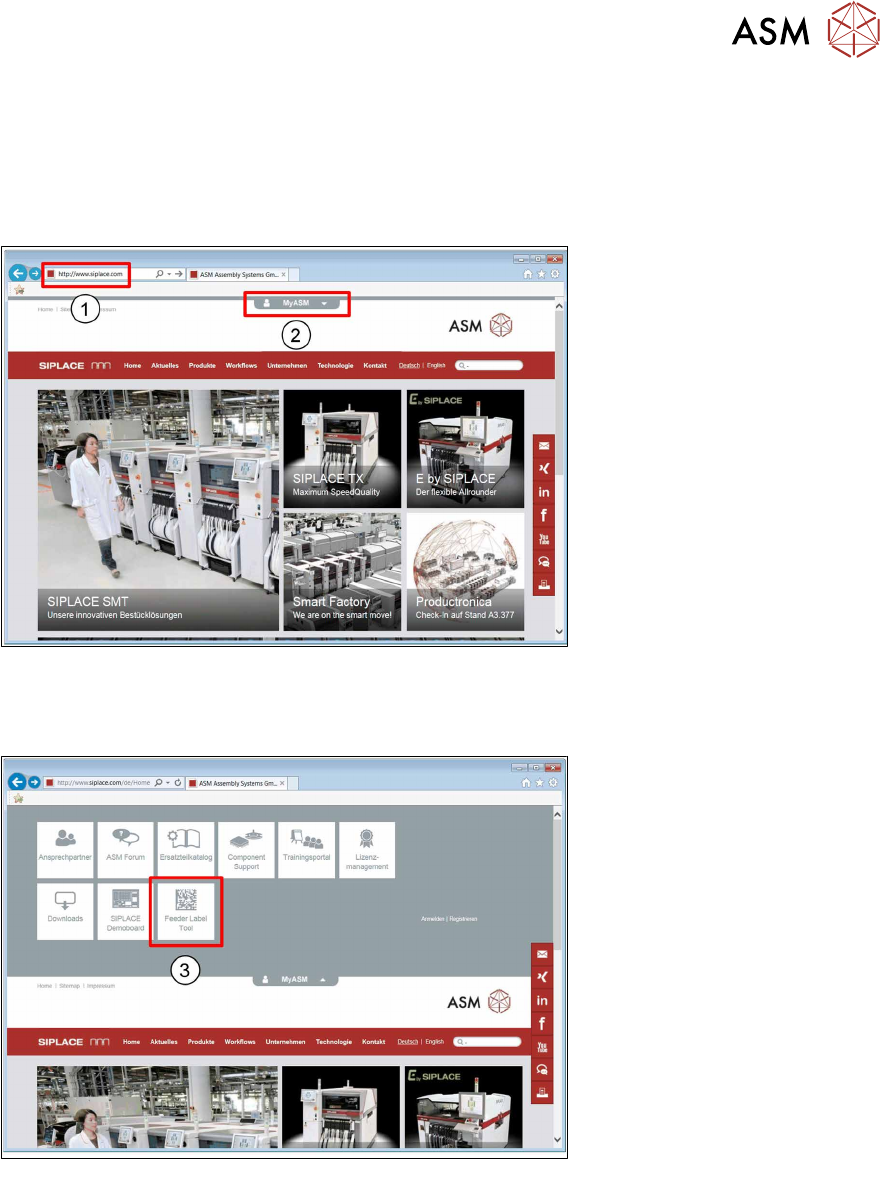
2.5 Creating new labels for feeder modules
If you need replacement labels for your feeder modules, you can create these online, at the
SIPLACE website. Simply enter the serial number and the feeder ID of the SIPLACE feeder mod-
ule and the SIPLACE Feeder Label Tool will generate a new label for you to download.
► Start your internet browser.
1. Enter the URL www.SIPLACE.com in the address line.
2. In the website header, click on the MYSPACEicon .
3. Click on the Feeder Label Toolicon .
2 General
2.5 Creating new labels for feeder modules
18 Service Manual SIPLACE SmartFeeder 4 - 104 mm X 11/2017
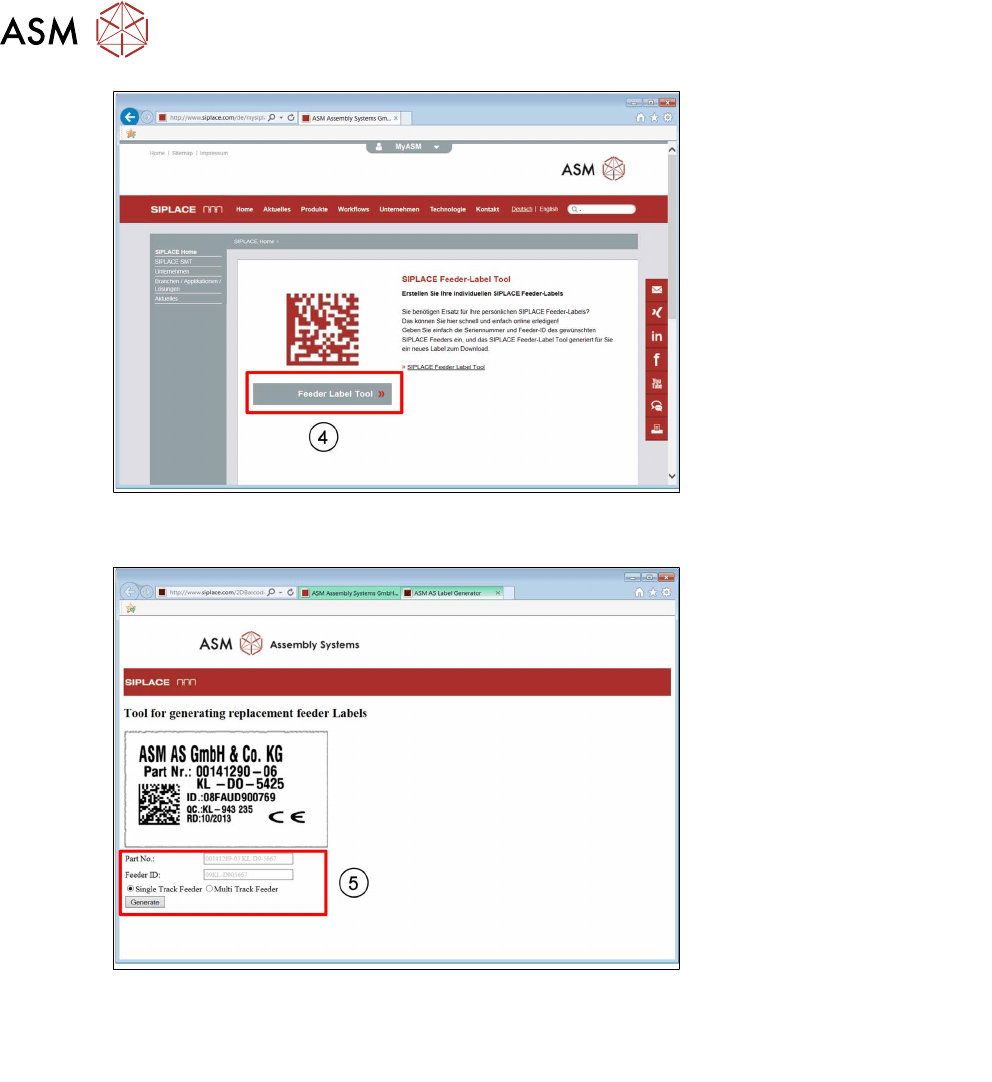
4. Click on the Feeder Label Tool button.
5. Enter the feeder module Part No.
Enter the feeder module Feeder ID.
Select whether it is a Single Track Feeder or a Multi Track Feeder.
Click on the Generate button.
The label for your feeder module will be generated for downloading.