MV-9_Chapter 5. Teaching.pdf - 第153页
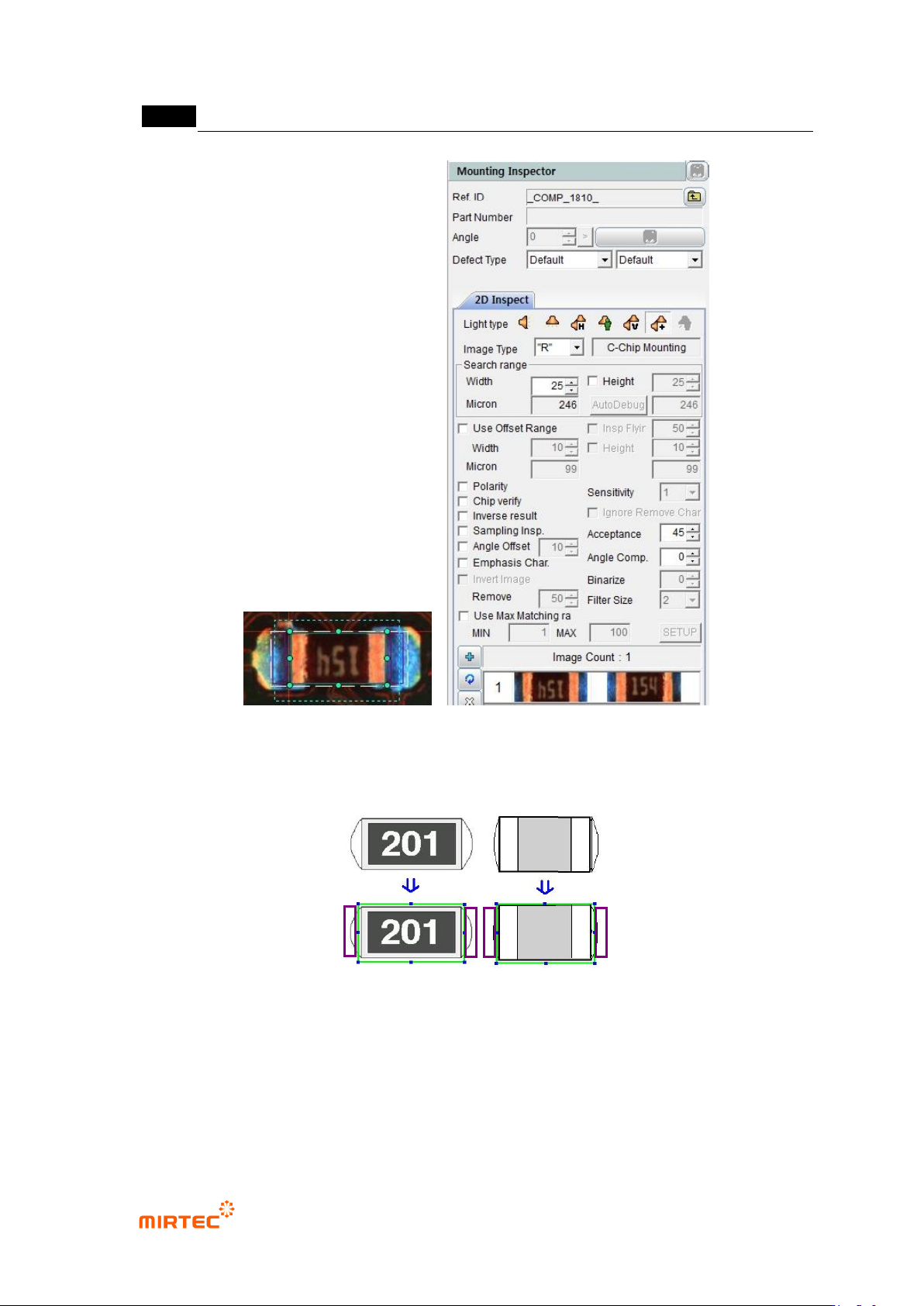
错误 ! 使用“开始” 选项卡将 제목 2 应用于要在此处显示的文字。 错误 ! 使用“开始”选项卡将 제목 2 应用 于要在此处显示的 文字。 . 5- 153 [Figure 5- 183 chip component screen] Reference name - Refer to „reference name in „5.3.1 mountin g in spection type - Name is created i…
MV-9 User Manual
5-152
[Figure 5-181 Creation of chip component inspection window]
2) Teaching example of representative component
[Figure 5-182 Teaching example of chip component inspection window]
3) Parameter of chip component inspection window
错误!使用“开始”选项卡将 제목 2 应用于要在此处显示的文字。错误!使用“开始”选项卡将 제목 2 应用
于要在此处显示的文字。 .
5-153
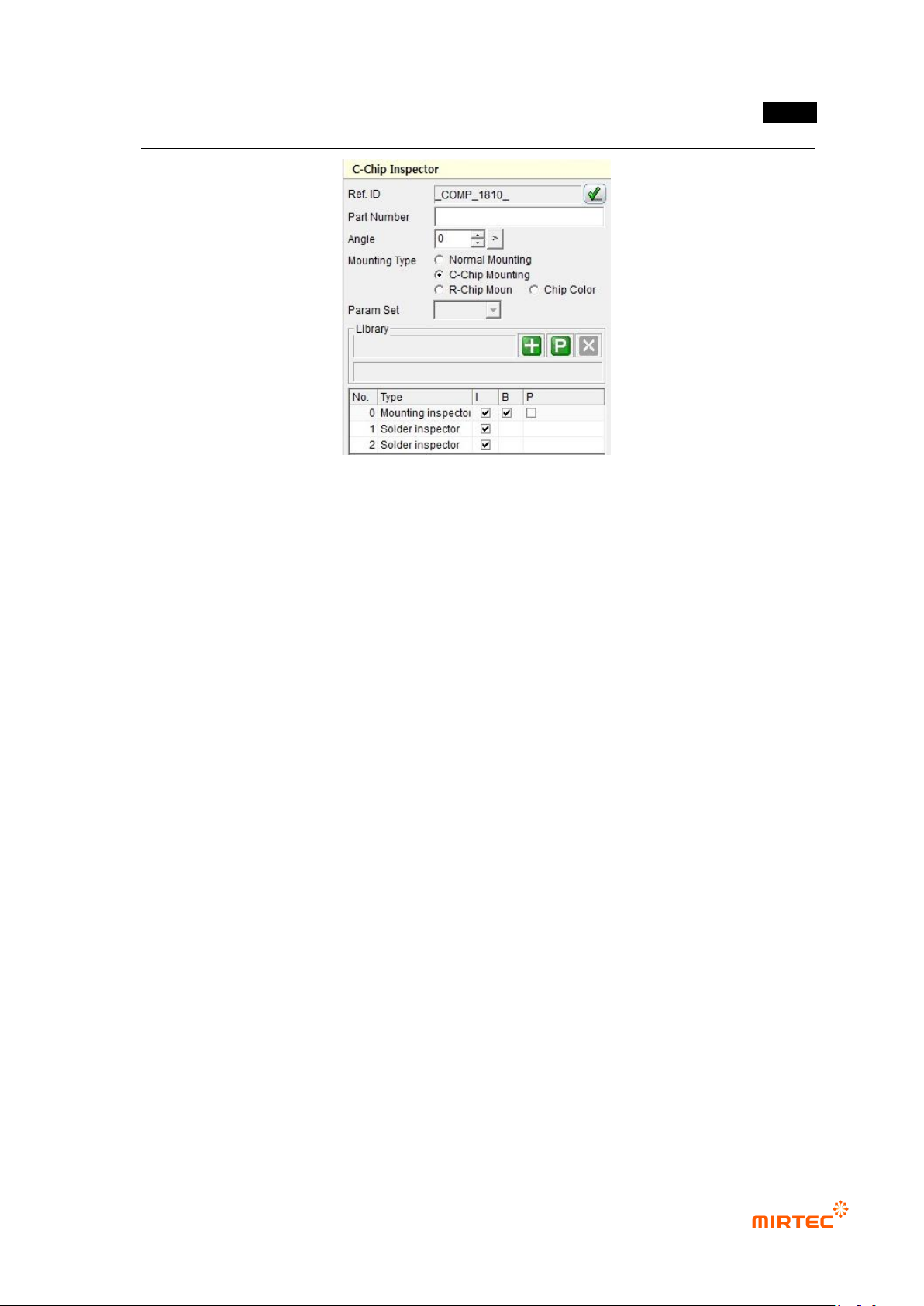
[Figure 5-183 chip component screen]
Reference name
- Refer to „reference name in „5.3.1 mounting inspection type
- Name is created in „_COMP_1_‟ format. „COMP‟ means Component, and the number
means creation order of lifted inspection window.
Component name
- Refer to „component name in '5.3.1 mounting inspection window
Rotation angle
- Refer to „rotation angle in '5.3.1 mounting inspection window
Mounting inspection type
- type of component that completed teaching found during window creation will be displayed.
If it is set not like the selected component, user can manually set the type according to
component. However, „general mounting‟ can‟t be selected.
- General mounting: In case of general mounting component excepting resistance and
capacitor, automatically selected.
- C-Chip mounting: If component that completes teaching is capacitor, select it to auto.
- R-Chip mounting: If component that completes teaching is resistance, select it to auto.
MV-9 User Manual
5-154
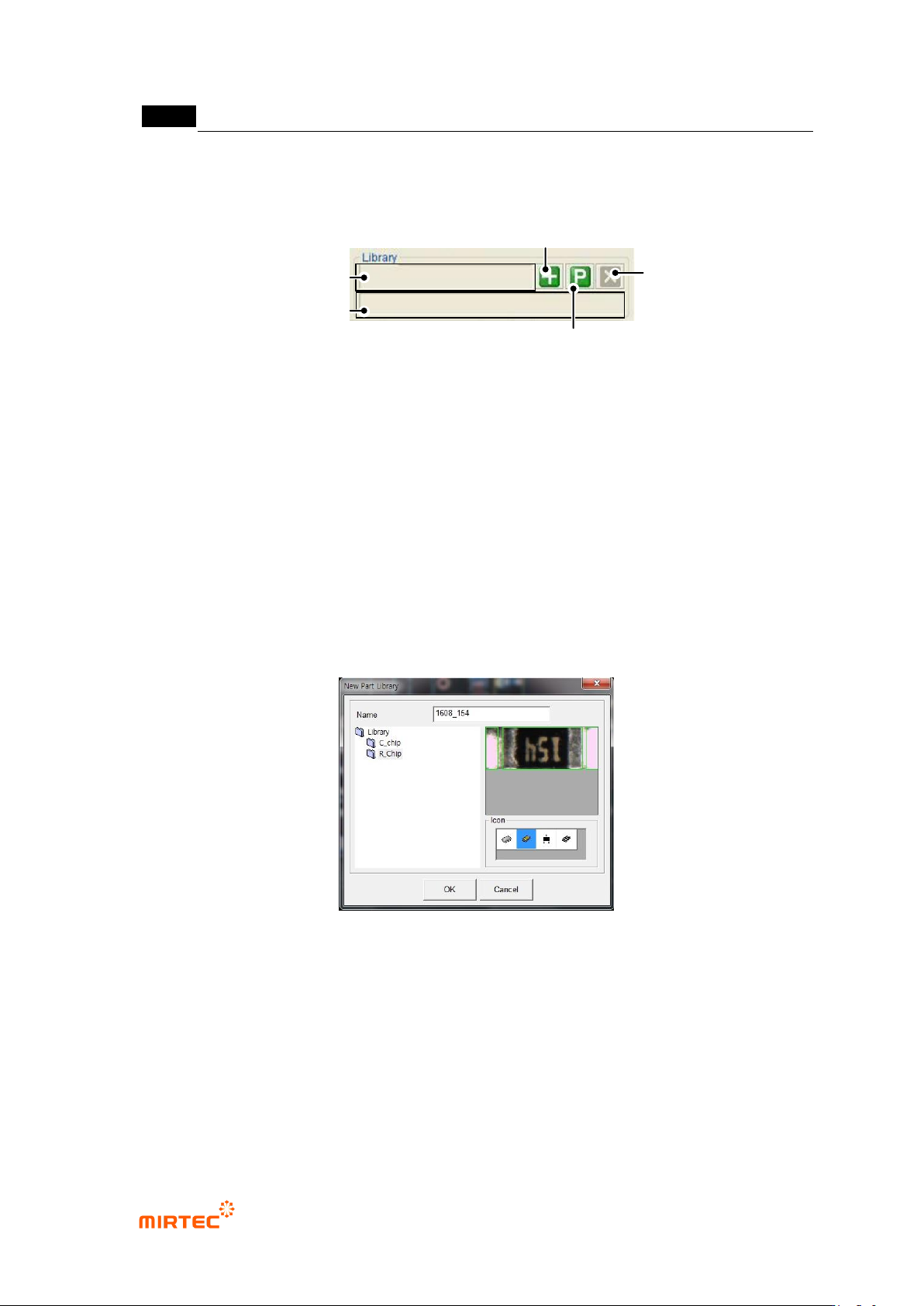
Library
[Figure 5-184 library connection of component inspection window]
- Component name
Same name with component name that is entered will be displayed. If it is not entered,
enter it to register it in the library.
- Library path
This is to display path to which registered library is saved. In this case, „/TEST_LAST/R-
Chip‟ will be displayed.
- Add component inspection window to library
Select position desired to be saved, enter name and click <OK> button.
White window is added at exterior of component inspection window, and the relevant
component inspection window is registered in the library.
[Figure 5-185 Library add in component inspection window]
- Add package library
Library image is not displayed. register only search range in the package library.
- Library unlink
Click <library unlink> button, and click <Yes (Y)> button in the screen below to
disconnect link with library.
Library Route
Name of Part
Addition of the Package
Library
Disconnect
Add library