MV-9_Chapter 5. Teaching.pdf - 第21页
错误 ! 使用“开始” 选项卡将 제목 2 应用于要在此处显示的文字。 错误 ! 使用“开始”选项卡将 제목 2 应用 于要在此处显示的 文字。 . 5- 21 5.3. Component teaching Component teaching is to create s i ngle w i ndow accordi ng to the character i stic of each com ponen t mounted on…
MV-9 User Manual
5-20
5.2.3. Modifying model
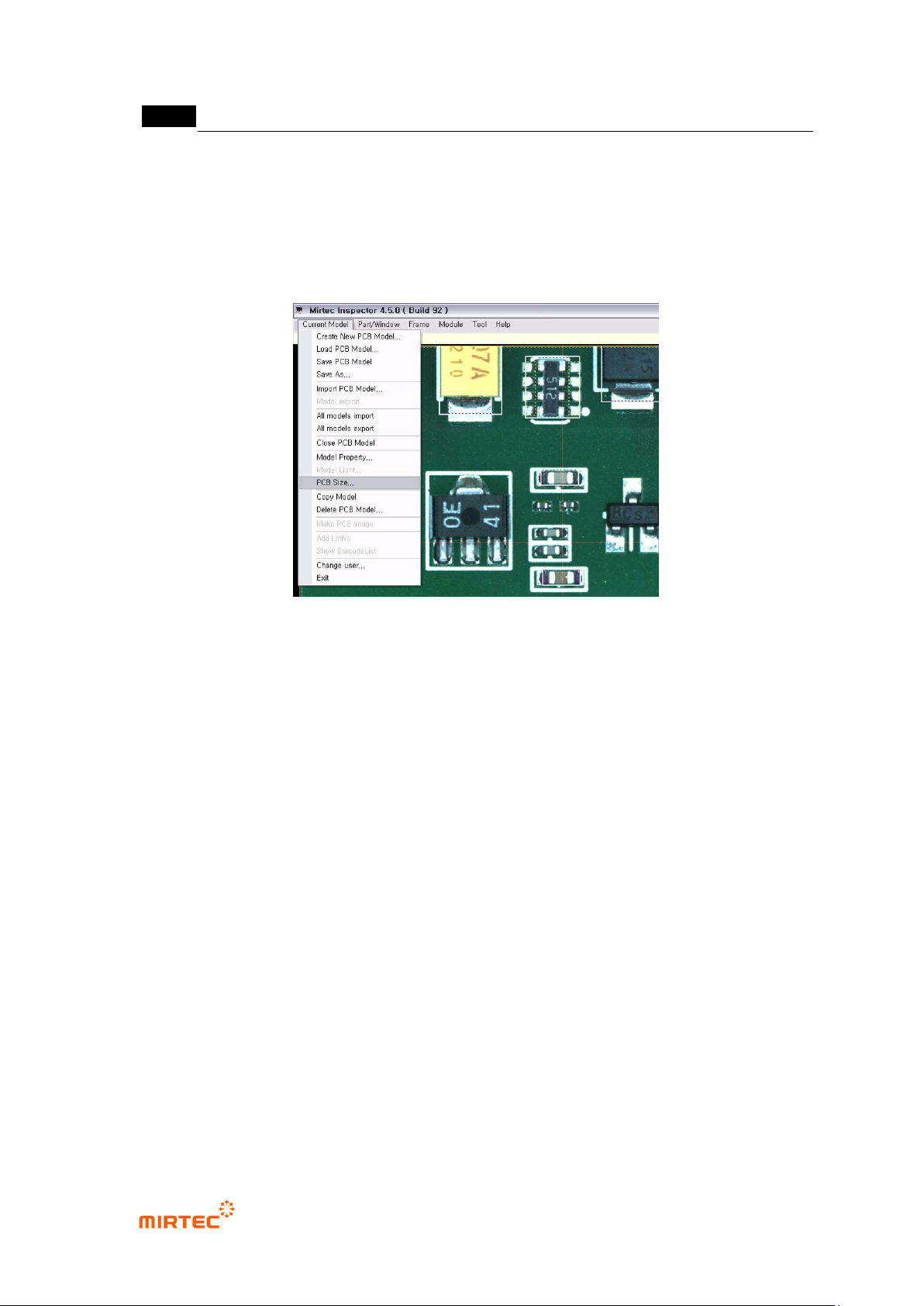
① To modify the size of currently opened model, as shown in the figure below, select „model
area setting‟ in „current model‟ in popup menu that is displayed by clicking right button of a
mouse in „current model‟ in menu bar or whole image screen. Modification method is same
with „model area setting‟ method in „new PCB model creation‟ described above.
[Figure 5-12 Menu screen to set model area]
② After modifying model size, total imaging must be conducted
错误!使用“开始”选项卡将 제목 2 应用于要在此处显示的文字。错误!使用“开始”选项卡将 제목 2 应用
于要在此处显示的文字。 .
5-21
5.3. Component teaching
Component teaching is to create single window according to the characteristic of each
component mounted on PCB.
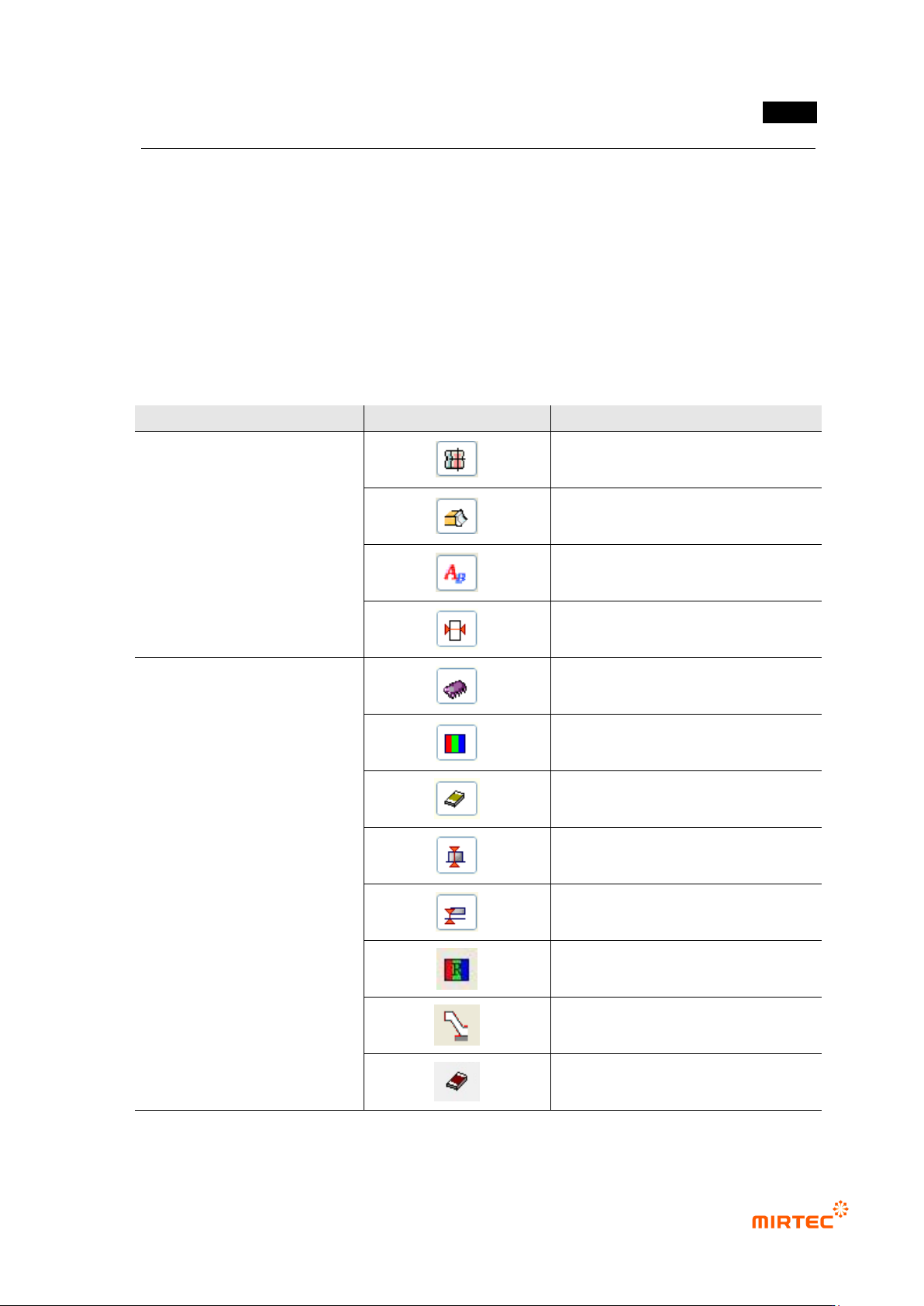
Inspection window that is used for component teaching is largely divided into general-purpose
inspection window that can be generally applied for inspection target component and exclusive
inspection window that is used for teaching of component with specific shape like IC/Bridge
inspection or color inspection.
[Table 5-1 window add buttons]
Type
Icon
Name
Button to add general-purpose
inspection window
mounting inspection window
soldering inspection window
optical character window
binary inspection window
Button to add exclusive
inspection window
IC/Bridge inspection window
color inspection window
chip inspection window
height inspection
lifted inspection
resistance color band inspection
IC offset inspection
chip color inspection
MV-9 User Manual
5-22
Type
Icon
Name
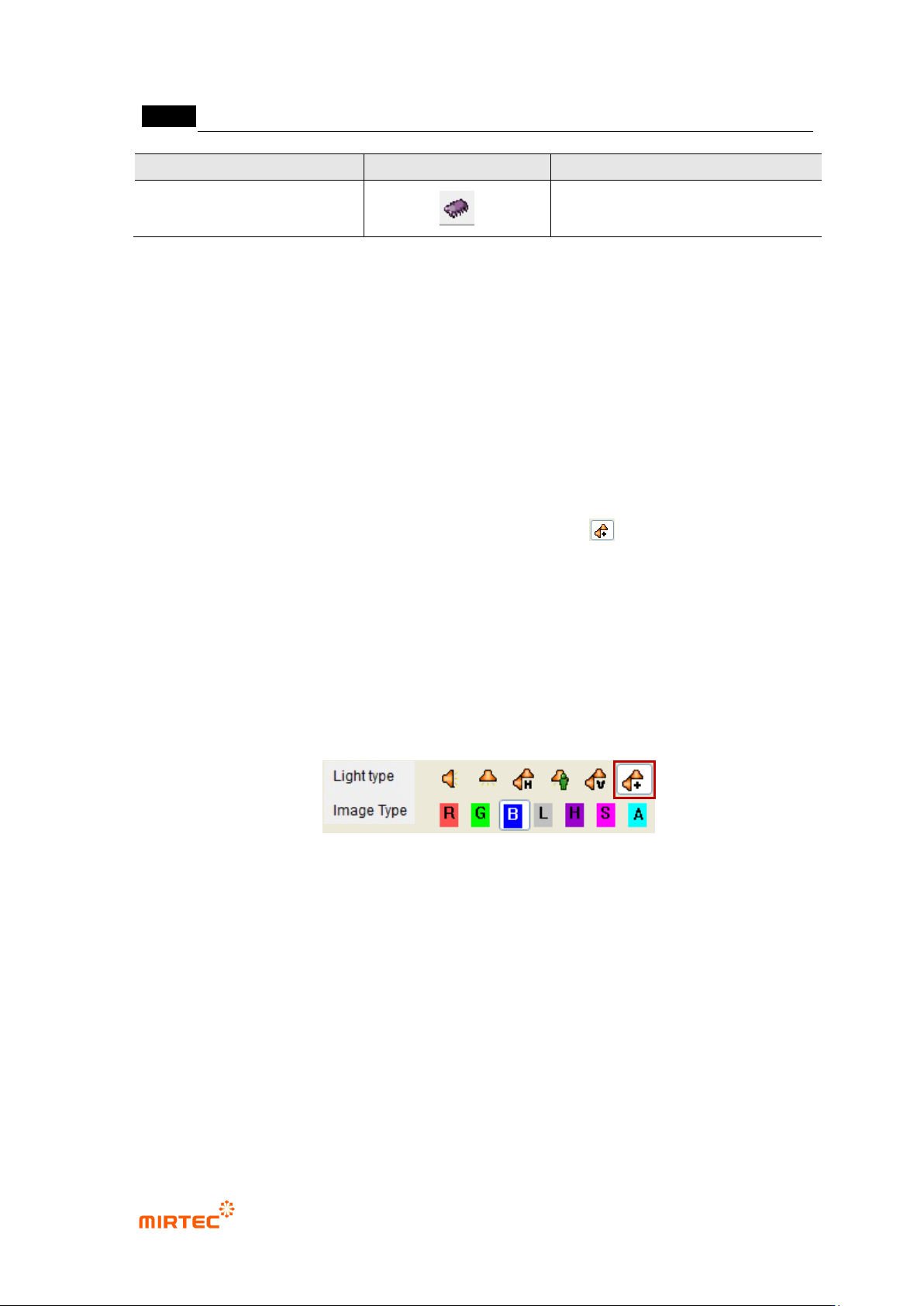
IC solder inspection
5.3.1. Basic color concept
In this manual, we describes about the color system used for algorithm. By understanding the
basic color concept, we can increase understanding of color segmentation to set color map used
for each inspection algorithm according to inspection purpose to realize better and excellent
inspection performance.
1) Image type in Inspector
Figure 1 shows light type and image type used in the inspector.
① In case of using color light, select horizontal + vertical light ( ). That is the difference from
the existing white light.
② Image type A is 3 Band color image, and the others image types are 1 Band gray images
created by extracting channel information relevant to the image type selected for 3 Band
color image.
☞ In general, H (Hue) and S (Saturation) have rare application example. Hence, we will
describe about them. For more information about this, please refer to the following color
system.
[Figure 5-13 Light type and image type used for Inspector]
③ [Figure 5-31] shows image created according to image type of color light. Each channel
image creates gray image to the size value by extracting size of the relevant channel from
each pixel of a color image.
④ Since red image has small size in red area, yellow and pink area, it appears bright in gray
image, and it appears dark in area from green to blue because the size is small. Other
channel images can be understood by same principle.
⑤ White is mixed area of three primary lights and color does not exist, and it is included in all
channels. Hence, white area appears brightest in each channel image.
⑥ Luminance image is gray image that converts RGB image into size value using conversion