MV-9_Chapter 5. Teaching.pdf - 第225页
错误 ! 使用“开始” 选项卡将 제목 2 应用于要在此处显示的文字。 错误 ! 使用“开始”选项卡将 제목 2 应用 于要在此处显示的 文字。 . 5- 225 St arting new serial No If PCB size is not big, use this function to simultaneously i nspect 2 PCBs for minor axis of tim e for PCB moun…
MV-9 User Manual
5-224
This function is used when component of base module is different from configuration or used for
teaching for 90° rotated module.
[Figure 5-289 Example of new module creation function]
Create compensation mark after moving module to a new area and teaching for conduct the
relevant component.
Creating connecting module
i. Use this when module to be added is same with component configuration of base
module, and select one of up/down/left/right direction for position based on base
module.
ii. In case of reverse module, check at „reverse module‟.
iii. Robot will automatically move to the first compensation mark position of reference
module, and compensation mark window will be displayed at the center of frame
image screen.
iv. To display window that completed teaching in frame image screen, select random
frame in whole image screen.
v. Move robot to the position where there is component of added module while
pressing the left button of mouse in frame image screen, and click <OK> button in
module screen to finish connecting module creation.
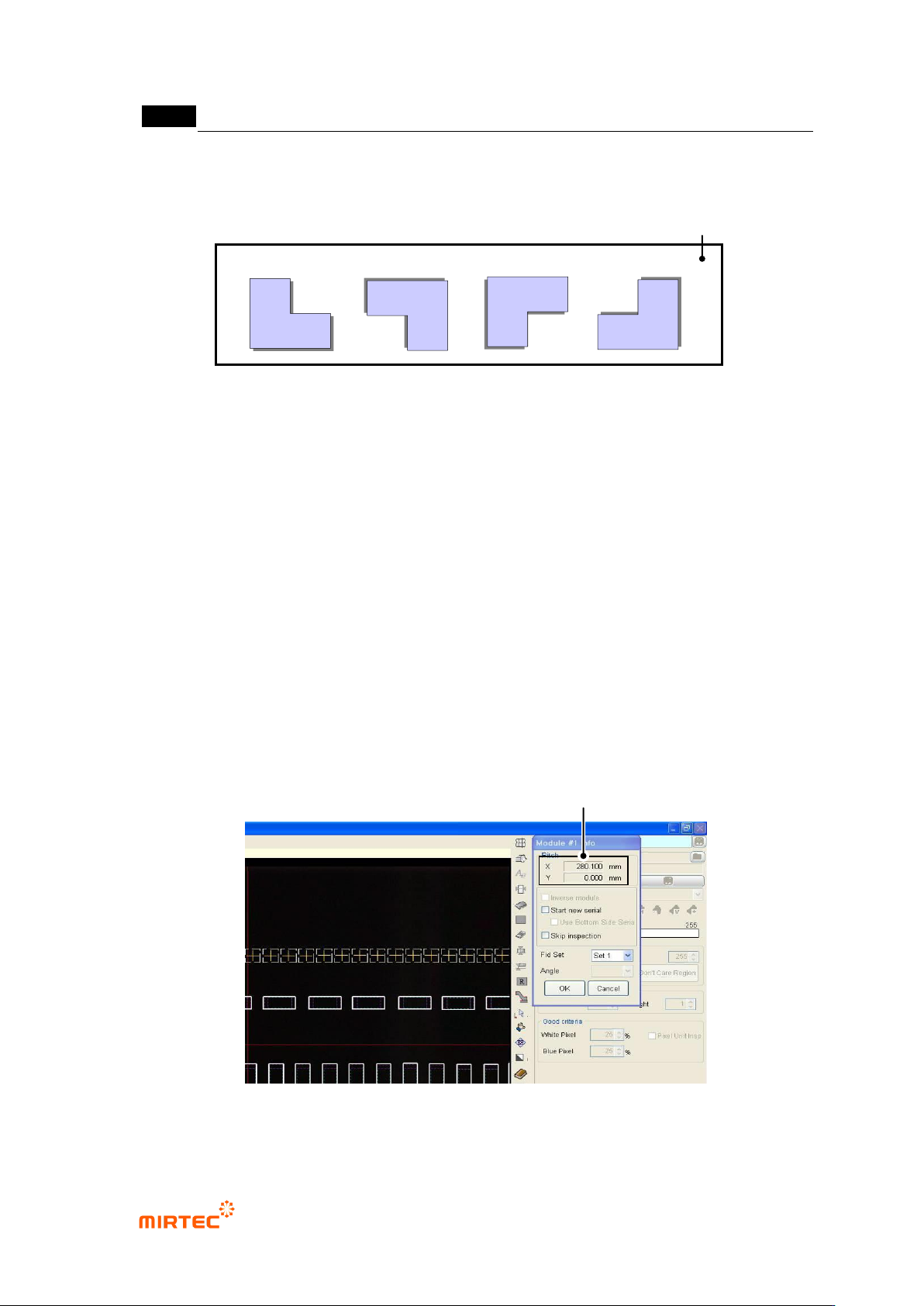
[Figure 5-290 Connecting module creation screen]
Offset Distance between Standard Module and Creation Module
Basic module
Reverse module
New module
PCB
New module
错误!使用“开始”选项卡将 제목 2 应用于要在此处显示的文字。错误!使用“开始”选项卡将 제목 2 应用
于要在此处显示的文字。 .
5-225
Starting new serial No
If PCB size is not big, use this function to simultaneously inspect 2 PCBs for minor axis of time
for PCB mounting and ejecting.
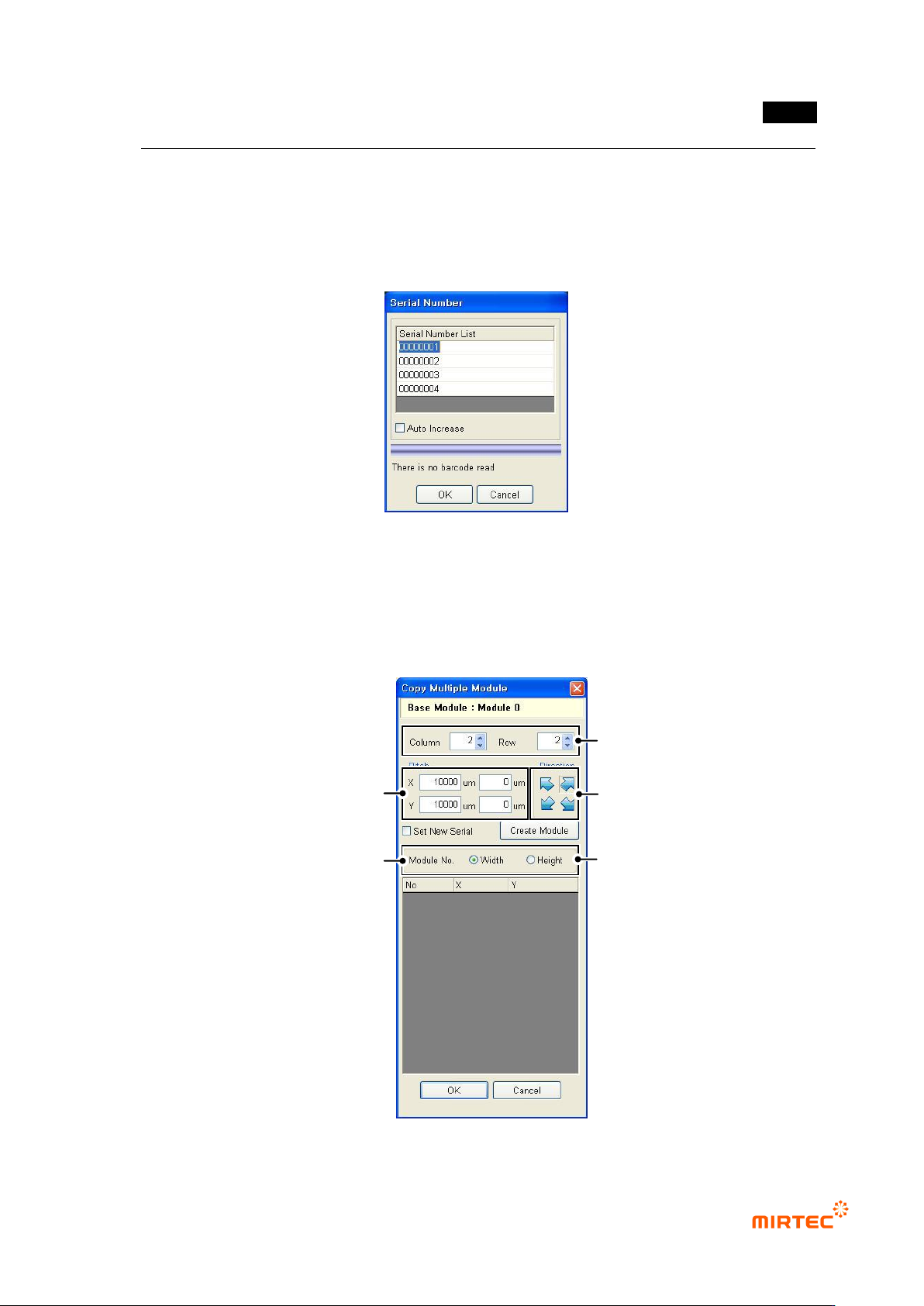
Creation method is same with that of connecting module mentioned above. However, serial No of
the second PCB model must be entered at a same time when serial No is provided.
[Figure 5-291 serial No for inspection]
Adding multiple module
Multiple module copy is a function to create many modules at a time. If there are same
modules in 1 substrate, operator will judge number of width and height of module to be created
in multiple module copy screen, pitch between modules and module creation direction and
create desired number of module.
[Figure 5-292 multiple module copy]
Set low & line of module to create.
Decide direction to create module.
(Top Left, Top Right, Bottom Left,
Bottom Right)
Input pitch between the modules to create.
Pitch should be learned in advance.
After clicking <Create Module> button,
Create multi module.
Decide direction to create (Width/Length)
MV-9 User Manual
5-226
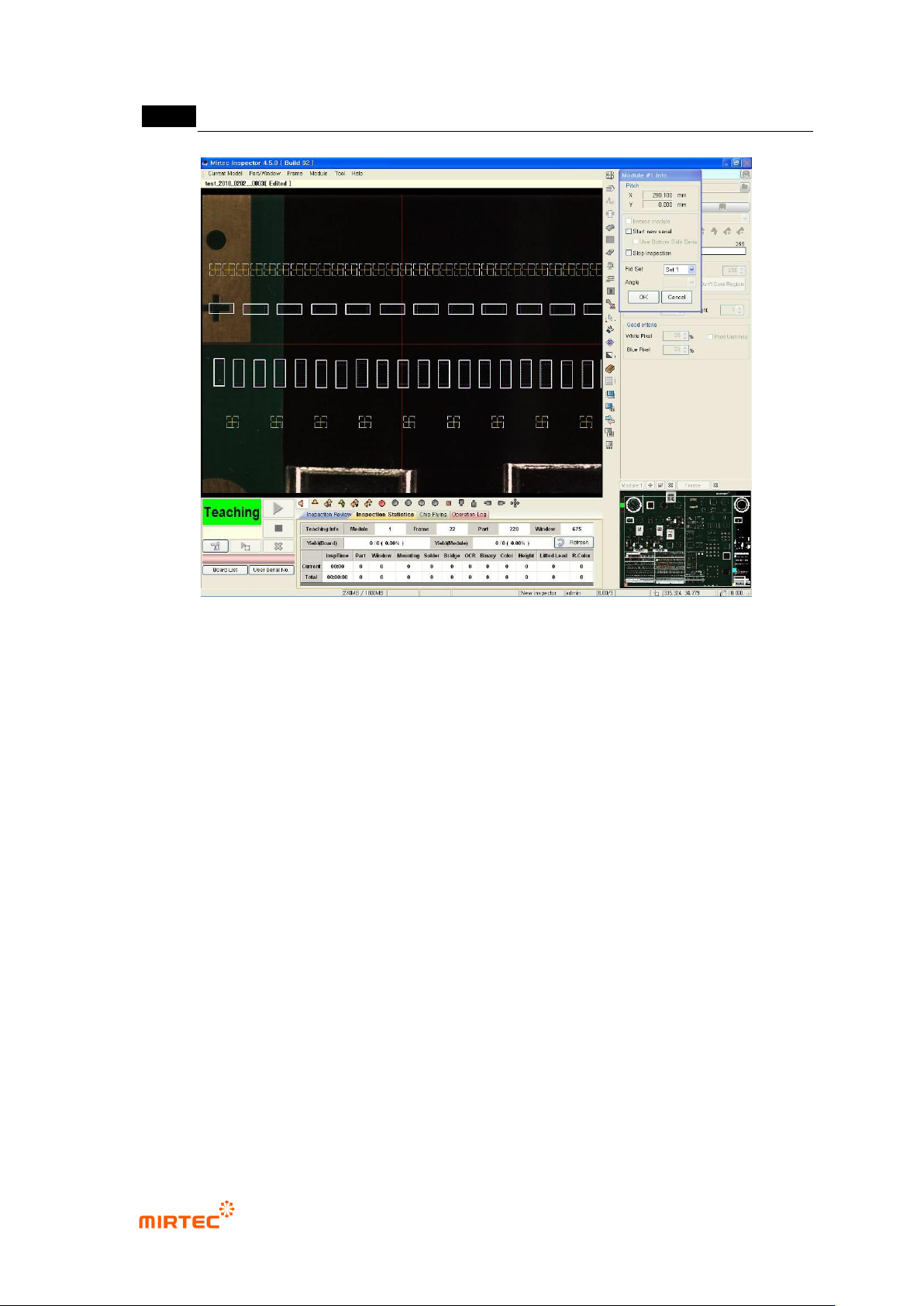
[Figure 5-293 multiple module creation]
Module delete
This function is used to delete currently selected module. base module can‟t be deleted.
All module delete
This is a function to delete all modules excluding module No 0. If wrong multiple modules are
created, this function is useful to delete it.
Module modify
This is used to edit Skip and items like reverse module, new creation of PCB model for
position compensation and inspection of inspection window of the relevant module.
Position compensation of inspection windows in the relevant module
Robot will automatically move to the first compensation mark position of the relevant
module when module edit is selected, and compensation mark window will be displayed
at the center of frame image screen.
Press the left button of mouse in frame image screen to compensate as much as twisted
position and click <OK> button in the module information screen to complete position
compensation.
For module No „0‟ 90, 180, 270 degree rotation is possible. However, all connecting
module and new module must be deleted, and If width / height ratio of frame is wrong
during 90, 270 degree rotation, special marks such as frame compensation mark and skip
mark and fixed frame will be released. In addition, bar code position must be set again.