MV-9_Chapter 5. Teaching.pdf - 第239页
错误 ! 使用“开始” 选项卡将 제목 2 应用于要在此处显示的文字。 错误 ! 使用“开始”选项卡将 제목 2 应用 于要在此处显示的 文字。 . 5- 239 [Figure 5- 313 Frame move after fixin g inspection win dow] If „ Include inspection object ‟ is se lect ed , inspectio n w i ndow i s incl…
MV-9 User Manual
5-238
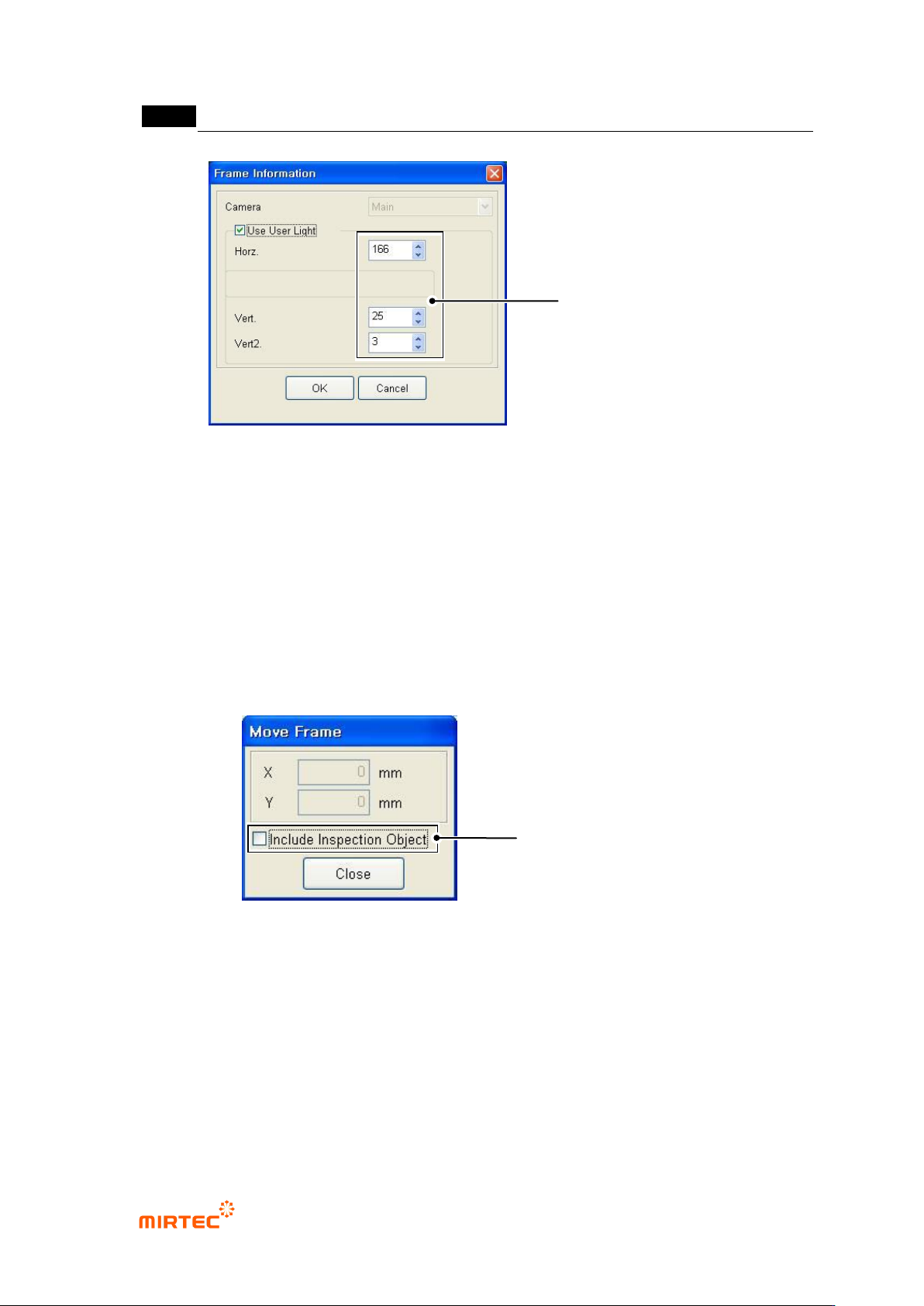
[Figure 5-311 user light setting for character recognition]
Flipped component inspection: Inspection of foreign material component besides window
that completed teaching in frame
Fixed frame
In case of „frame auto creation‟ of frame set as fixed frame, the frame is fixed and has no effect.
Frame move
Move position of already created frame and add new inspection window to this. In case of
occurrence of interval difference between inspection window and component, use this function
to compensate this.
[Figure 5-312 frame move]
If „Include inspection object‟ is not selected, move frame after fixing inspection window
Inspection window in the frame will be fixed and only the position of the relevant frame will
move. This is used to add a new inspection window in the relevant frame.
Frame move area is limited to the range that includes already created inspection window.
Whether to include inspection
window movement inside frame
when moving
Set User Light to be used in
Only Relevant Frame
错误!使用“开始”选项卡将 제목 2 应用于要在此处显示的文字。错误!使用“开始”选项卡将 제목 2 应用
于要在此处显示的文字。 .
5-239
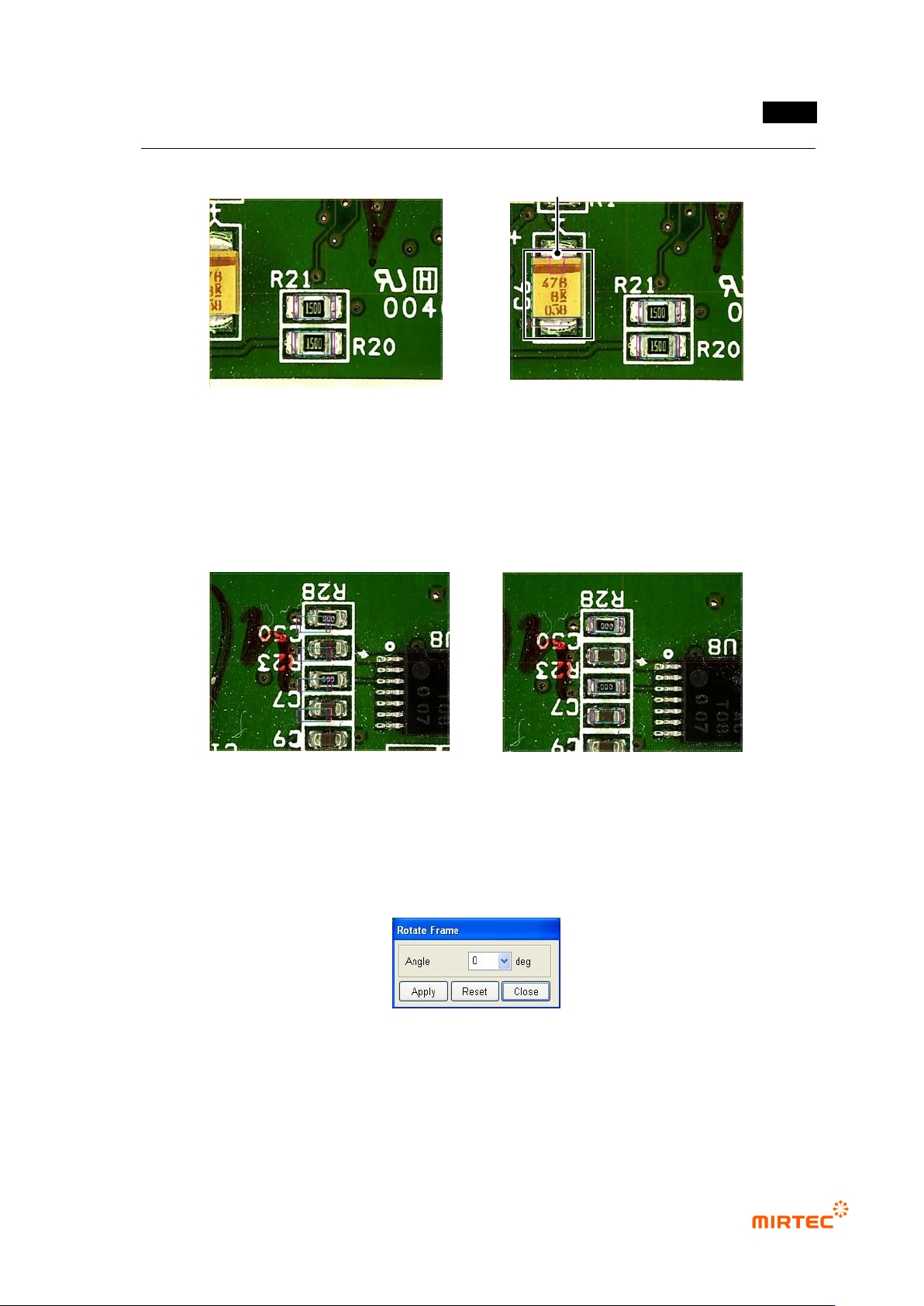
[Figure 5-313 Frame move after fixing inspection window]
If „Include inspection object‟ is selected, inspection window is included during move
In case of occurrence of interval difference between component and inspection window in
frame, this is used to compensation this and frame and components in the frame moves
together.
[Figure 5-314 frame move after including inspection window]
Frame rotation
This is used for teaching of component that is not mounted in 90° unit.
[Figure 5-315 Frame rotation]
① Enter angle value in angle input box in frame rotation screen and click <Apply> button to
rotate frame. Rotation will be made counterclockwise, and absolute angle for original frame
image 로 rotate.
Before frame move
After frame move
Before frame move
After frame move
Added inspection window

MV-9 User Manual
5-240
② To return frame rotation value to initial status, click <default value> button to return to initial
status.
③ or click mouse in frame image screen to rotate frame image as much as rotation angle and
click <Close> button in frame rotation screen.
To new frame
Not like component that completes teaching in the current frame, this is used to insert
component newly completed teaching into a new frame.
Frame enlarge/reduce
This will be activated when HD camera is mounted in the machine. If HD camera is used,
basically, image displayed in frame image screen shows circle image reduced by half. At this
point, when image is enlarged or reduced to see the relevant frame at the size of circle image,
use Digital Zoom function. Use <enlarge> button in operating buttons, space bar on the
keyboard or mouse wheel to enlarge/reduce frame.
Frame save
This function is used to save image of the currently selected frame as a BMP file.
Frame delete
This function is used to delete the currently selected frame. At this point, inspection window
created inside frame will be deleted together.
Cancel
Use this option to return add, delete, and/or move of inspection windows in frame to the status
before the relevant operation
Repeat
Use this option to return work done by „cancel‟ back to previous status
Paste
This option is used to paste window of inspection window in PCB model that is copied or cut
into the current frame
Component list
Basically, information of each component that completed like component name, reference
name, library, frame, type, X/Y coordinate, angle, quantification can be checked.