MV-9_Chapter 5. Teaching.pdf - 第28页
MV -9 Use r Manual 5- 28 [Figure 5- 22 Creating inspection window component] - W hen op eration status screen is converted to com ponen t inspe ct i on w ind ow as sho w n i n [Figure 5- 40 ], component name of the relev…
错误!使用“开始”选项卡将 제목 2 应用于要在此处显示的文字。错误!使用“开始”选项卡将 제목 2 应用
于要在此处显示的文字。 .
5-27
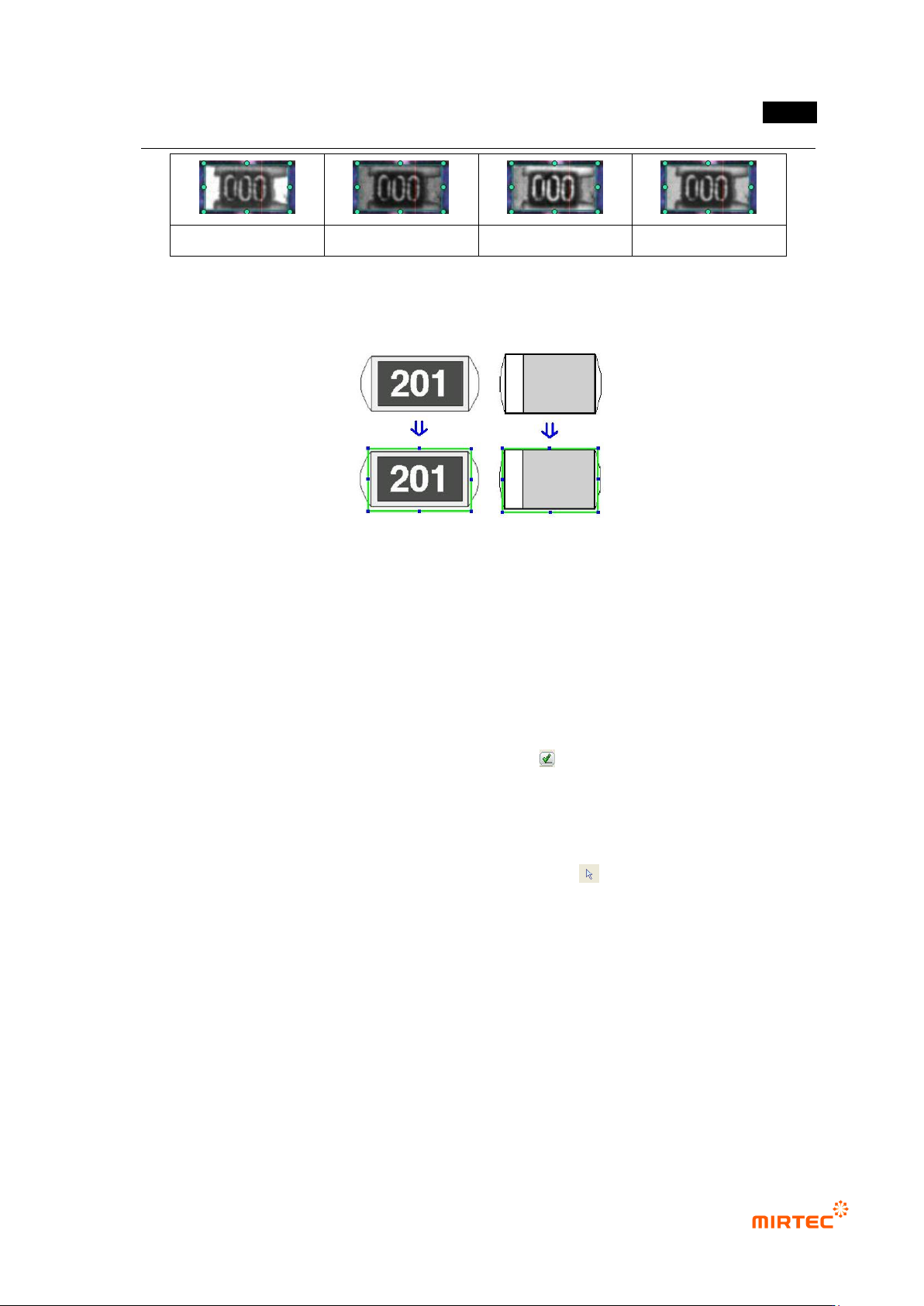
Red image
Green image
Blue image
Luminance image
[Figure 5-20 Screen to create mounting inspection window]
2) Example of teaching of a representative component
[Figure 5-21 Example of mounting inspection window teaching]
3) Parameter of mounting inspection window
Reference name
- Since reference name is automatically created while inspection window is being created, it
has unique name among PCB models.
- Created in „_MNT_1_‟ format. „MNT‟ means Mounting and the number means the order of
creating of mounting inspection window.
- To manually change reference name, click <check ( )> button and enter reference name.
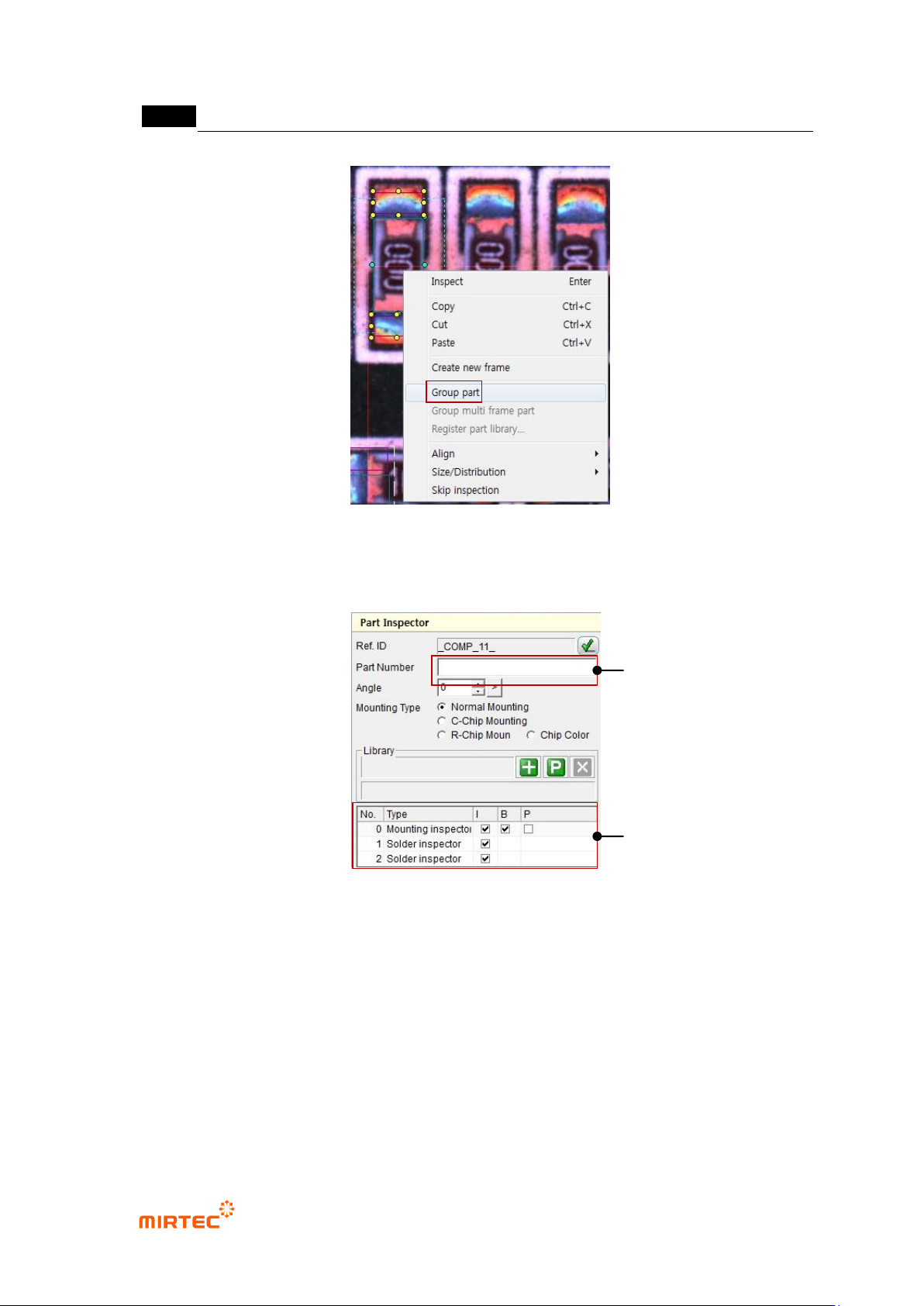
Component name
- To create many inspection windows for one component, group each inspection windows
into one component group and enter component name.
- To enter component name, firstly, click <object selection ( )> button among the operating
buttons and select inspection windows to be grouped. After that, select „Group component‟
popup menu displayed by clicking right button of the mouse.
MV-9 User Manual
5-28
[Figure 5-22 Creating inspection window component]
- When operation status screen is converted to component inspection window as shown in
[Figure 5-40], component name of the relevant component can be entered.
[Figure 5-23 Component inspection window screen]
Rotation angle
- Angle of inspection window will be displayed in 0 ~ 359° unit. Angle of window that is
created through manual teaching will be always displayed by 0°, and inspection window
will rotate counterclockwise based on the current position.
- If inspection window is created by using ATT, angle information of the relevant component
will be displayed.
- To re-image image at rotated position, click <refresh> button in pattern image screen.
part name
Grouped inspection
window list
错误!使用“开始”选项卡将 제목 2 应用于要在此处显示的文字。错误!使用“开始”选项卡将 제목 2 应用
于要在此处显示的文字。 .
5-29
- In case of IC/Bridge teaching, basically rotate Bridge rightward for component teaching.
After adjusting rotation angle, make sure to click reset button to set initial value.
- In case of „Group component‟, angle must be same.
- If rotated component is saved in the library, angle value will be also saved to automatically
apply rotation value to component.
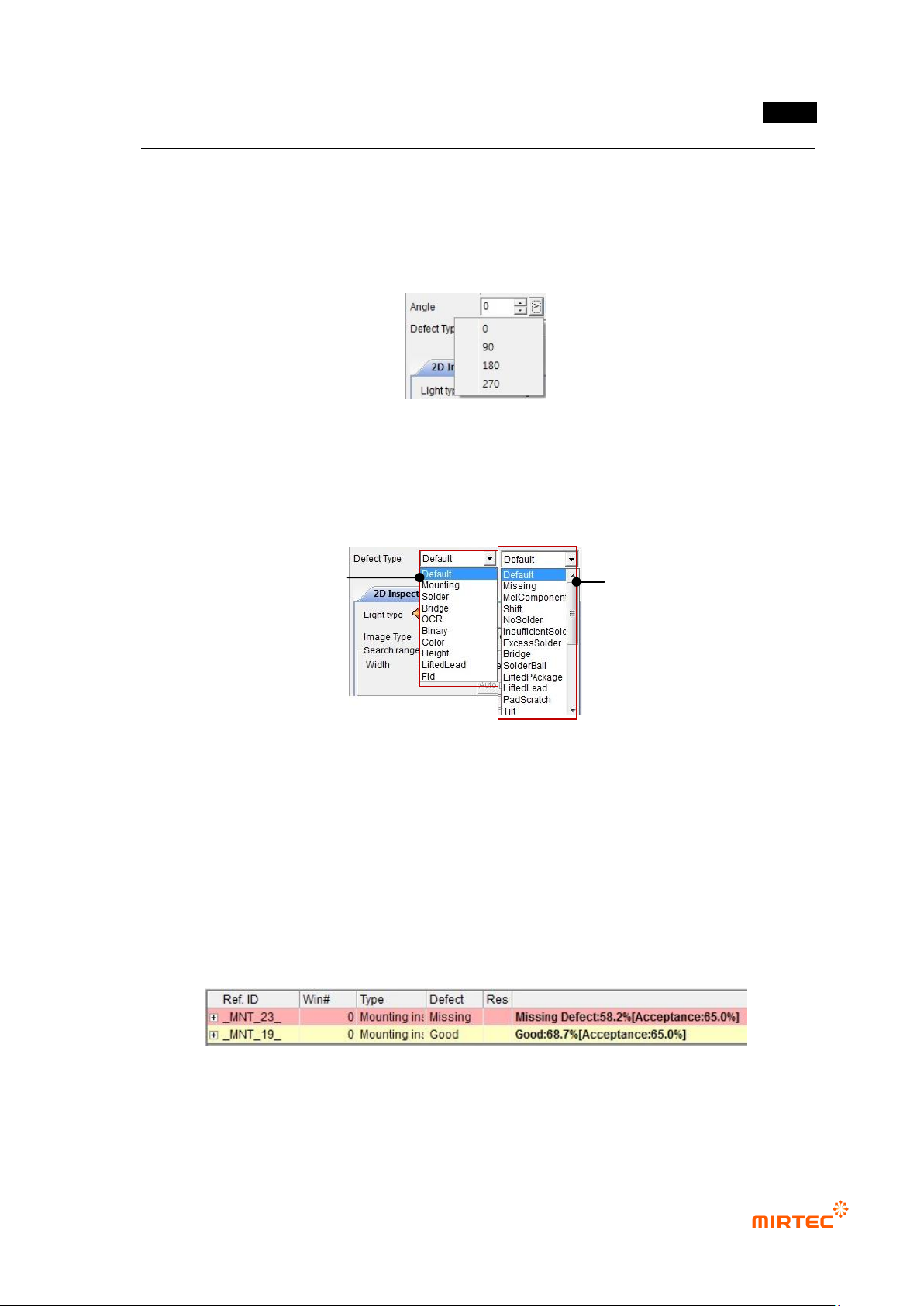
[Figure 5-24 Rotation angle input and selection]
Defect type
- As shown in [Figure 5-42], list to set inspection algorithm and defect type will be displayed
in each window screen to set detailed defect type.
[Figure 5-25 Detailed defect type list]
- The first selection item is inspection algorithm and the second selection item is detailed
defect type.
- If both of 2 selected items are selected as „default value‟, defect type set as inside defect
type and displayed. In other words, defect type judged by algorithm will be displayed.
- If defect type that excludes „default value‟ is selected, detailed setting defect type will be
displayed when defect occurs in the relevant window. In other words, if inspection
algorithm I set to „mount‟ and detailed defect type is set to „non-mounting‟, non-mounting
defect will be displayed when defect occurs in the relevant window.
[Figure 5-26 Detailed defect type result display status]
Select inspect algorithm
Detailed defect type