MV-9_Chapter 5. Teaching.pdf - 第29页
错误 ! 使用“开始” 选项卡将 제목 2 应用于要在此处显示的文字。 错误 ! 使用“开始”选项卡将 제목 2 应用 于要在此处显示的 文字。 . 5- 29 - In case of IC/Br idge teach in g, basica l ly rotate B ri dge rightward for com pon e nt teaching . Af ter adjusting rotat i on ang l e, …
MV-9 User Manual
5-28
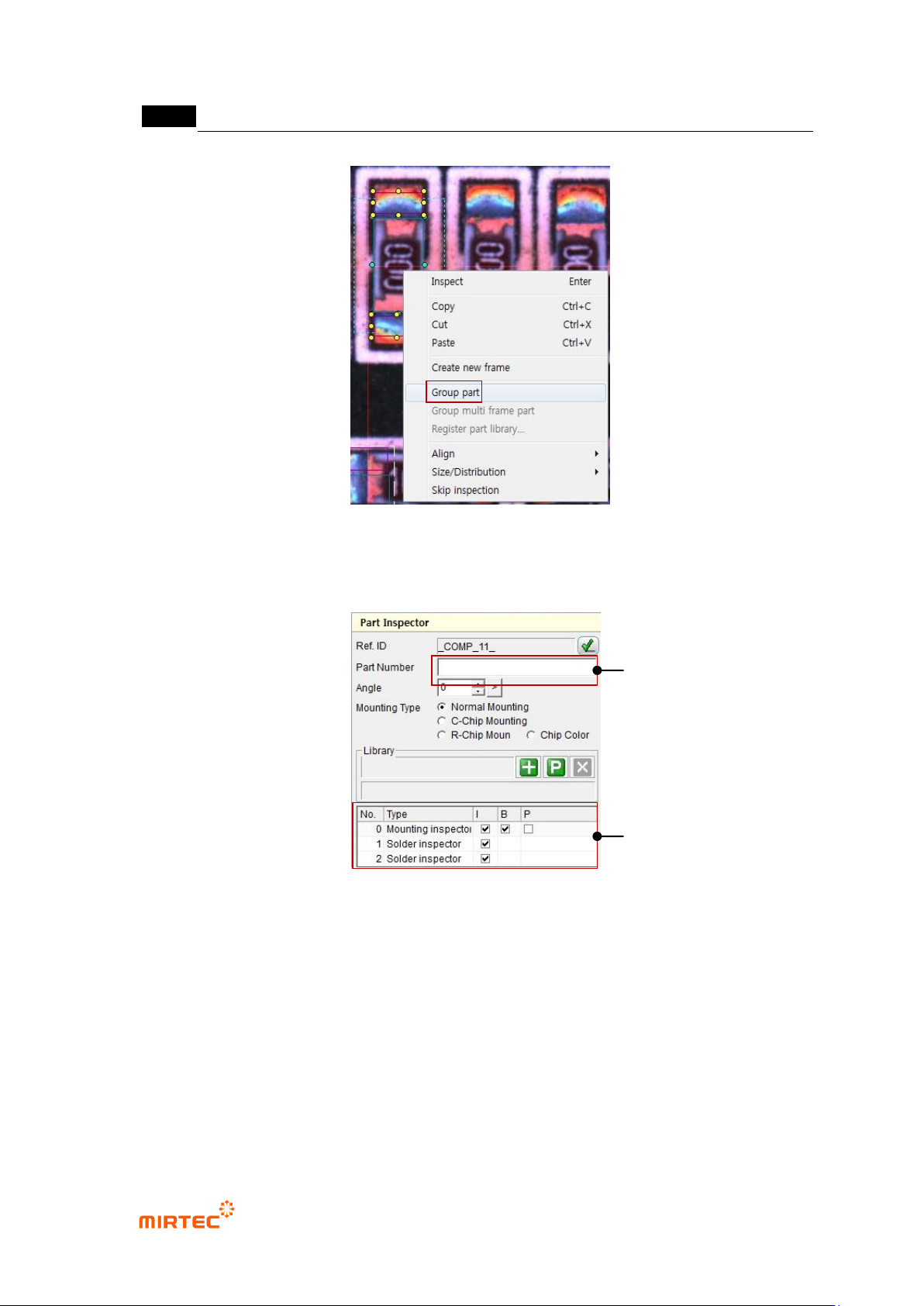
[Figure 5-22 Creating inspection window component]
- When operation status screen is converted to component inspection window as shown in
[Figure 5-40], component name of the relevant component can be entered.
[Figure 5-23 Component inspection window screen]
Rotation angle
- Angle of inspection window will be displayed in 0 ~ 359° unit. Angle of window that is
created through manual teaching will be always displayed by 0°, and inspection window
will rotate counterclockwise based on the current position.
- If inspection window is created by using ATT, angle information of the relevant component
will be displayed.
- To re-image image at rotated position, click <refresh> button in pattern image screen.
part name
Grouped inspection
window list
错误!使用“开始”选项卡将 제목 2 应用于要在此处显示的文字。错误!使用“开始”选项卡将 제목 2 应用
于要在此处显示的文字。 .
5-29
- In case of IC/Bridge teaching, basically rotate Bridge rightward for component teaching.
After adjusting rotation angle, make sure to click reset button to set initial value.
- In case of „Group component‟, angle must be same.
- If rotated component is saved in the library, angle value will be also saved to automatically
apply rotation value to component.
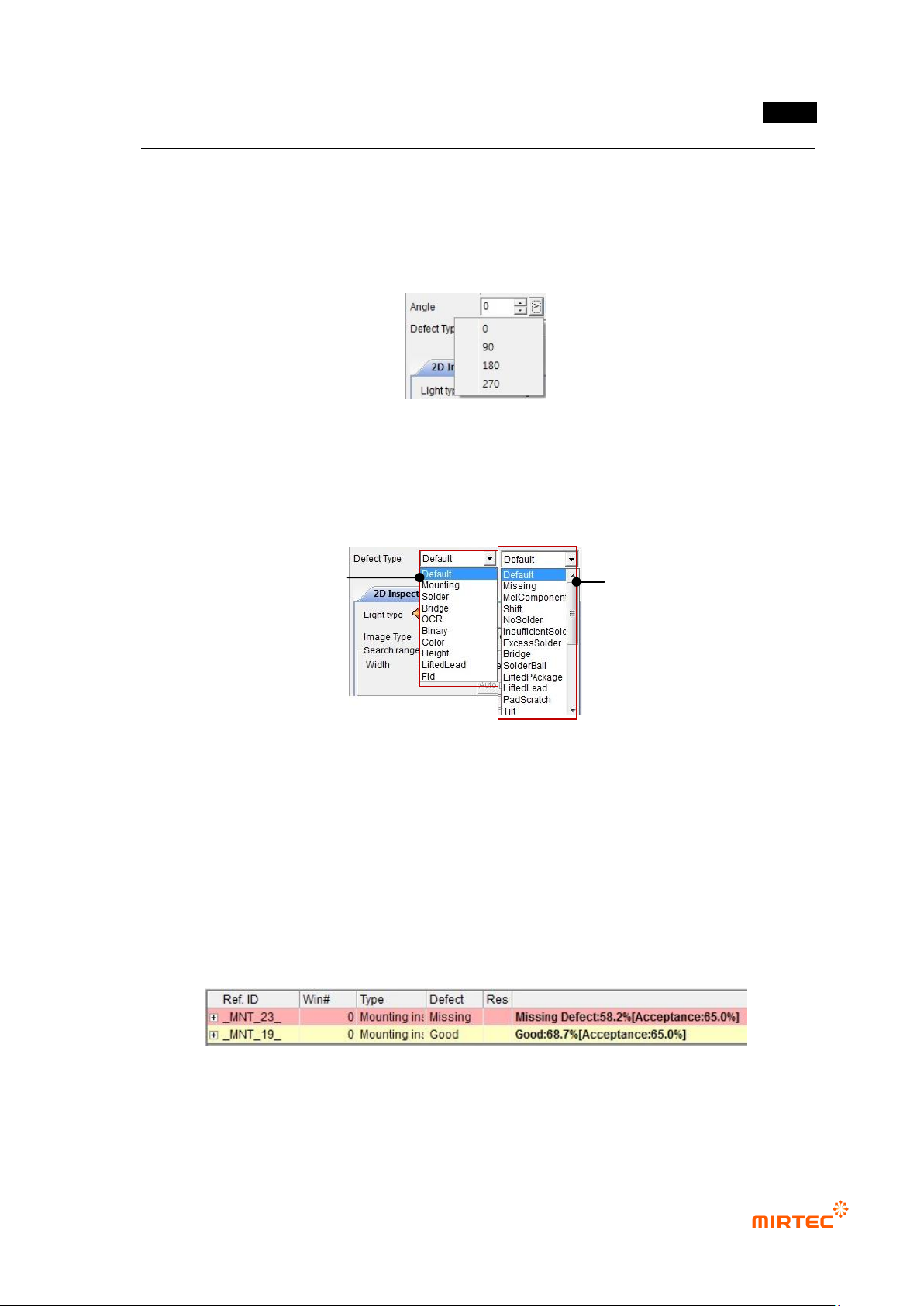
[Figure 5-24 Rotation angle input and selection]
Defect type
- As shown in [Figure 5-42], list to set inspection algorithm and defect type will be displayed
in each window screen to set detailed defect type.
[Figure 5-25 Detailed defect type list]
- The first selection item is inspection algorithm and the second selection item is detailed
defect type.
- If both of 2 selected items are selected as „default value‟, defect type set as inside defect
type and displayed. In other words, defect type judged by algorithm will be displayed.
- If defect type that excludes „default value‟ is selected, detailed setting defect type will be
displayed when defect occurs in the relevant window. In other words, if inspection
algorithm I set to „mount‟ and detailed defect type is set to „non-mounting‟, non-mounting
defect will be displayed when defect occurs in the relevant window.
[Figure 5-26 Detailed defect type result display status]
Select inspect algorithm
Detailed defect type
MV-9 User Manual
5-30
Light type
- This is to set light for inspection of the relevant inspection window that completed teaching.
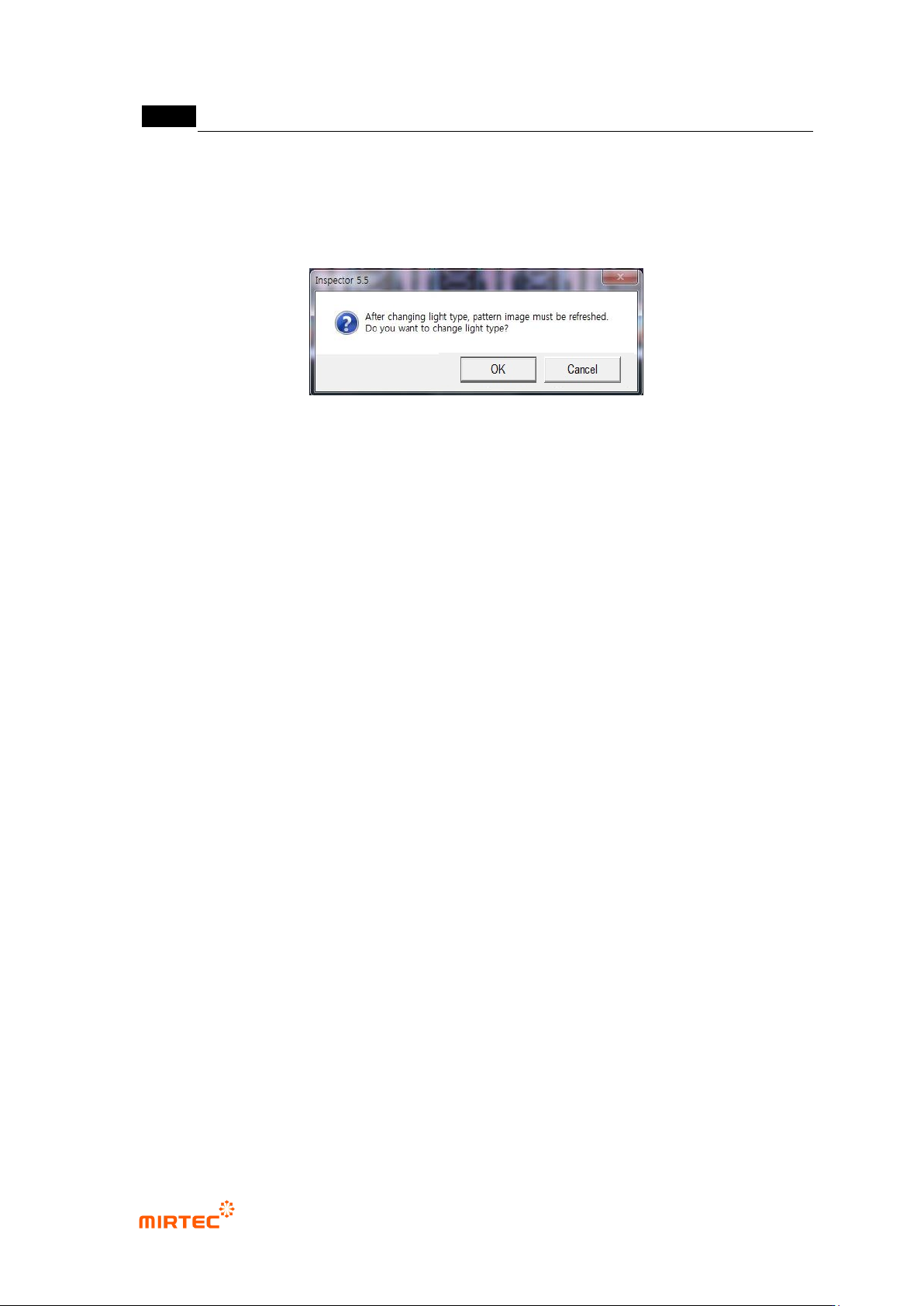
The screen below will be displayed when light type is changed. Click <Yes (Y)> button to
re-image and save image that is saved in the pattern image screen.
[Figure 5-27 Light type change screen]
Inspection type
- Inspection types means the type of component desired to be inspected. For teaching with
mounting inspection window, „Normal Mounting‟ will be displayed.
Search range
- Window that completed teaching can be set by pixel unit of width and height of area to be
searched in registered pattern image. Basically, width and area will be enlarge/reduced
with same value, and check at „check‟ button on the right of the area to set width and area.
Use offset region
- In case of window inspection that does not have 50% of offset region even though it is in
search range, judge as defect. It can be set by pixel unit of width and height of area.
Polarity
- Select this option to inspect component with polarity
Chip re-inspection
- This function is to re-inspect whether there is chip or not when image change is small
during chip inspection and false defect is decided. This function will be activated only when
inspection type is C chip or R chip.
Judge as good of defect
- This function is to reverse defect judgment result.
Sample inspection
- Sampling inspection will be conducted based on setting interval to reduce false defect ratio.
For more information, refer to „default setting (page 4-18)‟ in „Chapter 4 Config.‟.
Angle offset
- The range set as angle offset of shifted component will be judged as normal.