ISM_INM.pdf - 第5页
JOIN BUTTON FUNCTIO N Join button fu nction rev_00 E dition 11/2015 – Reproduction forb idden Page 5 Now I create a ne w session called “Session B” because the order changed. It is always composed by the boards A-B-C but…
JOIN BUTTON FUNCTION
Join button function rev_00 Edition 11/2015 – Reproduction forbidden
Page 4
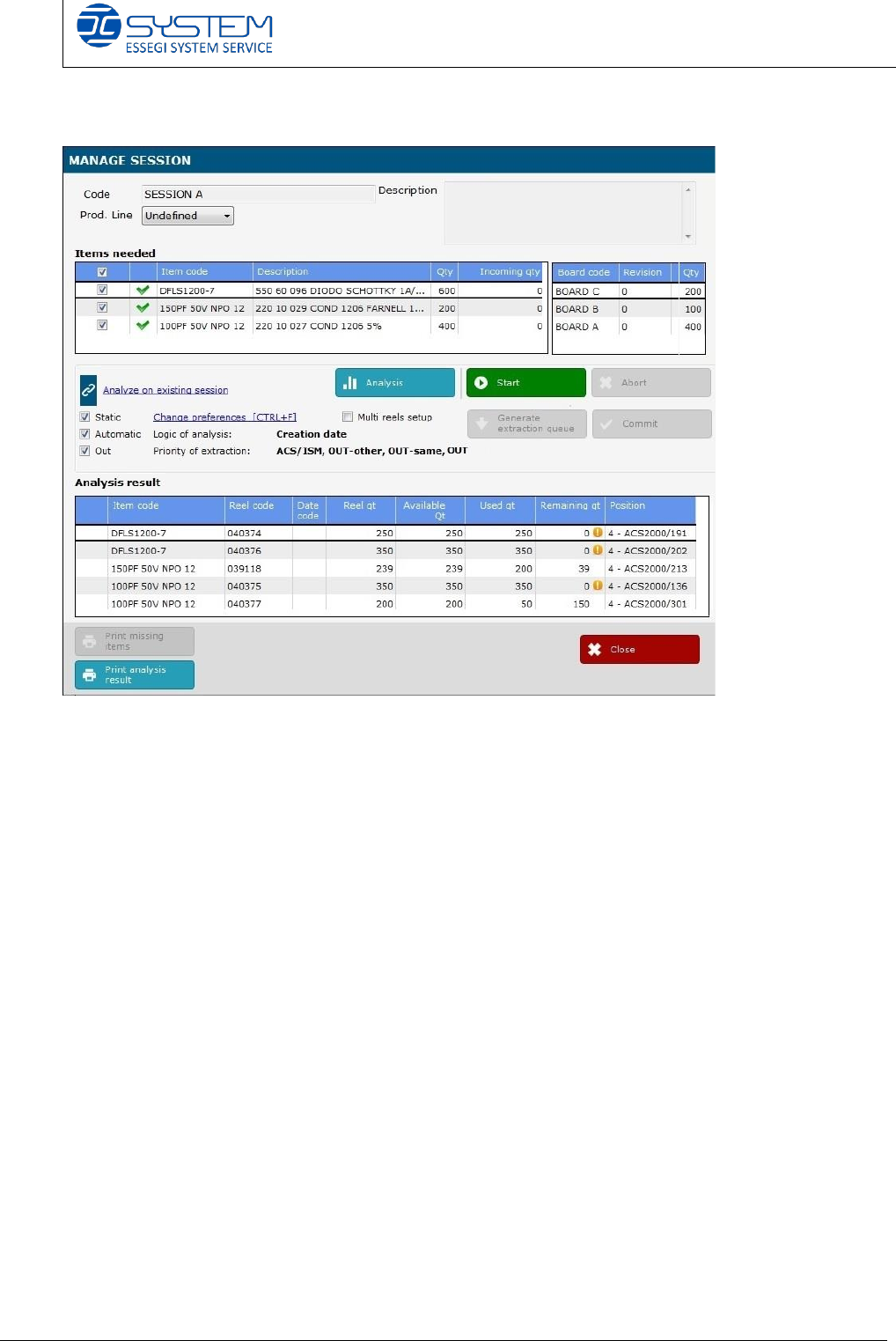
If we make an analysis, we can see there is all components required.
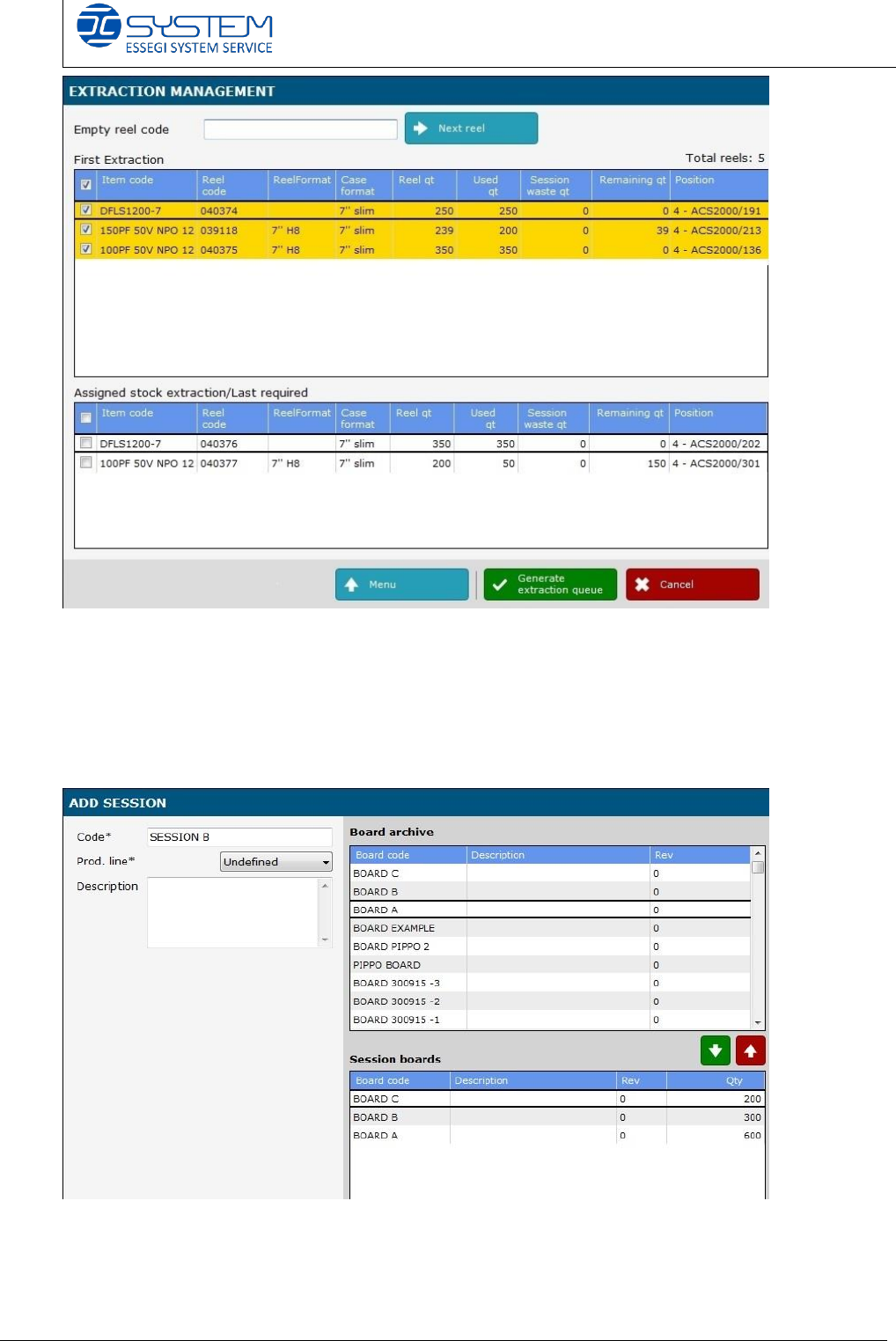
Clicking the “Start” button and then “Generate extraction queue”, the software
gives us the following reels:
- About item code DFLS1200-7, reel 040374 and then reel n. 040376
- About item code 150PF 50V NPO 12, only the reel 039118
- About item code 100PF 50V NPO 12,040375 and then reel n. 040377
JOIN BUTTON FUNCTION
Join button function rev_00 Edition 11/2015 – Reproduction forbidden
Page 5
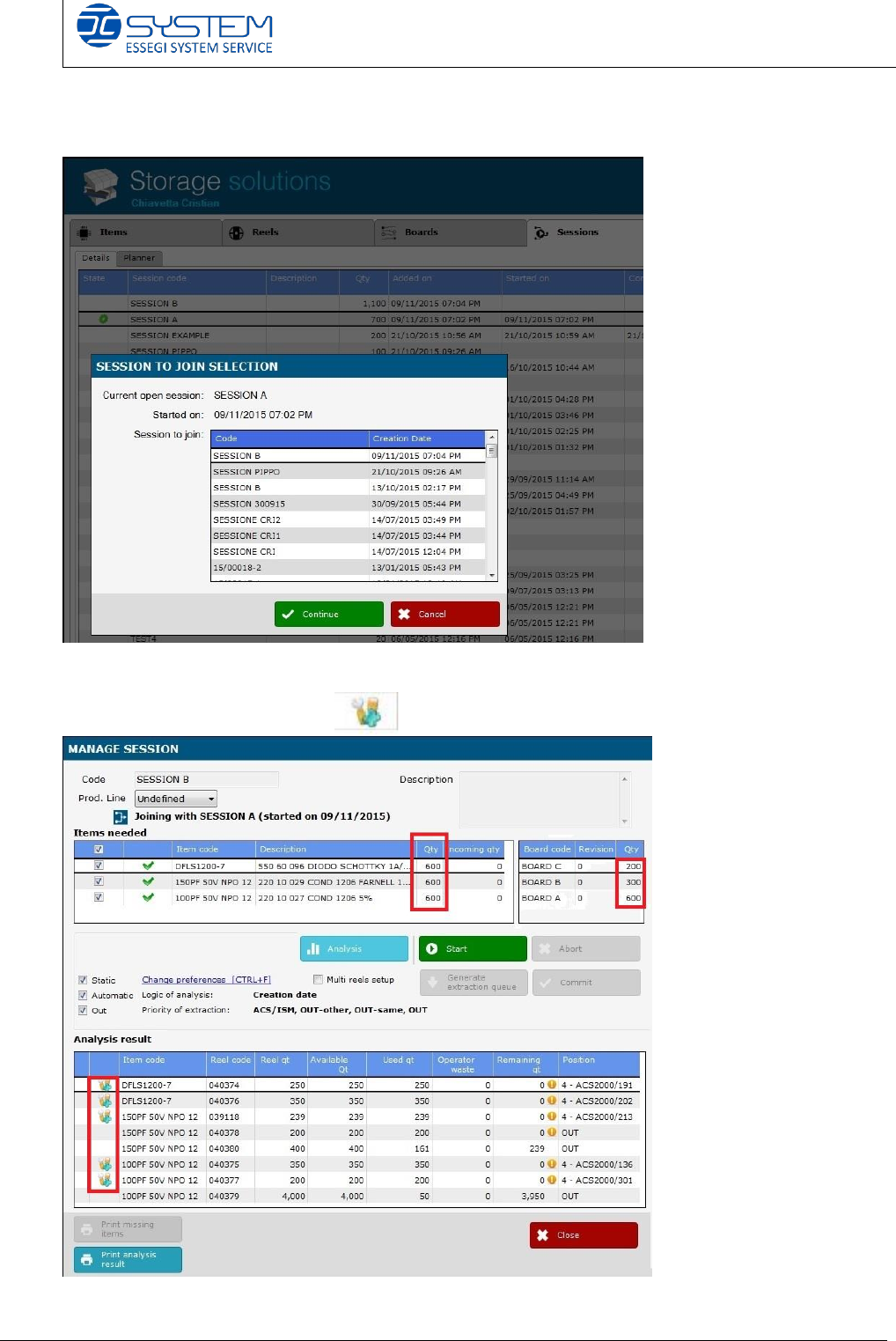
Now I create a new session called “Session B” because the order changed.
It is always composed by the boards A-B-C but the quantities are different:
- Board C: 200 pcbs type C
- Board B: 300 pcbs type B
- Board A: 600 pcbs type A
After creating the new session, we must:
- select the started session (this is the first session we created)
- click on the “Join” button
JOIN BUTTON FUNCTION
Join button function rev_00 Edition 11/2015 – Reproduction forbidden
Page 6
- select the session to joint (in this case, it is the new one)
- press the “continue” button.
We can see the quantities are changed and the software marks the reels
used earlier with this symbol