Installation_Manual_SIPLACE_Explorer_2.4_EN - 第26页
3 Installing SIPLACE Explorer Installation and Configuration Guide SIPLACE Explorer 3.1 Initial Installation of SIPLACE Explorer 2.4 Edition 08/2008 EN 26 (3) MS Excel 2003 with SIPLACE Explorer V2.4 MS Excel is required…
Installation and Configuration Guide SIPLACE Explorer 3 Installing SIPLACE Explorer
Edition 08/2008 EN 3.1 Initial Installation of SIPLACE Explorer 2.4
25
Consider the following before beginning the installation: 3
NOTE
Before installing Tomcat 5.5, make sure that all versions of Tomcat < 5.5 have been
uninstalled. Use the Apache Tomcat uninstallation program. This can be started via the
Start → Programs → Apache Tomcat 5.5 → Uninstall Tomcat menu in Windows. 3
NOTE
You will need to specify the following information when installing Tomcat 5.5:
- Port number for Tomcat: By default, Tomcat is installed on port 8080. This means that your
users will access your website as follows:
http://yourServerName:8080/yourWebsite/index.jsp.
- Access data for the Tomcat administrator:
User name: admin
Password: MS128. This password is needed for website generation.
This login will automatically be used as default login for Line Configuration - Step 7 "Website
Generation". 3
NOTE
Do not install Tomcat 5.5 on the C system drive if SIPLACE Explorer is used with MS
Windows Vista, otherwise report generation and report display in MS Excel will not work
properly. 3
NOTE
Before you install SIPLACE Explorer V2.4, make sure that Java 1.6 has been installed on
your computer. Install this software component via the support media DVD. 3
3 Installing SIPLACE Explorer Installation and Configuration Guide SIPLACE Explorer
3.1 Initial Installation of SIPLACE Explorer 2.4 Edition 08/2008 EN
26
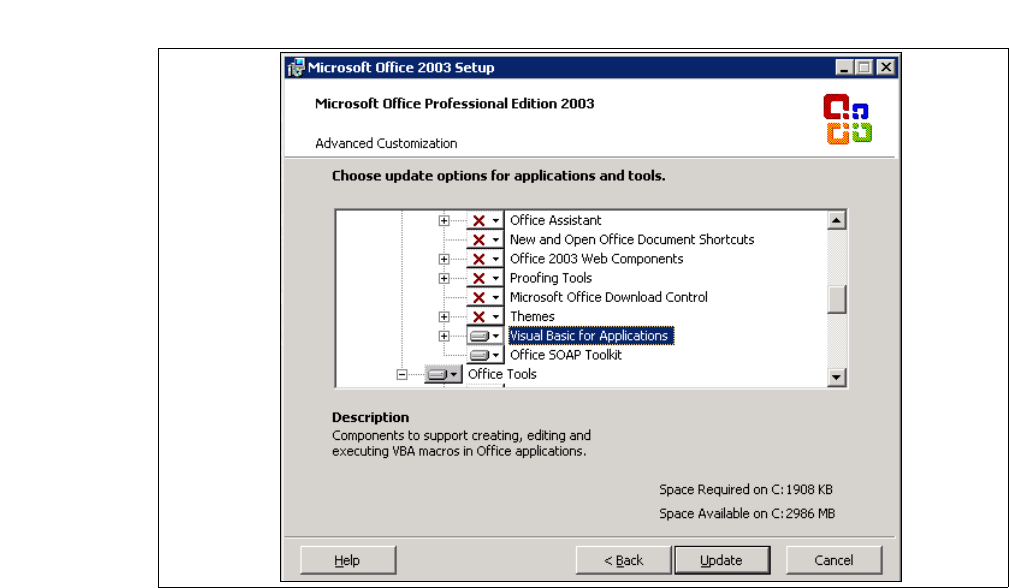
(3) MS Excel 2003 with SIPLACE Explorer V2.4
MS Excel is required for the computer on which Factory Reporting is to be installed. For a
successful operation of manually generated reports, the following option has to be enabled
with the MS Excel installation: 3
Custom installed options: Office Shared Features → Visual Basic for Applications 3
3
Fig. 3 - 1 MS Office Setup
(4) SIPLACE Explorer V.2.4 options:
The options SIPLACE Traceability Option V2.0 and SIPLACE Maintenance Manager V1.0 are
not included in the SIPLACE Explorer V2.4 delivery package and must be ordered (installed)
separately. 3
Installation and Configuration Guide SIPLACE Explorer 3 Installing SIPLACE Explorer
Edition 08/2008 EN 3.1 Initial Installation of SIPLACE Explorer 2.4
27
3.1.1 Installation of SIPLACE Explorer 2.4 - Initial Installation
NOTE
You must have Windows administrator privileges to perform installation. 3
→ Place the support media DVD in your DVD drive. Follow the instructions in the document
“Navigation Guide for the Installation Procedure of SIPLACE Software Systems” (Art.No.
00195050-xx).
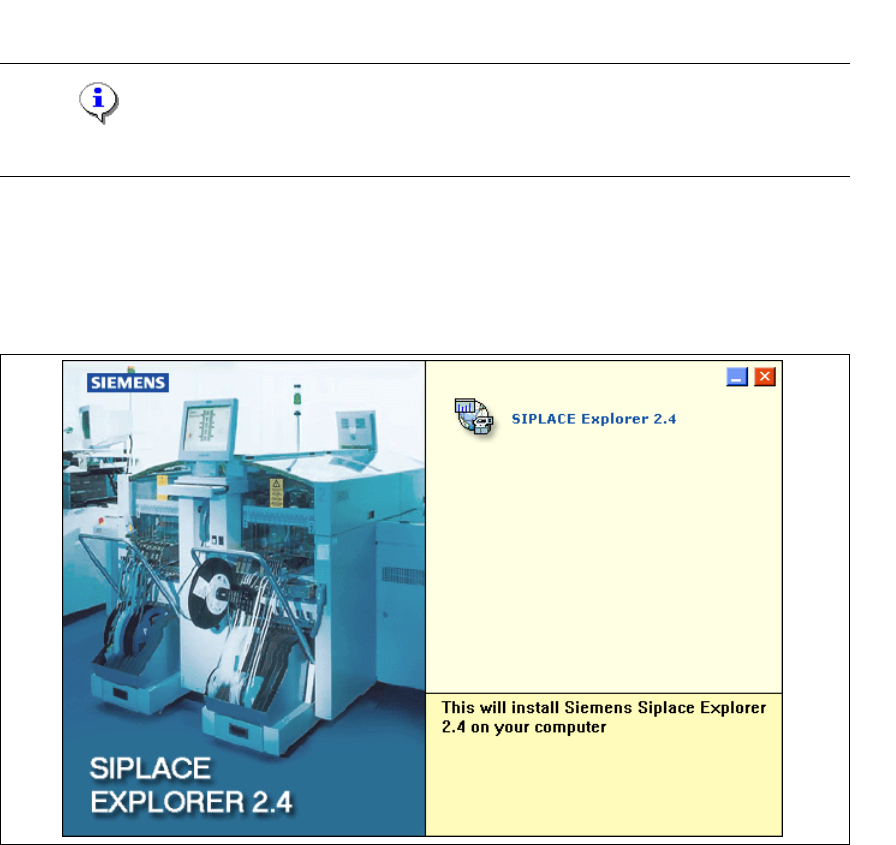
→ Place the SIPLACE Explorer CD in your CD-ROM drive. The Start screen will open.
3
Fig. 3 - 2 SIPLACE Explorer setup - Start screen
→ Select SIPLACE Explorer 2.4.