Installation_Manual_SIPLACE_Explorer_2.4_EN - 第43页
Installation and Configuration Guide SIPLAC E Explorer 3 Installing SIPLACE Explorer Edition 08/2008 EN 3.4 Tomcat Configuration 43 → SIP LACE Explorer V . 2.4 Fa ctory Configuration Utility S tart the Factory Config ura…
3 Installing SIPLACE Explorer Installation and Configuration Guide SIPLACE Explorer
3.3 Starting SIPLACE Explorer Edition 08/2008 EN
42
3
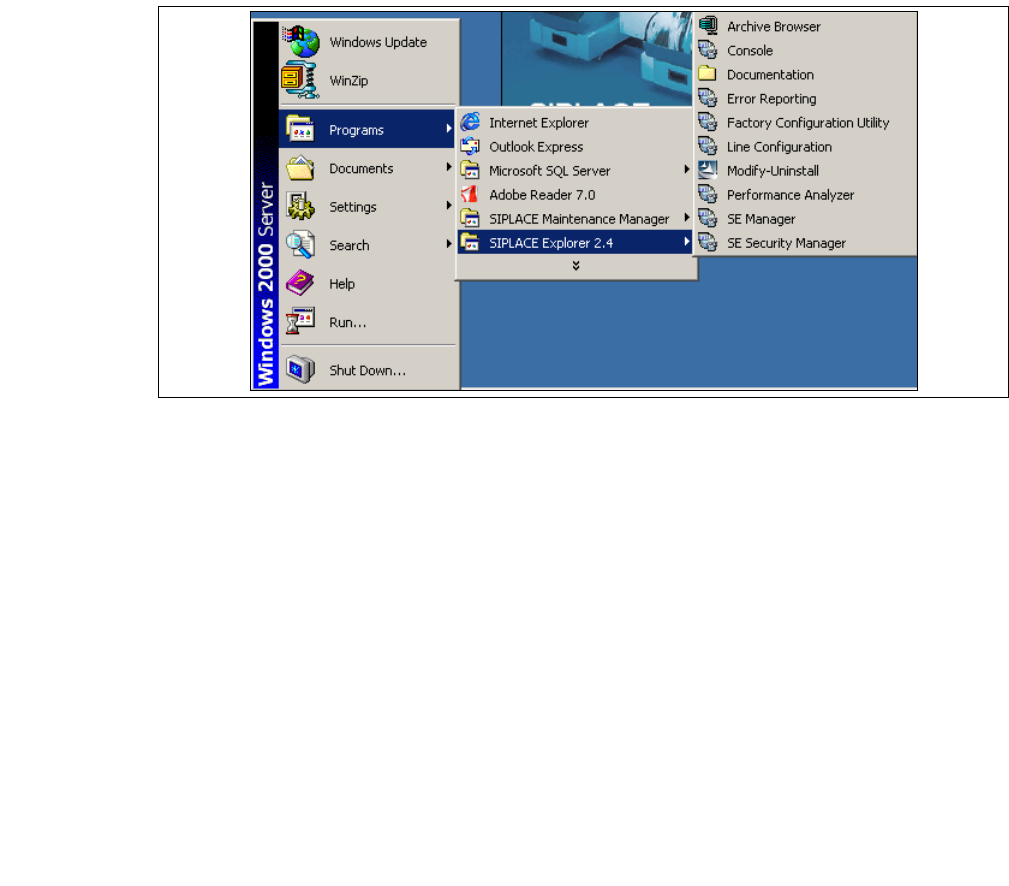
Fig. 3 - 23 RTE Windows Start menu
The following options are available: 3
– Archive Browser
–Console
– Documentation
–Error Reporting
– Factory Configuration Utility
– Line Configuration
– Modify-Uninstall
– Performance Analyzer
– SE Manager
– SE Security Manager
Installation and Configuration Guide SIPLACE Explorer 3 Installing SIPLACE Explorer
Edition 08/2008 EN 3.4 Tomcat Configuration
43
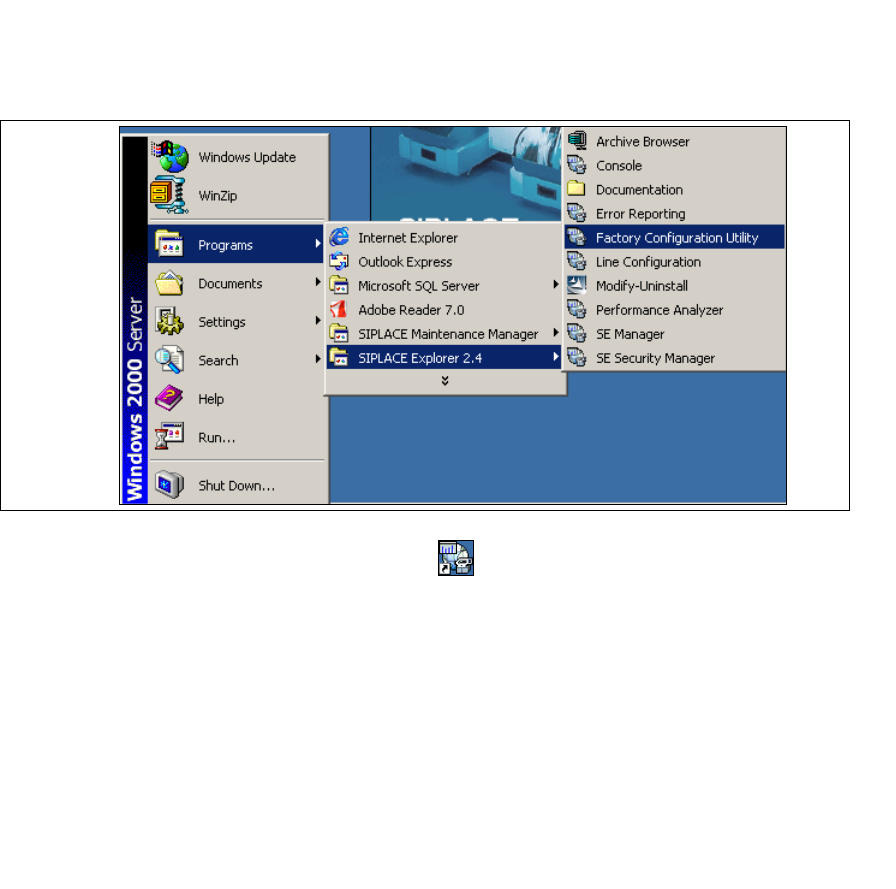
→ SIPLACE Explorer V.2.4 Factory Configuration Utility
Start the Factory Configuration Utility via the Programs → SIPLACE Explorer 2.4 → Factory
Configuration Utility menu in Windows. 3
3
Fig. 3 - 24 Factory Configuration Utility Windows Start menu
→ Or click on the Factory Configuration Utility icon on your desktop.
3.4 Tomcat Configuration
3.4.1 Using Windows Vista
If you have installed Windows Vista as your operating system, a workaround is needed for report
generation and report display in MS Excel. 3
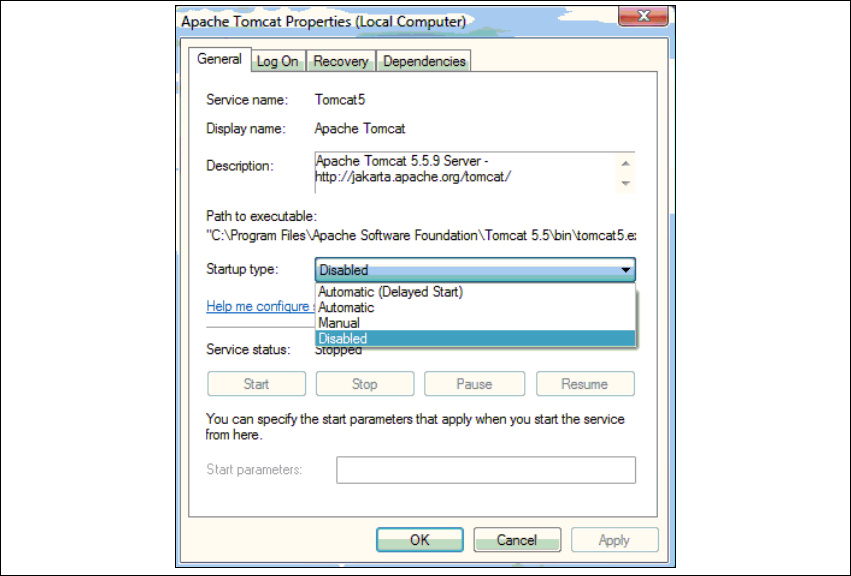
→ Disable the Apache Tomcat service. Select the windows menu Control Panel → Services.
→ Select Apache Tomcat and right click with the mouse, select Properties from the context
menu.
→ The Apache Tomcat Properties dialog box will open:
3 Installing SIPLACE Explorer Installation and Configuration Guide SIPLACE Explorer
3.4 Tomcat Configuration Edition 08/2008 EN
44
3
Fig. 3 - 25 Apache Tomcat
→ Select the Disabled option from the Startup type drop down list. Close the dialog box with OK.
→ Reboot your computer.
→ After rebooting and login, the following two windows will be displayed on the desktop. Don’t
close these two windows.