Installation_Manual_SIPLACE_Explorer_2.4_EN - 第45页
Installation and Configuration Guide SIPLAC E Explorer 3 Installing SIPLACE Explorer Edition 08/2008 EN 3.4 Tomcat Configuration 45 3 Fig. 3 - 26 Apache T omcat → Now you can generate the report s automatically or manual…
3 Installing SIPLACE Explorer Installation and Configuration Guide SIPLACE Explorer
3.4 Tomcat Configuration Edition 08/2008 EN
44
3
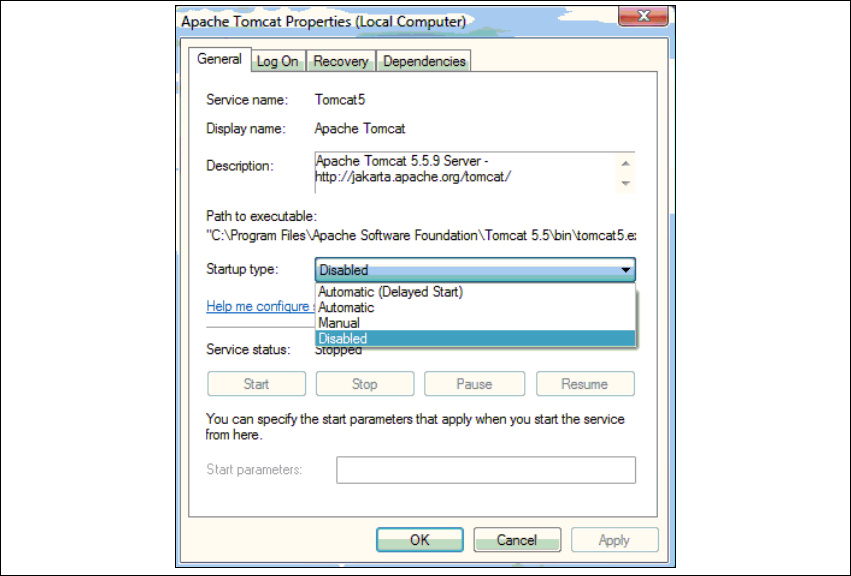
Fig. 3 - 25 Apache Tomcat
→ Select the Disabled option from the Startup type drop down list. Close the dialog box with OK.
→ Reboot your computer.
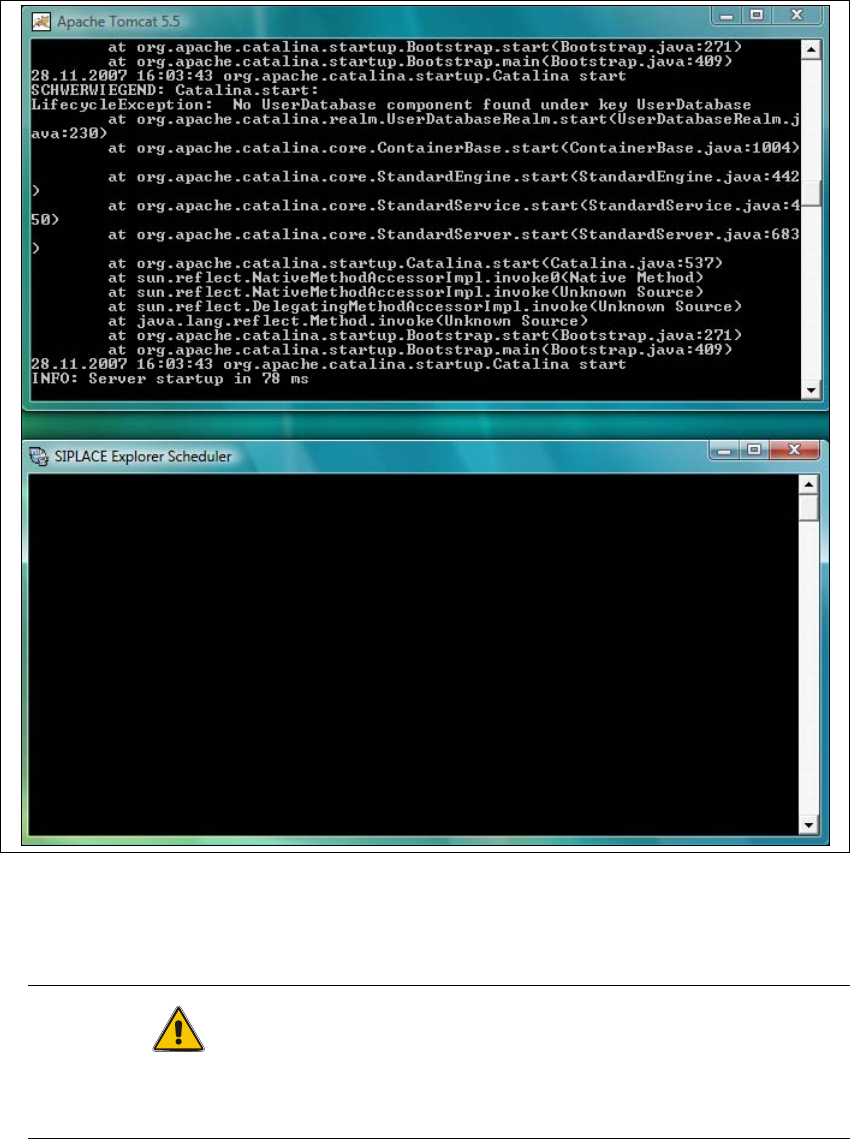
→ After rebooting and login, the following two windows will be displayed on the desktop. Don’t
close these two windows.
Installation and Configuration Guide SIPLACE Explorer 3 Installing SIPLACE Explorer
Edition 08/2008 EN 3.4 Tomcat Configuration
45
3
Fig. 3 - 26 Apache Tomcat
→ Now you can generate the reports automatically or manually. The reports can also be displayed
via MS Excel.
CAUTION
Don’t close these two windows, otherwise report generation and report display in MS Excel
is not possible. 3
3 Installing SIPLACE Explorer Installation and Configuration Guide SIPLACE Explorer
3.4 Tomcat Configuration Edition 08/2008 EN
46
3.4.2 Using Windows 2003 Server
If you have installed Windows 2003 Server as your operating system, you will need to reconfigure
the web server (Tomcat) before using SIPLACE Explorer V2.4. This configuration will be done via
Internet Explorer. 3
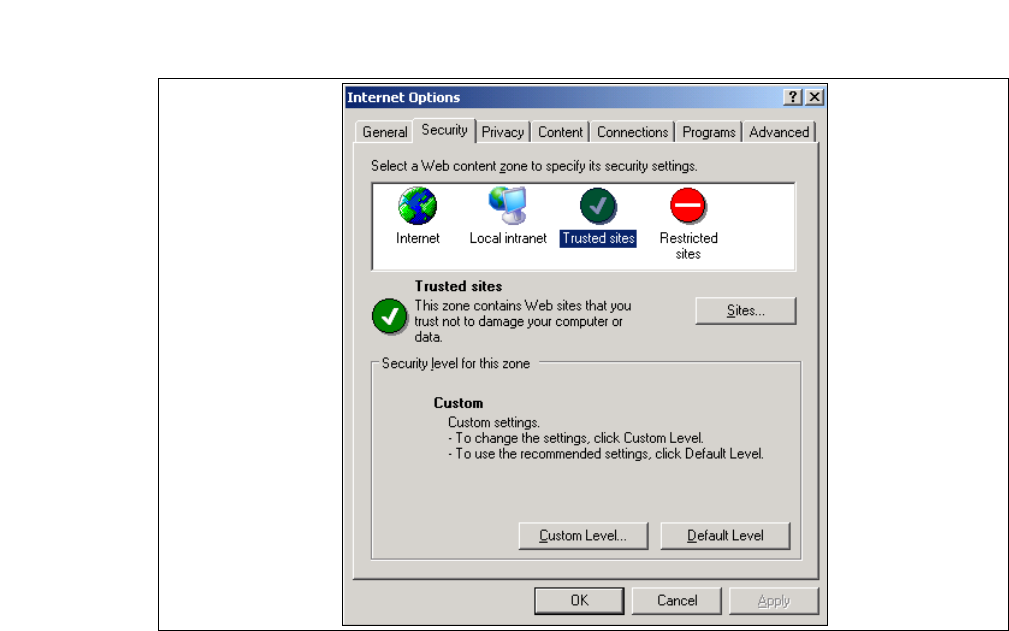
→ Select the menu Tools → Options.
→ The Internet Options dialog box will open:
3
Fig. 3 - 27 Internet Options
→ Select the Security tab.
→ Click on the Trusted Sites icon and click on Sites.
→ The Trusted Sites dialog box will open: