00197496-01_UM_SiClusterMultiline_DE_EN.pdf - 第137页
How to Configure a Multi Line Job 4.6.1 Initial Setups Added - Result Editing Process Capabilities for Lines (Optional) SIPLACE SiCluster Multiline SIPLACE SiCluster Multiline 137 4.7 4 . 7 E d itin g P r o c e s s C a p…
How to Configure a Multi Line Job
Adding Initial Setups 4.6.1 Initial Setups Added - Result
136 SIPLACE SiCluster Multiline SIPLACE SiCluster Multiline
4.6.1
4.6.1 Initial Setups Added - Result
Initial Setups Added - Result
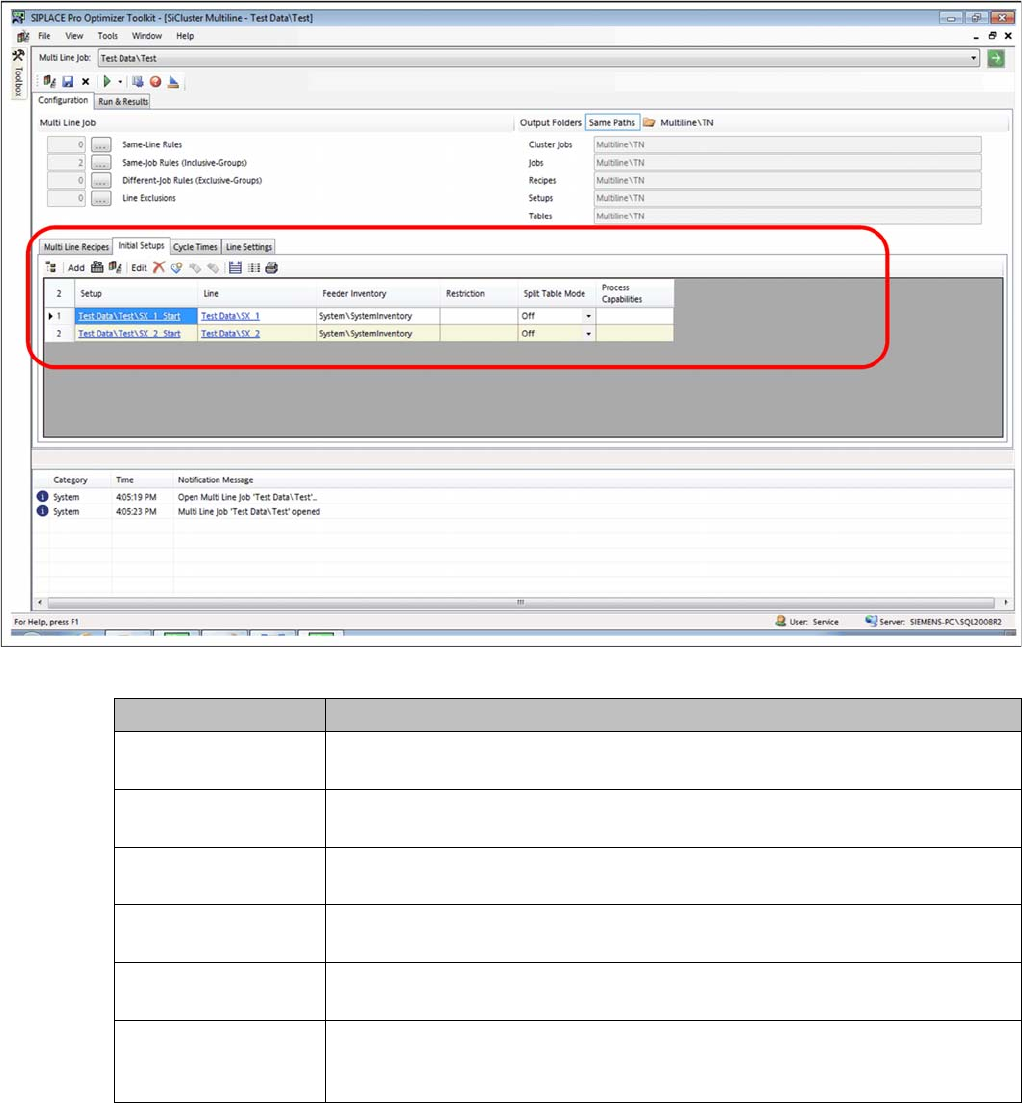
You have added two setups. However, there are no process capabilities or line omissions defined.
Result: Setup added
Parameter Description
Setup Shows the path and the name of the setup. Click on the entry to open the setup
in the SIPLACE Pro Editor.
Line Shows the path and the name of the line. Click on the entry to open the line in
the SIPLACE Pro Editor.
Feeder Inventory Enables you to allocate a feeder inventory. Doublelclick on this cell to select a
feeder inventory from the list of available feeder inventories.
Restriction Enables you to assign a restriction. By doubclicking on this cell you can select
a restriction from the list of available restrictions.
Split Table Mode Allows you to enable/disable split table mode. Split table mode must be defined
in the initial setup of the respective line.
Process capabilities Shows the process capabilities for the line. Double click on this cell to open the
Edit Process Capabilities dialog box. You can edit the process capabilities for
the line.
How to Configure a Multi Line Job
4.6.1 Initial Setups Added - Result Editing Process Capabilities for Lines (Optional)
SIPLACE SiCluster Multiline SIPLACE SiCluster Multiline 137
4.7
4.7 Editing Process Capabilities for Lines (Optional)
Editing Process Capabilities for Lines (Optional)
You can allocate Process capabilities to the lines. See also "6 Working with Process Requirements and
Process Capabilities" [ ➙ 163].
If, for example, a board has the process requirement "lead-free soldering", this board will only be distrib-
uted to lines which have the process capability "lead-free soldering".
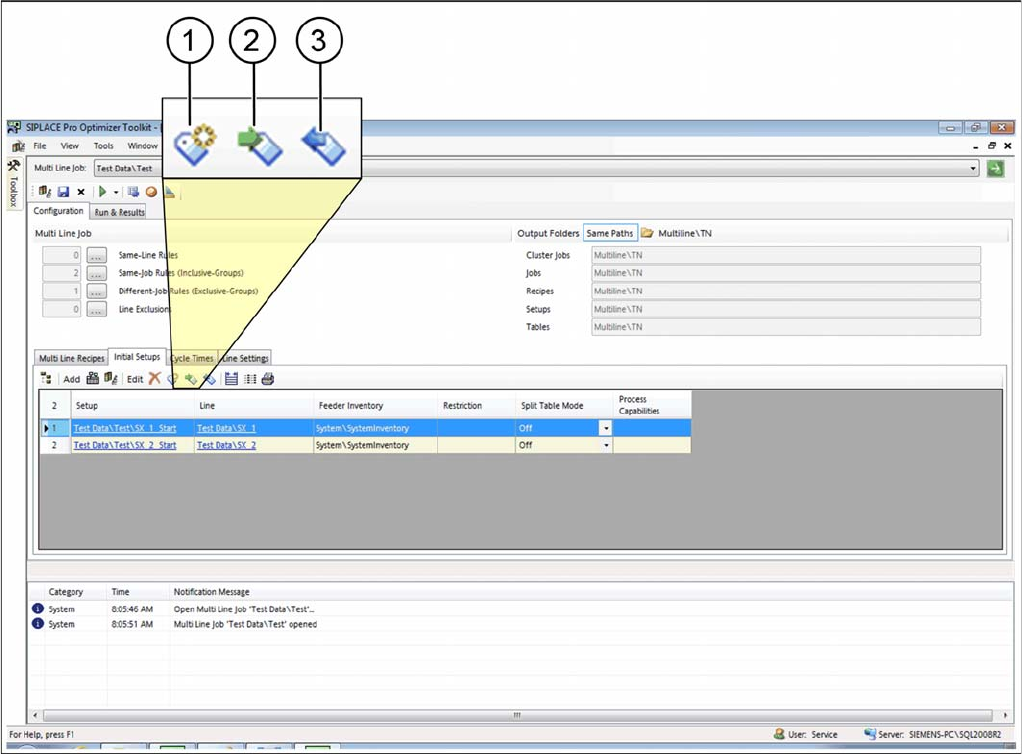
► Select one or more setups in the initial setups table.
⇨ The icons for editing process capabilities will be enabled.
Tab: initial setup: process capabilities
How to Configure a Multi Line Job
Editing Process Capabilities for Lines (Optional) 4.6.1 Initial Setups Added - Result
138 SIPLACE SiCluster Multiline SIPLACE SiCluster Multiline
Procedure
► Select the icon from the toolbar in the table.
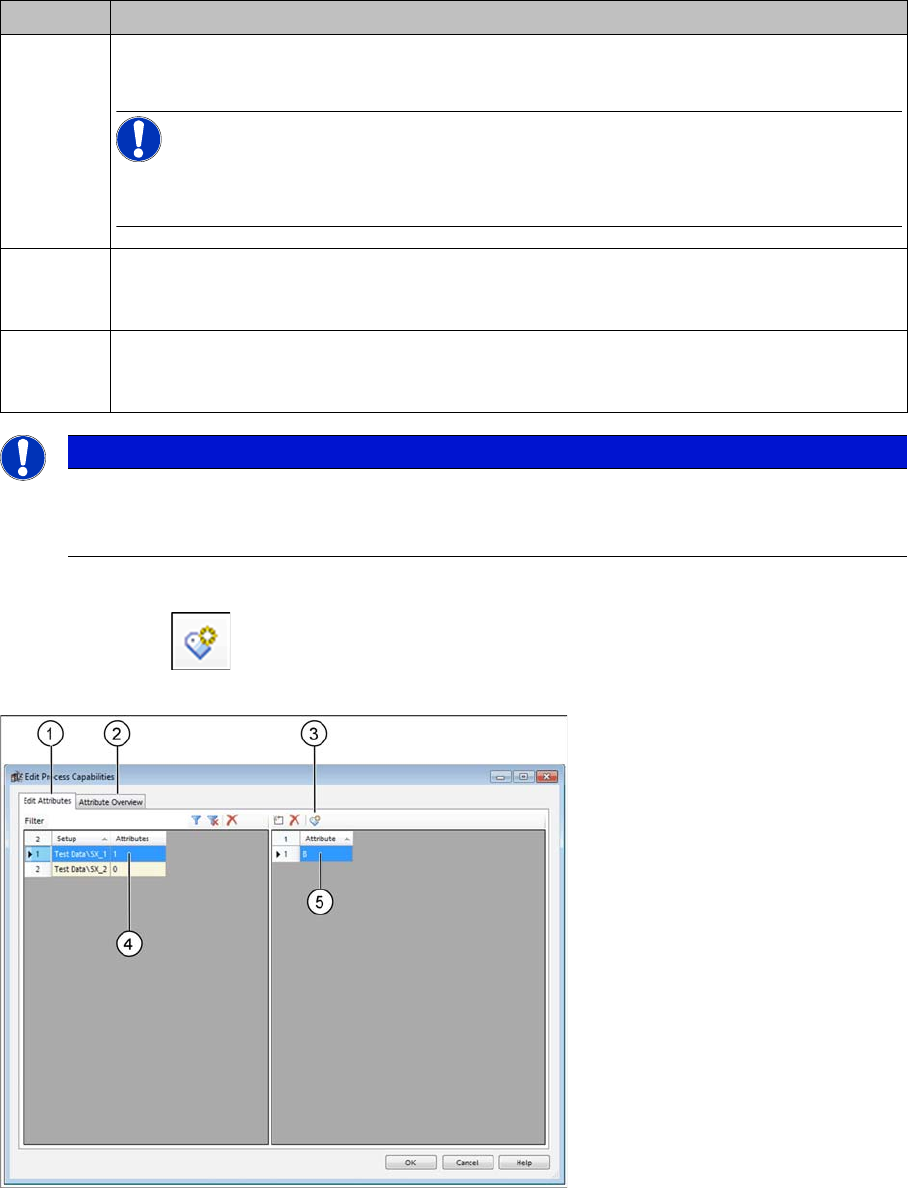
⇨ The Edit Process Capabilities dialog box will open.
Dialog box: edit process capabilities
► Go to the Edit Attributes tab (1) and select the setup (4).
► Use the (3) icon to add a new attribute from the list of existing attributes. The "6.5 Adding Attributes"
[ ➙ 169] dialog box will open.
⇨ To continue this example (5), we will add attribute B . This attribute specifies that boards with the
process requirement B can be produced on this line.
⇨ The Attribute Overview (2) tab shows all the existing process capabilities for all recipes in the current
multi line job.
Icon Description
1 The Edit Process Capabilities dialog box will open.
You can also edit the process capabilities for the line or setup.
NOTICE!
These changes are for test purposes and are only effective in the context of the multi line
job. These changes are not automatically transferred to the SIPLACE Pro data.
2 The process capabilities from the SIPLACE Pro Line Editor will be imported into the multi
line job by SiCluster Multiline. Changes made to the SiCluster Multiline multi line job will
be overwritten with the data from SIPLACE Pro.
3 The process capabilities from the SIPLACE Multiline multi line job will be exported to the
SIPLACE Pro line descriptions. Data from the SIPLACE Pro Line Editor will be overwritten
by data from the SiCluster Multiline multi line job.
NOTICE
Alternative for existing process capabilities
With a doubleclick in the relevant cell of the table column Process Capabilities, you also open
the Edit Process Capabilities dialog box.