00198055-01_IM_Taceability5.0_EN.pdf - 第24页
Installation of Trace Service and Monitor Trace Monitor 4.3.1 Installation of Trace Monito r 24 Installation Manual SIPLACE Traceability 5.0 4.3.1.1 4 . 3 . 1 . 1 T r o u b le s h o o t in g Troubleshooting Collation con…
Installation of Trace Service and Monitor
4.3.1 Installation of Trace Monitor Trace Monitor
Installation Manual SIPLACE Traceability 5.0 23
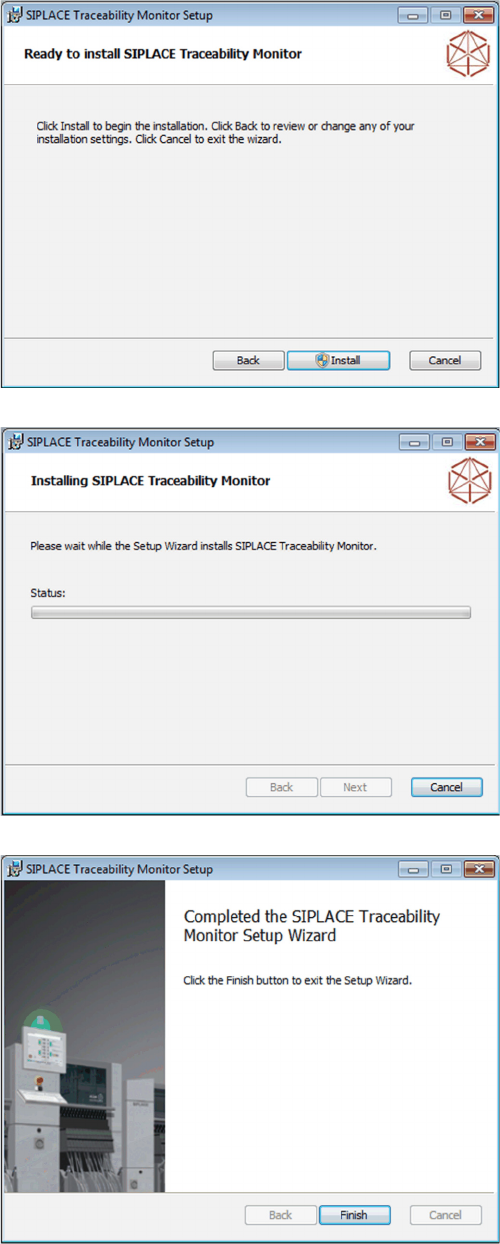
► Make sure that you have administrator rights.
► Start the installation by clicking on Install.
► The installation of Trace Monitor will begin.
► The installation is successfully finished.
► Click Finish to exit.
⇨ The Trace Monitor can be started within SIPLACE
Studio.
Installation of Trace Service and Monitor
Trace Monitor 4.3.1 Installation of Trace Monitor
24 Installation Manual SIPLACE Traceability 5.0
4.3.1.1
4.3.1.1 Troubleshooting
Troubleshooting
Collation conflicts when restoring database backup
When restoring the database backup, the SQL Server must have the same collation as the database
backup. Otherwise run time errors and collation conflicts will occur when performing data query in Trace
Monitor.
► In case of collation conflicts we recommend you to recreate the SQL Server.
Uninstalling
Installation Manual SIPLACE Traceability 5.0 25
5
5 Uninstalling
Uninstalling
Trace Monitor or Trace Service from Control Panel
NOTICE
Requirement
You need administrator privilege for your operation system in order to perform this steps.
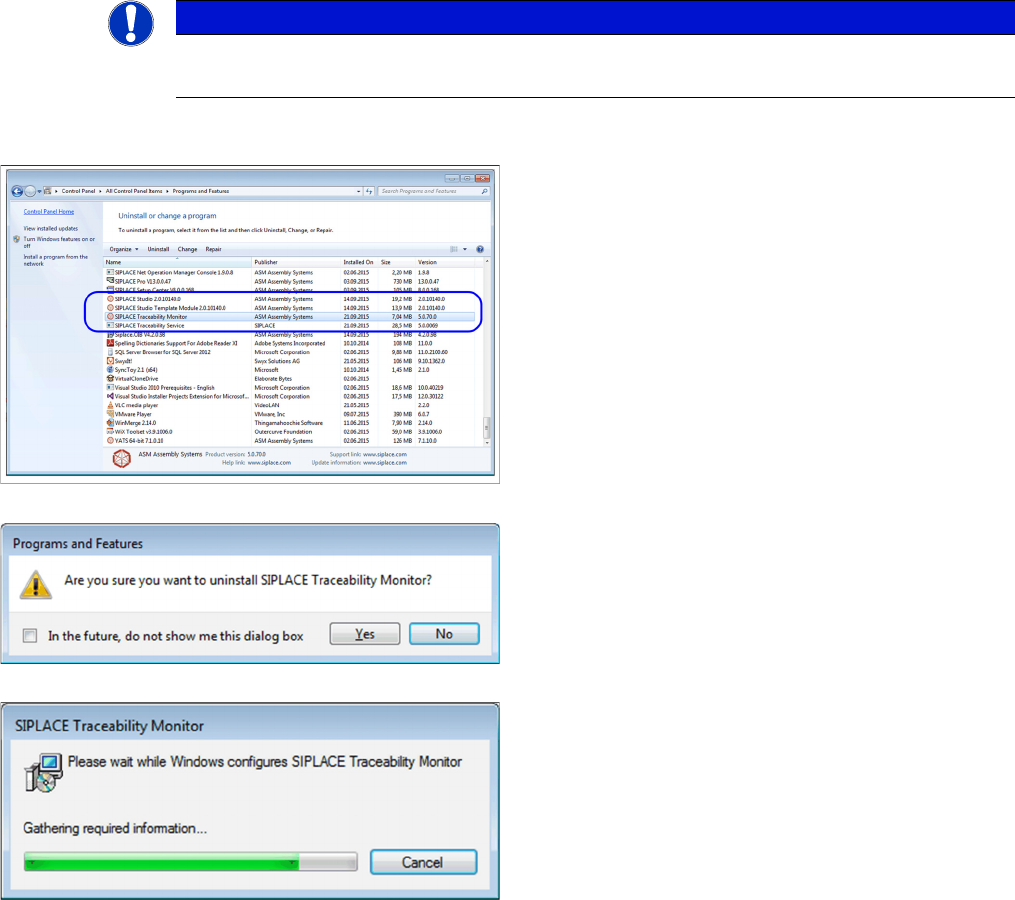
► In the Control Panel -> All Control Panel Items ->
Programs and Features dialog select the application
SIPLACE Traceability Monitor or SIPLACE
Traceability Service , right-click and select Remove in
the context menu.
You are prompted to confirm uninstalling Trace Monitor.
► Confirm with Yes.
► The Install Shield Wizard will start and uninstalling
Trace Monitor or Trace Service will be prepared. un-
installing Trace Monitor or Trace Service will be unin-
stalled.
► Monitor or Trace Service is no longer available.