2500_Users_Manual - 第106页
Task s and Ki ts ProM aster 25 00 User Manua l 3-31 3. Multiple User /Password Mode — In this mode, e ach use r has a password and mu st enter it before TaskLi nk will display the main screen. Users are assigned an autho…
Tasks and Kits
3-30 ProMaster 2500 User Manual
Programmer Port... and
ProMaster Port...
These screens allow you to change the configuration on the two RS-232C
ports on the PC, which are configured for the Programmer Port on COM
1 and the Handler port on COM 2 using no parity, 8 data bits, and 1 stop
bit. These settings should not need to be changed under normal
operation. If you do change the configuration, you must exit TaskLink to
save the new settings.
Set Message Editor...
This parameter must be set so TaskLink can find the ASCII text editor you
will be using to create your Kit messages. When you select this
command, TaskLink allows you to enter the DOS path and executable file
name to start your ASCII text editor. You must save these messages in an
unformatted text file called
tl.msg
. (Refer to page 3-36 for more
information on creating message screens for Kits.)
System Security
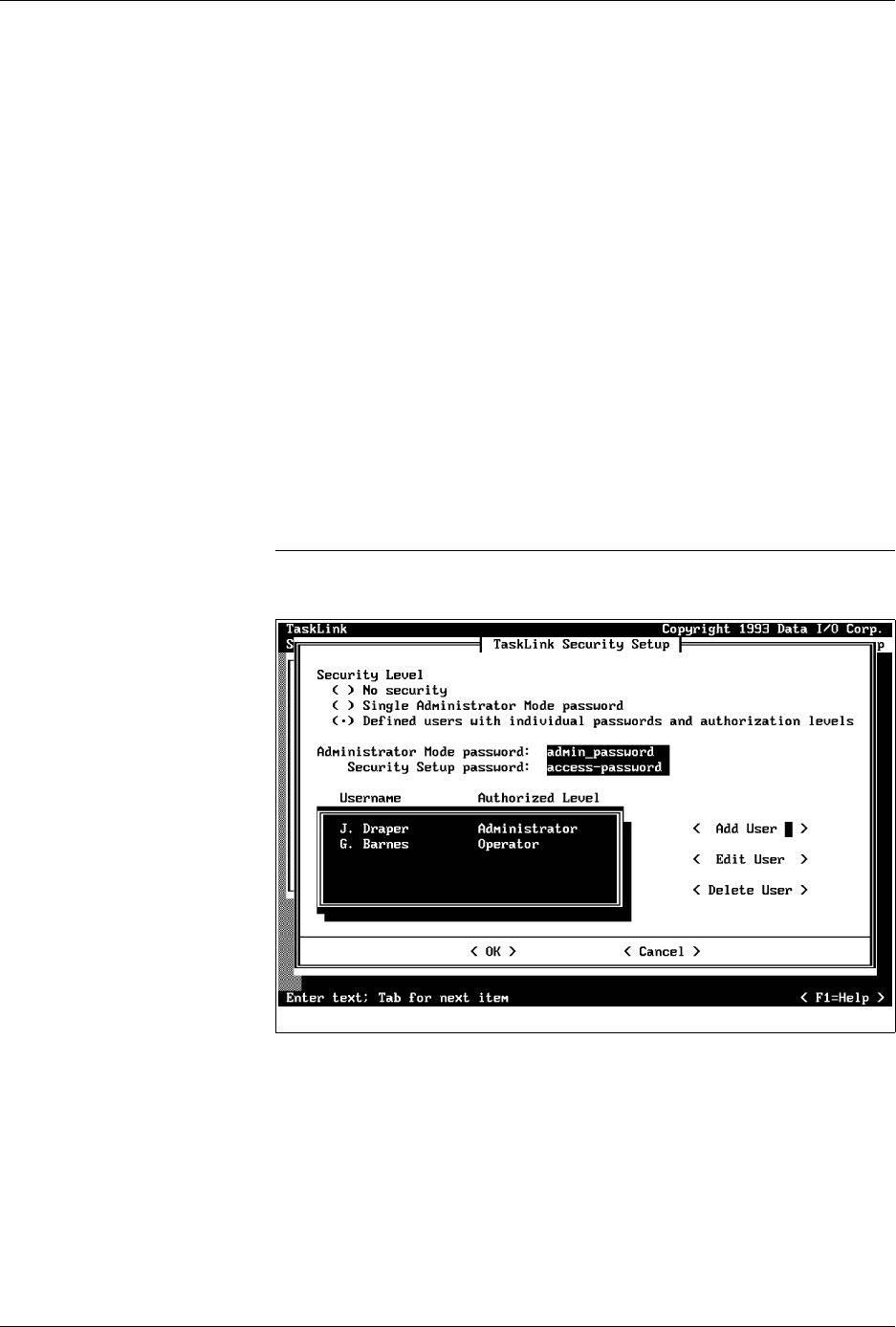
Using the security options, the system administrator can configure the
system so all users (administrators and operators) are required to enter a
password before they can access TaskLink menus and run the system. To
use the
Security Setup
menu, select
Options
from the Main menu. Then
select
System Security...
from the
Options
pull-down menu.
Press
↵
to access the
TaskLink Security Setup
dialog box.
Note: The security system used by TaskLink is DOS based, and is thus restricted
by the limitations imposed by that operating system.
Three levels of security are available:
1.
No security
—Equivalent to earlier versions of TaskLink, this level
allows any user to access either operator or administrator mode. This
is the default security level.
2.
Single Administrator Mode Password
—TaskLink requires a
password to enter the administrator mode. One common password is
used by any user to access this mode. No password is required to
operate TaskLink in operator mode.
Figure 3-19
Selecting Security Options
Tasks and Kits
ProMaster 2500 User Manual 3-31
3.
Multiple User/Password Mode
—In this mode, each user has a
password and must enter it before TaskLink will display the main
screen. Users are assigned an authorization level as either an
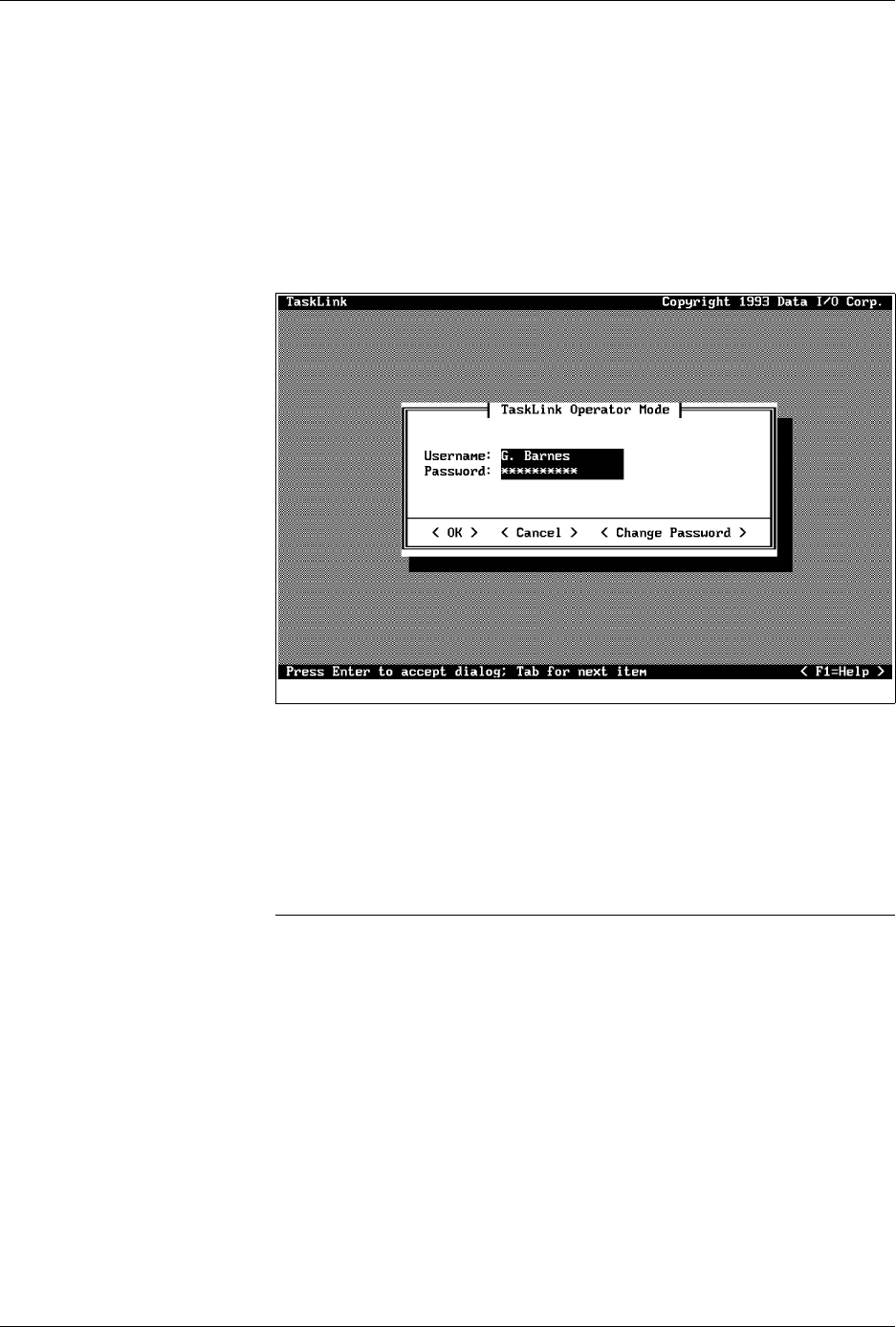
administrator or operator (see Figure 3-20).
Depending on the security level selected, you can configure TaskLink to
require operators and administrators to enter their user name and
password before the main screen is displayed (see Figure 3-20). Users
who have been authorized as operators are restricted to the operator
mode and blocked from all administrator mode commands.
The default operator mode password is
password
. Each operator may
create a unique password to replace this default, and can change it by
selecting the
Change Password
pushbutton from the login dialog box
(see Figure 3-20). Screen prompts guide user through the process.
If an operator forgets a password, the system administrator must remove
that operator’s name from the list of users and reenter it. This allows the
operator to start over using the default password.
Note: If no one knows the correct password to use to enter a mode, call Customer
Support for assistance.
Administrators who successfully enter their user names and passwords
can access both operator and administrator modes. Press
F10
to switch
between these modes of operation (when a security level is selected,
F10
does not switch between modes). Each time you try to reenter
administrator mode from the operator screen, TaskLink prompts you to
enter the administrator password.
When security level 2 or 3 is selected, a password is required to gain
access to the
Security Setup
dialog box. Figure 3-19 shows
access-
password
as an example of a password that must be entered before an
administrator can access this dialog box.
Figure 3-20
Password Screen for System
Operators
Tasks and Kits
3-32 ProMaster 2500 User Manual
Set Preferences...
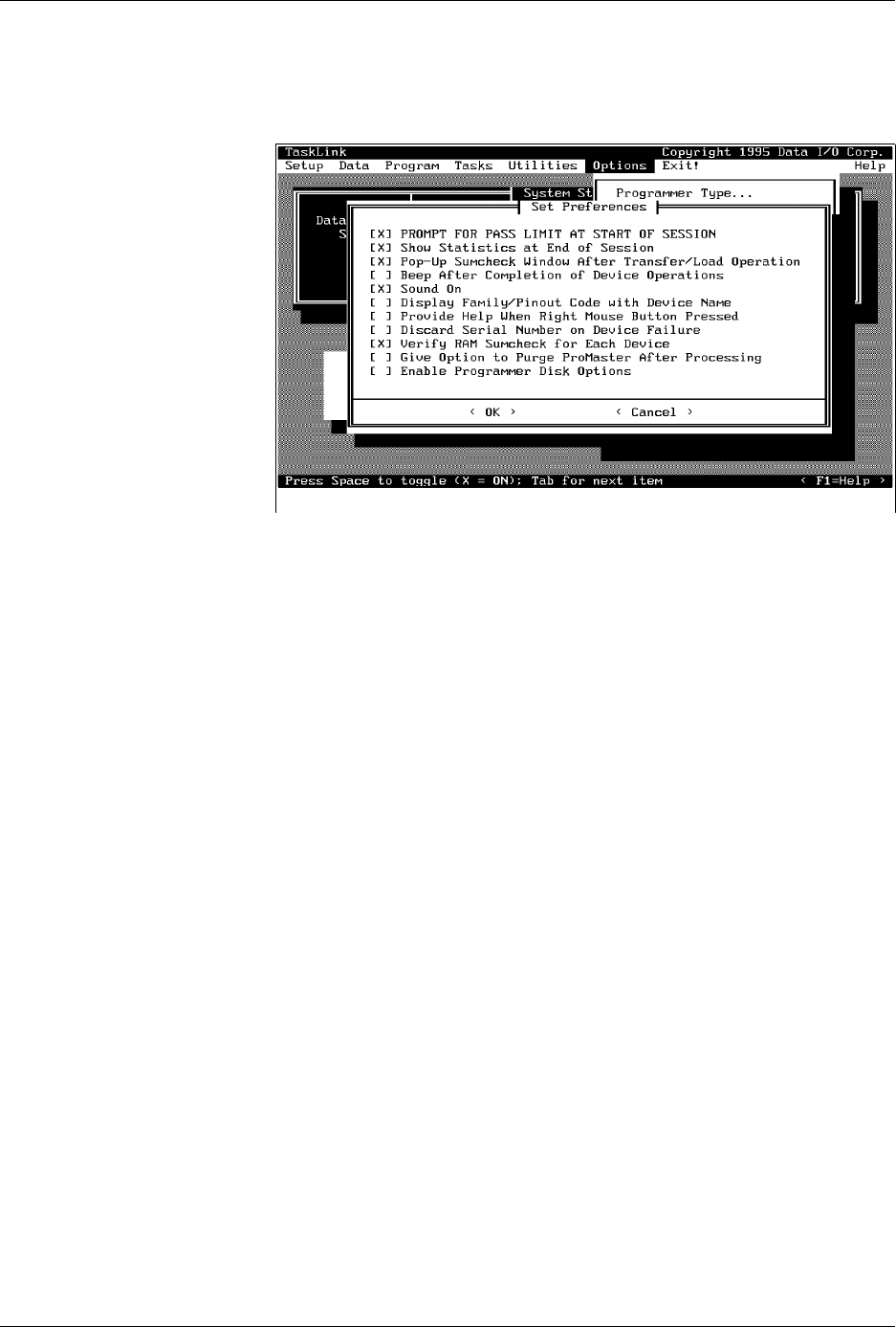
This set of check boxes allows you to configure some of TaskLink’s
optional system prompts and operating preferences. Press
F1
to invoke
TaskLink’s online Help for more information on the choices presented.
Two of the options that are particularly useful with the ProMaster 2500
are described in the following sections.
Purge ProMaster After
Processing
This option directs the 2500 to remove all devices from the track sections,
moving them to an output tube. The operator does not have to manually
remove devices from the tracks and load them, observing correct polarity,
into tubes.
TaskLink displays a purge dialog box when:
• Devices are in the track at the end of a Task or programming session.
• A Task has been terminated by the operator.
• The next Task in a Kit uses a different device type.
The
Purge...
dialog box prompts the operator to choose
<OK>
to start
purging parts from the system. If
<CANCEL>
is selected, any parts in the
tracks must be removed by the operator.
Remove the input tube if it has any devices and make sure that at least
one empty output tube is installed before selecting
<OK>
. TaskLink will
send all devices detected in the input track through the 2500 before it
completes the purge operation.
Enable Programmer
Disk
TaskLink (V1.4 or higher) will create and load your data files on either the
2500’s floppy drive or the MSM. To see the new commands displayed on
the TaskLink menus, you must select the
Enable Programmer Disk
Options
from the
Set Preferences
dialog box.
Figure 3-21
Configuring Operating
Preferences