2500_Users_Manual - 第112页
Task s and Ki ts ProM aster 25 00 User Manua l 3-37 Type the messa ge you want TaskLink to display on the screen to prompt the system operator before th e start of the next Task. Part of a sample tl.msg text file show in…
Tasks and Kits
3-36 ProMaster 2500 User Manual
Set Number of Devices to
be Processed
Press
T
AB
to move the cursor to the Quantity per Kit entry field. In most
cases you will leave this at the default value of one, which means that one
device with this data will be placed on each board.
Set Message Number
Move to the
Message number
entry field and enter a four-digit number
corresponding to a screen message you will create. TaskLink will display
that message to prompt the operator between the end of one Task and the
start of the next (see Figure 3-25). For more information on entering the
specific message, refer to the description of the Message Editor in the next
section.
Note: Message is an optional feature. If you don’t want TaskLink to display a
message before running the next Task, enter zeros (0000) in this field.
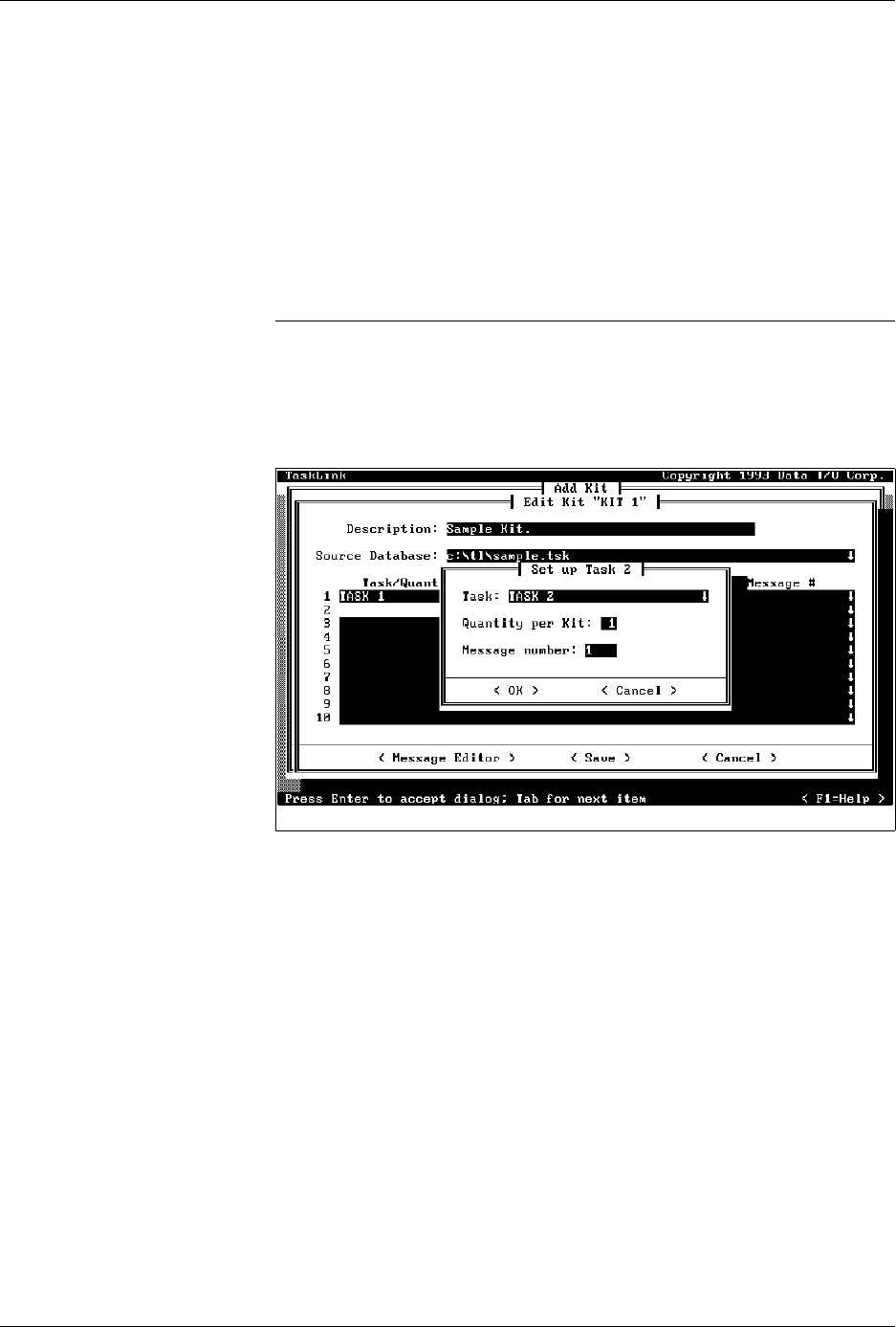
To add the next Task to this Kit, move the cursor to line 2 in the
Task/
Quantity/Message #
entry box and repeat the process. In Figure 3-26,
Task 2 has been selected and message number 1 has been entered.
Message Editor
Once you have specified an ASCII editor in the
Set Message Editor
option of the
Options
menu (refer to the Set Message Editor section on
page 3-30), you can access your editor by selecting the
< Message Editor>
pushbutton in the Edit Kit dialog box.
TaskLink runs the selected ASCII editor and looks for a file called
tl.msg
.
After the editor has opened the
tl.msg
file, type the tilde (~) followed by
the four digits used in the Message number entry field (see Figure 3-26).
Press
↵
to get to the next line.
Figure 3-26
Adding the Second Task to the Kit
Tasks and Kits
ProMaster 2500 User Manual 3-37
Type the message you want TaskLink to display on the screen to prompt
the system operator before the start of the next Task. Part of a sample
tl.msg text file showing the ~0001 message that would be displayed
before Task 2 is shown below, as it would appear in the unformatted file.
~0001
1. Change 2500 setup to program 32-pin DIP devices.
-----> REMEMBER: This is a DIP device so Pin 1
goes to the right.
2. Change and calibrate labels.
3. Adjust track width.
4. Insert new devices in input tube holder.
5. When ready, press “Enter” to start Task 2.
~0002
1. Change the 2500 setup for 20-pin PLCC devices.
-----> REMEMBER: This is a PLCC device so Pin
1 goes toward the back of the 2500....
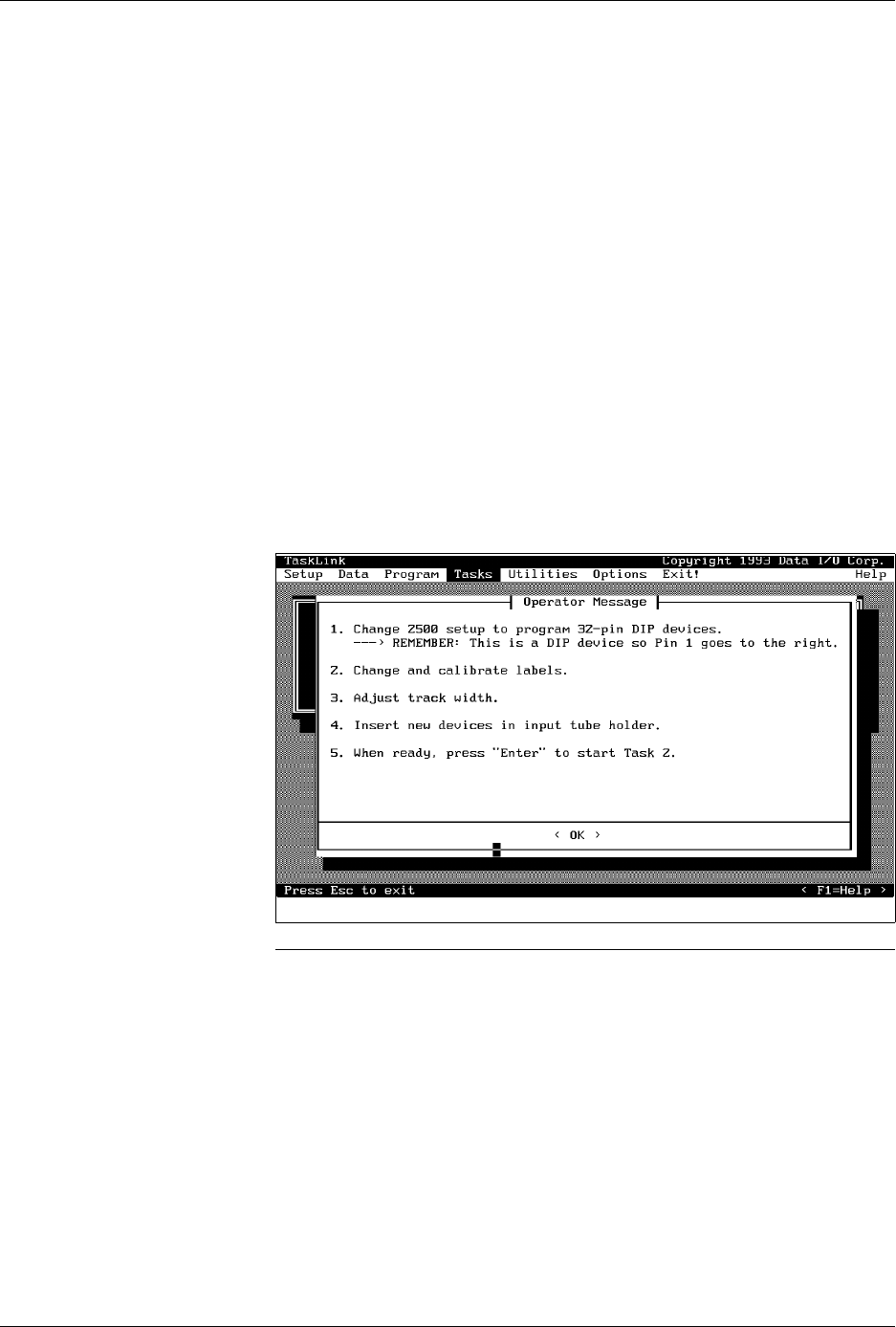
Figure 3-27 shows the screen that would be displayed for the system
operator before Task 2 begins.
Note: The
\b
code toggles bolding of text. Bolding does not wrap to the next line
— if you want bold text on the next line, you must enter
\b
at the
beginning of that line.
Figure 3-27
Sample Message Presented to
System Operator when Kit Is Run

Tasks and Kits
3-38 ProMaster 2500 User Manual
The requirements for user-created messages are described below:
• Message file must be an ASCII text file. Save the file as an
unformatted text file.
• Message file must be called
tl.msg
. TaskLink looks for a file with this
name. The maximum line length in this file is 66 characters.
• Each message number must begin with a tilde (~), followed by four
digits as in the following example: ~0023. The tilde and four-digit
number must be on a line by themselves. The message that will be
displayed includes all the text after the tilde and message number,
and before the next tilde in the file.
• Spacing and formatting is maintained (WYSIWYG) unless you use \b
(for bold). The \b does not appear on the screen and all characters
move to the left two spaces for every \b in the line.
Creating Task/Kit
Batch Files
You can create an ASCII batch file that allows you to run any combination
of Tasks and Kits in the order defined in the file. TaskLink reads the batch
file, searches the current Task Database file (last file used) for the Task/
Kit, and runs it using the normal screens.
Each line in the batch file (unformatted ASCII text file) is only required to
have the name of an existing Task or Kit. A sample file would look like
this:
First_task_name
Second_task_name
First_kit_name
If an optional Task Database file name is entered before the Task/Kit
name and is terminated by a double colon (
::
), TaskLink looks for the Task
in the specified Database file. The fourth line in the same sample file
below directs TaskLink to look in a Database file called
Not_current_file
to find a Kit called
Second_kit_name
.
First_task_name
Second_task_name
First_kit_name
Not_current_file::Second_kit_name
Note: Do not use two consecutive colons in Task or Kit names if you plan to use
those Tasks/Kits in batch files.
To run a batch file in administrator mode, select
Tasks
from the Main
menu. Choose a batch file from the list displayed, and press
↵
.