2500_Users_Manual - 第120页
Operation 4-6 ProMa ster 25 00 U ser Ma nual Entering Your Password The system administrator m ay configur e your Pr oMaster 25 00 for a security level that requires you to en ter a password before you see the main TaskL…
Operation
ProMaster 2500 User Manual 4-5
Starting the 2500
System
The system has been configured to power up in remote mode, ready to
communicate with TaskLink. To start the system, follow this brief
procedure:
1. Turn on the 2500. The 2500 will power up in remote mode.
2. On your PC, move to the directory where TaskLink is installed.
3. On your PC keyboard from the DOS prompt enter
tl
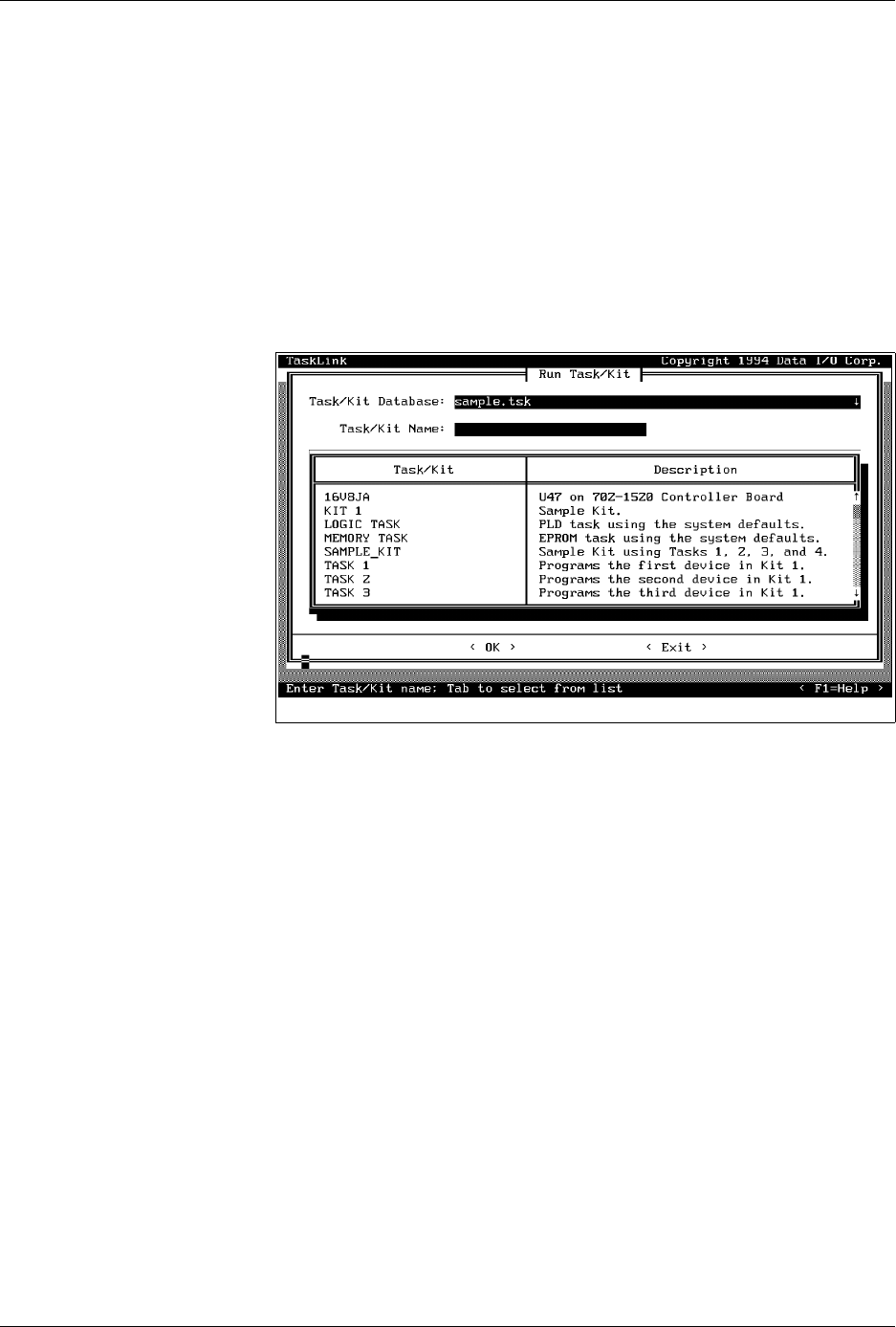
The main TaskLink screen is displayed.
Figure 4-2
TaskLink Operator Screen
Operation
4-6 ProMaster 2500 User Manual
Entering Your
Password
The system administrator may configure your ProMaster 2500 for a
security level that requires you to enter a password before you see the
main TaskLink screen. If your system is configured in this way, the first
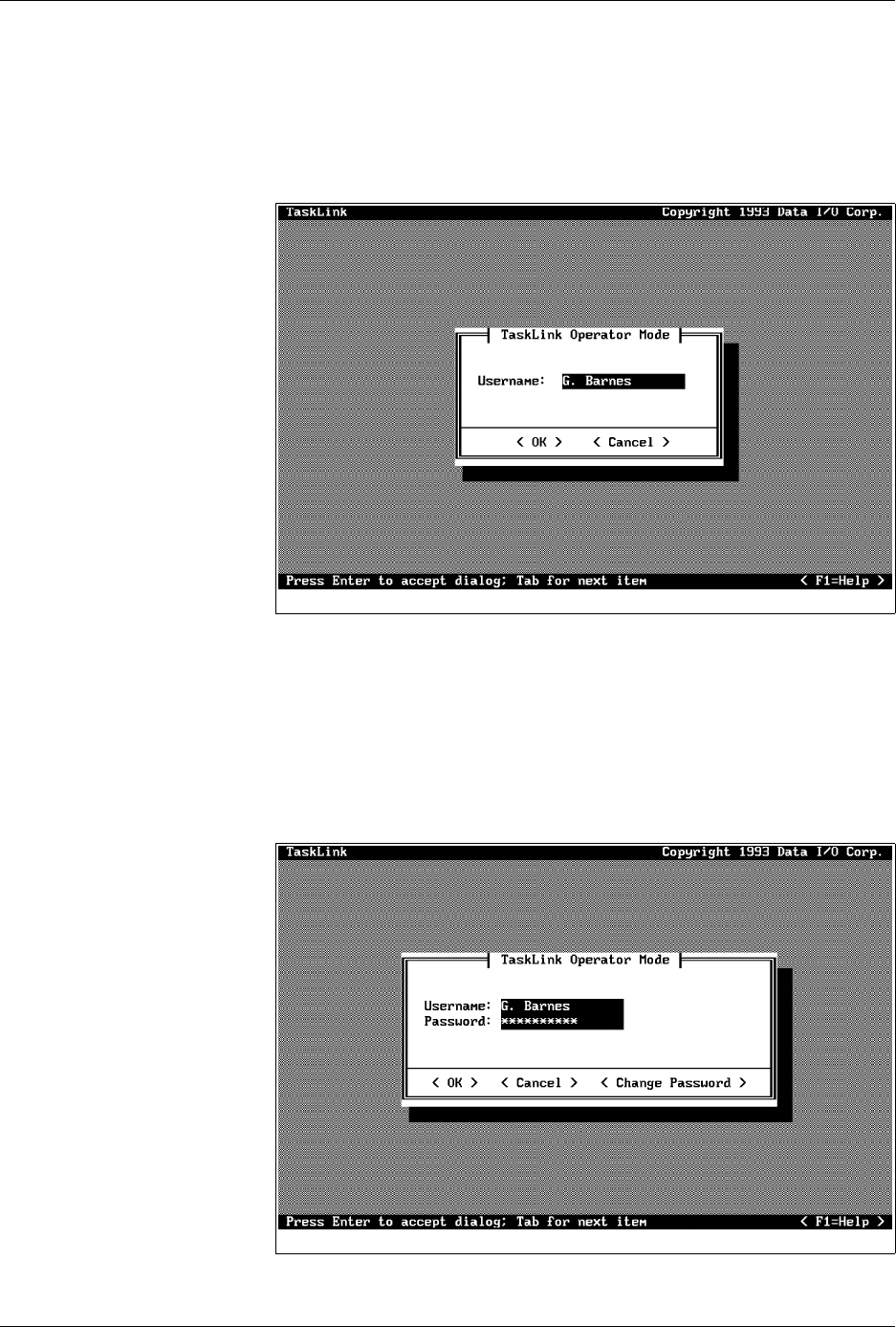
screen you see after starting TaskLink is a security screen (see Figure 4-3).
Enter your username as the system administrator has defined it for the
2500. Press
↵
.
A second security screen is displayed (see Figure 4-4). This screen
prompts you to enter your password. The default password is
password
.
Enter this the first time you use the 2500. You can enter a personal
password at any time by selecting the
Change Password
pushbutton.
You will be prompted to enter and confirm the new password before it is
accepted.
Figure 4-3
Enter Your Name on the Security
Screen
Figure 4-4
TaskLink Main Operator Screen

Operation
ProMaster 2500 User Manual 4-7
If you forget your password, the system administrator will have to
remove your name from the list of users and then re-enter it. This allows
you to start again with the default password.
Checking TaskLink
Communication with the
2500
To confirm that communication between TaskLink and the 2500’s
programming electronics has been established, press
C
TRL
+
F1
on the PC
keyboard.
Note: The 2500’s power-up self-test takes approximately two minutes to
complete. During this time, TaskLink will not be able to establish
communication with the 2500.
If a successful communication link is established, the PC screen displays a
green box that contains the following message:
Contact with programmer established
.
If there is a problem, the PC screen displays a red box that contains the
following message:
Attempting to contact programmer...
and the PC screen displays several suggested troubleshooting actions to
take to investigate the problem.
To confirm that communication between TaskLink and the Remote port
on the 2500 has been established, press
C
TRL
+
F2
on the PC keyboard.
If a successful communication link is established, the PC screen displays a
green box that contains the following message:
Contact with handler established
.
If there is a problem, the PC screen displays a red box that contains this
message:
Attempting to contact handler...
and the PC screen displays several suggested troubleshooting actions to
take to investigate the problem.
Reconfiguring the
System for a New
Device
This section describes the various steps you must check before you start a
Task using a new device type. The new part may have a different size or
be a different package type (such as DIP, SOIC, or PLCC). Each time you
change devices types between Tasks, answer the following questions and
reconfigure the 2500 if required before starting the new Task:
• Does the device need a different programming module?
• Does the programming module need to be reconfigured?
• Does the track width need to be adjusted?
• Does the track air need to be adjusted?
• Is the correct chuck installed on the beam?