2500_Users_Manual - 第152页
Operation 4-38 ProMa ster 25 00 U ser Ma nual Running a Kit Kits operate very much like Ta sks. If yo u are familiar w ith running a Task, you will find that the steps req uired to run a Kit are almost the same. The proc…
Operation
ProMaster 2500 User Manual 4-37
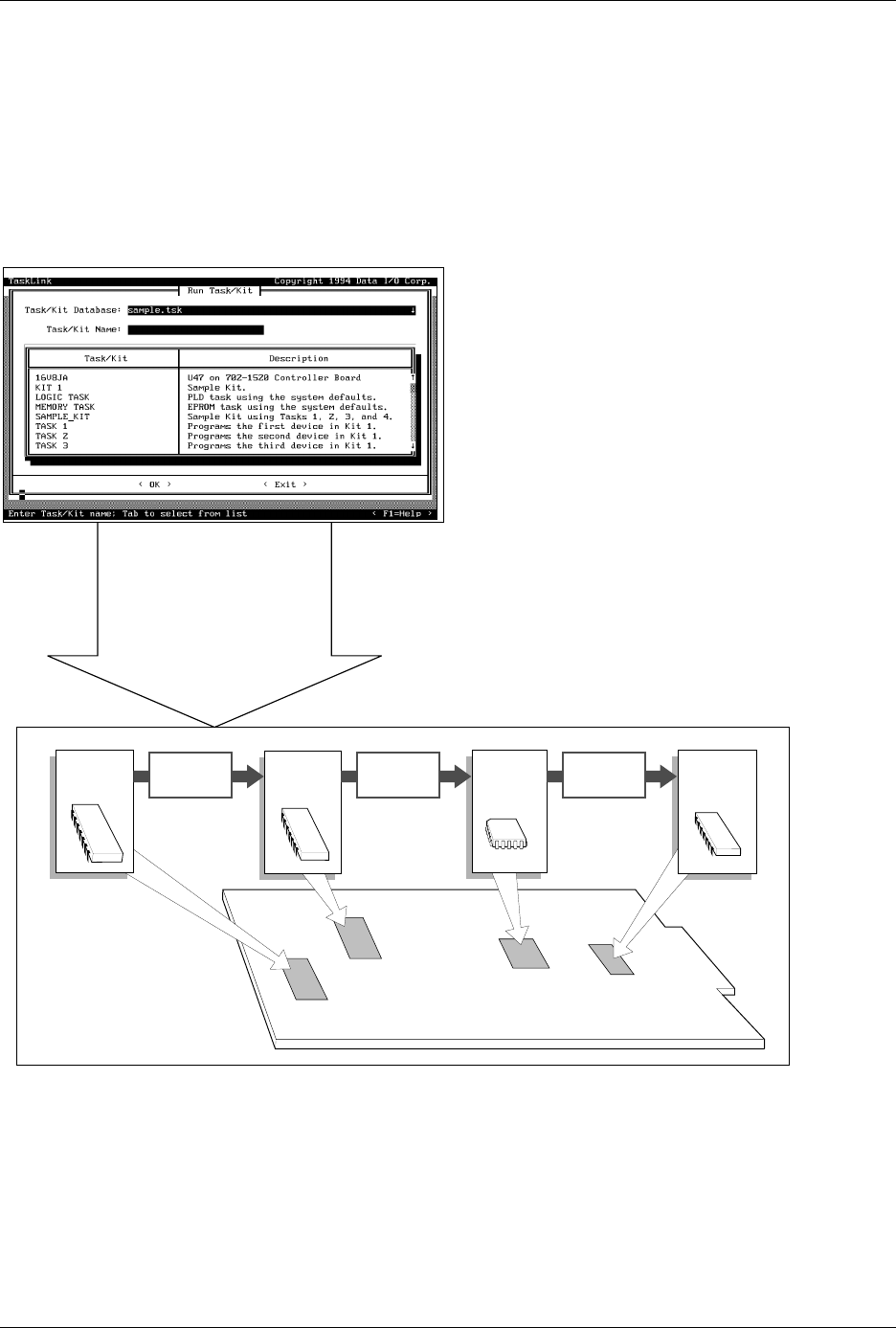
For example, assume that 60 boards need to be built. When the Kit for
these boards is run, Task 1 processes 60 devices and then TaskLink
displays a message prompting the system operator to change devices for
the second Task. After the operator inserts the new devices for Task 2 and
presses
↵
, TaskLink starts Task 2 and another 60 devices for that Task are
programmed. This process continues for Task 3 and Task 4.
Figure 4-30
Kits are a Series of Tasks in a Single Job
1958-2
Run Kit
Perform all Tasks in Kit
Number of Kits to Build
Session I.D.
Device
Process
•
•
•
•
•
Specify
Task 1
Task 2
Task 3
Task 4
Message
~0001
Message
~0002
Message
~0003

Operation
4-38 ProMaster 2500 User Manual
Running a Kit
Kits operate very much like Tasks. If you are familiar with running a
Task, you will find that the steps required to run a Kit are almost the
same. The process of running a Kit is outlined in the steps below. Refer to
Figure 4-31 to see the TaskLink screens associated with these steps.
1. Select a Kit from the
Run Task/Kit
list box. Kit names are displayed
on the screen with bold characters, Tasks appear as normal
characters.
2. The next screen asks if you want to perform all the Tasks in the Kit or
select just one Task. In most cases you will perform all the Tasks in
the Kit (the default selection). Press
↵
to run the entire Kit.
3. The
Process Devices
dialog box appears, prompting you for the
number of
Kits to Build
and a
Session I.D.
Enter the number of
devices you want to program and then press
↵
.
Note: The Session I.D. is an arbitrary string of printable characters that will
appear in the log file for your reference.
4. You will now see the normal series of Task dialog boxes appear.
Answer these as you do when running a single Task.
5. When the first Task has successfully programmed the number of
devices defined in the Process Devices dialog box, a programming
summary screen displays the results for the Task just completed.
Press
↵
to go on to the second Task in the Kit.
6. If your system administrator has created a message screen with
special instructions for the next Task, that screen is displayed. Once
you have completed these steps, press
↵
and TaskLink will begin
running the second Task in the Kit. If no message screen has been
created, the second Task started running when you pressed
↵
in step
5.
Note: Remember that between Tasks in the Kit, you may have to reconfigure the
2500 for a new device package type. This may require adjusting the track,
changing labels, changing and/or configuring the programming module,
and all the normal steps required before starting any new Task.
7. Continue in this sequence of steps until the last Task has completed.
At the end of the Kit’s run, a Kit Processing Results screen appears
with a summary of the Kit results.

Operation
ProMaster 2500 User Manual 4-39
Figure 4-31
Overview: Running a Kit (the number by each screen refers to the number of the step describing it on the previous
page.