2500_Users_Manual - 第175页
Preventi ve Mai nten ance ProM aster 25 00 User Manua l 5-21 TaskLink also allows you to download device data from a file on your PC. TaskLink sends the PE information on the data file format and then downloads the file.…

Preventive Maintenance
5-20 ProMaster 2500 User Manual
•
Pin Driver Board(s)
—Internally generated supply voltages serve as
inputs to the pin driver circuits from the waveform section of the
controller/waveform board. Control signals from the PCU
coprocessor on the controller/waveform board are also received and
used by the pin driver circuitry on the board to shape programming
waveforms. The pin driver controls the signal slew rates, current
source, and voltage levels required to provide precise programming
signals to the device installed in the programming module. These
signals are routed through the relay board to the SPA block and then
to the device.
•
Squirt Pin Assembly (SPA Block)
—This assembly has no active
circuitry but provides the shortest possible signal path between the
signal source and the device installed in the programming module.
•
Programming Modules
—Act as the interface between the device to
be tested/programmed and the PE. Modules are available for 300-
and 600-mil. (0.300-inch and 0.600-inch wide) DIP devices; 20-, 28-,
32-, 44-, 52-, 68-, and 84-pin PLCC devices; and 150-, 300-, 400-, and
500-mil SOIC devices. DIP modules use high quality contact sets to
establish contact with the device pins. PLCC devices are inserted into
a self-funneling programming block to achieve correct alignment.
The PE
Device List
disk (included in each update kit) lists the
supported devices and which programming module to use for a
specific device.
Self-calibration
The PE performs an automatic self-calibration of its supplies each time
the programmer is powered up and the self-test is run. The internal
power supply outputs +15V DC to the waveform section of the
controller/waveform board. This acts as the input to a precision voltage
regulator that outputs a +10V REF supply. This REF supply is used as the
input to digital-to-analog converter (DAC) controlled voltage and current
source circuits on the waveform board. One DAC outputs a comparator
reference (Comp Ref) voltage and the +10V REF supply is used to confirm
that the DAC output is correct.
The Comp Ref voltage is used, in turn, to verify the correct output voltage
levels of other supplies on the board. Additional comparator reference
levels are used on the pin driver board to confirm the output voltages as
they appear at the programming module. Overcurrent detection circuitry
is also tested during self-calibration. Waveform timing is derived from a
crystal-controlled programmable clock, which is driven off the main
system clock.
Programming Devices
The PE responds to computer remote control commands issued by
TaskLink, running on the PC. Data to be programmed into a device is
usually loaded from a master device or from a file. When a master device
is selected, the handler inserts the device into the programming module,
then the PE reads that data through the programming module contacts,
SPA pins, and pin drivers. Device data is stored in user RAM on the
controller/waveform board as an image of the fuses in the device. This
RAM data is preserved until a new device is loaded, RAM is changed by
the user, or the programmer is powered down.

Preventive Maintenance
ProMaster 2500 User Manual 5-21
TaskLink also allows you to download device data from a file on your
PC. TaskLink sends the PE information on the data file format and then
downloads the file. The PE translates the formatting information in the
file, discards all formatting characters and stores the data in RAM. The
PE signals TaskLink when it completes writing the file data into RAM.
TaskLink then sends the “program” command to the PE and the device is
programmed.
Conditions Requiring Corrective Action
To run the diagnostic tests and to make some of the adjustments, you
must operate the 2500 from its front panel in
local
mode. You cannot run
the tests using TaskLink.
To access the front panel from remote mode, press
LOWER CASE
+
L
. To
return to remote mode after completing the diagnostics and adjustments,
press
LOWER CASE
+
R
from the Main Menu.
Device Jams
The optics detect stopped or jammed devices and alert you to the
condition. Some common causes for device jams are listed below.
• The track width is not adjusted correctly for the device in the track.
• A partially full output tube was inserted in the tube holder. TaskLink
assumed the tube was empty and sent too many devices to the tube.
• The number of parts per tube is incorrect.
• The track is dirty so devices cannot travel smoothly.
• A device has bent leads that cause it to become wedged in the narrow
track.
• A device has foreign material (such as residual label adhesive) on the
surface.
• The output track air pressure is set too low for the size of the device.
• The transition height between the output tracks and the tubes is
incorrect. Adjust the output transition height screw (for the affected
track) for the correct tube thickness.
If a jam occurs in the output track and the 2500 stops operating, push the
jammed device with a wood or plastic pointer into the tube. When you
free the device, either the 2500 resumes operation automatically or you
may need to press
START
to continue operation.
If a device does not move easily down the input track due to bent pins or
some other condition, you might have to remove that device from the
input track and resume operation by pressing
START
or by restarting the
Task.
If a device falls off the chuck, replace it, press
START
and follow the
prompts on the 2500’s display. If the system times out, press
STOP
and
then
START
.
Preventive Maintenance
5-22 ProMaster 2500 User Manual
Faulty Printing
Printing Is Too Light
The ribbon is worn or broken, the print head is worn, or the print head
gap is too great.
Replace ribbon, or print head.
Adjust the print head gap (see page 5-24).
Characters Too Close
Together
Labels are loaded incorrectly, the rollers are dirty, or the motor or drive
circuitry is not operating properly.
Load the labels correctly, clean the rollers, and make sure the pinch
rollers are engaged (see page 2-9).
Check the label advance motor; run motor diagnostics.
Print Is Erratic or Slanting
Print head gap is too great, or the label drive is slipping.
Check and adjust the print head gap (see page 5-24), or clean the label
rollers.
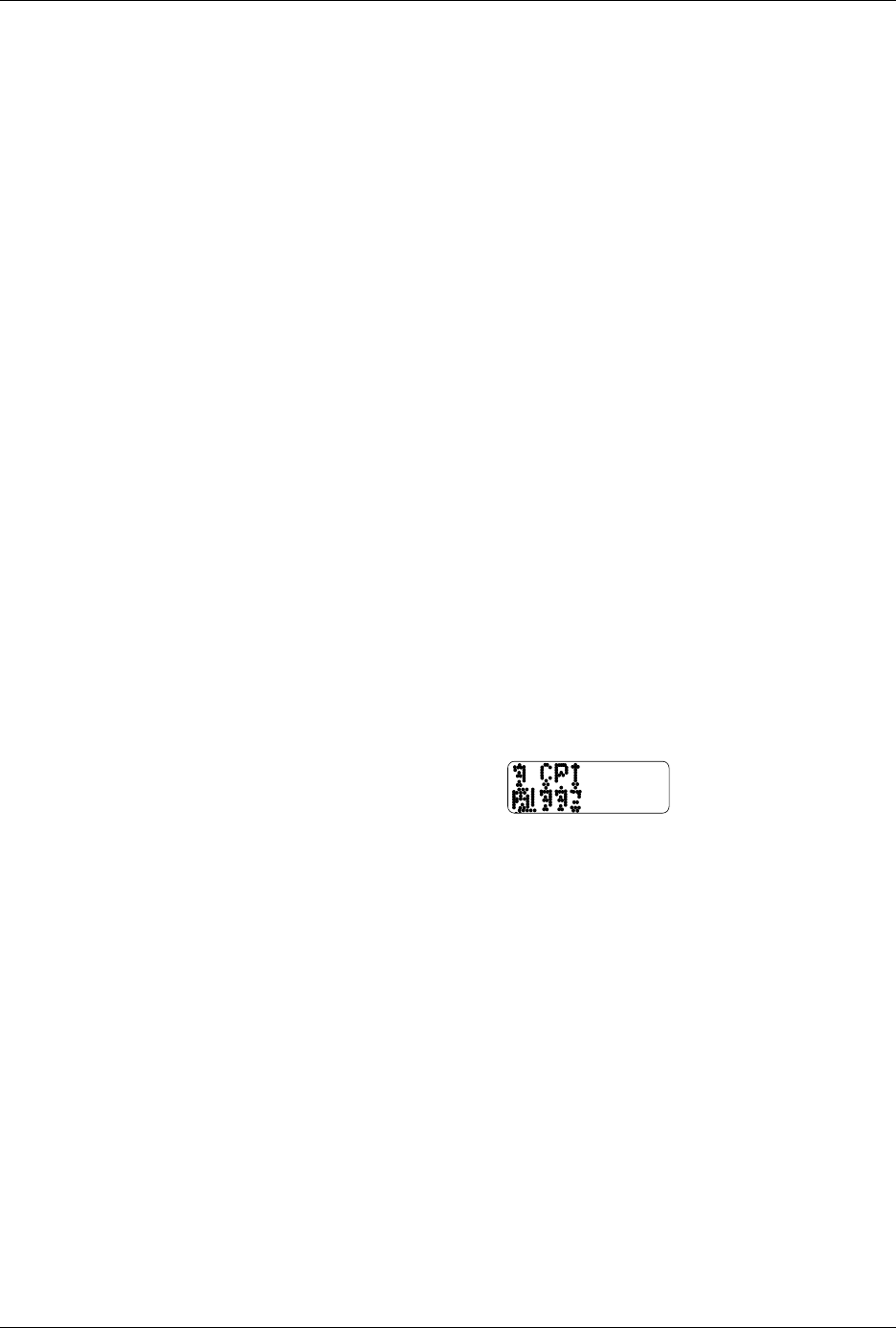
Dots in Characters Are
Missing
The cables may not be properly connected or they may be faulty. The
print head or handler controller board may not be operating properly.
The labeler power supply may not be at the correct voltage level. Check
the power supply voltage switch. If problem persists, contact Data I/O
Support (phone numbers listed in the Preface).
Check the LEDs on the handler controller board and evaluate the labeler
operation by running the print test.
Check the cable connections. Swap cables and see if different dots are
missing. Replace the print head (see page 7-13).
Characters Are Cut Off
If characters are cut off on the top and bottom of the label, try a smaller
font.
Check and adjust the label calibration (see page 5-25).
Miscellaneous
Beam Stalls
There is a problem with the motor driver, encoder, fuses, or wiring.
Lead screws need cleaning and lubrication. Also, inspect the shaft for
wear from bad bearings.
If cleaning does not correct the problem, reduce the motor speed to
increase the motor torque. Refer to the
LOWER CASE
+
M
command in
the “Firmware Keys” Appendix. Contact Data I/O Support (phone
numbers listed in the Preface) for assistance.
Figure 5-5
Missing Character Dots in Label
Printout
1591-1