2500_Users_Manual - 第179页
Preventi ve Mai nten ance ProM aster 25 00 User Manua l 5-25 Adjusting Position of Print on Label (Dot Matrix Printer) The left-to-righ t posit ion of cha racters on the label i s determined by label calibration. You can…

Preventive Maintenance
5-24 ProMaster 2500 User Manual
Corrective Adjustments
Changing Dot
Matrix Printer
Ribbon Cassette
Refer to the procedure on page 5-57.
Changing Thermal
Printer Ribbon
Refer to the procedure on page 5-59.
Adjusting Dot
Matrix Print Head
Gap
The print head gap is set at the factory and will not usually need to be
changed. If there are substantial changes in the thickness of the label or
label backing, however, you may need to make an adjustment. If the gap
between the platen and the print head is too wide, it may result in slanted
or fuzzy printing. If the gap is too narrow, the print ribbon may rub
against the labels, smudging them and making the background gray.
CAUTION: Dangerous high voltages are present. Do not perform this
procedure while power is on to the 2500. This procedure
should be performed only by a qualified service technician.
To adjust the print head height, follow these steps:
1. Turn off and unplug the 2500.
2. Remove the ribbon cartridge and labels.
3. Locate the two corner screws on the main plate that hold the plate in
position. Loosen these screws so the plate is free.
4. Lift the main plate so you can see inside the 2500’s base.
5. Locate the four hex screws on the back side of the print head that
hold it in position. Loosen the screws, but do not remove them.
6. When the print head is free to move, move it as far to the right as
possible, then adjust the gap between the print head and the
underside of the platen to approximately 0.018 inches.
7. Hold the print head in this position and tighten the four hex screws.

Preventive Maintenance
ProMaster 2500 User Manual 5-25
Adjusting Position
of Print on Label
(Dot Matrix Printer)
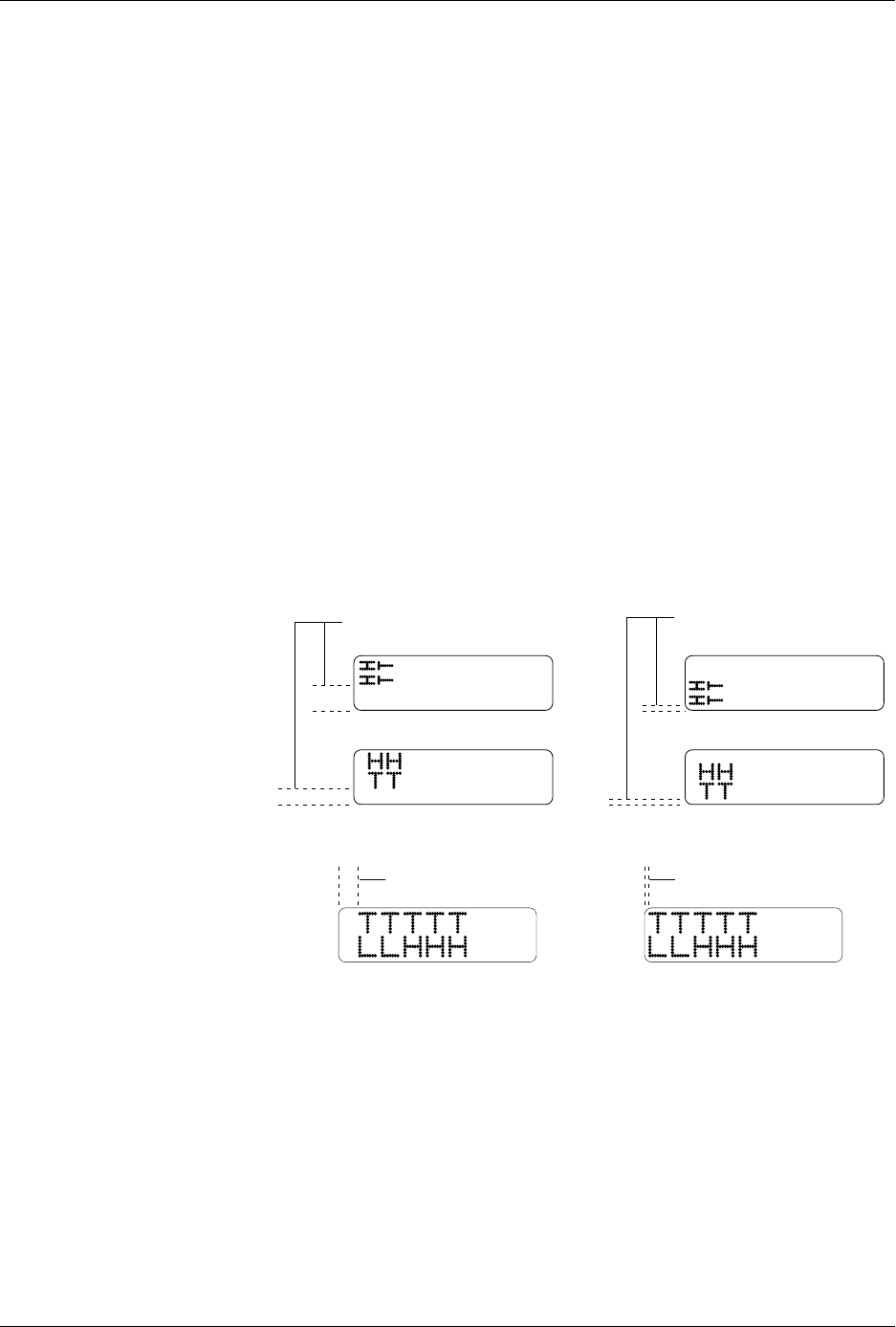
The left-to-right position of characters on the label is determined by label
calibration.
You can change the label calibration setting during a Task run by
pressing
STOP
and then
LOWER CASE
+
C
. The 2500 displays:
The
X
represents the current setting. The default setting places the first
column of print within 0.040 inches of the leading edge of the label.
Increasing the value one unit moves the print location approximately
0.005 inches to the right; decreasing the value moves it 0.005 inches to the
left. Enter a number from 0 to 255, and press
ENTER
.
If you change label calibration, press
CAL
to calibrate the label (see page
4-19).
Adjusting Position
of Label on Device
(Dot Matrix Printer)
The position of the label on the device is determined by the label
placement value. This is set in the system defaults to “Auto center,”
which instructs the 2500 to place the label on the true center of the device.
You can change label placement using a local mode command described
in Appendix F.
You can use the
Label Adjust
parameter to fine-tune label placement and
thereby adjust its centering while a Task is running. Press
STOP
and then
LOWER CASE
+
A
. The 2500 displays:
Enter a number from 0 to 255; each unit moves the label 0.01 inch closer to
the trailing edge. Press
ENTER
to accept the selection.
Note: This works only when “Auto center” is selected in the 2500 Setup/Labeler
menu.
Figure 5-6
Adjusting Label Calibration
ENTER LABEL CALIBRATION VALUE (X):
ENTER LABEL ADJUST VALUE (X):
1944-1
NORMAL
HIGHER VALUE
Preventive Maintenance
5-26 ProMaster 2500 User Manual
Adjusting Press
Bearings
Make sure the dot matrix printer’s application plate is aligned correctly
by holding a device in your fingers and sliding it across the application
plate, over the press bearings, and onto the bearing plate (see Figure 2-8).
The device should move smoothly across the press bearings.
If device travel is not smooth, use a 7/64-inch hex wrench to loosen (to
raise) or tighten (to lower) the screw on the left side of the plate (near the
bearings) until a smooth transition occurs (see Figure 2-8).
Adjusting Print
Position on the Label
(Thermal Printer)
Two parameters control the position of text and graphics on the label. By
changing the value of each parameter, the location of the text or graphics
printed on the label can be adjusted.
•The
print shift
value affects the vertical position of the printed image,
moving the position of characters or graphics from the top to bottom
of the label (Y axis). See Figure 5-7.
•The
label calibration
value affects the horizontal position of the
printed image on the label, moving the position of the text or
graphics from left to right (X axis). See Figure 5-8.
Print Shift
Change this value using the STOP command described in the following
procedure.
1. Press
STOP
to pause the 2500 while a Task is running.
2. Press
LOWER CASE
+
P
. The display on the 2500 prompts you to
enter a new value.
3. Press
↑
or
↓
to enter a new print shift value between 0 and 16.
Entering a larger numeric value moves the printed character higher
on the label.
4. Press
START
to continue running the Task.
Figure 5-7
Print Shift
(affects vertical position)
Figure 5-8
Label Calibration
(affects horizontal position)
1656-2
INCREASE DECREASE
2177-1
NORMAL
HIGHER VALUE